Creating Azure Support Tickets with PowerShell: A Step-by-Step Guide

24-7-IT-Support

Introduction

As cloud services become increasingly complex, the ability to manage and troubleshoot them effectively is crucial. Azure, Microsoft’s cloud computing service, offers a range of tools to help with this. Today, we’ll explore how you can leverage PowerShell, to create support tickets in Azure. This is particularly useful for automating support processes or integrating them into your existing PowerShell scripts.

Prerequisites
  • An Azure subscription
  • PowerShell installed on your system
  • Azure PowerShell Module

Step 1: Installing Azure PowerShell Module

First, ensure that the Azure PowerShell module is installed on your system. Open PowerShell and run:

Install-Module -Name Az -AllowClobber -Scope CurrentUser

Step 2: Authenticating with Azure

Next, log in to your Azure account using:

Connect-AzAccount

Follow the prompts to complete the authentication.

Continue reading “Creating Azure Support Tickets with PowerShell: A Step-by-Step Guide”
Automating Device Wipe in Microsoft 365 with PowerShell and Azure

In today’s digitally connected world, organizations often need to manage and secure their devices efficiently. This includes the ability to remotely wipe devices in case they are lost or stolen. Microsoft 365 offers powerful tools for device management and security, and with PowerShell and Azure, you can automate the process of wiping devices when needed.

In this blog post, we will walk you through a PowerShell script that utilizes Azure and Microsoft Graph API to search for a user and remotely wipe their devices if necessary. We will also include some Azure screenshots to help you visualize the process.

Prerequisites

Before we begin, make sure you have the following prerequisites in place:

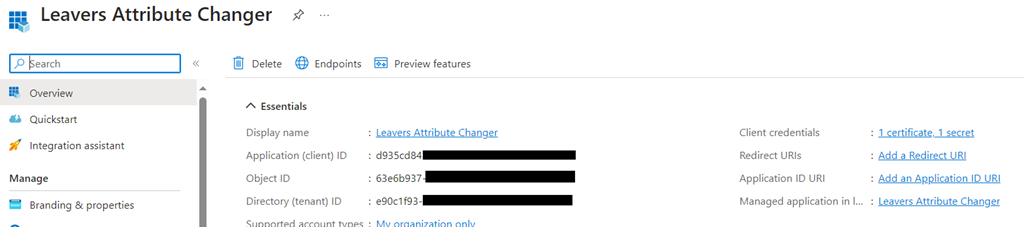
    Azure AD App Registration: You will need to register an Azure AD App and obtain the AppID and AppSecret for authentication.

Wipe_01

    Microsoft 365 Tenant: You should have access to a Microsoft 365 tenant, and you’ll need to know the tenant ID (e.g., $Tenant = “YourTenantName”).

Microsoft Graph API: Make sure you have permissions to use the Microsoft Graph API and can authenticate with the provided App ID and App Secret.

Wipe_02

Continue reading “Automating Device Wipe in Microsoft 365 with PowerShell and Azure”

Setting Up Custom Security Attributes with Microsoft Graph in Azure

Untitled design - 1

So, you’ve probably heard about custom security attributes in Azure AD, right? If not, let me break it down for you. Azure AD lets the cool tech folks (like you and me) craft our own attributes in the directory. Think of it as putting a custom sticker or label on certain users. Maybe you’ve got people working in specific departments or on particular projects? These custom attributes are like those name tags at networking events but way less awkward. And the best part? These can be a game-changer when you’re setting up stuff like conditional access policies.

Before diving deep, you’ll need the Microsoft.Graph module. It’s your gateway to all things Microsoft Graph when you’re in the PowerShell realm.

Alright, setting up a custom attribute. Graph isn’t going to hand-deliver this one, but here’s a workaround:

# First things first, connect to Graph
Connect-MgGraph


# Details for our new attribute
$attributeDetails = @{
     id = “customExtension_DepartmentCode”
     dataType = “String”
     targetObjects = [“User”]
} | ConvertTo-Json


# Now, make it real
Invoke-MgGraphRequest -Method POST -Uri “
https://graph.microsoft.com/v1.0/schemaExtensions” -Body $attributeDetails

Continue reading “Setting Up Custom Security Attributes with Microsoft Graph in Azure”

Creating a Self-Signed Certificates for Azure

OpenLock

When it comes to configuring applications or services that require SSL/TLS communication, having a self-signed certificate for testing or development purposes becomes almost indispensable. This is even more relevant when you’re dealing with services on Azure, where security is paramount.

Today, I’ll walk you through a PowerShell script that not only creates a self-signed certificate but also exports it in both .pfx and .cer formats.
Setting the Scene

Let’s start by defining some custom variables:

$friendlyName = “Azure SelfSigned Cert Name”
$subjectName = “CertificateName”
$certStorePath = “cert:\LocalMachine\My”
$exportPath = “C:\Temp\”
$passwordPlainText = “YourPasswordHere”

Here, $friendlyName is a descriptor for your certificate. $subjectName will serve as the Common Name (CN) for the certificate, and $certStorePath specifies the certificate store location in your system. Finally, $exportPath indicates where you want to save your certificate, and $passwordPlainText will be the password for your .pfx file.

Continue reading “Creating a Self-Signed Certificates for Azure”

Expressway – Exporting Banned addresses using PowerShell

Hey guys,

In this post I will show you one situation I came across this week.
Due some attacks we’ve been suffering, we decided to get all blocked IPs on Expressway and block them also in the local Firewall, as a workaround while we investigate it better.

The thing is, how can we export the list of Banned IP addresses on Expressway?
As I didn’t find anything, I decided to do on my way, automating it.

Continue reading “Expressway – Exporting Banned addresses using PowerShell”