Navigating the Transition from Azure Automation Update Management to Azure Update Manager: A Comprehensive Guide

update-manager-get-patches

As cloud technologies evolve, so too must the tools we rely on to maintain and secure our environments. Microsoft’s recent announcement regarding the retirement of Azure Automation Update Management is a prime example of this continuous evolution. By 31 August 2024, this service, along with the Log Analytics agent it uses, will be officially retired. Users will need to transition to the more advanced Azure Update Manager to ensure their virtual machines remain up-to-date and secure.

This blog post will explore the implications of this transition, the benefits of migrating to Azure Update Manager, and provide a detailed step-by-step guide for the most complex migration scenario—manual migration. This approach is ideal for those with intricate environments that require a high degree of customization and control.

The Shift to Azure Update Manager: What It Means for You

Azure Automation Update Management has been a reliable tool for managing the updates of virtual machines (VMs). However, with its retirement on the horizon, Microsoft is pushing for a transition to Azure Update Manager, a more integrated and feature-rich platform designed to offer greater flexibility, control, and scalability.

Why Migrate to Azure Update Manager?

Azure Update Manager is not just a replacement; it’s a significant upgrade. Here are some of the key improvements:

– Seamless Integration: Azure Update Manager is built natively into Azure’s infrastructure, providing zero-step onboarding for Azure VMs and Azure Stack HCI VMs, and easy integration with Azure Arc for managing non-Azure servers.

– Enhanced Control: With granular access control and role-based access control (RBAC), you can finely tune who has access to specific update management tasks, reducing the risk of unauthorized changes.

– Flexible Patching Options: Azure Update Manager offers advanced features such as customer-defined maintenance schedules, Azure-orchestrated automated patching, and hotpatching, which minimizes downtime by applying updates without requiring a reboot.

– Cost Efficiency: For managing Azure VMs and Azure Stack HCI VMs, Azure Update Manager is available at no extra charge. For Azure Arc-enabled servers, there’s a nominal fee of $5 per server per month.

Continue reading “Navigating the Transition from Azure Automation Update Management to Azure Update Manager: A Comprehensive Guide”

Microsoft Announces Mandatory MFA for All Azure Users

Authentication Icon

Microsoft has recently announced a significant change that will impact all Azure users: the mandatory implementation of Multifactor Authentication (MFA). This update aims to enhance security across the Azure platform by requiring additional verification for users accessing various Azure services.

Official Announcement: Read Microsoft’s MFA Requirement for Azure Users

Understanding the Changes

This update will affect all users interacting with the Azure Portal, Azure CLI, Azure PowerShell Modules, and Terraform when deploying to Azure. This includes guest accounts, service accounts, and break glass accounts.

Continue reading “Microsoft Announces Mandatory MFA for All Azure Users”

Automating Device Wipe in Microsoft 365 with PowerShell and Azure

In today’s digitally connected world, organizations often need to manage and secure their devices efficiently. This includes the ability to remotely wipe devices in case they are lost or stolen. Microsoft 365 offers powerful tools for device management and security, and with PowerShell and Azure, you can automate the process of wiping devices when needed.

In this blog post, we will walk you through a PowerShell script that utilizes Azure and Microsoft Graph API to search for a user and remotely wipe their devices if necessary. We will also include some Azure screenshots to help you visualize the process.

Prerequisites

Before we begin, make sure you have the following prerequisites in place:

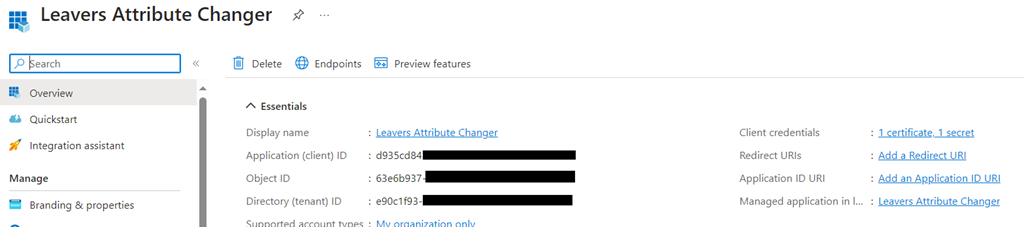
    Azure AD App Registration: You will need to register an Azure AD App and obtain the AppID and AppSecret for authentication.

Wipe_01

    Microsoft 365 Tenant: You should have access to a Microsoft 365 tenant, and you’ll need to know the tenant ID (e.g., $Tenant = “YourTenantName”).

Microsoft Graph API: Make sure you have permissions to use the Microsoft Graph API and can authenticate with the provided App ID and App Secret.

Wipe_02

Continue reading “Automating Device Wipe in Microsoft 365 with PowerShell and Azure”