How to Troubleshoot High Memory Pressure on an Azure VM Using Performance Diagnostics

Recently, I had to troubleshoot a case of performance degradation on an Azure VM. The key symptom was high memory pressure, which in Azure means the system is under heavy strain to fulfill memory requests — often leading to lag, paging, and slow performance.

To get to the root cause, we used Azure Performance Diagnostics (PerfInsights) — a powerful and easy-to-use troubleshooting tool. Here’s how you can install and use it from the Azure Portal, without needing to log in to the VM.

Continue reading “How to Troubleshoot High Memory Pressure on an Azure VM Using Performance Diagnostics”

Unlocking Nested Virtualization in Azure: A Step-by-Step Guide

Azure

Nested virtualization in Azure is a powerful feature that enables running a Hyper-V hypervisor within an Azure virtual machine (VM). This capability is invaluable for developers, machine learning engineers, and data scientists who require flexible and scalable environments for testing, development, or containerized applications. This post provides a step-by-step guide to setting up nested virtualization, ensuring you can leverage its full potential.


Prerequisites and Supported VM Sizes

Before diving into the setup, ensure you choose an Azure VM that supports nested virtualization. Compatible VM sizes include:

  • Dv3, Dsv3
  • Dv4, Dsv4
  • Ddv4, Ddsv4
  • Ev3, Esv3
  • Ev4, Esv4
  • F2s_v2 to F72s_v2
  • FX4 to FX48
  • M series

For most use cases, the Dv3 and Ev3 series are excellent choices. Make sure the VM size meets the system requirements for your intended workloads, such as Docker Desktop.


Step 1: Deploying an Azure VM

  1. Create the VM:
    • Log in to the Azure Portal.
    • Select a Windows Server image and choose a compatible VM size.
  2. Configure Networking:
    • Set up the required inbound and outbound port rules.
  3. Deploy:
    • Review your configuration and deploy the VM.

Continue reading “Unlocking Nested Virtualization in Azure: A Step-by-Step Guide”

Azure Function TimerTrigger1 failed due to timeout exception

Hello guys,

Today I’d like to share one of the issues that I had in Azure of one of the company customers I work for.

The customer has a script that turns VMs ON/OFF based on the time stated on the VM’s tag. For example, a VM has a tag “StartTime: 06:00” and “StopTime: 23:00”, this Azure Function runs every 1 hour and compares the current time with the time stated on the VM’s tag, if the time matches, the VM will be turned ON/OFF.

Everything was working very well, but when the customer decided to increase the number of tagged VMs, the Azure Function started returning with the timeout error. We initially thought it was the “Consumption plan”, which by default has a timeout of 5 minutes. We changed the plan, which allowed unlimited timeout (1 hour recommended by MS). And yet the function continues to give the timeout error.

AzFuntion_01

We decided to split the VMs with a trigger for each subscription (The initial Azure function varies all subscriptions by looking for the tag and comparing the time), it didn’t work either.

AzFuntion_02

We raised a ticket with MS, it took several days of troubleshoot and nothing to find the root cause of the problem. Until I decided to look deeper into the function code and realized that every time the function was executed and the script turned ON/OFF a VM, the function had a significant pause in between turning ON/OFF VMs.

AzFuntion_03

So I decided to add to the code -NoWait and guess what? It worked!! The timeout stopped happening and the function started to be executed in less than 2 minutes, even with several VMs being tagged.

Initial code: Start-AzVM -Name $vm.Name -ResourceGroupName $vm.ResourceGroupName

Final code: Start-AzVM -Name $vm.Name -ResourceGroupName $vm.ResourceGroupName –NoWait

Ps. I don’t want to share the whole code, as I took it from the customer environment.

Apparently the function worker was waiting for a return from the previous command (Stop or Start the tagged VM), but in some cases the return wasn’t happening and the function was getting stuck.

In the moment I added the command to ignore the return (-NoWait) the function started working perfectly again.

That’s all for today guys, see you later!

Joao Costa

Azure – Creating a basic environment using PowerShell

AzEnvironment_01

Hi folks,

In this article we will deploy a complete environment via PowerShell (Based on the latest series of articles). The intention with this series of articles was to assist you in the creation of each resource and then in an automated way, help in the delivery of projects or start projects with PowerShell.

Azure-Script

What’s in this script:

Resource Group;
Storage Account;
File Share;
Containers for Logs;
Network Creation;
Virtual Machine Creation;
Creation Network card;
Creation of the Network Security Group;

#Script:

$RGNAME= “RG_GETPRACTICAL”
$LOCATION= “WESTEUROPE”
New-AzResourceGroup -Name $RGNAME -Location $LOCATION -Tag @{Department=”IT”}

#Storage Account creation

$RGNAME= “RG_GETPRACTICAL”
$LOCATION= “WESTEUROPE”
$STRGACCNAME= “strggetpractical02”
$TypeSTRG= “Standard_LRS”
New-AzStorageAccount -ResourceGroupName $RGNAME -Name $STRGACCNAME -Type $TypeSTRG -Location $LOCATION

#Creating a Container for Logs via Powershell

$STORAGEACCOUNT = Get-AzStorageAccount -ResourceGroupName $RGNAME -Name $STRGACCNAME
$CONTAINERNAME = “logs”
$CTX = $storageAccount.Context

New-AzStorageContainer -Name $containerName -Context $ctx -Permission blob

#Creating a FileShare

$STORAGEACCOUNT = Get-AzStorageAccount -ResourceGroupName “RG_GETPRACTICAL” -Name $STRGACCNAME
$storageKey = (Get-AzStorageAccountKey -ResourceGroupName $storageAccount.ResourceGroupName -Name $storageAccount.StorageAccountName | select -first 1).Value
$storageContext = New-AzStorageContext -StorageAccountName $storageAccount.StorageAccountName -StorageAccountKey $storageKey
New-AzStorageShare -Name “getpracticalshare” -Context $storageContext

#Creating a Virtual Network

$RGName= “RG_GETPRACTICAL”
$LOCATION= “WESTEUROPE”
$NameVnet=”VNet-GETPRACTICAL”
New-AzVirtualNetwork -Name $NameVnet -ResourceGroupName $RGName -Location $location -AddressPrefix 172.16.1.0/24
$VirtualNetwork = Get-AzVirtualNetwork -Name $NameVnet -ResourceGroupName $rgName
Add-AzVirtualNetworkSubnetConfig -Name BackEnd -VirtualNetwork $VirtualNetwork -AddressPrefix 172.16.1.0/26
Add-AzVirtualNetworkSubnetConfig -Name FrontEnd -VirtualNetwork $VirtualNetwork -AddressPrefix 172.16.1.64/26
Add-AzVirtualNetworkSubnetConfig -Name DMZ -VirtualNetwork $VirtualNetwork -AddressPrefix 172.16.1.128/28
Add-AzVirtualNetworkSubnetConfig -Name GatewaySubnet -VirtualNetwork $VirtualNetwork -AddressPrefix 172.16.1.144/28
Set-AzVirtualNetwork -VirtualNetwork $VirtualNetwork

#Creating the Virtual Machine

# Set values for existing resource group and storage account names.

$RGNAME= “RG_GETPRACTICAL”
$LOCATION= “WESTEUROPE”
$NSGName=”NSG-VM-01″

#Get VM credentials

#$CRED=Get-Credential -Message “Enter the local administrator account name and password.”

$VMLocalAdminUser = “jcosta
$VMLocalAdminSecurePassword = ConvertTo-SecureString “GPractical@2022” -AsPlainText -Force
$CRED=New-Object System.Management.Automation.PSCredential ($VMLocalAdminUser, $VMLocalAdminSecurePassword);

#Set the existing virtual subnet and network index.

$VNETNAME=”VNet-GETPRACTICAL”
$subnetIndex=0
$VNET=Get-AzVirtualNetwork -Name $VNETName -ResourceGroupName $RGName

#Creating a NIC with Pulic IP.

$NIC1=”NIC1-GP-VM-01″
$PIP=New-AzPublicIpAddress -Name $NIC1 -ResourceGroupName $RGName -Location $LOCATION -AllocationMethod Dynamic
$NIC=New-AzNetworkInterface -Name $NIC1 -ResourceGroupName $RGName -Location $LOCATION -SubnetId $vnet.Subnets[$subnetIndex].Id -PublicIpAddressId $PIP.Id

# Creating a NIC without Pulic IP

$NIC2=”NIC2-GP-VM-01″
$VNET=Get-AzVirtualNetworkSubnetConfig -Name Backend -VirtualNetwork $VNET
$NIC=New-AzNetworkInterface -Name $NIC2 -ResourceGroupName $RGName -Location $LOCATION -SubnetId $VNET.Id
$PIP.Id

#Setting NSG Rules

$RULES=New-AzNetworkSecurityRuleConfig -Name ‘Allow-RDP’ -Direction Inbound -Priority 1000 -Access Allow -SourceAddressPrefix ‘*’ -SourcePortRange ‘*’ -DestinationAddressPrefix ‘*’ -DestinationPortRange 3389 -Protocol Tcp
$NSG=New-AzNetworkSecurityGroup -Name $NSGName -ResourceGroupName $RGName -Location $LOCATION -SecurityRules $RULES

# VM Name and Size

$VMName=”GP-VM-01″

$VMSize=”Standard_DS2_v2″
$VM=New-AzVMConfig -VMName $VMName -VMSize $VMSize

#Specify the image and local administrator account and then add the NIC.

$PUBName=”MicrosoftWindowsServer”
$OFFERName=”WindowsServer”
$SKUName=”2019-Datacenter”
$VM=Set-AzVMOperatingSystem -VM $VM -Windows -ComputerName $VMName -Credential $CRED -ProvisionVMAgent -EnableAutoUpdate
$VM=Set-AzVMSourceImage -VM $VM -PublisherName $PUBName -Offer $OFFERName -Skus $SKUName -Version “latest”
$VM=Add-AzVMNetworkInterface -VM $VM -Id $NIC.Id

#Specify the OS disk name and create the VM

$DISKName=”OSDisk”
$STORAGEACCOUNT=Get-AzStorageAccount -ResourceGroupName $RGNAME -Name $STRGACCNAME
$OSDiskUri=$STORAGEACCOUNT.PrimaryEndpoints.Blob.ToString() + “vhds/” + $VMName + $DISKName + “.vhd”
$VM=Set-AzVMOSDisk -VM $VM -Name $DISKName -VhdUri $OSDiskUri -CreateOption fromImage
New-AzVM -ResourceGroupName $RGName -Location $LOCATION -VM $VM

#EndoftheScript

That’s all for today folks, see you soon.

Joao Paulo Costa

Azure Arc – How to add a server into it

image

Hey guys!

Today I’m going to talk about Azure Arc. This is a very useful tool nowadays, after all we have to work with more complex and heterogeneous environments. Therefore, the idea of being able to manage an entire infrastructure from a single access point saves many hours of work.

Well then, that is the role of Azure Arc. In it you can add Azure or non-azure resources, that is, other resources from other public clouds, on-premises, databases, etc.

Again, this is an intuitive and practical resource to use, let’s get right to the practice again.

Log in with your Azure account on the portal and type in the search bar “Azure Arc”. Open Azure Arc and you should see the Azure Arc Center.

image

On the home screen you have three tiles options, such as: Add your infrastructure for free, Deploy Azure Services and View Azure Arc Resources.

For this demo, we will use the first tile, so in “Add your infrastructure for free” click Add and then on the next screen, in the Servers tile click Add again.

image

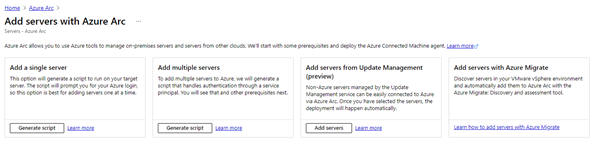
On the next screen you can choose if you want to add one or more servers, add servers using Azure Migrate or Update Management (Still in preview).

image

In the tile add a single server, click Generate Script.

From now on I believe you already understand what will happen, Azure will open a wizard that will help you configure and generate a script that will do everything for you, such as downloading the agent, installing the agent and registering the server in Azure. You will only need to run the script on the server you intend to add to Azure Arc.

After clicking on Generate Script, you will see the following screen:

image

On this screen, you will need to pay attention to the basic requirements for the script to work.

  • Firewall requirements, you will need port 443 to perform this task.
  • You will need permission as a local administrator on the server or servers.
  • Finally, what is the means of communication between Azure and machine, public internet, proxy server or a private endpoint (VPN or Express Route).

Click next and select the options according to your environment.

image

Click on next and if that’s the case you can add tags to better identify your environment. Or just skip to the next screen.

image

Or just skip to the next screen.

image

Now you need to copy or download the script and run it on the intended server.

And as soon as you run the script on the desired server, it will show up in Azure Arc as Connected status.

That’s all for today guys, until the next post.

Joao Costa