How to Automate Azure Virtual Machine Power On Using Logic Apps

Azure-Logic-Apps

In today’s rapidly evolving IT landscape, automation is key to managing complex environments efficiently. Azure Logic Apps offers a powerful, low-code solution for automating workflows across a variety of services. One practical use case for Azure Logic Apps is automating the power management of Azure Virtual Machines (VMs), such as scheduling a VM to power on at a specific time. This can be particularly useful for managing development or testing environments, reducing costs by ensuring that VMs are not running when not needed. Here’s how you can automate the power-on process for an Azure VM using Logic Apps.

Prerequisites

Before we dive into the steps, ensure you have the following:

  • An Azure subscription.
  • An Azure Virtual Machine you want to automate.
  • Basic understanding of Azure Logic Apps.

image

Continue reading “How to Automate Azure Virtual Machine Power On Using Logic Apps”

Creating Azure Support Tickets with PowerShell: A Step-by-Step Guide

24-7-IT-Support

Introduction

As cloud services become increasingly complex, the ability to manage and troubleshoot them effectively is crucial. Azure, Microsoft’s cloud computing service, offers a range of tools to help with this. Today, we’ll explore how you can leverage PowerShell, to create support tickets in Azure. This is particularly useful for automating support processes or integrating them into your existing PowerShell scripts.

Prerequisites
  • An Azure subscription
  • PowerShell installed on your system
  • Azure PowerShell Module

Step 1: Installing Azure PowerShell Module

First, ensure that the Azure PowerShell module is installed on your system. Open PowerShell and run:

Install-Module -Name Az -AllowClobber -Scope CurrentUser

Step 2: Authenticating with Azure

Next, log in to your Azure account using:

Connect-AzAccount

Follow the prompts to complete the authentication.

Continue reading “Creating Azure Support Tickets with PowerShell: A Step-by-Step Guide”

Automating Device Wipe in Microsoft 365 with PowerShell and Azure

In today’s digitally connected world, organizations often need to manage and secure their devices efficiently. This includes the ability to remotely wipe devices in case they are lost or stolen. Microsoft 365 offers powerful tools for device management and security, and with PowerShell and Azure, you can automate the process of wiping devices when needed.

In this blog post, we will walk you through a PowerShell script that utilizes Azure and Microsoft Graph API to search for a user and remotely wipe their devices if necessary. We will also include some Azure screenshots to help you visualize the process.

Prerequisites

Before we begin, make sure you have the following prerequisites in place:

    Azure AD App Registration: You will need to register an Azure AD App and obtain the AppID and AppSecret for authentication.

Wipe_01

    Microsoft 365 Tenant: You should have access to a Microsoft 365 tenant, and you’ll need to know the tenant ID (e.g., $Tenant = “YourTenantName”).

Microsoft Graph API: Make sure you have permissions to use the Microsoft Graph API and can authenticate with the provided App ID and App Secret.

Wipe_02

Continue reading “Automating Device Wipe in Microsoft 365 with PowerShell and Azure”

Azure Function TimerTrigger1 failed due to timeout exception

Hello guys,

Today I’d like to share one of the issues that I had in Azure of one of the company customers I work for.

The customer has a script that turns VMs ON/OFF based on the time stated on the VM’s tag. For example, a VM has a tag “StartTime: 06:00” and “StopTime: 23:00”, this Azure Function runs every 1 hour and compares the current time with the time stated on the VM’s tag, if the time matches, the VM will be turned ON/OFF.

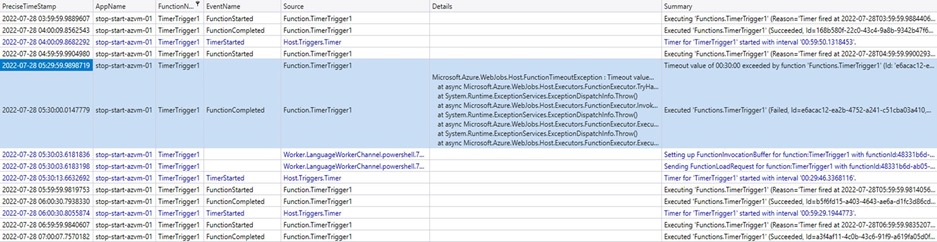
Everything was working very well, but when the customer decided to increase the number of tagged VMs, the Azure Function started returning with the timeout error. We initially thought it was the “Consumption plan”, which by default has a timeout of 5 minutes. We changed the plan, which allowed unlimited timeout (1 hour recommended by MS). And yet the function continues to give the timeout error.
AzFuntion_01

We decided to split the VMs with a trigger for each subscription (The initial Azure function varies all subscriptions by looking for the tag and comparing the time), it didn’t work either.

AzFuntion_02

We raised a ticket with MS, it took several days of troubleshoot and nothing to find the root cause of the problem. Until I decided to look deeper into the function code and realized that every time the function was executed and the script turned ON/OFF a VM, the function had a significant pause in between turning ON/OFF VMs.

AzFuntion_03

So I decided to add to the code -NoWait and guess what? It worked!! The timeout stopped happening and the function started to be executed in less than 2 minutes, even with several VMs being tagged.

Initial code: Start-AzVM -Name $vm.Name -ResourceGroupName $vm.ResourceGroupName

Final code: Start-AzVM -Name $vm.Name -ResourceGroupName $vm.ResourceGroupName –NoWait

Ps. I don’t want to share the whole code, as I took it from the customer environment.

Apparently the function worker was waiting for a return from the previous command (Stop or Start the tagged VM), but in some cases the return wasn’t happening and the function was getting stuck.

In the moment I added the command to ignore the return (-NoWait) the function started working perfectly again.

That’s all for today guys, see you later!

Joao Costa