How to Use Azure Policy for Better Cloud Management

When you work in the cloud, keeping things organised is very important. Azure Policy is a simple tool that helps enforce rules on your resources. In this post, I’ll explain what Azure Policy is and show you a basic example of using it to require a tag on all your resources.

What is Azure Policy?

Azure Policy lets you set rules for your cloud resources. For example, you might want every resource to have a tag called Cost Centre so you know which department it belongs to. If someone tries to create a resource without that tag, the policy can stop it from being created.

This tool is very useful because it helps everyone on your team follow the same guidelines and keeps your cloud resources well organised.

A Simple Example: Requiring a "Cost Centre" Tag

In this example, we’ll create a custom policy that requires every resource to have a Cost Centre tag. If the tag is missing, the resource won’t be allowed.

Overview of the Steps
  1. Create the policy rule file.

  2. Create the policy parameters file.

  3. Create the policy definition in Azure using the Azure CLI.

  4. Assign the policy to a scope.

  5. Check if your policy is working.

Continue reading “How to Use Azure Policy for Better Cloud Management”
Automating Device Wipe in Microsoft 365 with PowerShell and Azure

In today’s digitally connected world, organizations often need to manage and secure their devices efficiently. This includes the ability to remotely wipe devices in case they are lost or stolen. Microsoft 365 offers powerful tools for device management and security, and with PowerShell and Azure, you can automate the process of wiping devices when needed.

In this blog post, we will walk you through a PowerShell script that utilizes Azure and Microsoft Graph API to search for a user and remotely wipe their devices if necessary. We will also include some Azure screenshots to help you visualize the process.

Prerequisites

Before we begin, make sure you have the following prerequisites in place:

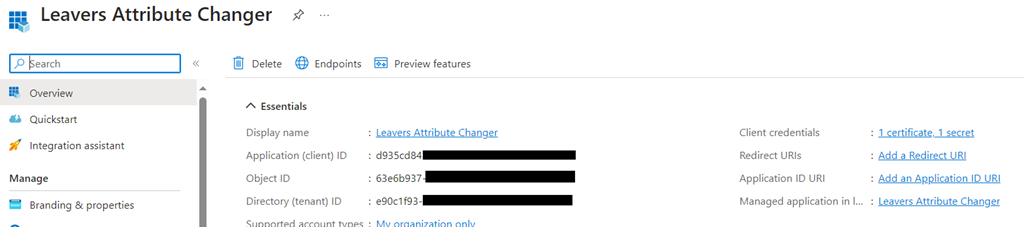
    Azure AD App Registration: You will need to register an Azure AD App and obtain the AppID and AppSecret for authentication.

Wipe_01

    Microsoft 365 Tenant: You should have access to a Microsoft 365 tenant, and you’ll need to know the tenant ID (e.g., $Tenant = “YourTenantName”).

Microsoft Graph API: Make sure you have permissions to use the Microsoft Graph API and can authenticate with the provided App ID and App Secret.

Wipe_02

Continue reading “Automating Device Wipe in Microsoft 365 with PowerShell and Azure”