Automating Device Wipe in Microsoft 365 with PowerShell and Azure

In today’s digitally connected world, organizations often need to manage and secure their devices efficiently. This includes the ability to remotely wipe devices in case they are lost or stolen. Microsoft 365 offers powerful tools for device management and security, and with PowerShell and Azure, you can automate the process of wiping devices when needed.

In this blog post, we will walk you through a PowerShell script that utilizes Azure and Microsoft Graph API to search for a user and remotely wipe their devices if necessary. We will also include some Azure screenshots to help you visualize the process.

Prerequisites

Before we begin, make sure you have the following prerequisites in place:

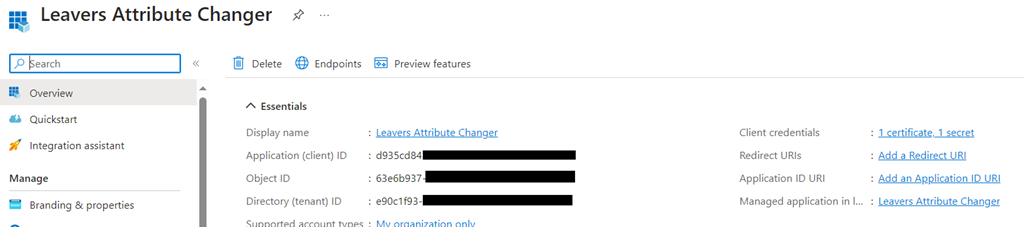
    Azure AD App Registration: You will need to register an Azure AD App and obtain the AppID and AppSecret for authentication.

Wipe_01

    Microsoft 365 Tenant: You should have access to a Microsoft 365 tenant, and you’ll need to know the tenant ID (e.g., $Tenant = “YourTenantName”).

Microsoft Graph API: Make sure you have permissions to use the Microsoft Graph API and can authenticate with the provided App ID and App Secret.

Wipe_02

Continue reading “Automating Device Wipe in Microsoft 365 with PowerShell and Azure”

Configuring Azure Administrative Units

Hey guys,

I’m back and today I’m going to talk about Azure Administrative Units. The idea to talk about this came from a recent request from one of the customers of the company I currently work for.

The request was that due to the fact that the customer has several sites, in different countries, the IT department needed to have an administrator in each of these locations, but this administrator would still need to manage only the users from that specific location.

Well, to start, I need to say that to make use of Administrative Units, you need to have at least the Azure AD Premium P1 license. That said, let’s get down to business.

Open Azure and go to Azure Active Directory

AU_01

You will find the Administrative Units option in the Manage blade on the left side.

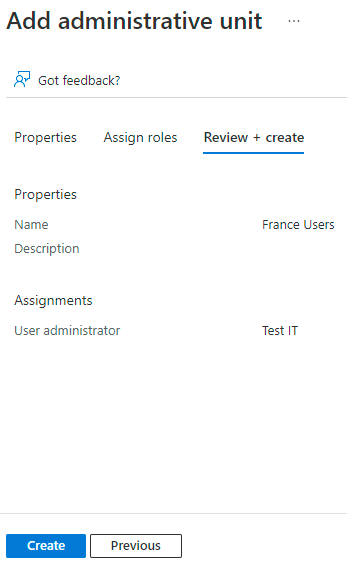
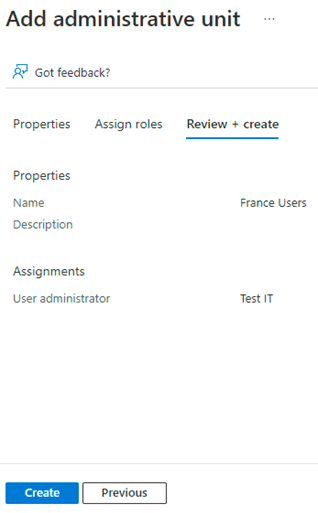
Click on Administrative Units and then hit Add. The next step will now be to give a name to the Administrative Unit, select which Role the administrator will have and  finally select the user who will be the administrator itself.
AU_02

Well, in this scenario I configured as follows:

  • Name: France Users
  • Role: User Administrator
  • Administrative Unit Administrator: IT Test

To recap, the user “IT Test” will have the role “User Administrator” in the Administrative Unit called “France Users”

OK? Now it’s simple, we just need to put the users that would be managed by the Administrative Unit Administrator manually or through a Dynamic Rule in the Administrative Unit.

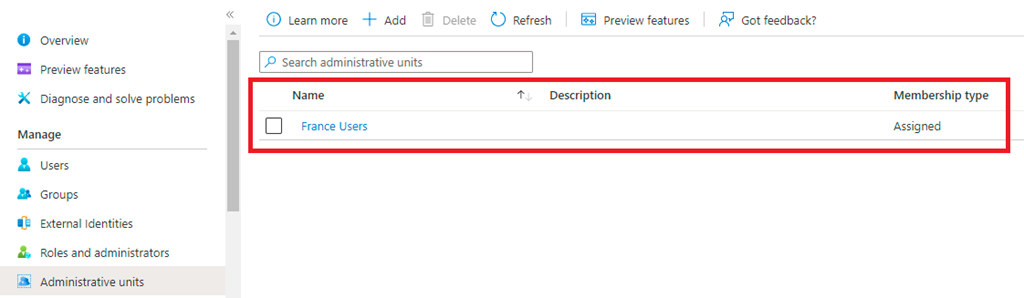
Returning to the portal, click on Administrative Units and you should see the Administrative Unit that was created according to the previous steps.

AU_03

As you can see, by default when you create an Administrative Unit the “Membership Type” option is set to assigned, that is, you need to add users manually.

But we know that this is a flawed process and sooner or later you will miss an user and we know where this can go, so automating this process is the best solution, and that’s where the Dynamic Rule comes in.

Ok, go back to the portal and click on the Administrative Unit you created earlier and you should see something similar to the image below.

AU_04

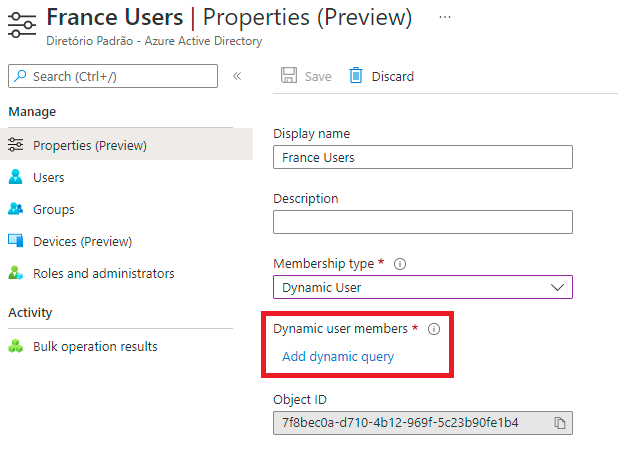
Now click on Properties (Preview) and then change the Membership Type option to Dynamic User and then suggest an option called “Add Dynamic Query”

AU_05

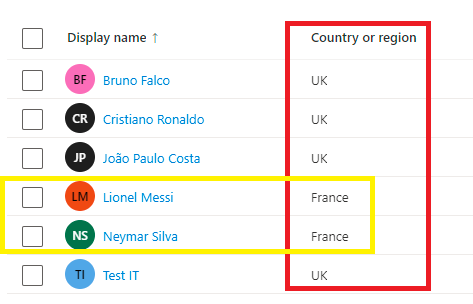
Click on “Add Dynamic Query” and configure the rule that best suits your scenario. In my scenario I will base myself on the user’s Country being “France”.

AU_06

Hit save twice and the Dynamic Query has been created. That is, every user that is created or changed in Azure AD and in its country of location is France, it will be automatically added to this Administrative Unit.

AU_08

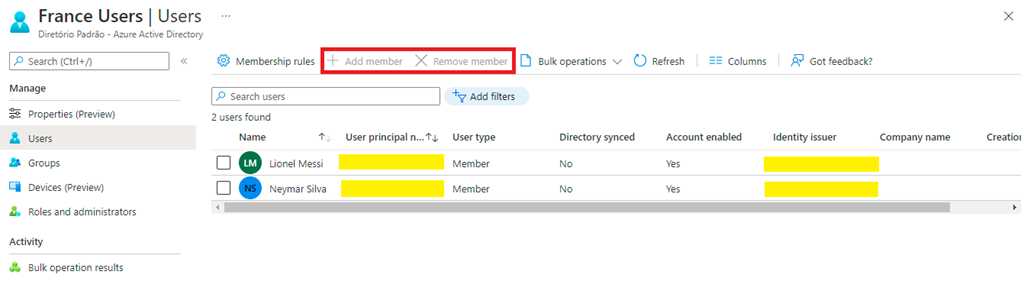
Ok, within a few minutes you will see that the users blade inside your Administrative Unit will start to be populated by all those users that apply the created rule.

AU_07

There it’s, my users from France have been added to the Administrative Unit and as you can see the options to add and remove member are greyed out.

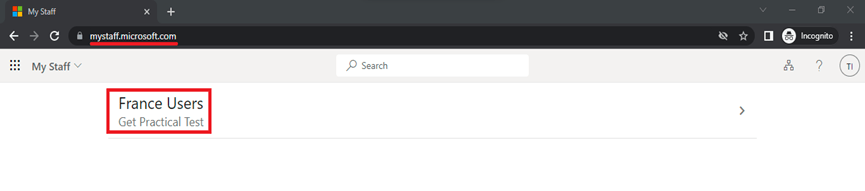
Now you might be wondering, how do I test this? Simple, your administrator needs to log either into admin.microsoft.com or mystaff.microsoft.com.
AU_09

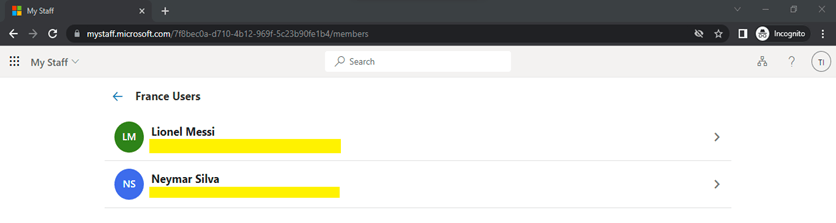
After the logon, ask your Administrative Unit administrator to select the wanted Administrative Unit and he will be able to see all the users he manages.
AU_10

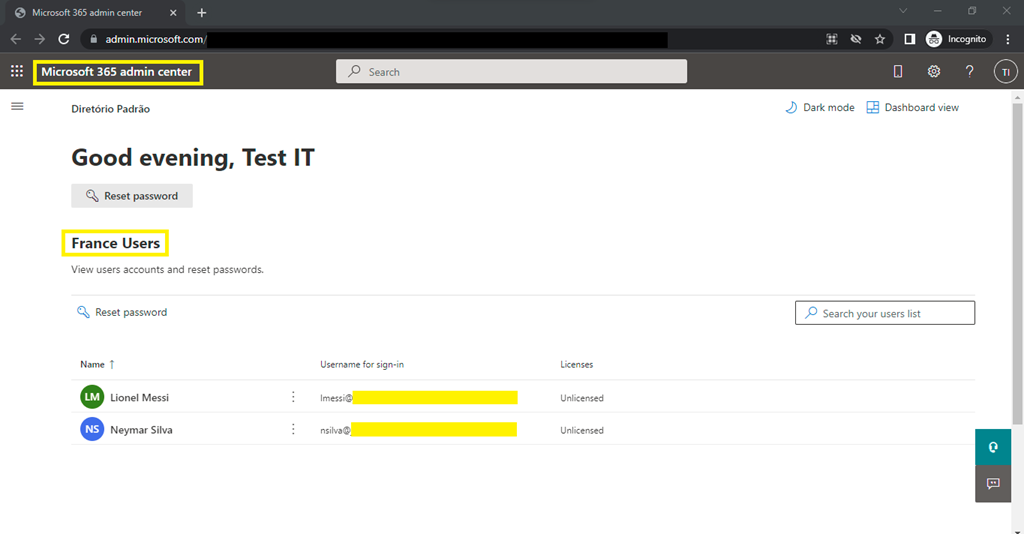
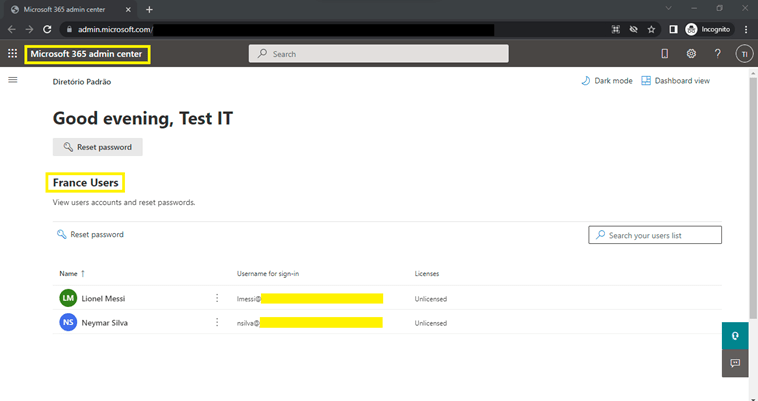
Or if he logs on the Microsoft 365 admin portal, he will be able to see the below:
AU_11

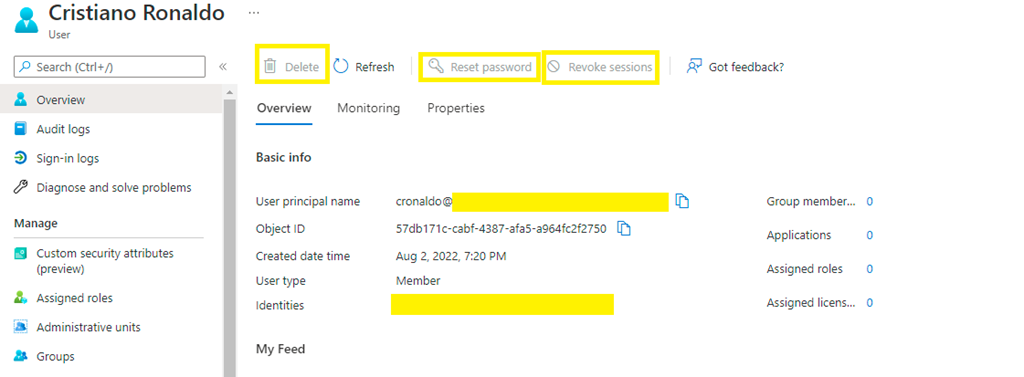
Okay, but you may be wondering (again), what if your administrator still decides to access Azure AD? In this case he will still be able to see all users and groups, but he will only be able to manage the users of the Administrative Unit he has rights. All other users will show the greyed out properties.

AU_12

That’s it folks, a simple and easy solution in case of remote location administrators or small departments and so on. You can explore several scenarios with this setup, enjoy.

See you soon.

Joao Costa

Azure Authentication methods – Go Passwordless

01

Hey guys, in my last post I talked about recovering access/resetting password. So today I will talk about the Azure Authentication Methods which includes a feature to go passwordless.

This feature will bring you greater security, after all passwords are the biggest causes of frauds, ransomwares and hacking nowadays. It will also help reduce the number of password reset tickets and help with the process of creating new user accounts.

The idea of this post will be to explain some concepts/methods and demonstrate how to enable this feature (If you already have MFA, the process will become even easier to be adopted).

Let’s get started: Go to Azure portal go to Security > Authentication Methods

02

As you can see above, there are 4 different methods and here below is the explanation of each one of them.

FIDO2 Security Key: Among other words, it is based on a USB device that may or may not have Bluetooth, NFC or fingerprint recognition. The vast majority of current devices use standard authentication (WebAuthn) and Microsoft has a list of supported devices. This option will allow the user to authenticate when inserting the device plus their fingerprint or with NFC/Bluetooth approach.

Microsoft Authenticator App: Well known in the market, with this app you can approve your access through a PIN or the insertion of your fingerprint.

Text Message : This method will ask you, instead of entering your username and password, enter your phone number (which must be registered before) and then it will send you an access code.

Temporary Access Pass:
This feature will help band new employee who dont have a password or MFA that is where the new Temporary Access Pass comes in. Basically, when creating a new user’s account, the administrator will be able to provide the TAP (Temporary Access Pass) to the new user. This Temporary Access Pass is a time-limited passcode that the user can apply to register their passwordless sign-in method among the methods enabled for that organization.

That said, let’s configure the passwordless option for a specific user, the option chosen for this scenario will be Microsoft Authenticator App.

04

Simple, easy and intuitive, save your changes and let’s go to the tests.

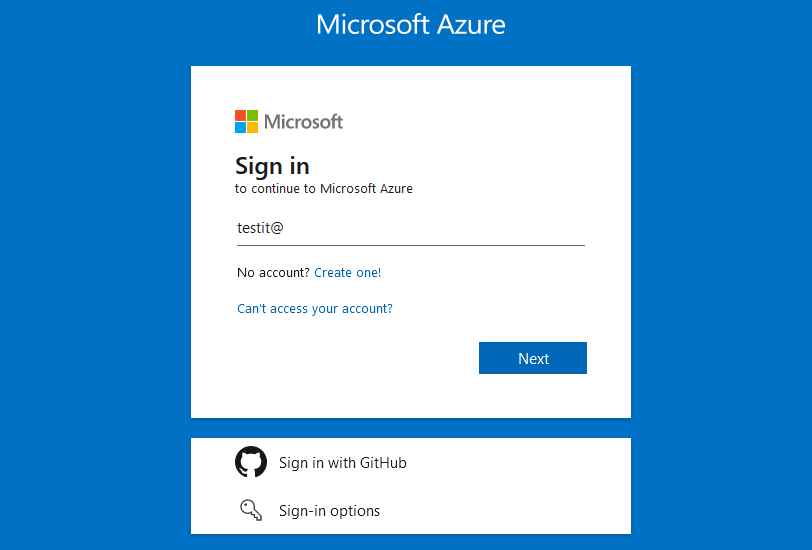
Go to the Azure portal, enter your username and click next

09

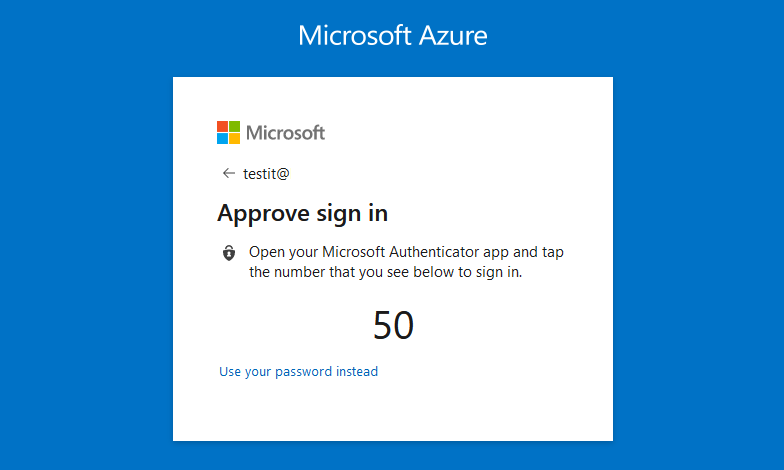
You will receive a message as shown below.

05

Go to the Microsoft Authenticator App and enter the requested number.

08

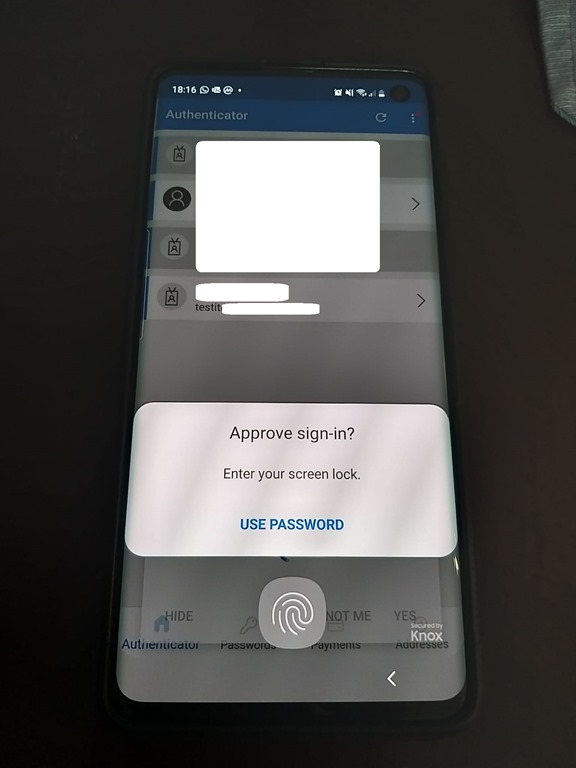
And then confirm using your fingerprint (If it’s enabled)

07

There we go, we’re in passwordless:

06

That’s all for today guys, see you in the next post.

Joao Costa

Recovering local administrator access in Azure VMs

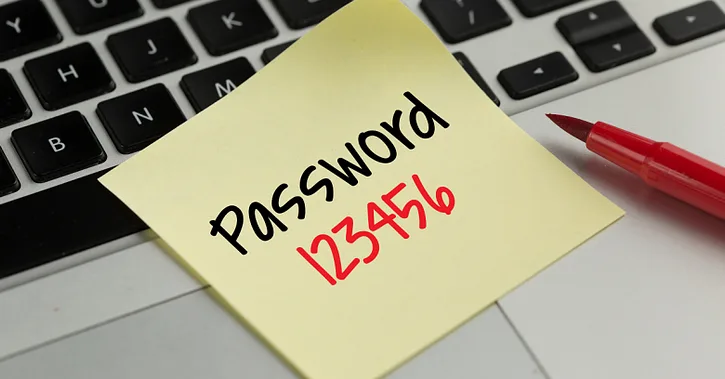
Password

Hey guys!

Let’s assume that for any reason you have lost the local administrator password of a virtual machine in Azure or even don’t remember the initial user created during the deployment of your virtual machine, well, the idea of this post is to solve this your problem, which just seems silly  but not unusual.

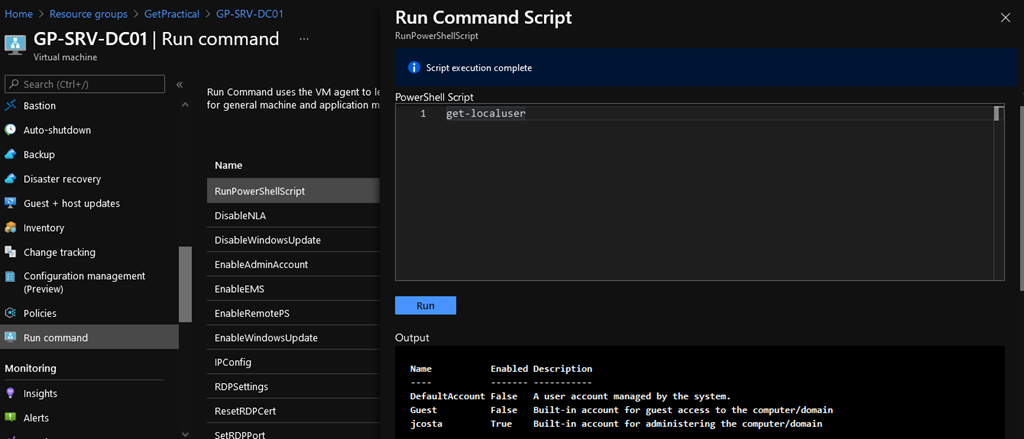
Starting with the user, in case you don’t remember, it’s a pretty simple task to find out: Go to Azure and make sure your VM is powered on, then select your VM and go to blade “Operations” and select “Run Command” and finally click on “RunPowerShellScript”. This will cause a dialog box to open and in this box you will type the following command in: “Get-LocalUser” and click “Run”.

04

The output should be presented as the image above, and at this point you will know which are the local users of that VM.

Ok, now that you know which user to use, just type in the password, correct? But let’s say you also don’t remember which password to use (Bad days happen to everyone lol). Well then, I will present two simple ways to reset this local user password.

The easiest and simplest option would be again with your VM selected, go to the blade “Help” and click on “Reset Password”. You will only need to enter the user  you want to reset the password and your new password.

(Ps: You will need to be logged into Azure with an user who gives you this right,  “RBAC” is a certification exam topic).

05

If all goes well, you will have the new password and use your local account without any problems.

But let’s assume that this lost password is the domain controller administrator password in Azure. In this case, you will not be able to reset this password as I just showed you above.

Therefore, we will be using the Extensions function in Azure. Through this extension we will run a script to reset the admin password.

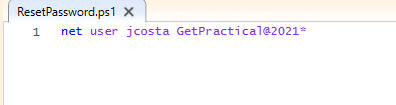
The script is very simple and has only one line and has been uploaded to Azure previously.

script

The script must have the command above: net user LOCALUSER PASSWORD

07

After creating the script, saving as ResetPassword.ps1 and uploading it to a storage account on azure, select your VM again and in the blade Settings click on Extensions > Add > CustomScriptExtension > Next > RESETPASSWORD.PS1 > Review + Create > Create.

09

The Azure extension function will run the script on the VM and your password will be reset as configured in the script.

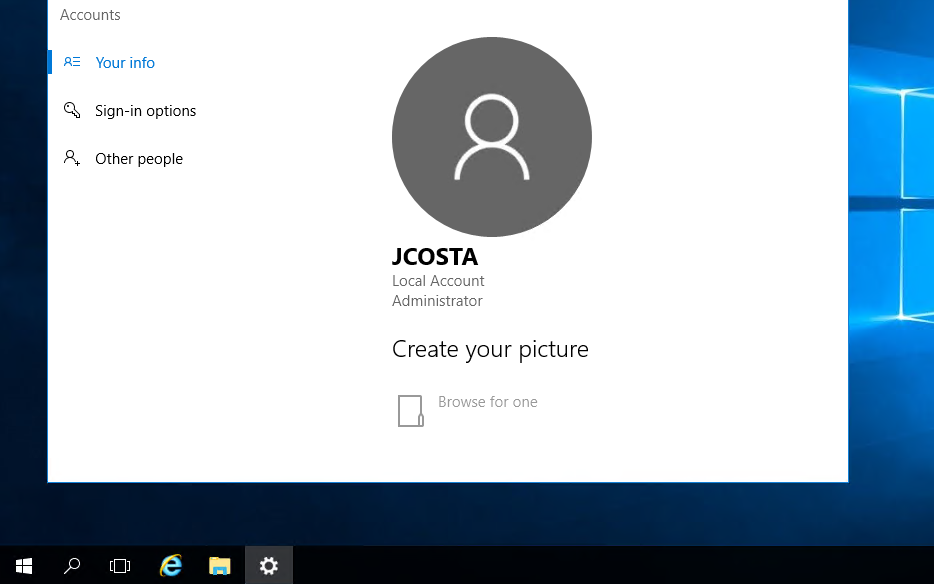
Voila! You will now be able to access your domain controller as you wish. This script can also be used to reset any account’s password.

Obviously the reset options are not limited to what I presented here in this post, especially when it comes to PowerShell commands.

10

That’s it for today guys, see you next time!

Joao Costa

Setting up Azure AD Company Branding

BrandingLogo

In this blog, I’ll show you how to configure Azure AD company branding options. You can see your organization’s logo and custom color schemes, user hints to provide a familiar and friendly look and feel in your Azure Active Directory. The only prerequisite needed for this configuration is Azure P1 licenses

NOTE:
Before obtaining your images to customize your Azure AD login branding, keep in mind the graphic formats and maximum image and file sizes.

Also keep in mind every time you make a change and test it out, your branding will get cached on one of the many global Azure AD Authentication endpoints. As stated in the documentation changes can take up to an hour to be reflected. Be patient (or keep reloading many times until you hit a new endpoint that will get the new config).
It can take up to an hour for any changes you made to the sign-in page branding to appear.

OK let’s get start.

Go to portal.azure.com and open the Active Directory blade or go directly to the AAD (Azure Active Directory) by clicking the following link: (https://aad.portal.azure.com)

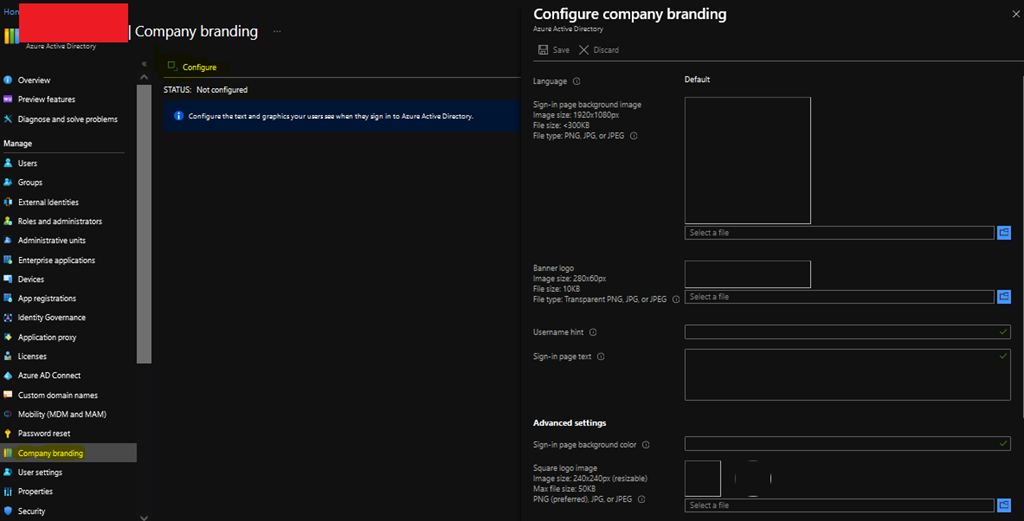
Next Navigate to Azure Active Directory -> Company branding and select to Configure icon to Configure / Edit Company branding

1

Now click on Configure or Edit the branding configuration and type in the information.

Note: The language is automatically set as your default language based on the Azure subscription setup and it can’t be changed. However, you can configure additional languages by select the New Language option.

2

Finally click Save at the top of the screen and the company’s branding page is saved in Azure Active Directory.

3

Add your custom branding to pages by modifying the end of the URL with the text, ?whr=yourdomainname. This specific modification works on different types of pages, including the Multi-Factor Authentication (MFA) setup page, the Self-service Password Reset (SSPR) setup page, and the sign in page.

Whether an application supports customized URLs for branding or not depends on the specific application, and should be checked before attempting to add a custom branding to a page.

Examples:

Original URL: https://aka.ms/MFASetup
Custom URL: https://account.activedirectory.windowsazure.com/proofup.aspx?whr=contoso.com

Original URL: https://aka.ms/SSPR
Custom URL: https://passwordreset.microsoftonline.com/?whr=contoso.com

After you’ve created the Custom branding, if you want to test it, access the page by https://login.microsoftonline.com/<domain name> and you will see your new custom screen.

This time it was a quick post guys, see you soon, thanks!

Joao Costa