How to Implement Azure Bastion to Securely Access Azure Virtual Machines

Bastion

When managing cloud-based virtual machines, ensuring secure access is critical. Exposing RDP/SSH ports over the internet introduces potential security vulnerabilities. Azure Bastion provides a secure, fully managed solution to connect to Azure VMs without needing to expose these ports to the public internet.

What is Azure Bastion?

Azure Bastion is a PaaS service that allows you to securely connect to your Azure Virtual Machines (VMs) using RDP or SSH, directly from the Azure Portal without the need to expose these ports via a public IP.


Minimum Required RBAC Roles for Azure Bastion Access

To connect to a VM using Azure Bastion, the user must have the appropriate permissions. At a minimum, they will need the following role assignments:

  1. Reader role on the target VM: This grants read access to the VM, allowing the user to see the VM’s configuration but not modify it.
  2. Reader role on the network interface (NIC) associated with the VM’s private IP address: This ensures the user can read network information for the VM.
  3. Reader role on the Azure Bastion resource: This grants access to the Bastion host itself, allowing the user to initiate connections through Bastion.

If the VM is in a peered virtual network (cross-VNet connections), the following additional role assignment is required:

  1. Reader Role on the virtual network (VNet) of the target VM: This is necessary if you are connecting to a VM across VNet peering.

Continue reading “How to Implement Azure Bastion to Securely Access Azure Virtual Machines”

Integrate Other Clouds with Azure Using the Multicloud Connector

multi-cloud

Introduction

As businesses adopt multi-cloud strategies to leverage the unique strengths of various cloud providers, managing these environments can become complex. Microsoft’s Azure Arc Multicloud Connector provides a streamlined solution to integrate and manage resources across different cloud platforms, specifically focusing on AWS. This blog post will explore the capabilities of the Azure Arc Multicloud Connector and guide you through a step-by-step lab to connect AWS resources to Azure.

Key Features of the Multicloud Connector

1. Unified Inventory: The Multicloud Connector automatically collects metadata from external cloud resources, providing a comprehensive view within the Azure portal. This helps in maintaining a consistent inventory across cloud environments.
2. Arc Onboarding: It facilitates the onboarding of AWS EC2 instances to Azure Arc, allowing advanced management features like policy enforcement, monitoring, and configuration management.
3. Consistent Governance: Apply Azure policies and role-based access controls (RBAC) to resources in external clouds, ensuring uniform security and compliance standards across all environments.
4. Enhanced Management: Utilize Azure Arc capabilities for onboarded resources, including vulnerability scanning and deployment automation.

Implementation Steps

Prerequisites

– An Azure subscription with Contributor access.
– An AWS account with AmazonEC2FullAccess permissions.
– Azure Arc and required resource providers registered (Microsoft.HybridCompute, Microsoft.HybridConnectivity, Microsoft.AwsConnector).

image

Continue reading “Integrate Other Clouds with Azure Using the Multicloud Connector”

Microsoft Announces Mandatory MFA for All Azure Users

Authentication Icon

Microsoft has recently announced a significant change that will impact all Azure users: the mandatory implementation of Multifactor Authentication (MFA). This update aims to enhance security across the Azure platform by requiring additional verification for users accessing various Azure services.

Official Announcement: Read Microsoft’s MFA Requirement for Azure Users

Understanding the Changes

This update will affect all users interacting with the Azure Portal, Azure CLI, Azure PowerShell Modules, and Terraform when deploying to Azure. This includes guest accounts, service accounts, and break glass accounts.

Continue reading “Microsoft Announces Mandatory MFA for All Azure Users”

Azure Authentication methods – Go Passwordless

01

Hey guys, in my last post I talked about recovering access/resetting password. So today I will talk about the Azure Authentication Methods which includes a feature to go passwordless.

This feature will bring you greater security, after all passwords are the biggest causes of frauds, ransomwares and hacking nowadays. It will also help reduce the number of password reset tickets and help with the process of creating new user accounts.

The idea of this post will be to explain some concepts/methods and demonstrate how to enable this feature (If you already have MFA, the process will become even easier to be adopted).

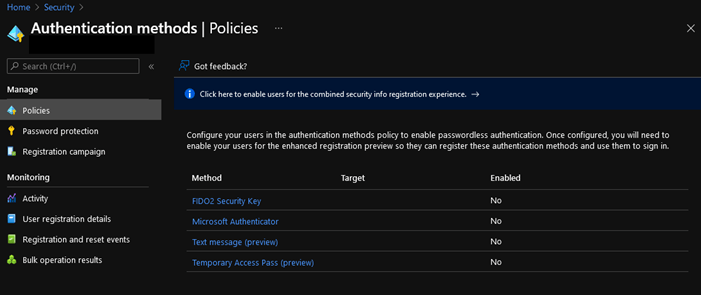
Let’s get started: Go to Azure portal go to Security > Authentication Methods
02

As you can see above, there are 4 different methods and here below is the explanation of each one of them.

FIDO2 Security Key: Among other words, it is based on a USB device that may or may not have Bluetooth, NFC or fingerprint recognition. The vast majority of current devices use standard authentication (WebAuthn) and Microsoft has a list of supported devices. This option will allow the user to authenticate when inserting the device plus their fingerprint or with NFC/Bluetooth approach.

Microsoft Authenticator App: Well known in the market, with this app you can approve your access through a PIN or the insertion of your fingerprint.

Text Message : This method will ask you, instead of entering your username and password, enter your phone number (which must be registered before) and then it will send you an access code.

Temporary Access Pass:
This feature will help band new employee who dont have a password or MFA that is where the new Temporary Access Pass comes in. Basically, when creating a new user’s account, the administrator will be able to provide the TAP (Temporary Access Pass) to the new user. This Temporary Access Pass is a time-limited passcode that the user can apply to register their passwordless sign-in method among the methods enabled for that organization.

That said, let’s configure the passwordless option for a specific user, the option chosen for this scenario will be Microsoft Authenticator App.

04

Simple, easy and intuitive, save your changes and let’s go to the tests.

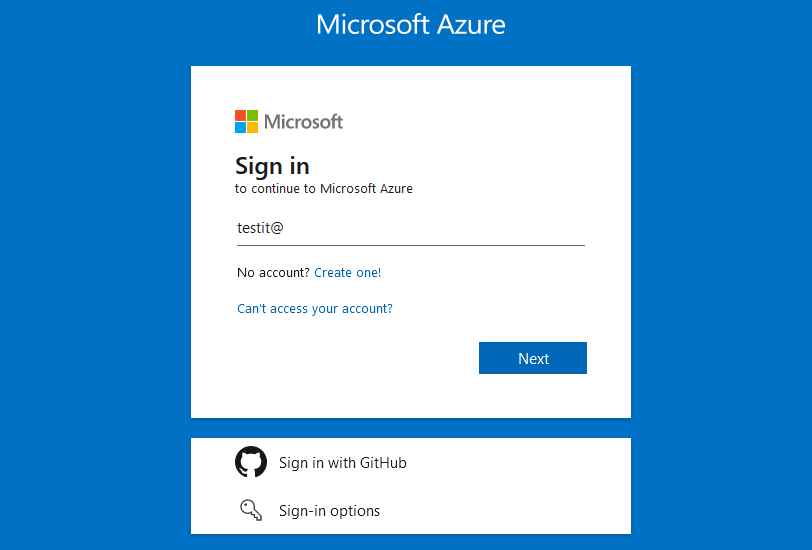
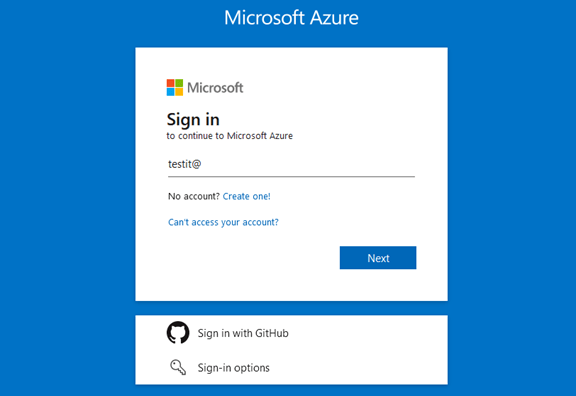
Go to the Azure portal, enter your username and click next
09

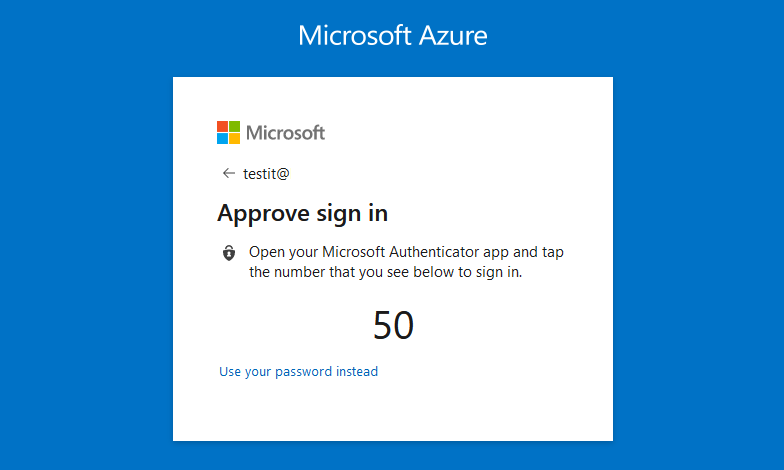
You will receive a message as shown below.

05

Go to the Microsoft Authenticator App and enter the requested number.

08

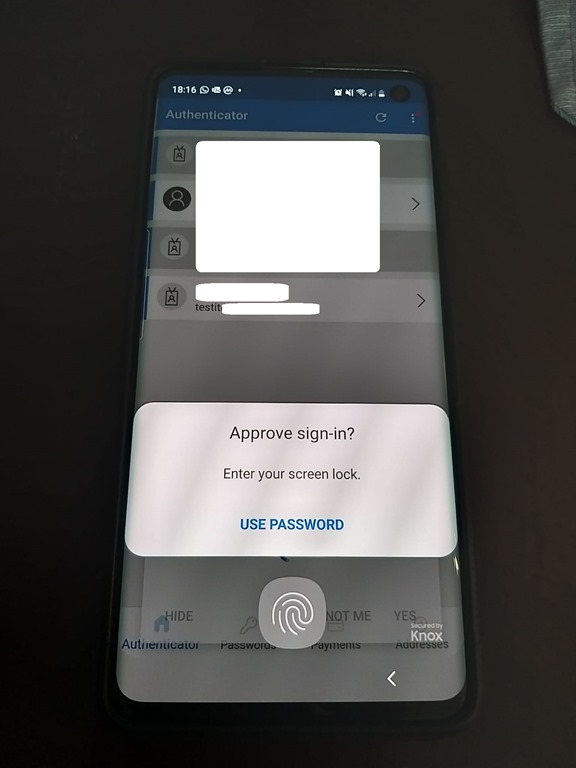
And then confirm using your fingerprint (If it’s enabled)

07

There we go, we’re in passwordless:

06

That’s all for today guys, see you in the next post.

Joao Costa