Creating an ODBC connection with UCCX

Hey everybody,

Today  I want to show you how to create an ODBC connection with UCCX, which can be mainly used for Wallboards/Dashboards.

To be able to access and pull information out from its Database, UCCX already provides some users with some specifics rights. They are:

  • uccxwallboard: Has access to real-time database tables that contain snapshots of real-time statistics, more specifically to tables RTCSQsSummary and RTICDStatistics.
  • uccxhruser:  Has access to many configuration and historical tables in the UCCX database. It can only be used for custom historical reporting and Cisco Unified Workforce Management (WFM).
  • uccxworkforce: Has access to the Team, Resource, and Supervisor tables and it’s used for Cisco Unified Quality Management (QM).

For this connection we are creating now, we are going to use uccxhruser.
Let’s start off going to UCCX >> Tools >> Password Management to set a new password (in case you don’t know)

image

Once done, let’s now focus on the ODCB configuration!

First of all, you need to download the IBM Informix Client SDK. It will allow the client to stablish a ODBC connection with your Database on UCCX.
You can download the SDK here.

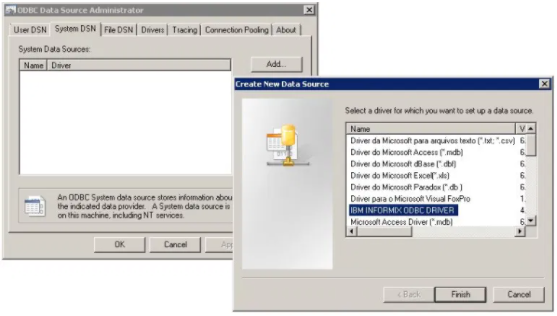
  • Go to Control Panel >> Administrative Tools >> ODBC Data Sources (64-bit).
  • Chose the tab System DNS and hit Add.

image

  • You see now a list of available data sources. Select IBM INFORMIX ODBC DRIVER. Click Finish.
  • Time to create a new DNS. In the Tab General, give a name to your connection.

  • Go to the Tab Environment, and fill the information following the rules below:
    • Server Name: Instance name of Informix server of the set up.  Please pay attention because there are tricky rules for entering the name such as:
      1. Name MUST be in lower case (even if your server name are in upper case)
      2. Any hyphens MUST be converted to underscore
      3. If your server name begins with a number, add “i” in front of it.
      4. Add “_uccx” to the end of the hostname.

    For example: If your server name is 1-EMEA-UCCX, you have to enter i1_emea_uccx_uccx

    • Hostname: The actual hostname or IP address of the UCCX
    • Service: 1504
    • Protocol: onsoctcp
    • Options: leave it blank
    • Database name: db_cra
    • UserID: uccxhruser
    • Password: Password of uccxhruser

    image

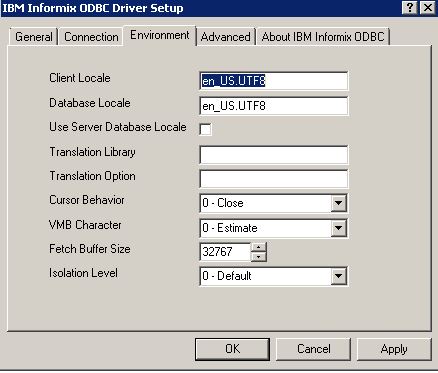
    • Go now to the Tab Environment.

          Fields Client Locale and Database Locale must be as: en_US.UTF8
    3

    • Go back to the Tab Connection. It’s now time to test if it’s working.

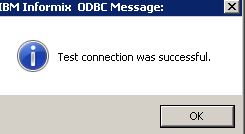
    Click on Apply and Test Connection. You must see that message:
    6

    That’s it for now! I hope this post can be useful !!

    See ya!!

    Cisco Single Number Reach

    Hey guys!
    Here is Bruno, and I’ll be in charge of the Cisco side of this Blog, more specifically, Collaboration.

    For my opening post, I’d like to talk about a feature on CUCM that, due all this pandemic situation, is being largely implemented.


    Cisco Single Number Reach (SNR), or known as Mobile Connect, is a feature which allows users to answer incoming calls to their extension on either their desktop IP phone or at a remote destination, such as a mobile phone. 

    As many companies had to send employees to work from home, SNR becomes really useful to cover some gaps you may have in your infrastructure.

    To give you some practical examples, there were 2 situations where I configured SRN to save user’s life.
    In the first, a small company didn’t have a good infra to send users to home (lack of bandwidth, poor VPN) and in the second, users were vendors and firewalls didn’t allow them to have Jabber connected to VPN.
    In both situations, users had to receive calls from a queue on UCCX.
    I came up with SNR for both cases, so users could work from home, and even though they weren’t using any softphone, they could answer calls coming from they extension.

    Although Cisco does not mention in its Documentation, I configured and tested SNR with UCCX with success  Smile

    So, how does this work?

    When a call comes in to your Extension Number,  SNR will reroute the call not only to a DN, but also to your remote number, that can be your mobile phone. If needed, you can configure rerouting to a group of remote numbers that belong to an employee.
    In other words, SNR provides you a functionality similar to Shared Line. The difference is that in this case a shared line is organized between an office phone and some remote device that isn’t necessary in a cluster, not between the phones within a cluster.

    image
    Said that, let’s get down to business!

    What do you need to configure?

    Configuring End User

    Configuring Remote Destination Profile

    Configuring Remote Destination

    Configuring End User

    In the End User page, make sure the Device is already associated in the Controlled Devices and its Line is assigned as Primary Line

    imageimage

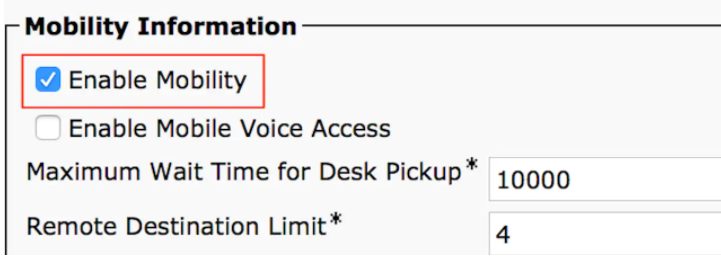
    Check the Enable Mobility check box. You can also, modify the Maximum Wait Time for Desk Pickup and Remote Destination Limit if required. Moreover, the default values can be seen in the image.

    image

    Configuring Remote Destination Profile

    Time to create a new Remote Destination Profile.
    On CUCM, go to Device > Device Settings > Remote Destination Profile > Add new

    You can choose any name, associate your user ID, give a calling search space and a rerouting CSS.
    CUCM attempts to reach the remote destination through the Rerouting calling search Space.

    image

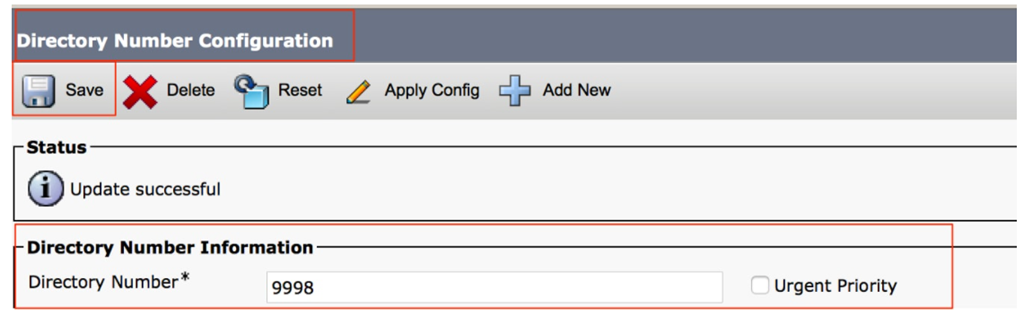
    Click Save, now you can see an option to add a new Directory number (DN) .

    Click Add a new DN to navigate to directory number configuration, where you need to specify the directory number of the desk phone with which you need to associate the RDP and then click Save.

    imageimage

    Configuring Remote Destination

    Time to configure the Remote Destination.
    Specify the Destination number, as this is the number for your Remote destination.
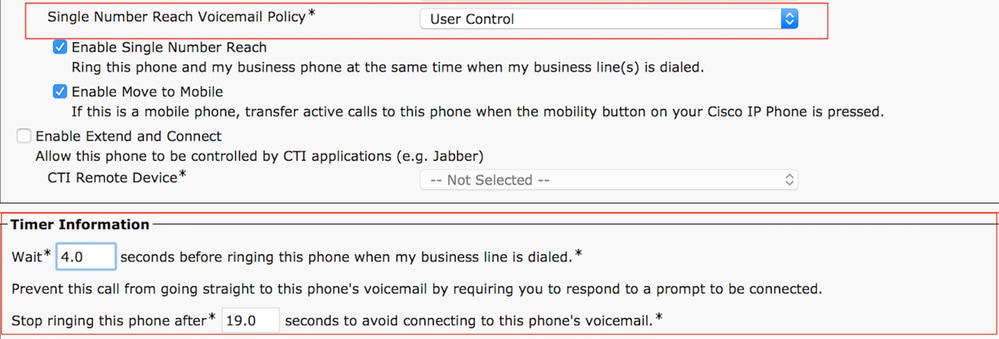
    Ensure that the check box, Enable Unified Mobility features, Enable Single Number Reach, Enable Move to Mobile is checked.

    Single Number Reach Voicemail Policy provides two options: Timer control and User Control, of which the former one is default.

    Under the section Timer information, you can specify the amount of delay before which the Remote Destination should ring.
    In case if the Remote Destination is required to ring immediately, you should set the Wait as 0.
    It is also important to calibrate the time in which the service provider of the remote destination sends the call to the voice-mail of the remote destination. The Stop ringing this phone after value should be set lesser then that to ensure that call does not go to the voicemail of the cell phone. This time value is specified against Stop ringing this phone after.

    image

    If the SNR voicemail policy is configured for User Control, timer information changes as shown in the image:

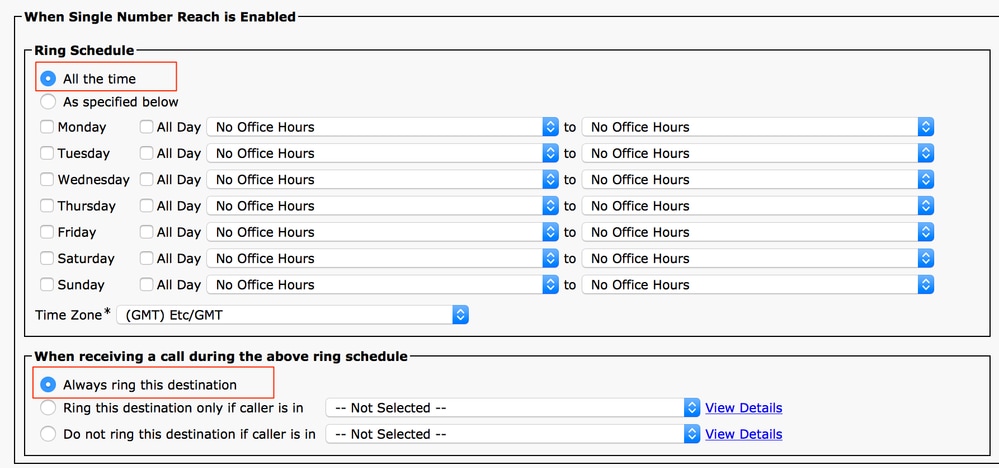
    In case the SNR configuration needs to be restricted based on time and day then these options are modified as required. If no restriction is needed to be applied then Ring Schedule should be set to All the time and When receiving a call  during the above ring schedule should be set to Always ring this destination.
    After you complete the configuration of remote destination, click Save.

    IMPORTANT STEP!!!
    Check the checkbox, which is next to the line and click Save.

    image

    That’s all guys!
    I hope this post will help you out!

    See ya!

    Bruno Falco

    Welcome to Get Practical !

    Well guys, we decided to create this Blog so we can discuss, answer questions, see tutorials and mainly contribute with the IT community in the dissemination of useful information. With our experience of working in IT, we will provide you with solutions to various issues that we have already faced and we were successful in trying to solve them. Every project and related troubleshoot that we experience from now on will be posted here so that a knowledge base is generated for everyone, and so everyone can consult and answer questions if we are facing similar problems.

    Cheers,

    Get Practical Team!