
Azure Private Link Service (PLS) has long been the go-to option for exposing your services privately to consumers across Azure — ensuring that traffic never crosses the public internet.
Until recently, this required a Standard Load Balancer to sit in front of your service. That setup worked well, but it added complexity and limited flexibility, especially in hybrid or custom routing scenarios.
Now, with Private Link Service Direct Connect, Microsoft has simplified the model. You can route traffic directly to any privately routable IP address, removing the dependency on load balancers altogether.
This new feature opens the door to several use cases — from simplifying secure hybrid connections to enabling private access to third-party SaaS and appliances.
Tag: AzurePowerShell
Automating a Monthly Azure Update Compliance Report with Logic Apps + Azure Resource Graph
Most patching dashboards are great for interactive views—but what if your stakeholders want a scheduled email that shows the current patch compliance for only a scoped set of servers (for example, those tagged for patch governance)? That’s where a small, reliable custom report shines.
In this post I’ll walk through the exact solution I built: a Logic App that queries Azure Update Manager data via Azure Resource Graph (ARG), filters to VMs tagged Monthly_Patch : yes, formats the results into a clean HTML email, and sends it on a monthly cadence.
Why a custom report?
- No native email report: Azure Update Manager provides blades and workbooks, but not a ready-to-send, nicely formatted email.
- Audience-specific scoping: We only want to report on VMs with a specific business tag (
Monthly_Patch : yes). - Consistent sorting & formatting: Stakeholders wanted alphabetical order, readable timestamps, color-coded rows, and centered table content.
- Lightweight & fast: With ARG we can query Update Manager resources directly—no Log Analytics workspace required for this report.
Streamlining Role Management in Azure AD with PowerShell and Microsoft Graph

In today’s rapidly evolving IT ecosystem, effective role management is key. This is especially true for large organisations where managing roles for individual users can quickly become overwhelming. For businesses that leverage Microsoft Azure, there are robust tools at hand that can dramatically simplify and automate these intricate tasks. Among these tools, PowerShell in conjunction with Microsoft Graph stands out for its administrative efficiency.
In this blog post, we’re going to guide you through the process of crafting a PowerShell script that utilises Microsoft Graph to identify a specific Azure AD group and remove all roles assigned directly to all group members. Let’s get started!
Preparations
Before we dive in, there are a few prerequisites to note. Firstly, ensure that you have the Microsoft Graph PowerShell SDK installed. If not, use the Install-Module -Name Microsoft.Graph command in your PowerShell to add it.
Next, establish a connection to Microsoft Graph by using the Connect-MgGraph cmdlet.
Finally, remember to tread carefully when modifying user permissions. Scripts that implement bulk changes can be particularly powerful, but also potentially disruptive if not properly managed. It’s always wise to run tests with a small number of users before applying changes across an entire group.
Continue reading “Streamlining Role Management in Azure AD with PowerShell and Microsoft Graph”
Azure – Unable to acquire token for tenant

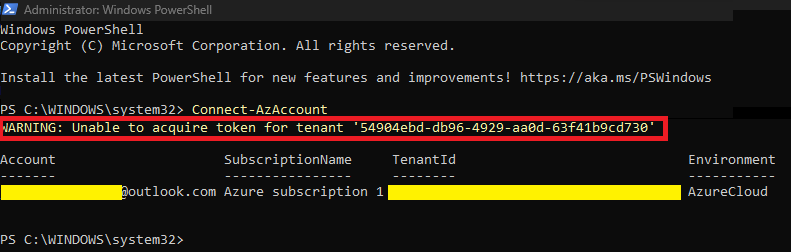
In today’s post I will show a recurring problem that can happen when connecting to Azure through PowerShell when we already have a login history from other Azure’s tenants.
As soon as we try to log into Azure via PowerShell, we will get this error stating that an existing token from another subscription could not be acquired (Your access to that subscription may have been removed and the context is still present in the local files).
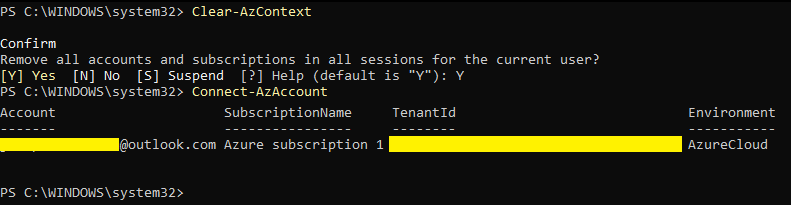
To clear the historic sessions context in PowerShell we have to execute the command “Clear-AzContext”

After running this command above, you can log in again and check that the error has been fixed and the history has been removed.
And that’s it folks, quick and practical post.
See you soon!
Joao Costa
Manage multiple Azure Contexts using PowerShell

In my day-to-day work I have to deal with several customers and Azure Subscriptions, and for this reason it sometimes becomes exhausting to jump from one Azure Context to another, even when I want to switch to my personal Azure tenant to run some tests.
Today’s article will be short, but simple and useful. After all, I believe it can help in the organization and agility of those who need to manage several subscriptions like me.
Okay, let’s get straight to the point.
Log in with your Azure account;

As you can see in the image above, once I authenticated an Azure context comes up as the default context.
Important -What is an Azure Context? Microsoft says “Azure contexts are PowerShell objects representing your active subscription to run commands against, and the authentication information needed to connect to an Azure cloud.”
Okay, we already noticed that when I authenticate with the user above, an Azure context is already loaded and so the next command will show which Azure contexts this same user has access to.

So let’s suppose I want to change which default subscription I want loaded once I authenticate to PowerShell.

Once you’ve changed the default context, you can check along the way: “C:\Users\Username\.Azure\AzureRmContext.json”

You can also rename all other subscriptions to a simpler name, and then you can select them more simply.
Rename-AzContext -SourceName ‘Visual Studio Professional (xxxxxxxx-xxxx-xxxxxx-xxxx-xxxxxxxxxx) xxx.xxx@xxx’ -TargetName ‘GP_Subscription’
And then when it is selected, you can use the new name placed
Select-AzContext ‘GP_Subscription’
Here we go, now you can choose your default context and also how to rename your context. You can also save these contexts like this when I did a few steps back and then when needed just import the context directly.
Import-AzContext “C:\Users\Username\.azure\CHANGENAME-context.json”
That’s all for today folks, see you soon.
Joao Costa

 Get Practical