Azure Resource Locks – The One Feature You’re Probably Not Using (But Should Be)

Accidental deletion or modification of critical resources in Azure is more common than most teams would like to admit. And unlike on-prem environments, where layers of approvals or access barriers might slow someone down, Azure’s agility can sometimes be its own worst enemy — especially when production workloads are one click away from disappearing.

Enter: Azure Resource Locks — your environment’s seatbelt.

What Are Azure Resource Locks?

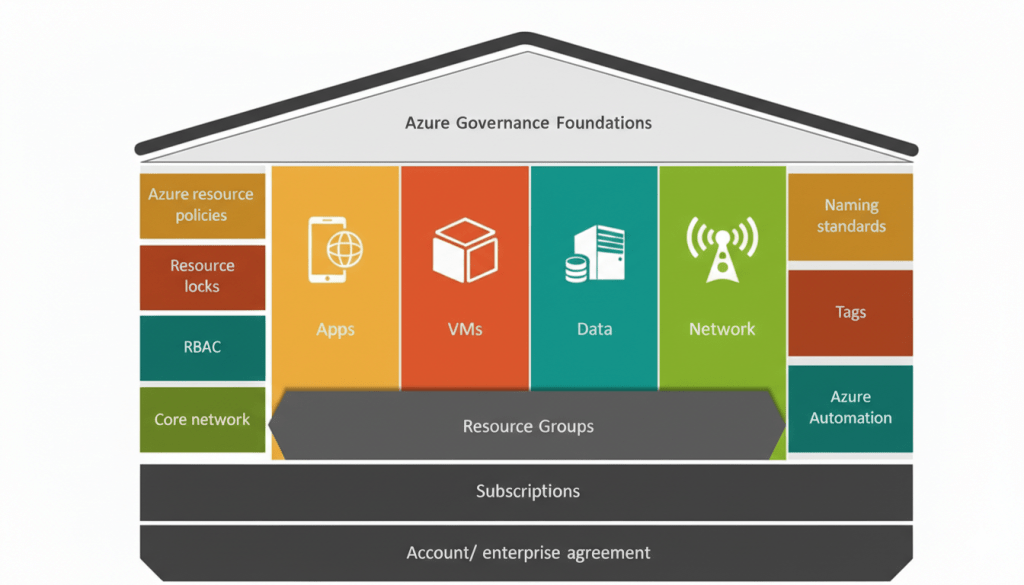
Azure Resource Locks are a built-in feature that allow you to restrict operations on resources, resource groups, or subscriptions. These locks act as a last line of defense — even if someone has Contributor or Owner permissions, a lock will block unwanted actions like deletion or configuration changes.

Continue reading “Azure Resource Locks – The One Feature You’re Probably Not Using (But Should Be)”

How to Use Azure Policy for Better Cloud Management

When you work in the cloud, keeping things organised is very important. Azure Policy is a simple tool that helps enforce rules on your resources. In this post, I’ll explain what Azure Policy is and show you a basic example of using it to require a tag on all your resources.

What is Azure Policy?

Azure Policy lets you set rules for your cloud resources. For example, you might want every resource to have a tag called Cost Centre so you know which department it belongs to. If someone tries to create a resource without that tag, the policy can stop it from being created.

This tool is very useful because it helps everyone on your team follow the same guidelines and keeps your cloud resources well organised.

A Simple Example: Requiring a "Cost Centre" Tag

In this example, we’ll create a custom policy that requires every resource to have a Cost Centre tag. If the tag is missing, the resource won’t be allowed.

Overview of the Steps
  1. Create the policy rule file.

  2. Create the policy parameters file.

  3. Create the policy definition in Azure using the Azure CLI.

  4. Assign the policy to a scope.

  5. Check if your policy is working.

Continue reading “How to Use Azure Policy for Better Cloud Management”

Integrate Other Clouds with Azure Using the Multicloud Connector

multi-cloud

Introduction

As businesses adopt multi-cloud strategies to leverage the unique strengths of various cloud providers, managing these environments can become complex. Microsoft’s Azure Arc Multicloud Connector provides a streamlined solution to integrate and manage resources across different cloud platforms, specifically focusing on AWS. This blog post will explore the capabilities of the Azure Arc Multicloud Connector and guide you through a step-by-step lab to connect AWS resources to Azure.

Key Features of the Multicloud Connector

1. Unified Inventory: The Multicloud Connector automatically collects metadata from external cloud resources, providing a comprehensive view within the Azure portal. This helps in maintaining a consistent inventory across cloud environments.
2. Arc Onboarding: It facilitates the onboarding of AWS EC2 instances to Azure Arc, allowing advanced management features like policy enforcement, monitoring, and configuration management.
3. Consistent Governance: Apply Azure policies and role-based access controls (RBAC) to resources in external clouds, ensuring uniform security and compliance standards across all environments.
4. Enhanced Management: Utilize Azure Arc capabilities for onboarded resources, including vulnerability scanning and deployment automation.

Implementation Steps

Prerequisites

– An Azure subscription with Contributor access.
– An AWS account with AmazonEC2FullAccess permissions.
– Azure Arc and required resource providers registered (Microsoft.HybridCompute, Microsoft.HybridConnectivity, Microsoft.AwsConnector).

image

Continue reading “Integrate Other Clouds with Azure Using the Multicloud Connector”