
 Bruno Lopes
Hey guys,
In this post I will show you one situation I came across this week.
Due some attacks we’ve been suffering, we decided to get all blocked IPs on Expressway and block them also in the local Firewall, as a workaround while we investigate it better.
The thing is, how can we export the list of Banned IP addresses on Expressway?
As I didn’t find anything, I decided to do on my way, automating it.
Expressway Banned Addresses
Expressway provides an automated protection service to detect and block malicious traffic and to help protect itself from dictionary-based attempts to breach login security.
It works by checking the system log files to detect repeated failures to access specific service categories, such as SIP, SSH and web/HTTPS access.
When the number of failures within a specified time window reaches the configured threshold, the source host address (the intruder) and destination port are blocked for a specified period of time (maximum 11.5 days).
Bear in mind the host address is automatically unblocked after that time period, just to avoid blocking any genuine hosts that may have been temporarily misconfigured.
You can configure manually some ranges of addresses that are exempted from some categories (SIP, HTTP, XMPP, SSH…)
Well, let’s go now to the main goal of this article.
After activating the automated detection, expressway will start blocking some IP address, according to the categories.
You can see all of them going to System >> Protection >> Automated Detection >> Blocked addresses.
The main point is, you can’t export the list at all. Expressway does not provide that.
In my situation I need to have a daily list, as we are having constant attempts of attack.
Here is why I came up with the automation solution!
In my previous posts, you must have seen I’m using SOAP/Python to automate stuffs. Now, I’m trying a different thing: PowerShell.
So please, fell free to suggest improvements, as I’m still learning it 
The Script
The concept is the same I use in Python. Firstly, we throw a GET Request, then we manipulate the result.
In this case, I’m saving the result in a TXT file.
First part, is the GET Request. It took me a while to find the correct address where all the IPs are saved.
This is the address: https://<<expresway>>:445/api/v1/status/common/fail2banbannedaddress
If you access it through your browser, you will see all the IPs as well as the expiration date and category.
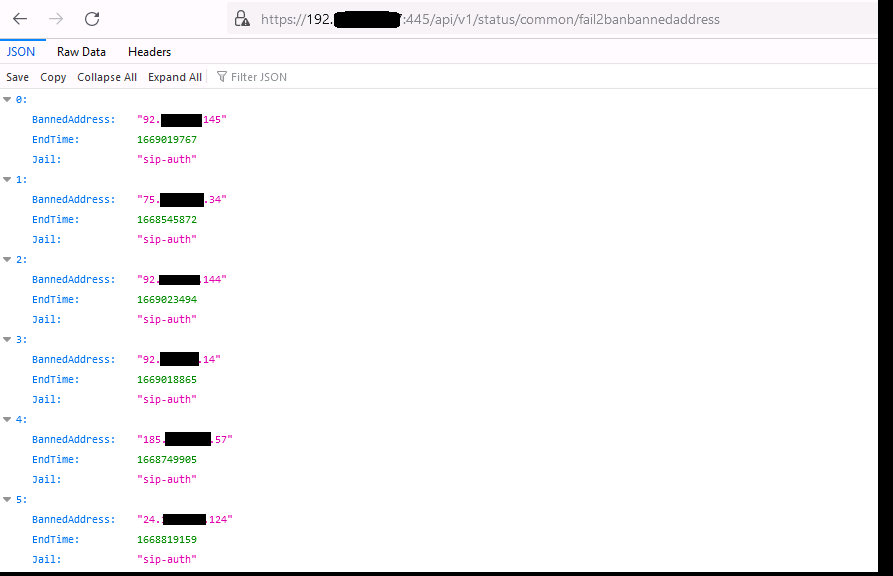
Now, this is the request, translated to PowerShell, adding the line to convert the result into Json mode:
$headers = New-Object “System.Collections.Generic.Dictionary[[String],[String]]”
$headers.Add(“Authorization”, “Basic YWRtaW46d3Q1LFV3TCVcc2khZSU1UmQ=”)
$response = Invoke-RestMethod ‘https://<<expresway>>:445/api/v1/status/common/fail2banbannedaddress’ -Method ‘GET’ -Headers $headers
$response | ConvertTo-Json
Probably you are going to see a SSL error when running this request, like this:

So we need to add this piece of code before the request, to ignore the trust errors as well as set the correct TLS version to use.
add-type @”
using System.Net;
using System.Security.Cryptography.X509Certificates;
public class TrustAllCertsPolicy : ICertificatePolicy {
public bool CheckValidationResult(
ServicePoint srvPoint, X509Certificate certificate,
WebRequest request, int certificateProblem) {
return true;
}
}
“@
[System.Net.ServicePointManager]::CertificatePolicy = New-Object TrustAllCertsPolicy
After entering the code, you will have the output displayed in the prompt.
But, to optimize and improve it a little bit, I want to save the output in a Notepad.
So I will just add this line:
$response | Out-File -FilePath <<PATH>>\Banned_IPs.txt
The file will be generated in this format:
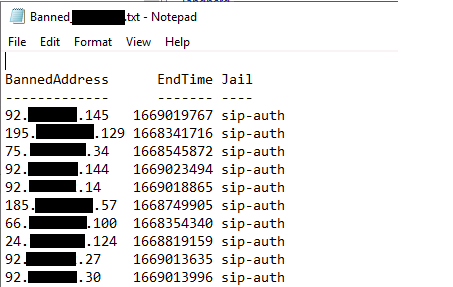
That’s it!!!
Here is the whole code:
add-type @”
add-type @”
using System.Net;
using System.Security.Cryptography.X509Certificates;
public class TrustAllCertsPolicy : ICertificatePolicy {
public bool CheckValidationResult(
ServicePoint srvPoint, X509Certificate certificate,
WebRequest request, int certificateProblem) {
return true;
}
}
“@
[System.Net.ServicePointManager]::CertificatePolicy = New-Object TrustAllCertsPolicy
$headers = New-Object “System.Collections.Generic.Dictionary[[String],[String]]”
$headers.Add(“Authorization”, “Basic YWRtaW46Vcc2khZSU1UmQ=”)
$response = Invoke-RestMethod https://<<EXPRESSWAY>>:445/api/v1/status/common/fail2banbannedaddress’ -Method ‘GET’ –Headers $headers
$response | ConvertTo-Json
$response | Out-File -FilePath <<PATH>\Banned_IPs.txt
I hope you’ve enjoyed!
See ya!
Bruno Lopes

Great job! Congratulations!
Many thanks 🙂