Cisco Unity Connection Provisioning Interface (CUPI) API

Hey people,

Coming back to the DEV topics, today I’m going to give you a quick overview of Unity API.
It’s very simple, but it will give different perspectives of what you can automate on Unity.

CUPI is a provisioning API for Cisco Unity Connection that has been designed to be stable and simple to use. It is based on leading industry standards for web-based API development, and provides access to the most commonly provisioned data on Connection systems (users, contacts, distribution lists, and call handlers).

By using CUPI, you can securely do the following:

  • Create, read, update, and delete users and user configurations
  • Reset passwords
  • Create, read, and update distribution lists
  • Create, read, update, and delete call handlers
  • Create, read, update, and delete contacts

Getting the Schema Details

All the schema details for all supported object types can be obtained by going to the REST schema page using the URL:
                                                          http://{server name}/vmrest/schema

In the case of users the schema shows what will come back when fetching the full user data using a URL like this:
                                                   http://{server name}/vmrest/users/{object_id}

Authentication

CUPI uses the same authentication and authorization scheme that the administration console uses. This means that the objects an administrator has access to when authenticated are determined by the roles to which the administrator is assigned.

Basic Operations

Searching For an user:
This request gives us all details about an specific user, searching it by the alias.

To search for a user account, do the following GET request:
GET http://<connection-server>/vmrest/users?query=(alias%20startswith%20ab)

You can have your results in XLM or JSON. It’s up to you. The only difference will be on how you manipulate that, to achieve your goal.
In XML, you will see this:
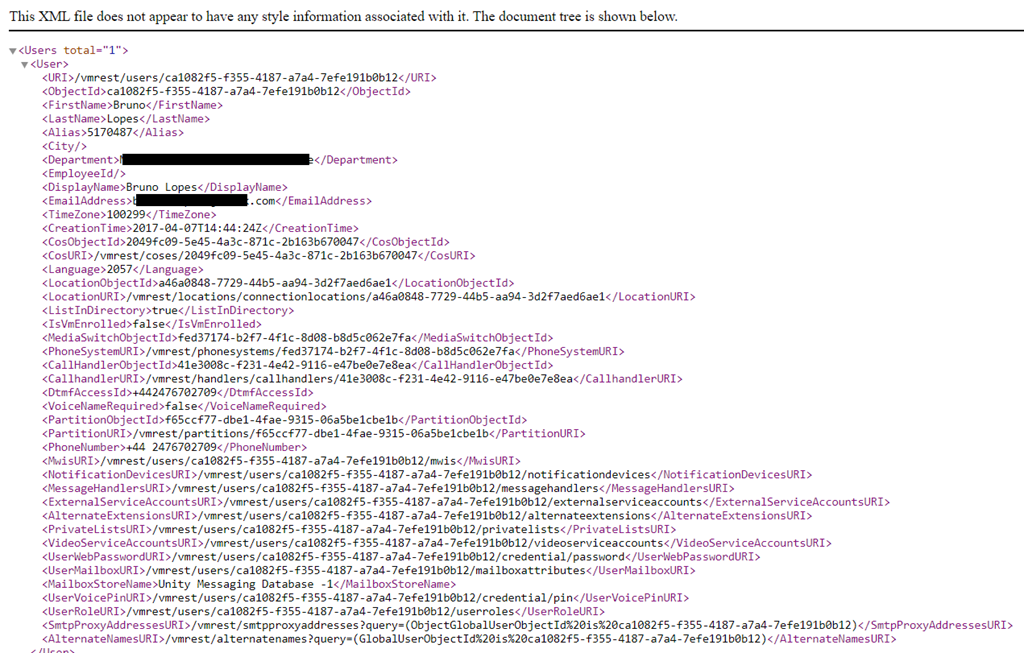
imageimage

If you want to change, or create something new, you need to send a PUT or a POST request.
And, depending on your request, you have to search the user via user-objectID, instead of Alias. In this case, you have to send a request to get information from an user, save its ObjectID, and then use it in another request. See some samples below:

Listing User PIN Settings
Shows information about user’s PIN:  

                           GET https://<Connection-server>/vmrest/users/<user-objectid>/credential/pin

The following is the response from the above *GET* request and the actual response will depend upon the information given by you:

image

Changing PIN
In this case, we are going to use PUT, and we also have to send the new PIN in the Body:                    

PUT https://<Connection-server>/vmrest/users/<user-objectid>/credential/pin
<Credential>
      <Credentials>ciscfo1234</Credentials>
</Credential>

This must be your response, indicating a success: Response Code: 204

Creating a User

To create a user account, do the following POST request:

POST http://<connection-server>/vmrest/users?templateAlias=voicemailusertemplate
<?xml version=”1.0″ encoding=”UTF-8″ standalone=”yes”?>
<User>
    <Alias>jdoe</Alias>
    <DtmfAccessId>7890</DtmfAccessId>
</User>

The following is the result of the above POST request: 201 Created

Modifying a User

To modify a user account, do the following PUT request:

PUT http://<connection-server>/vmrest/users/{objectid}

<?xml version=”1.0″ encoding=”UTF-8″ standalone=”yes”?>
<User>
<DisplayName>johnd</DisplayName>
</User>

The following is the result of the above PUT request: 204 Accepted

Deleting a User

To delete a user account, do the following DELETE request:

                                           DELETE http://<connection-server>/vmrest/users/{objectid}

The following is the result of the above DELETE request: 200 OK

These were only some samples of what you can do using CUPI. Of course, there are dozes, or hundreds of types of request.
Any specific request you want to do and don’t know how, let me know in the comments.

I hope you enjoy this post! Smile

See ya!

Bruno

Cisco CME – B-ACD and Auto Attendant services

Hey people,

Today I’m going to change the Topic and talk about other thing…… which is the CME.
I particularly like CME, and enjoy working on it Smile

There is a feature on CME, which seems not to be so popular, but it’s really useful: B-ABC.
In case you only have a CME in your IPT Infrastructure, B-ACD can easily be a good alternative for Cisco UCCX or Cisco Unity (for a basic IVR).

The only limitation we have is related to Codec. You must use same codec on incoming and outgoing dial peers when transferring calls.

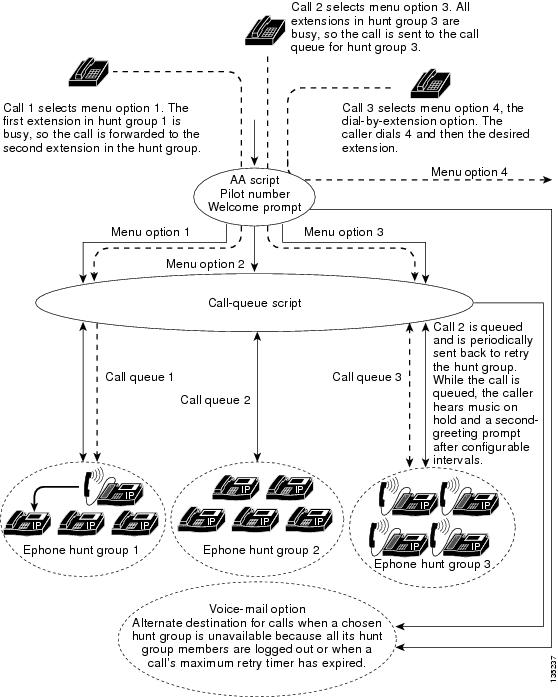
B-ACD is a Basic automatic call distribution (B-ACD) and auto-attendant (AA), and it provides:

  • Automatic answering of outside calls with greetings and menus that allow callers to select the appropriate department or to dial known extension numbers.
  • Managed call queues for hunt groups that route calls for different menu options.

Each Cisco Unified CME B-ACD application consists of one or more auto-attendant (AA) services and one call-queue service. From version 11.5 onwards, B-ACD introduces support for voice hunt group that includes SIP, SCCP, PSTN, and FXS.

Cisco Unified CME B-ACD Service Call Flow

135237.ps


Configuring Cisco Unified CME B-ACD

  • Downloading TCL Script and Prompts
    Download the Cisco Unified CME B-ACD tar archives to a TFTP server that is accessible to the Cisco Unified CME router (Download it HERE).

    Go to your CME and extract it using this command:
    archive tar /xtract tftp://X.X.X.X/cme-b-acd-X.X.X.X.tar flash:

  • Dial Peer
    Let’s configure the dial-peer that will be used reach the Application we are going to create. I’m going to add 2 Dial-peers, as usually we have one only for all incoming calls, and the second one will be used to send the call to the application.

    Router(config)#dial-peer voice 11 pots
    Router(config-dial-peer)#incoming called-number .
    Router(config-dial-peer)#direct-inward-dial
    Router(config-dial-peer)#port 0/1/0:15
    Router(config-dial-peer)#forward-digits all
    Router(config-dial-peer)#exit

  • Router(config)#dial-peer voice 222 voip
    Router(config-dial-peer)#service aa     ! — Enables AA service on dial-peer
    Router(config-dial-peer)#destination-pattern 6000
    Router(config-dial-peer)#session target ipv4:10.10.254.3
    Router(config-dial-peer)#incoming called-number 6000
    Router(config-dial-peer)#dtmf-relay h245-alphanumeric
    Router(config-dial-peer)#codec g711ulaw
    Router(config-dial-peer)#no vad

Hunt Groups
In the below example, I’m creating Hunt Groups for SCCP phones.
A maximum of ten hunt groups can be associated with Cisco Unified CME B-ACD call-queue service. The final command is not used with hunt groups that are part of Cisco Unified CME B-ACD services. Instead, the param voice-mail command specifies the alternate destination for calls that cannot be connected to a hunt group because all hunt-group agents are unavailable or because a hunt-group agent does not become available within the configured maximum retry time.

Router(config)#ephone-hunt 1 sequential
Router(config-ephone-hunt)#pilot 6100
Router(config-ephone-hunt)#list 6001, 6002


Router(config)#ephone-hunt 2 sequential
Router(config-ephone-hunt)#pilot 6101
Router(config-ephone-hunt)#list 6001, 6002

Queue
Queues are responsible for routing the call to a Hunt Group and queue the call when members of the Group are all busy.

application
  service queue flash:app-b-acd-2.1.2.3.tcl
     !  — Point to where you extracted the files
   param number-of-hunt-grps 3                     ! — Max number of hunt groups
   param queue-len 15                                        !  — Size of the queue (1 to 30)
   param aa-hunt1 6100                                      !  — Option 1 – Goes to Hunt 6100
   param aa-hunt2 6101                                     !  — Option 2 – Goes to Hunt 6100
  

Auto Attendant
Time to configure the auto attendant part of the script.

application
  service aa flash:app-b-acd-aa-2.1.2.3.tcl      !  — Point to where you extracted the files
    paramspace english location flash:      ! – Defines the languages and where the files are
   paramspace english language en           ! —  Defines the code (en) to the audio files
   param service-name queue                  ! —  Associate AA with the Queue we configured above
   param handoff-string aa                  
! –Specifies the name of the service
  param aa-pilot 6000                      
! —  Declares the Pilot Number (Must be the same as the Dial Peer)
   param welcome-prompt _bacd_welcome.au   
! —  Prompt of the Welcome Message
   param menu-timeout 5                    
! — Sets the number of times the AA service will loop the menu prompt
   param dial-by-extension-option 9         
! —  Enables callers to dial extension numbers after dialing the specified menu number
   param max-extension-length 4             
! —  Restricts the number of digits that can be dialed
   param number-of-hunt-grps 3
   param queue-overflow-extension 3999      
! —  If queue is full, sends the call to 3999
   param second-greeting-time 45            
! —  Defines the time delay before the second greeting is played
   param call-retry-timer 10               
! —  Assigns the  time that calls must wait between retries to connect to a hunt group pilot number or to the alternate destination number.
   param max-time-call-retry 90             
! —  This is the maximum period of time for which a call can stay in a call queue
   param max-time-vm-retry 2                
! —  Assigns the number of times that calls can attempt to reach the alternate destination number.
   param voice-mail 3999                    
! —  Defines an alternate destination for calls that are not answered by a hunt group
   param send-account true                   ! —  Generates call detail records for calls that are handled by B-ACD

Hope you enjoyed this post!

See ya Smile

Bruno

Cisco CUCM – SOAP Overview

Hey guys,

Today I’m going to talk about SOAP AXL. A powerful and useful type of communication model. Most of the Cisco Unified Communications Manager (CUCM) APIs are exposed via SOAP-based XML Web Services.
I’ve been using it to create some Dashboards for CUCM!

The Administrative XML Web Service (AXL) is a XML/SOAP based interface that provides a mechanism for inserting, retrieving, updating and removing data from the Unified Communication configuration database.
Developers can use AXL and the provided WSDL to Create, Read, Update, and Delete objects such as gateways, users, devices, route-patterns and much more.

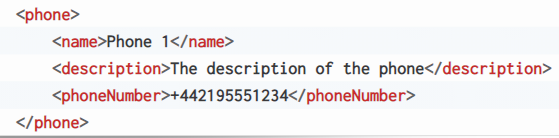
SOAP provides an XML-based communication protocol and encoding format for communication. For example, to describe a phone using XML, you would define the following structure.

image

Now, how do you know what types of requests you are allowed to make, what types of data those requests require, and what type of response you expect to receive?
This is where the Web Services Description Language (WSDL) comes into play. A WSDL file (along with any associated XML schema files) can be used to fully describe the capabilities of a SOAP API.

Luckily  CUCM provides a WSDL file for each of the SOAP-based APIs it supports and there are tools to read WSDL files and then make the SOAP API service methods available easily. The eventual goal is to leverage a programing language such as Python (I’ll cover that in future posts) to interface with the various SOAP API’s, but it helps to manually explore the API using a visual tool that can understand the WSDL file. One of these tools is SoapUI, and you can download it from here HERE.

Let’s see now step by step how to use SOAP and send some requests.

Step 1 – Download the AXL API WSDL File

The CUCM AXL API WSDL file is published on the CUCM server itself, as part of the Cisco AXL Toolkit plugin.

  • Access your CUCM
  • Navigate to ApplicationPlugins and click Find
  • Next to Cisco AXL Toolkit, click Download. The file axlsqltoolkit.zip is downloaded.
  • From your Downloads folder, extract this downloaded file (right-click Extract All…) to the default location (should be in the Downloads\axlsqltoolkit folder)
  • Once extracted, in the schema folder you will notice there are a number of folders. These are for various older CUCM versions. For this lab, we are interested in current. That folder contains the current CUCM’s AXL WSDL (AXLAPI.wsdl) and schema (.xsd) files.

Step 2 – Start SoapUI

Now you can load this WSDL into SoapUI, get things configured, and start sending queries. Follow these steps to load the WSDL into SoapUI.

  • Launch the SoapUI application.
  • Close any open Endpoint Explorer or other windows that may show up when launching SoapUI.
  • Click FileNew SOAP Project

image

  • For the Project Name enter UCMSOAP
  • Below that field, for the Initial WSDL file, click Browse. Navigate to your current AXL WSDL file extracted earlier:

Step 3 – Run an AXL Request from SoapUI

Once the API is loaded, you must set some of the default parameters, specifically the CUCM hostname or IP address and the credentials so that they don’t have to be re-entered for every query.

  • In SoapUI, in the Navigator pane on the left, you’ll see the new project folder named UCMSOAP and the AXLAPIBinding object. Right-click on the AXLAPIBinding and click Show Interface Viewer (same as double-clicking or pressing Enter).

image

  • In the AXLAPIBinding properties, select the Service Endpoints tab.

image

  • You’ll notice the Endpoint is set to https://CCMSERVERNAME:8443/axl/ (with blank username and password)
  • Double-click on CCMSERVERNAME so it can be edited and replaced by the hostname of your CUCM. Press Enter
  • Double-click on the Username and Password to enter the credentials. Be sure to press Enter for the field to be saved.
  • Close the AXLAPIBinding window by clicking the X in the right of its blue title bar .

So now SOAP is all set up and ready for issuing queries.
I’ll give you now an example of how to do that.

For example, a basic thing as getting the CUCM Version:

  • Choose AXLAPIBinding
  • Scroll Down till getCCMVersion. Expand it and you will find Request 1.
  • Double-click to open it, and you will find its XML Request.

image

You will observe there is a ?  in the processNodeName field. When a new request is created for an operation in SoapUI, all available options are presented, so there are often many that either need to be removed or filled in with valid data (instead of the default ? placeholder).

So, remove it, and click in the green button to send this request. The Response will show up at right:

image

You have successfully sent an AXL/SOAP request to CUCM and received a valid response!!
From now on you can start playing with other types of requisitions, like add, update or delete.

Enjoy it Smile

Bruno

Cisco Finesse – Disconnection Problems

Hi everybody,

Today,  I’m going to give you a troubleshooting tip about an issue I’ve been facing, on Cisco Finesse.

Agents started complaining that they suddenly get disconnected, and when you see the reports on CUIC, the reason is Connection Failure.

For this case, we are using Cisco UCCX 11.6.2.

First of all, we have to check the Layer 1. Make sure the phone is not losing connection due a cabling faulty.
If you are using Jabber, make sure you network connection is stable, and if it’s VPN, your internet is stable.
Voice traffic is really sensitive, so any minimum interruption can cause a disconnection.

Another thing Cisco recommends is, if your agent has Deskphone and Jabber configured with the same line (but not using at the same time, as UCCX does not support shared lines), you have to keep only one added to the End user and to the Application user. If you have both, it work, but you will have that disconnection some times as well (yes, I faced that in the past).

Now, the latest I’ve heard from them!

As per this Troubleshooting, these presence driven logouts occur when UCCX does not receive presence available status from the agent PC/browser.  The system logs the agent out after 60 seconds.

So, seen all this points, there are 2 more difficult things to be caught, and I recently came across.

  1. Browser.
    Chrome v88+ and Edge are known to cause these issues.

    For agents logged out with the tab minimized/backgrounded:Disable Automatic Tab Discarding:
    For versions 75 and above: Add chrome extension ‘Disable automatic tab discarding’https://chrome.google.com/webstore/detail/disable-automatic-tab-dis/dnhngfnfolbmhgealdpolmhimnoliiok
  2. IntensiveWakeUpThrottlingEnabled Starting with Chrome 88: Improved resource consumption for background tabs To save on CPU load and prolong battery life, Chrome will limit the power consumption of background tabs. Specifically, Chrome will allow the timers in the background tabs to only run once per minute. If agents are using Chrome v88+, navigate to “chrome://flags” in the agent Chrome browser, search the above flag and ensure it is disabled (default=enabled).

  3. Network LatencyOne of the Finesse requirements is the that the Network Latency cannot be higher than 400ms.
    And that was exactly the problem I found on my network!!!

    But how do we find out that the latency is going over 400ms??

    Here are the instructions to gather the clientlogs from the agent Desktop side,

      *   Clear browser cache
      *   Load the following URL: <protocol>://<ip/host>:<port>/desktop/locallog and select “Sign In With Persistent Logging“.  You will be redirected to login page with the appropriate query parameter url.
      *   Sign into Finesse
      *   Operate Finesse as usual
      *   When you run into the problem open a new window or a tab and reopen with same browser type using the following URL: <protocol>://<ip/host>:<port>/desktop/locallog and select Refresh button
      *   Now you have all the logs in the contents of the console output.

  4. Conclusion


    After analysing the logs, I could find the following:

    Line 384: 2021-03-29T09:28:50.812 +02:00: 39DED1: <a href="http://<http://<<uccx_server>&gt;: Mar 29 2021 09:28:50.728 +0200: Header : Client: 2021-03-29T07:28:50.518Z, Server: 2021-03-29T07:28:50.434Z, Drift: -84ms, Network Latency (round trip): 587ms

    image

    In this Log’s pieces, we can see that the roundtrip latency for the agent that was logged out, spikes above the 400ms threshold allowed by Finesse. This latency means that the server does not receive the “Presence available” notifications from the agent PC.  After 60 seconds without receiving a notification, the system will log the agent out per design.              

  5. So now you have to troubleshoot your network to find the source of that Latency.

    That’s it guys!

    I hope this post can help you out!

    See ya!

    Bruno

    Media Resources on CUCM (Conference Bridge and Transcoder)

    Hi people,

    In this post I’ll cover a little bit of resources on CUCM, more specifically Transcoding and Conference Bridge.

    The requirements to have them configured on your Voice Gateway, and consequently being used on CUCM, are DSPs.
    DSPs reside either directly on a voice network module, on PVDM2s that are installed in a voice network module or on PVDMs that are installed directly onto the motherboard, such as on the Cisco 2800 and 3800 series voice gateway routers.

    Having your DSP, let’s configure this bad boy in your Voice Gateway.

    • Configuring SCCP

    !— This sccp ccm command adds CallManager server(s) !— to the list of available servers to which the voice gateway can register.
    Gateway(config)#sccp ccm 192.168.252.18 identifier 18 priority 1 version 4.1
    Gateway(config)#sccp ccm 192.168.198.10 identifier 5 priority 2 version 4.1
    Gateway(config)#sccp ccm 192.168.198.11 identifier 4 priority 3 version 4.1
    Gateway(config)#sccp ccm 192.168.198.12 identifier 11 priority 4 version 4.1

    !— Selects the local interface that SCCP applications !— use to register with CUCM.
    Gateway(config)#sccp local loopback 1

    !— Enables SCCP and brings it up administratively.
    Gateway(config)#sccp Gateway(config)#exit

    • Configuring DSP Farm for Transcoding


    !— The dsp services dspfarm command enables DSP farm services for the voice card.

    Gateway(config)#voice-card 0
    Gateway(config-voicecard)#dsp services dspfarm


    !— The dspfarm profile 111 transcode command enters the !— DSP farm profile configuration mode !— to define a profile for DSP farm services. !— For this profile, a transcode profile is created.

    Gateway(config-voicecard)#exit
    Gateway(config)#dspfarm profile 111 transcode


    !— Specifies the codecs supported by a DSP farm profile.

    Gateway(config-dspfarm-profile)#codec ?
       g711alaw      G.711 A Law 64000 bps
       g711ulaw      G.711 u Law 64000 bps
       g729abr8      G.729ab 8000 bps
       g729ar8       G.729a 8000 bps
       g729br8       G.729b 8000 bps
       g729r8        G.729 8000 bps
       pass-through  Stream Pass Through

    !— Specifies the maximum number of sessions that are !— supported by the profile. !— Number is determined by the available registered !— DSP resources.
    Gateway(config-dspfarm-profile)#maximum sessions 20

    !— The associate application sccp command associates the SCCP protocol !— to the DSP farm profile.
    Gateway(config-dspfarm-profile)#associate application sccp

    !— Enables the profile, allocates !— DSP farm resources, and associates the application.
    Gateway(config-dspfarm-profile)#no shutdown
    Gateway(config-dspfarm-profile)#exit
    Gateway(config)#gateway

    !— Sets the Real-Time Transport !— Protocol (RTP) timeout interval to clear hanging connections. !— Seconds range is 180 to 1800. The default is 1200.
    Gateway(config-gateway)#timer receive-rtp 600

    • Creating Call Manager group

    Gateway>enable
    Gateway#configure terminal
    Gateway(config)#sccp ccm group 111

    !— Adds a Cisco Unified CallManager server to the Cisco !— Unified CallManager group and establishes its priority within the group.
    Gateway(config-sccp-ccm)#associate ccm 18 priority 1
    Gateway(config-sccp-ccm)#associate ccm 5 priority 2
    Gateway(config-sccp-ccm)#associate ccm 4 priority 3
    Gateway(config-sccp-ccm)#associate ccm 11 priority 4

    !— Associates a DSP farm profile to the Cisco Unified CallManager group. !— The device-name must match the device name configured in Cisco Unified CallManager.
    Gateway(config-sccp-ccm)#associate profile 111 register DE_XCODE_01


    !— Binds an interface to the Cisco Unified CallManager group.

    Gateway(config-sccp-ccm)#bind interface loopback 1
    Gateway(config-sccp-ccm)end

    Now, let’s do the same for Conferencing Bridge

    The process is purely the same, so I’ll just put the commands here:

    Gateway>enable
    Gateway#configure terminal
    Gateway(config)#voice-card 0
    Gateway(config-voicecard)#dsp services dspfarm
    Gateway(config-voicecard)#exit
    Gateway(config)#dspfarm profile 999 conference
    Gateway(config-dspfarm-profile)#description conference profile 999
    Gateway(config-dspfarm-profile)#codec ?
       g711alaw      G.711 A Law 64000 bps
       g711ulaw      G.711 u Law 64000 bps
       g729abr8      G.729ab 8000 bps
       g729ar8       G.729a 8000 bps
       g729br8       G.729b 8000 bps
       g729r8        G.729 8000 bps
       pass-through  Stream Pass Through

    Gateway(config-dspfarm-profile)#maximum sessions 4
    Gateway(config-dspfarm-profile)#associate application sccp
    Gateway(config-dspfarm-profile)#no shutdown
    Gateway(config-dspfarm-profile)#exit
    Gateway(config)#gateway
    Gateway(config-gateway)#timer receive-rtp 600
    Gateway(config-gateway)#exit

    Gateway>enable
    Gateway#configure terminal
    Gateway(config)#sccp ccm group 999
    Gateway(config-sccp-ccm)#associate ccm 18 priority 1
    Gateway(config-sccp-ccm)#associate ccm 5 priority 2
    Gateway(config-sccp-ccm)#associate ccm 4 priority 3
    Gateway(config-sccp-ccm)#associate ccm 11 priority 4
    Gateway(config-sccp-ccm)#associate profile 999 register 00C88B514BDF
    Gateway(config-sccp-ccm)#bind interface loopback 1

    Gateway(config-sccp-ccm)end

    Time now to add them to our Unified Communications Manager

    • Transcoder

    On CUCM, go to Media Resources >> Transcoder >> Add new

    Choose Cisco IOS Enhanced Media Termination Point for the Transcoder Type, and fill the rest with your Device Pool,  and for the Device Name, use the name you added on the Gateway:

    image

    Save and Reset it. You must see it as registered

    • Conference Bridge

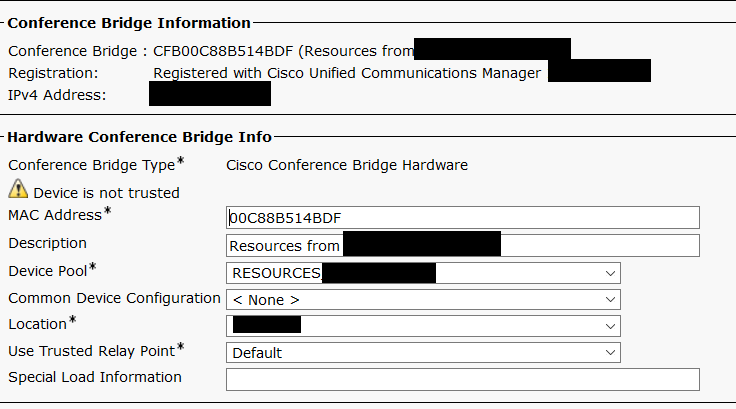
    On CUCM, go to Media Resources >> Conference Bridge >> Add new

    Choose Cisco Conference Bridge Hardware for the Conference Bridge Type, and fill the rest with your Device Pool, Location, and for the Mac Address, use the name you added on the Gateway:

    image

    Save and Reset it. You must see it as registered

    Now, added them both in a Media Resource Group, and then add this group to a Media Resource Group List.

    Job done!!

    Cheers Smile