Creating Virtual Network using PowerShell

Vnet_01

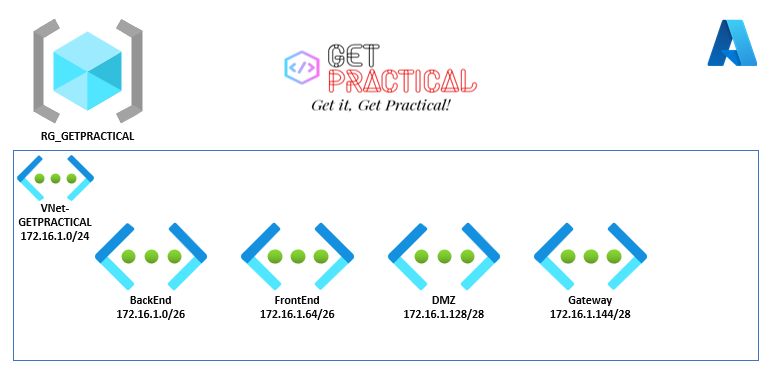
Continuing from the last article, today we are going to create a virtual network to allocate Azure resources and leave it in a secure pattern. In this scope, I’m setting up the network with the segmented subnets:

  • BackEnd: 172.16.1.0/26
  • FrontEnd: 172.16.1.64/26
  • DMZ: 172.16.1.128/28
  • Gateway: 172.16.1.144/28

Before starting to create the Azure network structure, let’s understand how a network in Azure works.

In Azure, when we create a network, we first choose the “Address Space” that would be an IP block that we would use inside our virtual network and within this block we will consider that each “Subnet” will be a piece of this block, according to the drawing below.
Vnet_02

After logging into the “Cloud Shell” select PowerShell, let’s assign some variables to create the network.

$RGName= “RG_GETPRACTICAL”
$LOCATION= “UKSOUTH”
$NameVnet=”VNet-GETPRACTICAL

These variables are for choosing the resource group where we will provision, the location and the name of your virtual network.

Vnet_03

Now let’s assign the network settings pointing the “Address Block”, in this case the Address Space 172.16.1.0/24 with 256 hots.

New-AzVirtualNetwork -Name $NameVnet -ResourceGroupName $RGName -Location $location -AddressPrefix 172.16.1.0/24

Vnet_04

See that it has been provisioned but does not contain subnets. now let’s assign some variables. This variable is to validate if the network exists within the environment.

$VirtualNetwork = Get-AzVirtualNetwork -Name $NameVnet -ResourceGroupName $rgName

Vnet_05

After validating the existing network, let’s add the subnets as shown in the examples below.

Add-AzVirtualNetworkSubnetConfig -Name BackEnd -VirtualNetwork $VirtualNetwork -AddressPrefix 172.16.1.0/26

Vnet_06

Next, let’s add the rest of the network scope.

Add-AzVirtualNetworkSubnetConfig -Name FrontEnd -VirtualNetwork $VirtualNetwork -AddressPrefix 172.16.1.64/26
Add-AzVirtualNetworkSubnetConfig -Name DMZ -VirtualNetwork $VirtualNetwork -AddressPrefix 172.16.1.128/28
Add-AzVirtualNetworkSubnetConfig -Name GatewaySubnet -VirtualNetwork $VirtualNetwork -AddressPrefix 172.16.1.144/28

Vnet_07

Now let’s run the “Set” command to add the set of subnets that were assigned above.

Set-AzVirtualNetwork -VirtualNetwork $VirtualNetwork

Vnet_08

Once your virtual network has been successfully created with its segmented subnets, let’s go to the portal to validate it.

Vnet_09

That’s all for today folks, until the next post.

Joao Costa

Azure Arc – How to add a server into it

image

Hey guys!

Today I’m going to talk about Azure Arc. This is a very useful tool nowadays, after all we have to work with more complex and heterogeneous environments. Therefore, the idea of being able to manage an entire infrastructure from a single access point saves many hours of work.

Well then, that is the role of Azure Arc. In it you can add Azure or non-azure resources, that is, other resources from other public clouds, on-premises, databases, etc.

Again, this is an intuitive and practical resource to use, let’s get right to the practice again.

Log in with your Azure account on the portal and type in the search bar “Azure Arc”. Open Azure Arc and you should see the Azure Arc Center.

image

On the home screen you have three tiles options, such as: Add your infrastructure for free, Deploy Azure Services and View Azure Arc Resources.

For this demo, we will use the first tile, so in “Add your infrastructure for free” click Add and then on the next screen, in the Servers tile click Add again.

image

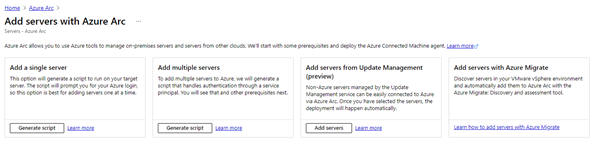
On the next screen you can choose if you want to add one or more servers, add servers using Azure Migrate or Update Management (Still in preview).

image

In the tile add a single server, click Generate Script.

From now on I believe you already understand what will happen, Azure will open a wizard that will help you configure and generate a script that will do everything for you, such as downloading the agent, installing the agent and registering the server in Azure. You will only need to run the script on the server you intend to add to Azure Arc.

After clicking on Generate Script, you will see the following screen:

image

On this screen, you will need to pay attention to the basic requirements for the script to work.

  • Firewall requirements, you will need port 443 to perform this task.
  • You will need permission as a local administrator on the server or servers.
  • Finally, what is the means of communication between Azure and machine, public internet, proxy server or a private endpoint (VPN or Express Route).

Click next and select the options according to your environment.

image

Click on next and if that’s the case you can add tags to better identify your environment. Or just skip to the next screen.

image

Or just skip to the next screen.

image

Now you need to copy or download the script and run it on the intended server.

And as soon as you run the script on the desired server, it will show up in Azure Arc as Connected status.

That’s all for today guys, until the next post.

Joao Costa

Azure: Creating a Windows 11 VM

virtual-machine

Hi Guys,

In today’s article I will be brief, but I want to demonstrate a subject that is well up to date: How to create a vm with Windows 11 through  Cloud Shell in Azure portal.

Let’s go straight to practice: Log into the Azure portal and hit the Cloud Shell icon located on the right side of the search bar.

01

If you have not yet used the Cloud Shell, on the first access a Resource Group will be created for the Cloud Shell to use it. In the left corner it is also possible to choose between PowerShell or Bash commands (In case you are familiar with Linux), for this example I will use PowerShell command.

Okay, the next step will be to create a resource group for this virtual machine.

02

Now run the following commands to create your virtual machine

az vm create –resource-group GetPractical –name VMWindows11 –image windows-11-Preview –public-ip-sku Standard –admin-username azureuser –admin-password “GetPractical@Windows11

03

All other parameters like disk, cpu, vnet and etc will be created automatically. If you need to customize, you will also need to customize the command or create via GUI portal.

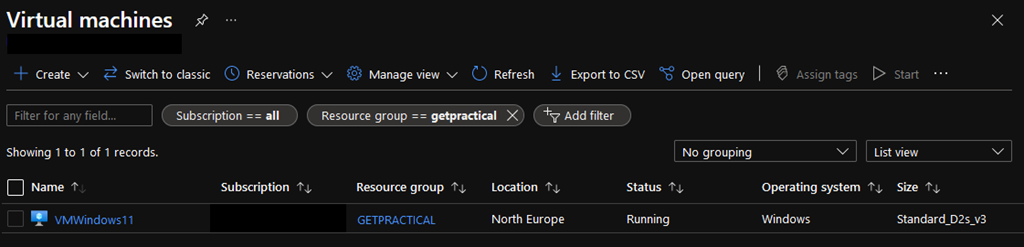
This process should take a few minutes, but once it is finished you will be able to see in the portal that the VM was created successfully.

It’s important to say that at the time I deployed this vm, Windows 11 was still in preview. If at the time of this post the preview version is no longer available, access the following Microsoft docs :

https://docs.microsoft.com/en-us/azure/virtual-machines/windows/cli-ps-findimage

05

Finally, run the mstsc /v <Public IP Address> command to access your virtual machine with Windows 11 and the result should be as follows:

04

And that folks, if you have any doubts, leave them in the comments.

Joao Costa