Azure Storage: GA Support for Entra ID and RBAC in Supplemental APIs

On 26 August 2025, Microsoft announced the general availability (GA) of Entra ID authentication and role-based access control (RBAC) for several supplemental Azure Storage APIs. This update improves security and gives administrators more precise control over sensitive operations such as managing container, queue, and table access permissions.

What has changed

The following APIs now support Entra ID and RBAC:

  • GetAccountInfo
  • GetContainerACL / SetContainerACL
  • GetQueueACL / SetQueueACL
  • GetTableACL / SetTableACL

These APIs now support OAuth 2.0 authentication via Entra ID.
A key change is the way error responses are returned:

  • Before: using OAuth without the right permissions resulted in 404 (not found).
  • Now:
    • 403 (forbidden) is returned when OAuth is used but the caller does not have the required permission (for example, Microsoft.Storage/storageAccounts/blobServices/getInfo/action for GetAccountInfo).
    • 401 (unauthorised) is returned for anonymous requests.
    • 404 (not found) is still possible if the resource itself does not exist.

If your application logic depends on the old 404 behaviour, you should update it to handle both 404 and 403 responses. Microsoft also recommends not relying on error codes to detect unsupported APIs but instead following the Entra ID authorization guidance.

Why this matters

  • Improved security – no more reliance on shared keys.
  • Granular access – assign only the necessary permissions.
  • Consistent responses – OAuth error codes now match industry standards.
  • Application impact – developers may need to update their code to support the new response model.

Continue reading “Azure Storage: GA Support for Entra ID and RBAC in Supplemental APIs”

Study guide for Azure Networking Solutions

Hey guys! Today I come here to share with you my journey to achieve Azure Networking Solutions certification. To get the title of Azure Networking Engineer, you need to pass the AZ-700 exam.

image

My badge validation link

Microsoft’s AZ-700 Designing and Implementing Microsoft Azure Networking Solutions certification exam is designed for IT professionals who want to prove their skills in designing and implementing networking solutions in Azure. Passing this exam requires a comprehensive understanding of Azure networking services, network security, and hybrid connectivity.

Continue reading “Study guide for Azure Networking Solutions”

Study guide for Azure Administrator

Hey guys! Today I come here to share with you my journey to achieve Azure Administrator certification. To get the title of Azure Administrator, you need to pass the Az-104 exam.

azure-administrator-associate-600x600

My badge validation link

What is expected from an Azure Administrator?

Azure Administrator implements, manages and monitors identity, governance, storage, compute and virtual networks in a cloud environment. Azure Administrator will provision, scale, monitor and adjust resources as appropriate. Candidates must have at least six months of hands-on experience in Azure administration. Candidates should have a strong understanding of Azure core services, workloads, security, and Azure governance.

Candidates for this exam should have experience using PowerShell, Command Line Interface, Azure Portal, and ARM templates.

The exam content:

Manage Azure identities and governance (15-20%)
Implement and manage storage (15-20%)
Deploy and manage Azure compute resources (20-25%)
Configure and manage virtual networking (25-30%)
Monitor and back up Azure resources (10-15%)

What was asked for on my exam?

Many questions based on RBAC (Role-Based Access Control), basically asked what permissions would be needed to perform certain tasks in Azure. I also remember seeing a lot of questions related to locations, ie whether you can interact between resources located in different Azure’s regions. Questions about minimum computing requirements (Virtual Machines), questions about Azure Monitor, Azure Advisor and general questions related to networking.

Some links from previous posts covering the exam content.

RBAChttps://getpractical.co.uk/2021/03/08/understand-azure-role-based-access-control-rbac/

Azure Advisorhttps://getpractical.co.uk/2021/05/03/azures-advisor/

Azure Storagehttps://getpractical.co.uk/2021/06/14/creating-a-storage-on-azure/

Az-Copyhttps://getpractical.co.uk/2021/05/17/how-to-download-and-install-the-azcopy-tool/

My study method:

  1. I always read the outline of the skills measured in each exam.
  2. If there’s anything I’m not familiar with, I’ll read the documentation available in Microsoft Docs (always free and up-to-date).
  3. If I don’t understand what the documents are saying, I use my tenant for proper validations.
  4. I always dedicate 20 to 40 hours (per exam) to perform the laboratories (On Azure you can have a free tenant for 30 days to do your validations).
  5. When it comes to new technology, I start by watching the training available in Microsoft Learn, Pluralsight and/or Udemy.

Azure Free tenant: https://azure.microsoft.com/en-gb/free/

Microsoft Learning: https://docs.microsoft.com/en-us/learn/

Exam skills outline Az-104: https://docs.microsoft.com/en-us/learn/certifications/exams/az-104

I would soon renew my Microsoft 365 certifications, after all I have a large part of my background in Microsoft 365 migrations and I will no doubt share my journey here.

Take as much time as you need to prepare and first of all, don’t be afraid to fail. I’ve failed exams before and this is part of any IT professional’s journey, whether you’re a beginner or not.

If you have any questions, let me know in the comments that I will try to help you improve. In 2022 I will try the Azure Solution Architect exam, which will be my next goal with Azure (Until Microsft updates everything again lol =/).

See you soon guys and good luck studying.

Joao Costa

Creating Dynamic Groups on Azure AD

00

Hey guys,

In today’s post, I’ll talk about a simple but very efficient subject, Dynamic Groups. Dynamic Groups are groups based on rules and if users match to a rule they will be added automatically in a group (Groups for devices can also be created). In other words, Dynamic Groups solve that pain of any administrator to keep their groups and distribution lists up to date. For example in the environment where I work we create groups based on locations, departments and the famous group “All”. From the moment you create the groups and rules, the only work needed from then on will be: Create the users correctly, I mean, fill in all the fields correctly so that this new user fits the rule that belongs to him.

That said, let’s get start.

Go to the Azure portal and open the “Azure Active Directory” blade.

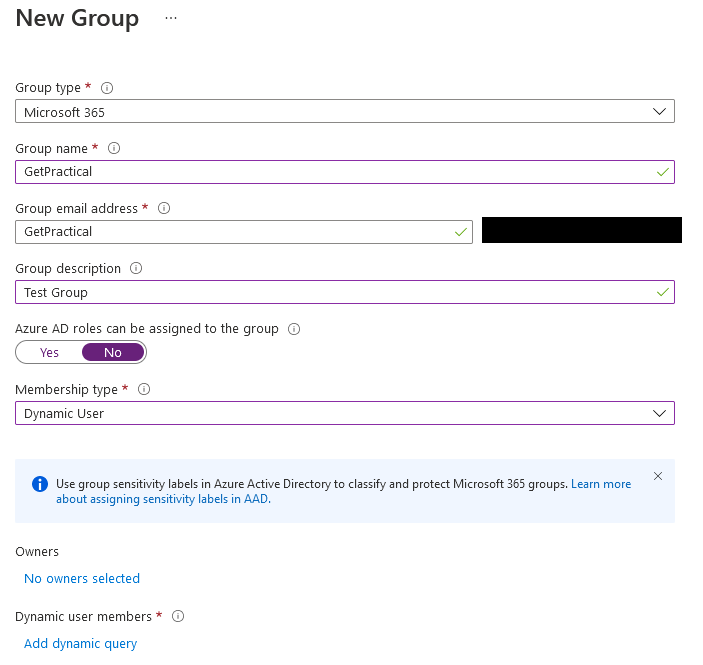
Then select Groups > New Group and you will see the following screen (For this post I will create a group for email purposes, but you can use as a Security group as well). Fill up all the fields and select Dynamic User on Membership Type.

1

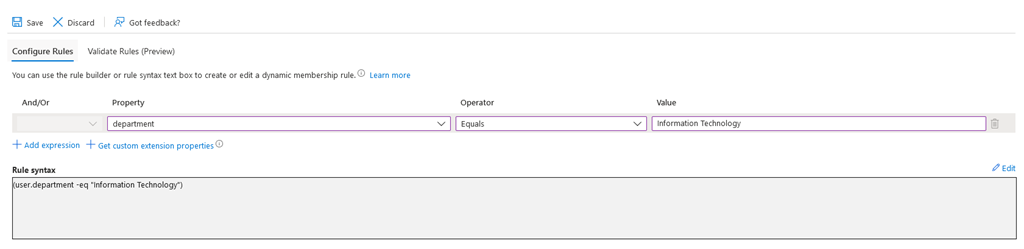
The next step is to create the rule that would add users automatically based on the added criteria.

In this example rule, all users who have the field department filled with the words “Information Technology” will be added to the GetPractical group automatically.

2

If you want to validate the rule, click on the “Validate Rules” tab, manually add some users and then click on ”Validate”. The rule will tell you which of the users you have added fits the criteria entered in your rule.

4

3

As you can see from my example above, only one of the users fulfils the criteria entered in this rule.

Now click save and then click create.

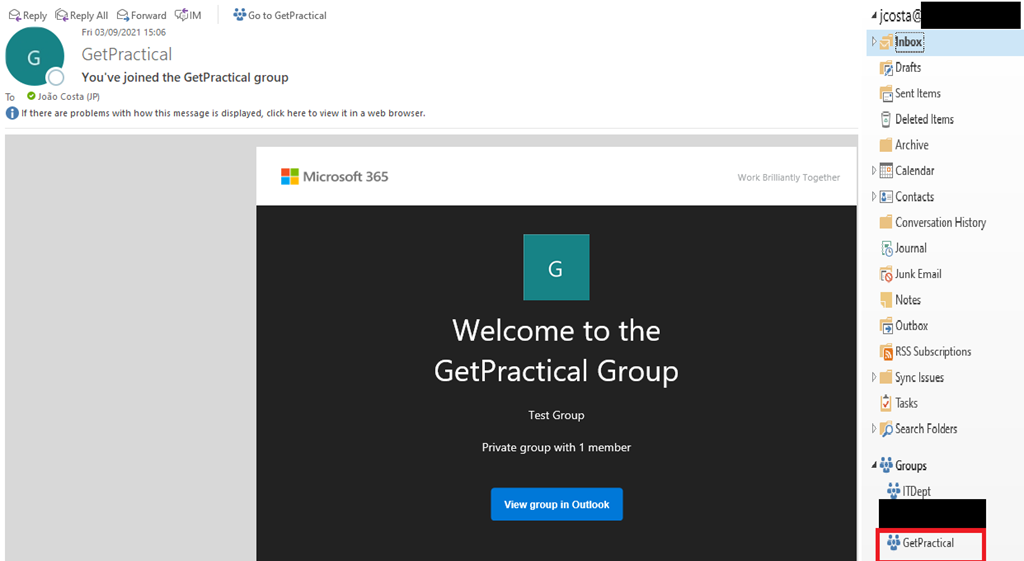
Just a point of attention: If you like me have the need to create a group for all employees, I advise you to create a rule that initially doesn’t work and then turn off the welcome email function. Unfortunately there is no possibility to turn off this feature during group creation, so the only way I found at this time was to create a rule that doesn’t work or a rule that only includes you and then turn off the welcome notifications and also the mapping from the group in Outlook.

7

In the image above the example of the welcome email and the group mapped in Outlook.

10

For you to turn off these two features you need to connect to Exchange Online (Microsoft 365) and execute the commands used above.

Example below:

Set-UnifiedGroup -Identity “All@getpractical.co.uk” -UnifiedGroupWelcomeMessageEnable:$false
Set-UnifiedGroup -Identity “All@getpractical.co.uk” -HiddenFromExchangeClientsEnabled:$true

That’s all for today guys, see you soon.

Joao Costa

Azure Files – Part 4 – Back Up for Azure Files

12

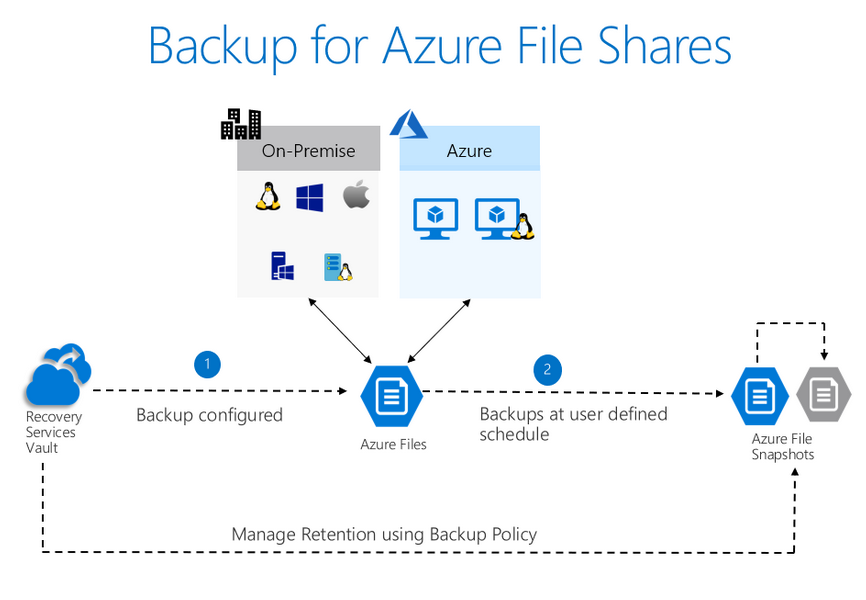
Hi guys! In today’s post of the Azure Files series (You can find out more about the series here), I will end the series talking about how to configure your environment to be backed up and have security in case of any data hijacking attempt through, for example, ransomwares.

Okay, let’s go straight to the configuration steps.

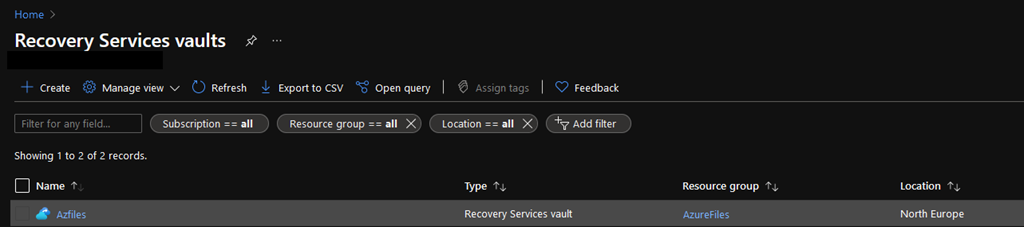
Create a Recovery Services vault

Sign in to your subscription in the Azure portal and search for Backup center in the Azure portal, and navigate to the Backup Center dashboard.

1

Select +Vault from the Overview tab and select Recovery Services vault and click Continue.

3

The Recovery Services vault dialog box opens. Provide values for the Name, Subscription, Resource group, and Location. Then hit Review and create.

Name: Enter a friendly name to identify the vault. The name must be unique to the Azure subscription. Specify a name that has at least 2 but not more than 50 characters. The name must start with a letter and consist only of letters, numbers, and hyphens.

Subscription: Choose the subscription to use. If you’re a member of only one subscription, you’ll see that name. If you’re not sure which subscription to use, use the default (suggested) subscription. There are multiple choices only if your work or school account is associated with more than one Azure subscription.

Resource group: Use an existing resource group or create a new one. To see the list of available resource groups in your subscription, select Use existing, and then select a resource from the drop-down list. To create a new resource group, select Create new and enter the name. For more information about resource groups, see Azure Resource Manager overview.

Location: Select the geographic region for the vault. To create a vault to protect any data source, the vault must be in the same region as the data source.

4

It can take a while to create the Recovery Services vault. Monitor the status notifications in the Notifications area at the upper-right corner of the portal. After your vault is created, it’s visible in the list of Recovery Services vaults. If you don’t see your vault, select Refresh.

Configure backup from the Recovery Services vault

The following steps explain how you can configure backup for multiple file shares from the Recovery Services vault pane. In the Azure portal, open the Recovery Services vault you want to use for configuring backup for the file share.

5

Next in the Recovery Services vault pane, select the +Backup from the menu on the top.

6

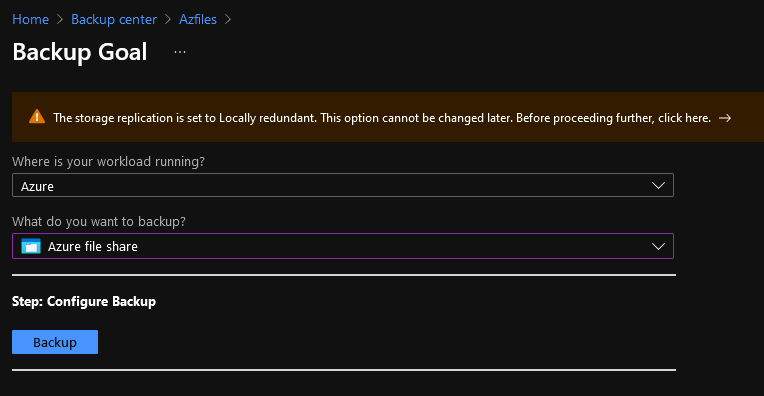
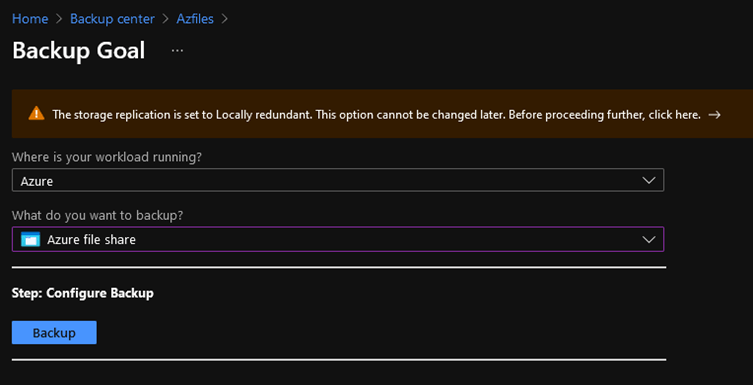
In the Backup Goal pane, set Where is your workload running? to Azure by selecting the Azure option from the drop-down list.

In What do you want to back up?, select Azure File Share from the drop-down list.
7

Select Backup to register the Azure file share extension in the vault.

After you select Backup, the Backup pane opens. To select the storage account hosting the file share that you want to protect, select the Select link text below the Storage Account textbox.

8

The Select Storage Account Pane opens on the right, listing a set of discovered supported storage accounts. They’re either associated with this vault or present in the same region as the vault, but not yet associated to any Recovery Services vault. From the list of discovered storage accounts, select an account, and select OK.

The next step is to select the file shares you want to back up. Select the Add button in the FileShares to Backup section.

The Select File Shares context pane opens on the right. Azure searches the storage account for file shares that can be backed up. If you recently added your file shares and don’t see them in the list, allow some time for the file shares to appear

From the Select File Shares list, select one or more of the file shares you want to back up. Select OK.

To choose a backup policy for your file share, you have three options:

  • Choose the default policy.
    This option allows you to enable daily backup that will be retained for 30 days. If you don’t have an existing backup policy in the vault, the backup pane opens with the default policy settings. If you want to choose the default settings, you can directly select Enable backup.

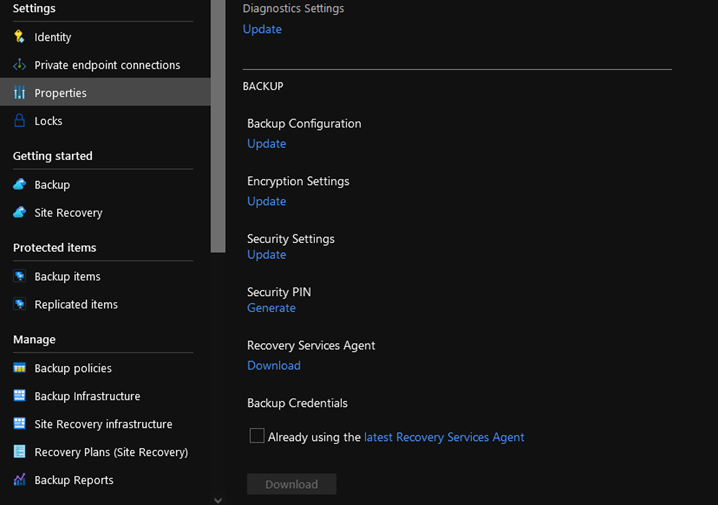
Prevent attacks
11

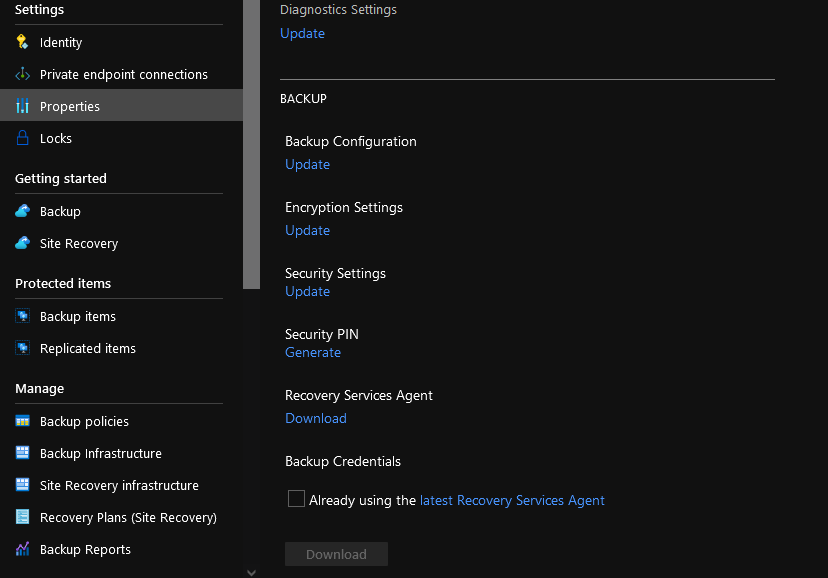
The update link opens the Security Settings pane, which provides a summary of the features and lets you enable them.

From the drop-down list Have you configured Azure AD Multi-Factor Authentication?, select a value to confirm if you’ve enabled Azure AD Multi-Factor Authentication. If it’s enabled, you’re asked to authenticate from another device (for example, a mobile phone) while signing in to the Azure portal.

10

When you perform critical operations in Backup, you have to enter a security PIN, available on the Azure portal. Enabling Azure AD Multi-Factor Authentication adds a layer of security. Only authorized users with valid Azure credentials, and authenticated from a second device, can access the Azure portal.

Checks have been added to make sure only valid users can perform various operations. These include adding an extra layer of authentication, and maintaining a minimum retention range for recovery purposes.

Authentication to perform critical operations

As part of adding an extra layer of authentication for critical operations, you’re prompted to enter a security PIN when you perform Stop Protection with Delete data and Change Passphrase operations.

That’s all for now! I hope it was useful guys, until the next post, thank you!

Joao Costa