Creating a storage on Azure

SA_logo

Today I’m going to show you how to create a storage in the Microsoft Azure portal. So straight to the point, let’s get start: First log on your Azure Portal, next go to the “Search Bar” and type “Storage Accounts“, after that select Storage Accounts and finally click “Create“.

image

Now let’s add the necessary information for each Storage, remembering which organization will have Storages according to your needs. I will detail each configuration (Required ones):

Basics tab

  • Subscription – Select the subscription for the new storage account.
  • Resource group – Create a new resource group for this storage account, or select an existing one. For more information, see Resource groups.
  • Storage account name – Choose a unique name for your storage account. Storage account names must be between 3 and 24 characters in length and may contain numbers and lowercase letters only.
  • Region – Select the appropriate region for your storage account. Not all regions are supported for all types of storage accounts or redundancy configurations.
  • Performance – Select Standard performance for general-purpose v2 storage accounts (default). This type of account is recommended by Microsoft for most scenarios. Select Premium for scenarios requiring low latency. After selecting Premium, select the type of premium storage account to create. The following types of premium storage accounts are available:
  • Redundancy – Select your desired redundancy configuration. Not all redundancy options are available for all types of storage accounts in all regions. If you select a geo-redundant configuration (GRS or GZRS), your data is replicated to a data center in a different region. For read access to data in the secondary region, select Make read access to data available in the event of regional unavailability.
  • Advanced tab

    Networking tab
    • Connectivity method – By default, incoming network traffic is routed to the public endpoint for your storage account. You can specify that traffic must be routed to the public endpoint through an Azure virtual network. You can also configure private endpoints for your storage account. For more information, see Use private endpoints for Azure Storage.
    • Routing preference – The network routing preference specifies how network traffic is routed to the public endpoint of your storage account from clients over the internet. By default, a new storage account uses Microsoft network routing. You can also choose to route network traffic through the POP closest to the storage account, which may lower networking costs. For more information, see Network routing preference for Azure Storage.

    Then click Create.

    image

    After creation check it in your Storage accounts and by clicking on settings you can see all the parameters used in the Storage settings.

    image

    Thanks guys and see you on the next post!

    Cisco CME – B-ACD and Auto Attendant services

    Hey people,

    Today I’m going to change the Topic and talk about other thing…… which is the CME.
    I particularly like CME, and enjoy working on it Smile

    There is a feature on CME, which seems not to be so popular, but it’s really useful: B-ABC.
    In case you only have a CME in your IPT Infrastructure, B-ACD can easily be a good alternative for Cisco UCCX or Cisco Unity (for a basic IVR).

    The only limitation we have is related to Codec. You must use same codec on incoming and outgoing dial peers when transferring calls.

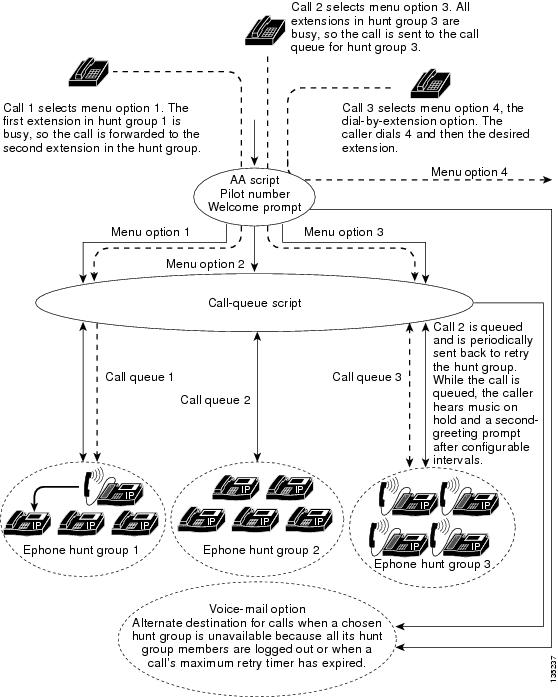
    B-ACD is a Basic automatic call distribution (B-ACD) and auto-attendant (AA), and it provides:

    • Automatic answering of outside calls with greetings and menus that allow callers to select the appropriate department or to dial known extension numbers.
    • Managed call queues for hunt groups that route calls for different menu options.

    Each Cisco Unified CME B-ACD application consists of one or more auto-attendant (AA) services and one call-queue service. From version 11.5 onwards, B-ACD introduces support for voice hunt group that includes SIP, SCCP, PSTN, and FXS.

    Cisco Unified CME B-ACD Service Call Flow

    135237.ps


    Configuring Cisco Unified CME B-ACD

    • Downloading TCL Script and Prompts
      Download the Cisco Unified CME B-ACD tar archives to a TFTP server that is accessible to the Cisco Unified CME router (Download it HERE).

      Go to your CME and extract it using this command:
      archive tar /xtract tftp://X.X.X.X/cme-b-acd-X.X.X.X.tar flash:

    • Dial Peer
      Let’s configure the dial-peer that will be used reach the Application we are going to create. I’m going to add 2 Dial-peers, as usually we have one only for all incoming calls, and the second one will be used to send the call to the application.

      Router(config)#dial-peer voice 11 pots
      Router(config-dial-peer)#incoming called-number .
      Router(config-dial-peer)#direct-inward-dial
      Router(config-dial-peer)#port 0/1/0:15
      Router(config-dial-peer)#forward-digits all
      Router(config-dial-peer)#exit

    • Router(config)#dial-peer voice 222 voip
      Router(config-dial-peer)#service aa     ! — Enables AA service on dial-peer
      Router(config-dial-peer)#destination-pattern 6000
      Router(config-dial-peer)#session target ipv4:10.10.254.3
      Router(config-dial-peer)#incoming called-number 6000
      Router(config-dial-peer)#dtmf-relay h245-alphanumeric
      Router(config-dial-peer)#codec g711ulaw
      Router(config-dial-peer)#no vad

    Hunt Groups
    In the below example, I’m creating Hunt Groups for SCCP phones.
    A maximum of ten hunt groups can be associated with Cisco Unified CME B-ACD call-queue service. The final command is not used with hunt groups that are part of Cisco Unified CME B-ACD services. Instead, the param voice-mail command specifies the alternate destination for calls that cannot be connected to a hunt group because all hunt-group agents are unavailable or because a hunt-group agent does not become available within the configured maximum retry time.

    Router(config)#ephone-hunt 1 sequential
    Router(config-ephone-hunt)#pilot 6100
    Router(config-ephone-hunt)#list 6001, 6002


    Router(config)#ephone-hunt 2 sequential
    Router(config-ephone-hunt)#pilot 6101
    Router(config-ephone-hunt)#list 6001, 6002

    Queue
    Queues are responsible for routing the call to a Hunt Group and queue the call when members of the Group are all busy.

    application
      service queue flash:app-b-acd-2.1.2.3.tcl
         !  — Point to where you extracted the files
       param number-of-hunt-grps 3                     ! — Max number of hunt groups
       param queue-len 15                                        !  — Size of the queue (1 to 30)
       param aa-hunt1 6100                                      !  — Option 1 – Goes to Hunt 6100
       param aa-hunt2 6101                                     !  — Option 2 – Goes to Hunt 6100
      

    Auto Attendant
    Time to configure the auto attendant part of the script.

    application
      service aa flash:app-b-acd-aa-2.1.2.3.tcl      !  — Point to where you extracted the files
        paramspace english location flash:      ! – Defines the languages and where the files are
       paramspace english language en           ! —  Defines the code (en) to the audio files
       param service-name queue                  ! —  Associate AA with the Queue we configured above
       param handoff-string aa                  
    ! –Specifies the name of the service
      param aa-pilot 6000                      
    ! —  Declares the Pilot Number (Must be the same as the Dial Peer)
       param welcome-prompt _bacd_welcome.au   
    ! —  Prompt of the Welcome Message
       param menu-timeout 5                    
    ! — Sets the number of times the AA service will loop the menu prompt
       param dial-by-extension-option 9         
    ! —  Enables callers to dial extension numbers after dialing the specified menu number
       param max-extension-length 4             
    ! —  Restricts the number of digits that can be dialed
       param number-of-hunt-grps 3
       param queue-overflow-extension 3999      
    ! —  If queue is full, sends the call to 3999
       param second-greeting-time 45            
    ! —  Defines the time delay before the second greeting is played
       param call-retry-timer 10               
    ! —  Assigns the  time that calls must wait between retries to connect to a hunt group pilot number or to the alternate destination number.
       param max-time-call-retry 90             
    ! —  This is the maximum period of time for which a call can stay in a call queue
       param max-time-vm-retry 2                
    ! —  Assigns the number of times that calls can attempt to reach the alternate destination number.
       param voice-mail 3999                    
    ! —  Defines an alternate destination for calls that are not answered by a hunt group
       param send-account true                   ! —  Generates call detail records for calls that are handled by B-ACD

    Hope you enjoyed this post!

    See ya Smile

    Bruno

    How to authenticate AzCopy on Azure

    AzCopy should now be downloaded to your computer (If you don’t know how to do this, go back to the last post here). But before you can perform any tasks, it is necessary to authenticate to your Azure subscription to access Azure Storage first.

    There are two ways to authenticate AzCopy to your Azure storage accounts – Azure Active Directory or by a Shared Access Signature (SAS) token. In this article, we’ll focus on using Azure AD.

    The most common method to authenticate AzCopy is via Azure AD. When using Azure AD, you have several options. Some of these options are:

    • Interactive Login – User is prompted to log in using the browser.
    • Service Principal + password – For non-interactive login. Recommended for automation and scripting.
    • Service Principal + certificate – For non-interactive login. Recommended for automation and scripting.

    In this article, you will learn how to authenticate via interactive login. To do so, first, open a command prompt or PowerShell and run the below command. The –tenant-id parameter is optional but recommended, especially if your login account is associated with more than one Azure tenant.

    image

    Once executed, you will be asked to open a browser and navigate to https://microsoft.com/devicelogin and enter the displayed code. You can see what that will look like below.

    05Enter the code from AzCopy into the browser

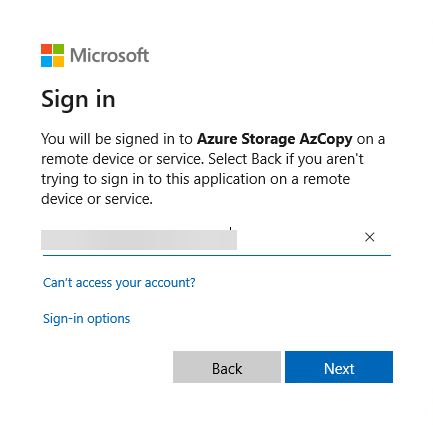
    Once you’ve entered the code into the browser, click Next and proceed to sign in to your account.

    03

    When sign-in is done, you should see the status shown in the browser and in the terminal similar to what’s shown in the screenshot below.

    04

    Now that you have all this knowledge, you should now be ready to put AzCopy in action! See you soon folks!

    Cisco CUCM – AXL API requests using Python

    Hey guys,

    Following my post about the overview of Cisco CUCM – SOAP (read it HERE), I’m going to show you now how to send some basic requests using Python.

    To be able to do that, you will need to have:

    • Python installed (download it here)
    • AXLSQLToolkit
    • Python Libraries (Zeep, urllib3 , requests – installed via PIP)

    After installing Python and its libraries, let’s go to the codes!

    To run my codes, I use PyCharm….but you can use any other software of your preference.

    Firstly, you have to declare your libraries:
    *Code will be passed at the end of the article Smile

    image

    Now you have to enter your CUCM information, such as IP, username and password.
    We are going to use ZEEP to create SOAP requests. In case of any fault, Zeep will show what SOAP envelope that was sent and the response from CUCM AXL.
    If you’re not disabling SSL verification, host should be the FQDN of the server rather than IP.


    image

    To start with a simple request, I’ll show you how to list Phones.
    Have in hands the  Cisco DevNet AXL Schema Reference. It will help you to understand each request, which argument you must send as a searchCriteria and which arguments you must expect as returnedTags.
    Only declared arguments in the returnedTags will be displayed. The rest will be showed as none.

    For example, I want to list a phone, based on the Device Name, and want to have the arguments namedescription, model and device pool being returned to me.
    The code will look like this:

    image

    The result will like this:

    {
         ‘return’: {
             ‘phone’: [
                 {
                     ‘name’: ‘SEP0004F2F01F1A’,
                     ‘description’: ‘Meeting Room’,
                     ‘product’
    : None,
                     ‘model’: ‘Cisco 7937’,
                     ‘class’: None,
                     ‘protocol’: None,
                     ‘protocolSide’: None,
                     ‘callingSearchSpaceName’: None,
                     ‘devicePoolName’: {
                         ‘_value_1’: ‘BE_KNO_DP’,
                         ‘uuid’: ‘{960A36D4-C7ED-49B8-A53C-B188BE30635A}’
                     },
                     ‘commonDeviceConfigName’: None,
                     ‘commonPhoneConfigName’: None,
                     ‘networkLocation’: None,
                     ‘locationName’: None,
                     ‘mediaResourceListName’: None,
                     ‘networkHoldMohAudioSourceId’: None,
                     ‘userHoldMohAudioSourceId’: None,
                     ‘automatedAlternateRoutingCssName’: None,
                     ‘aarNeighborhoodName’: None,
                     ‘loadInformation’: None,
                     ‘traceFlag’: None,
                     ‘mlppIndicationStatus’: None,
                     ‘preemption’: None,
                     ‘useTrustedRelayPoint’: None,
                     ‘retryVideoCallAsAudio’: None,
                     ‘securityProfileName’: None,
                     ‘sipProfileName’: None,
                     ‘cgpnTransformationCssName’: None,
                     ‘useDevicePoolCgpnTransformCss’: None,
                     ‘geoLocationName’: None,
                     ‘geoLocationFilterName’: None,
                     ‘sendGeoLocation’: None,
                     ‘numberOfButtons’: None,
                     ‘phoneTemplateName’: None,
                     ‘primaryPhoneName’: None,
                     ‘ringSettingIdleBlfAudibleAlert’: None,
                     ‘ringSettingBusyBlfAudibleAlert’: None,
                     ‘userLocale’: None,
                     ‘networkLocale’: None,
                     ‘idleTimeout’: None,
                     ‘authenticationUrl’: None,
                     ‘directoryUrl’: None,
                     ‘idleUrl’: None,
                     ‘informationUrl’: None,
                     ‘messagesUrl’: None,
                     ‘proxyServerUrl’: None,
                     ‘servicesUrl’: None,
                     ‘softkeyTemplateName’: None,
                     ‘loginUserId’: None,
                     ‘defaultProfileName’: None,
                     ‘enableExtensionMobility’: None,
                     ‘currentProfileName’: None,
                     ‘loginTime’: None,
                     ‘loginDuration’: None,
                     ‘currentConfig’: None,
                     ‘singleButtonBarge’: None,
                     ‘joinAcrossLines’: None,
                     ‘builtInBridgeStatus’: None,
                     ‘callInfoPrivacyStatus’: None,
                     ‘hlogStatus’: None,
                     ‘ownerUserName’: None,
                     ‘ignorePresentationIndicators’: None,
                     ‘packetCaptureMode’: None,
                     ‘packetCaptureDuration’: None,
                     ‘subscribeCallingSearchSpaceName’: None,
                     ‘rerouteCallingSearchSpaceName’: None,
                     ‘allowCtiControlFlag’: None,
                     ‘presenceGroupName’: None,
                     ‘unattendedPort’: None,
                     ‘requireDtmfReception’: None,
                     ‘rfc2833Disabled’: None,
                     ‘certificateOperation’: None,
                     ‘authenticationMode’: None,
                     ‘keySize’: None,
                     ‘keyOrder’: None,
                     ‘ecKeySize’: None,
                     ‘authenticationString’: None,
                     ‘certificateStatus’: None,
                     ‘upgradeFinishTime’: None,
                     ‘deviceMobilityMode’: None,
                     ‘roamingDevicePoolName’: None,
                     ‘remoteDevice’: None,
                     ‘dndOption’: None,
                     ‘dndRingSetting’: None,
                     ‘dndStatus’: None,
                     ‘isActive’: None,
                     ‘isDualMode’: None,
                     ‘mobilityUserIdName’: None,
                     ‘phoneSuite’: None,
                     ‘phoneServiceDisplay’: None,
                     ‘isProtected’: None,
                     ‘mtpRequired’: None,
                     ‘mtpPreferedCodec’: None,
                     ‘dialRulesName’: None,
                     ‘sshUserId’: None,
                     ‘digestUser’: None,
                     ‘outboundCallRollover’: None,
                     ‘hotlineDevice’: None,
                     ‘secureInformationUrl’: None,
                     ‘secureDirectoryUrl’: None,
                     ‘secureMessageUrl’: None,
                     ‘secureServicesUrl’: None,
                     ‘secureAuthenticationUrl’: None,
                     ‘secureIdleUrl’: None,
                     ‘alwaysUsePrimeLine’: None,
                     ‘alwaysUsePrimeLineForVoiceMessage’: None,
                     ‘featureControlPolicy’: None,
                     ‘deviceTrustMode’: None,
                     ‘earlyOfferSupportForVoiceCall’: None,
                     ‘requireThirdPartyRegistration’: None,
                     ‘blockIncomingCallsWhenRoaming’: None,
                     ‘homeNetworkId’: None,
                     ‘AllowPresentationSharingUsingBfcp’: None,
                     ‘confidentialAccess’: None,
                     ‘requireOffPremiseLocation’: None,
                     ‘allowiXApplicableMedia’: None,
                     ‘enableCallRoutingToRdWhenNoneIsActive’: None,
                     ‘ctiid’: None,
                     ‘uuid’: ‘{81F827A6-3B58-F7F0-39BF-DBA51E81B606}’
                 }
             ]
         },
         ‘sequence’: None
    }

    As I mentioned, if you don’t declare you want to have your argument being returned, it will be displayed as None.

    Right. Now, you have to use your Python skills to take any action based on your output.
    For example, if you want to isolate the returned tags to save them in a variable, you can use a For Loop to do something like that:

    image
    And the result will be this:

    image

    Now, you can use the Cisco DevNet AXL Schema Reference to explore all possibilities you have.

    You can, for example, add new phones, new lines…

    Adding Lines

    According to the Schema, you don’t have Search Criteria or Returned Tags in the addLine request.
    So, the code you be like this:

    image

    This is the line we’ve just added:

    image

    As I always say…now, sky is the limit!
    You can do whatever you want by following the Schema….like add/delete/list Phones, lines, Device Pool, Device Profile, etc, etc, etc…

    Hope you liked it Smile

    See you!

    Whole Code

    from zeep import Client
    from zeep.cache import SqliteCache
    from zeep.transports import Transport
    from zeep.exceptions import Fault
    from zeep.plugins import HistoryPlugin
    from requests import Session
    from requests.auth import HTTPBasicAuth
    from urllib3 import disable_warnings
    from urllib3.exceptions import InsecureRequestWarning
    from lxml import etree

    disable_warnings(InsecureRequestWarning)

    username = ‘admin’
    password = ‘Cisco123’

    hostIP = ‘192.168.1.10’
    location = ‘https://192.168.1.10:8443/axl/’.format(host=hostIP)
    binding = “{http://www.cisco.com/AXLAPIService/}AXLAPIBinding”
    wsdl = ‘file://C:/Users/user123/AppData/Local/Programs/Python/Python38-32/axlsqltoolkit/schema/11.5/AXLAPI.wsdl’

    session = Session()
    session.verify = False
    session.auth = HTTPBasicAuth(username, password)

    transport = Transport(cache=SqliteCache(), session=session, timeout=20)
    history = HistoryPlugin()
    client = Client(wsdl=wsdl, transport=transport, plugins=[history])
    service = client.create_service(binding, location)

    def show_history():
         for hist in [history.last_sent, history.last_received]:
             print(etree.tostring(hist[“envelope”], encoding=”unicode”, pretty_print=True))

    try:
         resp = service.listPhone(searchCriteria={‘name’: ‘SEP0004F2F01F1A’},
                                  returnedTags={‘name’: ”, ‘description’: ”,
                                                ‘model’: ”, ‘devicePoolName’: ”})
         print(resp)
    except Fault:
         show_history()

    phone_list = resp[‘return’].phone
    for phone in phone_list:
         print(phone[‘name’])
         print(phone[‘description’])
         print(phone[‘model’])
         print(phone[‘devicePoolName’]._value_1)

    try:
         resp = service.addLine(line={‘pattern’: ‘707080’, ‘usage’: ‘Device’,
                                      ‘description’: ‘Test’, ‘routePartitionName’: ‘ONCLUSTER’})
         print(resp)
    except Fault:
         show_history()

    How to Download and Install the AZCopy Tool

    Azure-Command-line-Tool-for-Data-Transfer

    This article was motivated by the doubt of one of our readers who asked us to explain more about AzCopy, as he had the need to copy files to the Azure Storage and was having issues (I already helped him to solve the issue, doing this through the AzCopy).

    AzCopy is a command-line utility that you can use to copy blobs or files to or from a storage account. It’s a great command-line utility that can automate and streamline the process but requires some setup.

    In this article, you’re going to learn how to prepare your system to use AzCopy. This includes downloading and Install the AzCopy, I will divide this post in two, starting explaining just about the download and installation of AzCopy. In the next article, I’ll focus on how to authenticate AzCopy on Azure Storage and how to copy files.

    The latest and supported version of AzCopy as of this writing is AzCopy v10. AzCopy is available for Windows, Linux, and macOS. In this article, only the Windows AzCopy utility is covered.

    Downloading AzCopy: The Manual Way

    There are a couple different to download AzCopy. Let’s first do it the manual way. You might use this method if you don’t intend to install AzCopy on many computers at once.

    Navigate to this download link–  and it should initiate a download of the zip file. Once downloaded, extract the zip file to the C:\AzCopy or a folder of your choice.

    Lastly, add the installation directory to the system path. Refer to the article here if you need to know how to do that. Adding the folder path to the Windows PATH allows you to call the azcopy executable whenever you are in any working directory at the command line.

    Downloading AzCopy via PowerShell Script

    If you intend to install AzCopy on many machines or simply need to provide instructions for someone else to install it, you can use PowerShell also. Using a PowerShell script simplifies the process down to a single script.

    Create a new PowerShell script and copy/paste the below contents into it. You can get an idea of which each section of the script is doing by inspecting the in-line comments.

    By default, the below script will place AzCopy in the C:\AzCopy folder. If you’d like to change that, when running the script, use the InstallPath parameter or simply change the default path in the script itself.

    Function Install-AzCopy {
    [CmdletBinding()]
    param(
    [Parameter()]
    [string]$InstallPath = ‘C:\AzCopy’
    )

        # Cleanup Destination
    if (Test-Path $InstallPath) {
    Get-ChildItem $InstallPath | Remove-Item -Confirm:$false -Force
    }

        # Zip Destination
    $zip = “$InstallPath\AzCopy.Zip”

        # Create the installation folder (eg. C:\AzCopy)
    $null = New-Item -Type Directory -Path $InstallPath -Force

        # Download AzCopy zip for Windows
    Start-BitsTransfer -Source “
    https://aka.ms/downloadazcopy-v10-windows” -Destination $zip

        # Expand the Zip file
    Expand-Archive $zip $InstallPath -Force

        # Move to $InstallPath
    Get-ChildItem “$($InstallPath)\*\*” | Move-Item -Destination “$($InstallPath)\” -Force

        #Cleanup – delete ZIP and old folder
    Remove-Item $zip -Force -Confirm:$false
    Get-ChildItem “$($InstallPath)\*” -Directory | ForEach-Object { Remove-Item $_.FullName -Recurse -Force -Confirm:$false }

        # Add InstallPath to the System Path if it does not exist
    if ($env:PATH -notcontains $InstallPath) {
    $path = ($env:PATH -split “;”)
    if (!($path -contains $InstallPath)) {
    $path += $InstallPath
    $env:PATH = ($path -join “;”)
    $env:PATH = $env:PATH -replace ‘;;’,’;’
    }
    [Environment]::SetEnvironmentVariable(“Path”, ($env:path), [System.EnvironmentVariableTarget]::Machine)
    }
    }

    Once the script has run, you can then confirm that AzCopy was downloaded successfully. While still in the PowerShell console, listing the files in the install path by running Get-ChildItem -Path $InstallPath replacing whatever folder you used.

    If everything went well, you should see the azcopy.exe utility and a license text file.

    You can also confirm that the installation path is added to the system path variable by running $env:Path -split ";" and noticing that the install folder shows up at the bottom of the list.

    In the example below, C:\AzCopy is listed which means that the location was added successfully.

    image

    That and everything for today guys, in the next post I will talk about how to authenticate in Azure Storage and how to effectively copy files using AzCopy.