Cisco Finesse – Adding 3rd Party Gadgets

Hey guys,

In this post, I’m going to show you how to add new gadgets to your Cisco Finesse.
It can be any special gadget you may have created, or even a simple web page to be opened in one of the Finesse Tabs.

Finesse itself allow you to upload third-party gadgets. It’s done via an specific user, 3rdpartygadget. This account only has permission to this directory, /files, and any directories created under it.

  • Set a Third Party Gadget account password

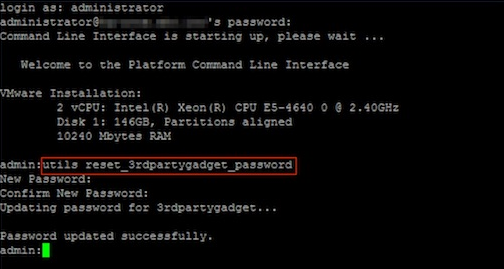
To start off, we need firstly to set a password for this account, via CLI.
So, connect via SSH into your UCCX server and enter the line command: utils reset_3rdpartygadget_password .
For the password, enter ciscocisco,  and confirm it.

image

Not, it’s time to upload your Gadget to the server.
Finesse gadgets are OpenSocial gadgets. An OpenSocial Gadget is an XML document that defines metadata for an OpenSocial Gadget container, the Finesse agent desktop. Gadgets are highly cacheable so it does not need a high-performance server.

A gadget consists of the following:

  • XML to define metadata
  • HTML for markup
  • JavaScript for interactivity
  • CSS for presentation & style

Let’s see now the steps to upload your files. For this task, I’m using FileZilla (download):

  1. Open FileZilla.
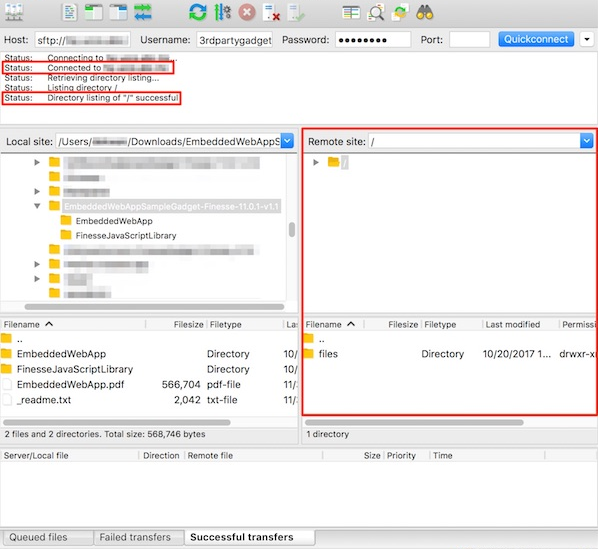
  2. In the quickconnect bar,
    in red, fill the following fields:
  • Enter the Finesse FQDN: {{web-url}} in the Host field.
  • Enter 3rdpartygadget in the Username field.
  • Enter ciscocisco in the Password field. This is the 3rdpartygadget password defined in the previous step.
  • Enter 22 in the Port field.
  • Click Quickconnect.

image

  • If a message pops up, about Unknown host key, select Always trust this host, add this key to the cache, and then OK.
  • You must see now a message like that in the log section: Status:     Connected to <URL>.
  • In the remote site section, confirm that you see a folder named / and you can see the files folder below.

image

Now you have to transfer your Gadgets file to the server:

  • Drag the EmbeddedWebApp folder (that contains the xml, js, and css) into the files folder. Note that this is the folder inside of the EmbeddedWebAppSampleGadget-Finesse-x.x.x-vx.x folder.
  • Confirm that the transfer was successful by checking that the transfers shows up in the Successful transfers tab at the bottom.

image

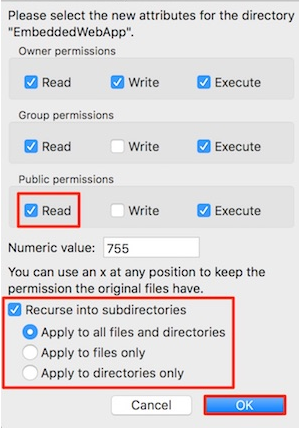
Give the right permission to the files. They have to have public read permission to be loaded o the Finesse Agent Desktop.

  • Select the EmbeddedWebApp folder.
  • Right-click on the EmbeddedWebApp folder.
  • From the dropdown menu, select File permissions….
  • A Change file attributes window appears.
  • Under Public permissions verify that Read permissions is selected.
  • Select Recurse into subdirectories.
  • Click OK.

image

In my case, I’ve added a new Tab to my Finesse, and added my gadget. This gadget opens a URL in my webserver, an it’s used only by Supervisors.

To do that, go to your UCCX, then go to Cisco Finesse Administrator

image

Go to Team Resources, and select the Team you want to change the Layout to include your new Tab/Gadget:

image

In the box below, you see now the Desktop Layout Configuration.
This is how your Finesse will look like, and its gadgets.
First thing you have to do, is to select the option Override System Default. So you can edit the XML.

image

So now, you have to copy all that XML file to a notepad, and add manually the Tab you want to have, and the gadget you just have added.
In my case, I want only Supervisors to have access to it, so in the XML, I go direct to the second block, which is related to Supervisors.

My XML will be like that:

I’ve added 2 Tabs: one called ISR Management, and a second one, TEST

image

After adding the new Tab to your XML, you have to Copy and Paste it back to your Desktop Layout Configuration, and Save it.

Now go back to your Finesse, and you must be able to see the 2 Tabs you just added:

image

In my case, when I select the Tab, it runs a page from my webserver:

image

I hope you like it Smile

See ya!

Bruno

Azure Files – Part 4 – Back Up for Azure Files

12

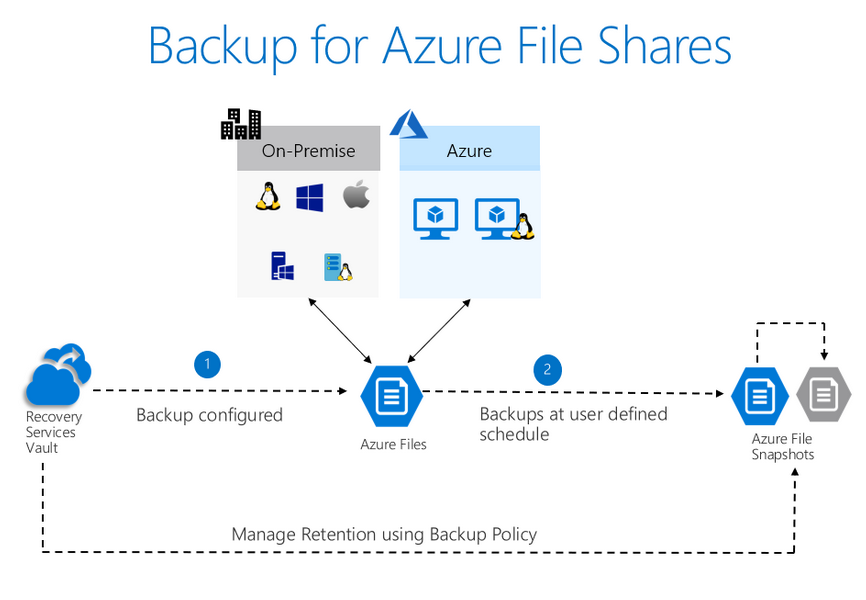
Hi guys! In today’s post of the Azure Files series (You can find out more about the series here), I will end the series talking about how to configure your environment to be backed up and have security in case of any data hijacking attempt through, for example, ransomwares.

Okay, let’s go straight to the configuration steps.

Create a Recovery Services vault

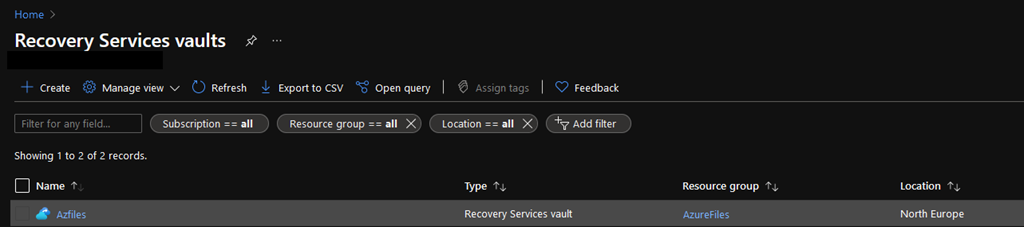
Sign in to your subscription in the Azure portal and search for Backup center in the Azure portal, and navigate to the Backup Center dashboard.

1

Select +Vault from the Overview tab and select Recovery Services vault and click Continue.

3

The Recovery Services vault dialog box opens. Provide values for the Name, Subscription, Resource group, and Location. Then hit Review and create.

Name: Enter a friendly name to identify the vault. The name must be unique to the Azure subscription. Specify a name that has at least 2 but not more than 50 characters. The name must start with a letter and consist only of letters, numbers, and hyphens.

Subscription: Choose the subscription to use. If you’re a member of only one subscription, you’ll see that name. If you’re not sure which subscription to use, use the default (suggested) subscription. There are multiple choices only if your work or school account is associated with more than one Azure subscription.

Resource group: Use an existing resource group or create a new one. To see the list of available resource groups in your subscription, select Use existing, and then select a resource from the drop-down list. To create a new resource group, select Create new and enter the name. For more information about resource groups, see Azure Resource Manager overview.

Location: Select the geographic region for the vault. To create a vault to protect any data source, the vault must be in the same region as the data source.

4

It can take a while to create the Recovery Services vault. Monitor the status notifications in the Notifications area at the upper-right corner of the portal. After your vault is created, it’s visible in the list of Recovery Services vaults. If you don’t see your vault, select Refresh.

Configure backup from the Recovery Services vault

The following steps explain how you can configure backup for multiple file shares from the Recovery Services vault pane. In the Azure portal, open the Recovery Services vault you want to use for configuring backup for the file share.

5

Next in the Recovery Services vault pane, select the +Backup from the menu on the top.

6

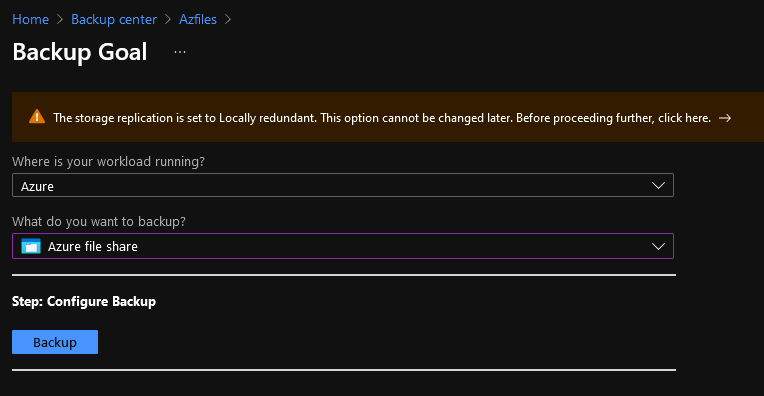
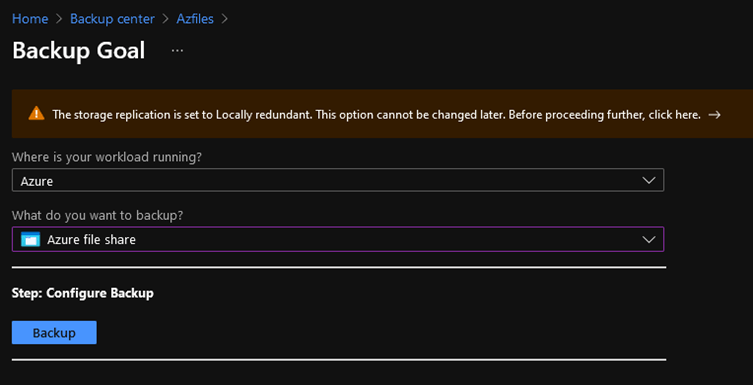
In the Backup Goal pane, set Where is your workload running? to Azure by selecting the Azure option from the drop-down list.

In What do you want to back up?, select Azure File Share from the drop-down list.
7

Select Backup to register the Azure file share extension in the vault.

After you select Backup, the Backup pane opens. To select the storage account hosting the file share that you want to protect, select the Select link text below the Storage Account textbox.

8

The Select Storage Account Pane opens on the right, listing a set of discovered supported storage accounts. They’re either associated with this vault or present in the same region as the vault, but not yet associated to any Recovery Services vault. From the list of discovered storage accounts, select an account, and select OK.

The next step is to select the file shares you want to back up. Select the Add button in the FileShares to Backup section.

The Select File Shares context pane opens on the right. Azure searches the storage account for file shares that can be backed up. If you recently added your file shares and don’t see them in the list, allow some time for the file shares to appear

From the Select File Shares list, select one or more of the file shares you want to back up. Select OK.

To choose a backup policy for your file share, you have three options:

  • Choose the default policy.
    This option allows you to enable daily backup that will be retained for 30 days. If you don’t have an existing backup policy in the vault, the backup pane opens with the default policy settings. If you want to choose the default settings, you can directly select Enable backup.

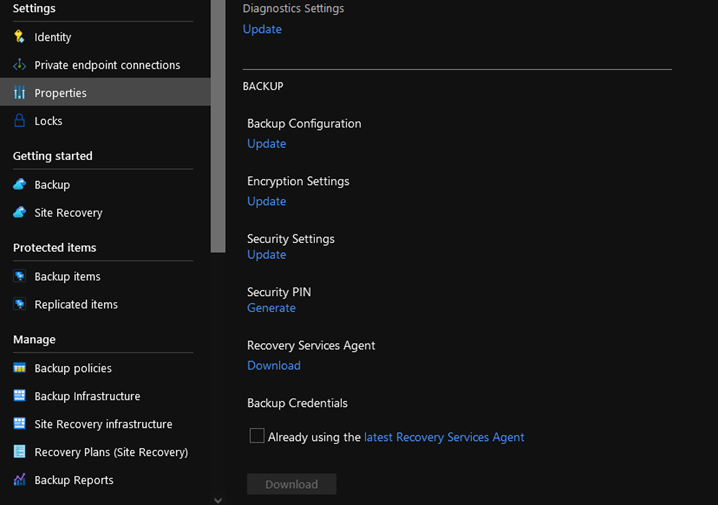
Prevent attacks
11

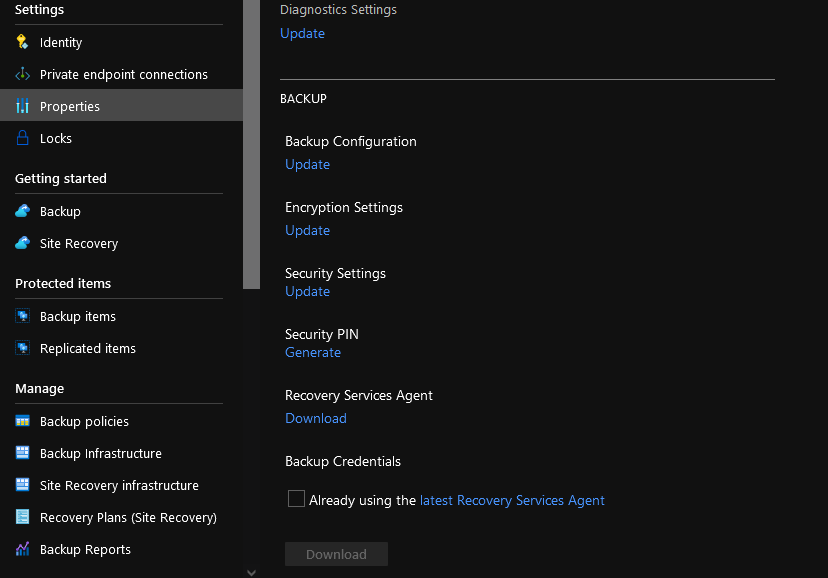
The update link opens the Security Settings pane, which provides a summary of the features and lets you enable them.

From the drop-down list Have you configured Azure AD Multi-Factor Authentication?, select a value to confirm if you’ve enabled Azure AD Multi-Factor Authentication. If it’s enabled, you’re asked to authenticate from another device (for example, a mobile phone) while signing in to the Azure portal.

10

When you perform critical operations in Backup, you have to enter a security PIN, available on the Azure portal. Enabling Azure AD Multi-Factor Authentication adds a layer of security. Only authorized users with valid Azure credentials, and authenticated from a second device, can access the Azure portal.

Checks have been added to make sure only valid users can perform various operations. These include adding an extra layer of authentication, and maintaining a minimum retention range for recovery purposes.

Authentication to perform critical operations

As part of adding an extra layer of authentication for critical operations, you’re prompted to enter a security PIN when you perform Stop Protection with Delete data and Change Passphrase operations.

That’s all for now! I hope it was useful guys, until the next post, thank you!

Joao Costa

Cisco CUCM – Intercluster Lookup Service

Hey people,

Today I’m going to explain the concept of a good feature, called ILS (Intercluster Lookup Service).
ILS enables different CUCM Cluster to exchange directory URI with other clusters in an ILS network, allowing you to create networks of remote CUCM clusters. So, when you configure ILS on multiple clusters, it updates CUCM with the current status of remote clusters in the ILS network.
An ILS network comprises the following components:

Hub Clusters
Hub clusters form the backbone of an ILS network. Hub clusters exchange ILS updates with the other hub clusters in the ILS network, and then relay that information to and from their spoke clusters.

Spoke Clusters
A spoke cluster connects to the hub cluster in an ILS network to relay ILS updates to and from the rest of the ILS network. Spoke clusters contact only their local hub cluster and never directly contact other hub clusters or other spoke clusters. A spoke cluster can have only one hub cluster.

Global Dial Plan Imported Catalogues
To provide URI dialling compatibility with third-party systems, you can manually import a third-party directory URI or +E.164 number catalog from a CSV file into any hub cluster in the ILS network

CONFIGURATION

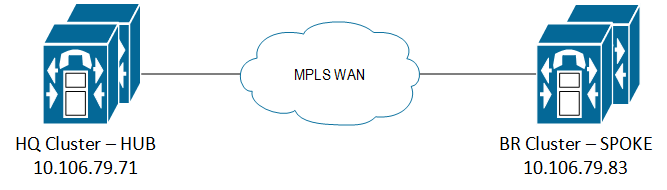
Let’s go deep to the configuration. For that, I’m going to use this topology as example:
2 CUCM clusters in the ILS network.

  • 10.106.79.71 – HQ Cluster
  • 10.106.79.83 – BR Cluster

topology.png

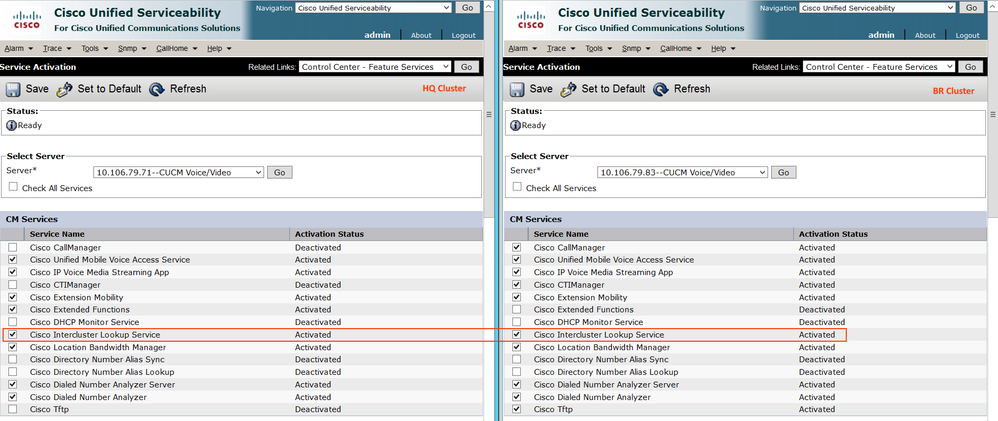
  • Activate Intercluster Lookup Service on all the CUCM Publisher

    You must activate the Intercluster Lookup Service to configure Cluster IDs and Remote Clusters.
    From Cisco Unified Serviceability, choose Tools > Service Activation.
    From the Server drop-down list, choose the node and then click Go.
    Select ‘Intercluster Lookup Service’ and Save.

    0.png

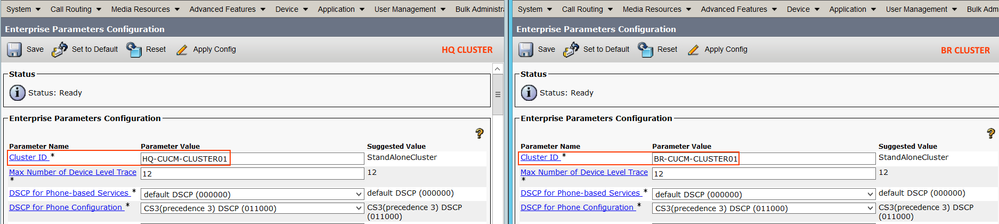
  • Configure Cluster IDs

    You must configure a unique cluster ID for each cluster in the ILS network. The clusters use this unique cluster ID and peer ID when they exchange status messages.
    In Cisco Unified Communications Manager Administration, choose System > Enterprise Parameters.
    In the Enterprise Parameters Configuration window Cluster ID field, enter a name of the cluster that you
    want to configure in your network.

    1.png

  • Activate ILS on the Hub Cluster

    You must configure each cluster in your ILS network as either a hub cluster or a spoke cluster. Each ILS network must have at least one hub cluster. You can connect a hub cluster to other hub clusters, or you can configure a hub cluster as the only hub cluster in the network. In addition, you can connect a hub cluster to multiple spoke clusters, or you can configure the hub cluster with no spoke clusters.

    Now, considering the Node 10.102.79.71 as the ILS HUB Cluster.

    Go to Advanced Features > ILS Configuration > and configure as follows.

    AA1.png

    Route String: This will be a unique string that will be advertised to the other clusters. Other ILS peers use Route String to route the call.

    Above configuration uses ‘Password’ based ILS authentication and synchronize the clusters every 1 minute.
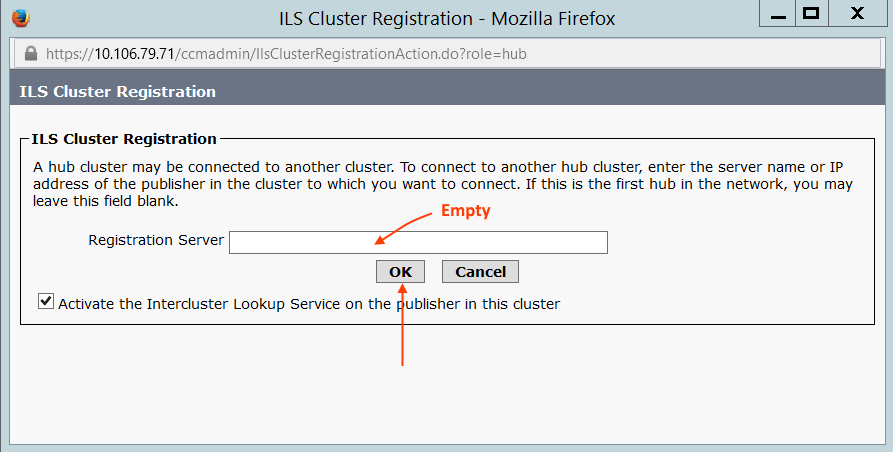
    The moment you click Save, it will ask for ILS Registrar Server. Since I do not have any other HUB cluster, we can leave blank and click OK.

    4.png

  • Activate ILS on the Spoke Cluster

    Now, the node 10.106.79.83 will be  the SPOKE cluster.
    Go to Advanced Features > ILS Configuration > and configure as follows.

    A2.png
    When you click Save, enter the Registrar server as the HUB cluster 10.106.79.71.

    6.png


    Now refresh the ILS configuration to see the updated status.

    A3.png

  • Configuring URIs for the End Users

    Go to User Management > End User > and select the user you want to enable URI.
    For LDAP user, make sure the URI is synced from LDAP server. For the local users, you can set a URI as shown below.
    CUCM End User URI Configuration.png

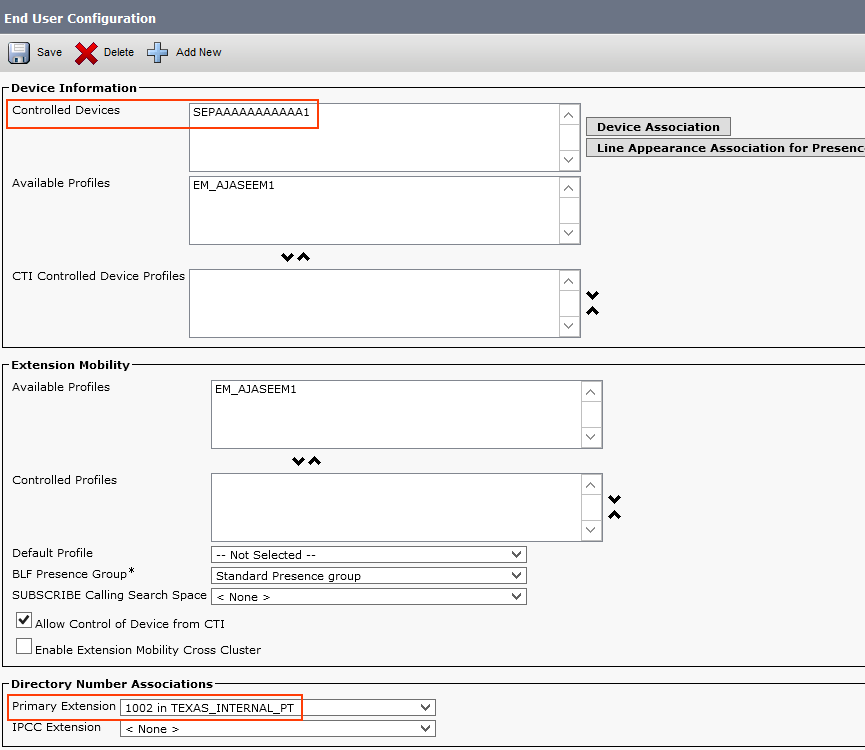
    Then, go to the Controlled Devices section and assign the user’s desk phone as the controlled device. Also, configure the primary extension (mandatory!!).

    Primary extension for URI dialing.png

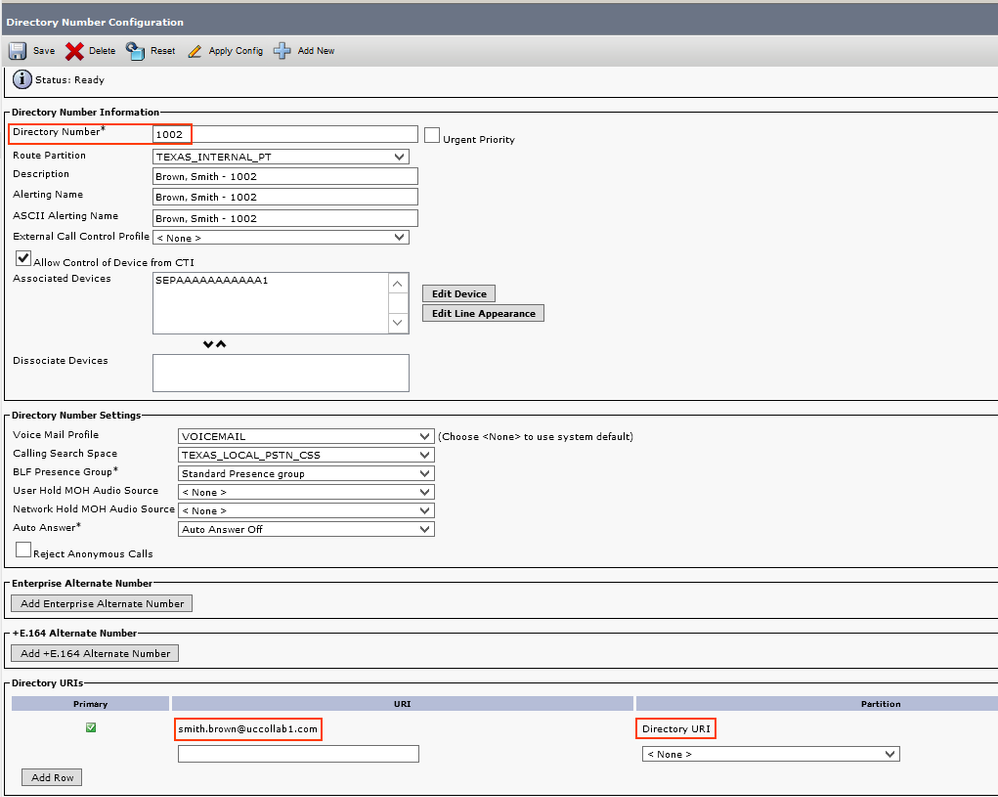
    Now go to the Directory number configuration(e.g. 1002). Now you will be able to see the URI field.

    Direcory URI configuration CUCM.png

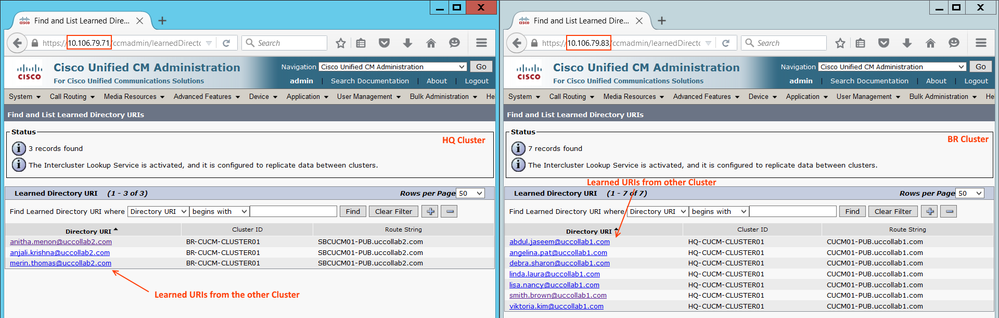
  • Verify the Learned Directory URIs

    Go to Call Routing > Global Dial Plan Replication > Learned Directory URIs

    9.pngA4.png

    Any of the URI learned via ILS will be having 2 unique values. One is the Route String and another one is Cluster ID. Route String is used to route the call back to the respective cluster via a separate SIP trunk.
    ILS will only take care of advertising the URIs between clusters. They do not participate in call routing. For dialling the URI from one cluster to another, we need to have a separate SIP trunk.

  • ILS Restrictions


    imageimage

  • ILS Troubleshooting

    Here are some Troubleshooting Tips:

    Issue: Local Cluster Cannot Connect to the ILS Network

    To troubleshoot connection issues within the local cluster, open RTMT and run alarms and diagnostic traces on that publisher node. If you receive an error message when trying to establish ILS between your clusters, you can try to restart the Cisco Intercluster Lookup service from Cisco Unified Serviceability Administration. In addition, connection issues may arise if authentication is improperly configured between clusters. Check authentication in the following manner:
    • If you are using TLS, make sure that all clusters in the network are using TLSand that Tomcat certificates have been exchanged for all the servers that need to communicate.
    • If you are using TCP password authentication, make sure that all ILS clusters are using TCP password authentication and that the same TCP password is assigned across the network.

    Issue: Directory URIs Are Not Being Replicated Across the ILS Network

    This error can occur for a variety of reasons. Check the following:

    • Verify that all clusters in the network are configured to exchange global dial plan data. If a hub cluster is not configured to exchange global dial plan data, none of that hub’s spoke clusters will be able to exchange directory URI catalogs.
    • Allow enough time for end-to-end replication based on synchronization intervals (set on the ILS Configuration page) that are configured for all the clusters involved in the path. All clusters in an ILS network are a maximum of three hops from every other cluster in the network.
    • Use the utils ils showpeerinfo CLI command to monitor replication progress by looking at the USN values for the remote clusters.
    • Increase speed of replication by changing the ILS Sync Throttle Service Parameter. Note that a low setting can affect system performance.
    • Verify that all clusters in the ILS network have unique cluster IDs and that none of the clusters are configured with Stand Alone Cluster as its cluster ID. You can check Cluster IDs in Cisco Unified CM Administration under System > Enterprise Parameters.

    Issue: Global Dial Plan Replication Is Configured, but Unified CM Still Cannot Place a Call to A Learned Directory URI or Learned Number in a Remote ILS Cluster

    This condition can occur if ILS and Global Dial Plan Replication are enabled on all clusters in the network, but SIP route patterns that route to the route strings for the remote clusters have not been configured. Do the following:
    • In the ILS Clusters and Global Dial Plan Imported Catalogs view in the ILS Configuration window, check the route string for the remote cluster.
    • In the SIP Route Pattern configuration window, make sure that you have route patterns that map to the route strings for your remote clusters

    Hope you’ve enjoyed Smile

    See ya!

    Bruno

Azure Files – Part 3 – AD SMB Authentication for Azure Files

AzFiles1

Hey guys! In the first two posts about Azure Files, I initially explained what Azure Files is (Click here to read) and also explained what would be the simplest way of configuring it, using the storage account’s access key (Read this post here).

When on-premises AD authentication is enabled for Azure Files, your AD domain-joined machines, regardless of whether they are in Azure or on-premises, will be able to use Azure Files using their existing AD credentials.

Prerequisites

  • Before you enable AD DS authentication for Azure file shares, make sure you have completed the following prerequisites:
  • Select or create your AD DS environment and sync it to Azure AD with Azure AD Connect.
  • You can enable the feature on a new or existing on-premises AD DS environment. Identities used for access must be synced to Azure AD. The Azure AD tenant and the file share that you are accessing must be associated with the same subscription.
  • Domain-join an on-premises machine or an Azure VM to on-premises AD DS. For information about how to domain-join, refer to Join a Computer to a Domain.
  • If your machine is not domain joined to an AD DS, you may still be able to leverage AD credentials for authentication if your machine has line of sight of the AD domain controller.
  • Select or create an Azure storage account. For optimal performance, we recommend that you deploy the storage account in the same region as the client from which you plan to access the share. Then, mount the Azure file share with your storage account key. Mounting with the storage account key verifies connectivity.
  • Make sure that the storage account containing your file shares is not already configured for Azure AD DS Authentication. If Azure Files Azure AD DS authentication is enabled on the storage account, it needs to be disabled before changing to use on-premises AD DS. This implies that existing ACLs configured in Azure AD DS environment will need to be reconfigured for proper permission enforcement.
  • Make any relevant networking configuration prior to enabling and configuring AD DS authentication to your Azure file shares. See Azure Files networking considerations for more information.
  • If you don’t have .Net Framework 4.7.2 installed, install it now. It is required for the module to import successfully.
  • Download and unzip the AzFilesHybrid module (GA module: v0.2.0+). Note that AES 256 kerberos encryption is supported on v0.2.2 or above. If you have enabled the feature with a AzFilesHybrid version below v0.2.2 and want to update to support AES 256 Kerberos encryption, please refer to this article.
  • Install and execute the module in a device that is domain joined to on-premises AD DS with AD DS credentials that have permissions to create a service logon account or a computer account in the target AD.
  • Run the script using an on-premises AD DS credential that is synced to your Azure AD. The on-premises AD DS credential must have either Owner or Contributor Azure role on the storage account.

Source: https://docs.microsoft.com/en-us/azure/storage/files/storage-files-identity-auth-active-directory-enable and https://docs.microsoft.com/en-us/azure/storage/files/storage-files-identity-ad-ds-enable.

Ok, Let’s get started.

The process of enabling your  Active Directory authentication for Azure FIles is to join the storage account that you used to create the file share to your Active Directory. When you enable AD authentication for the storage account, it applies to all new and existing Azure file shares.

Step-by-step

First you will need to download this script, basically it is a module you will need to add to your powershell that will be used to enable “hybrid” Active Directory. To be honest, it will be a very simple task, basically you will need to follow the steps described in the text file that is inside the zip file.

$Url = ‘https://github.com/Azure-Samples/azure-files-samples/releases/download/v0.2.3/AzFilesHybrid.zip&#8217;

Invoke-WebRequest -Uri $Url -OutFile “C:\AzFilesHybrid.zip”

Expand-Archive -Path “C:\AzFilesHybrid.zip”

Next you will need to change the script execution policy in your PowerShell environment. To do this run the following command > Set-ExecutionPolicy –ExecutionPolicy  Unrestricted –Scope CurrentUser

image

Also if you don’t have the PowerShell module for Azure you will need to install it, do this using the command Install-Module Az –AllowClobber

Now, you need to connect your Azure and select the correct subscription, do this using the command shown below.

image

In my example above I have only one subscription associated with this user, however if you have more than one you can use the Get command shown in the screenshot to select the correct one.

Finally, register the target storage account in Azure with your Active Directory environment by specifying the domain name, the domain account type (You can choose between computer account or Service Logon Account), and the target OU name where the service/computer account will be created:

join-AzStorageAccountForAuth -ResourceGroupName “<resource-group-name>” -Name “<storage-account-name>” -Domain “yourLocalADDomain.co.uk” -DomainAccountType ServiceLogonAccount -OrganizationalUnitDistinguishedName “ou-name-attribute-value”

After the above command you can also confirm on AD if the account has been created, and also run the following commands that is going to show you the storage account Kerberos key, the directory service of the selected service account and the directory domain information (If the storage account has enabled AD authentication for file shares).

$storageacccount = Get-AzStorageAccount -ResourceGroupName “<resource-group-name>” -Name “<storage-account-name>”
$storageacccount | Get-AzStorageAccountKey -ListKerbKey | Format-Table Keyname
$storageacccount.AzureFilesIdentityBasedAuth.DirectoryServiceOptions

Also update the password for the service account before the maximum password age is expired and then update the AD account password for the Azure storage account by running the following PowerShell command:

Update-AzStorageAccountADObjectPassword -RotateToKerbKey kerb2 -ResourceGroupName “<resource-group-name>” -StorageAccountName “<storage-account-name>”

Also if you prefer, you can set the password to never expire in AD.

The expected end result should be like the screenshots below.

PS1

image

Now the last step should be to grant access permission to the appropriate users and groups, an identity (User, Group or service account) must have the necessary permission at the share level. To allow access, Microsoft provides three built-in roles to grant share-level permission for users.

Storage File Data SMB Share Reader – Allows for read access to files and directories in Azure file shares. This role is analogous to a file share ACL of read on Windows File servers. Learn more.

Storage File Data SMB Share Contributor – Allows for read, write, and delete access on files and directories in Azure file shares. Learn more.

Storage File Data SMB Share Elevated Contributor – Allows for read, write, delete, and modify ACLs on files and directories in Azure file shares. This role is analogous to a file share ACL of change on Windows file servers. Learn more.

You can use the Azure portal, PowerShell or Azure CLI to assign the built-in roles to the Azure AD identity of a user for grating share-level permissions.

To assign an Azure role to an Azure AD identity, using the Azure portal, follow these steps:

  1. In the Azure portal, go to your file share, or create a file share.
  2. Select Access Control (IAM).
  3. Select Add a role assignment
  4. In the Add role assignment blade, select the appropriate built-in role from the Role list.
    1. Storage File Data SMB Share Reader
    2. Storage File Data SMB Share Contributor
    3. Storage File Data SMB Share Elevated Contributor
  5. Leave Assign access to at the default setting: Azure AD user, group, or service principal. Select the target Azure AD identity by name or email address. The selected Azure AD identity must be a hybrid identity and cannot be a cloud only identity. This means that the same identity is also represented in AD DS.
  6. Select Save to complete the role assignment operation.

image

Now just test the access, if you did everything as mentioned here the result will be as follows:

image

image

That’s all for today guys, I’ll talk to you soon!

Joao Costa


Cisco UCCX – Sending email using Script

Hi people!
In today’s post, I will show you how to configure your UCCX Script to send emails.

This can be easily a complement of my last Post (Cisco UCCX – Recording Prompt Script). In this post, I showed you how to create a script where you can record your own audio prompts and upload them to UCCX. Now, with this post, you can add some steps to send the recorded audio via email to improve a little bit your achievement.

Well, let’s go to the configuration!

Configure Email on UCCX Server
Go to your UCCX,  Subsystem Menu, then Email.
You have to add the SMTP and an email account which will be the source.

image

Variables
You can have as many variables as you want to easy your life. But there is one you must create.
Create a Contact Type variable, give a name,  “EmailContact” in my example, and give a null value.

image

Steps to be used in the Script

  • Create eMail
    Here you generate the subject line and body of the e-mail message.
  • Subject: Variable or expression that you want to use for the subject line of the message.
    Body: Variable or expression that you want to use for the body of the e-mail message
    eMail Contact: Variable that identifies the email. The variable “EmailContact”  we’ve created above.

    image

  • Attach To eMail
    Use the Attach To eMail step to attach a document to an e-mail.
    Before you use an Attach To eMail step, you must use a Create eMail step to create the e-mail message.

    I’m showing you now how to attach that audio prompt we’ve just recorded, as an example.
    In that case, the variable Result contains the recorded audio, and I’m attaching it to the email using this Step.

    image

  • Send eMail
    Use the Send eMail step to send an e-mail message you have created with the Create eMail step.
    When a script reaches the Send eMail step, it immediately sends the e-mail message to the e-mail server, and keeps the client waiting until the message is accepted by the e-mail server. If the server is unavailable because of server or network problems, the client must wait until the transaction times out.

image

So, your code must be like that.

image

It’s a really short code, but the idea is to have that attached to your main script, as a feature, to help you to handle queues, or other things, like sending recorded audios..

Hope you’ve enjoyed!
See ya!

Bruno