Setting up Azure AD Company Branding

BrandingLogo

In this blog, I’ll show you how to configure Azure AD company branding options. You can see your organization’s logo and custom color schemes, user hints to provide a familiar and friendly look and feel in your Azure Active Directory. The only prerequisite needed for this configuration is Azure P1 licenses

NOTE:
Before obtaining your images to customize your Azure AD login branding, keep in mind the graphic formats and maximum image and file sizes.

Also keep in mind every time you make a change and test it out, your branding will get cached on one of the many global Azure AD Authentication endpoints. As stated in the documentation changes can take up to an hour to be reflected. Be patient (or keep reloading many times until you hit a new endpoint that will get the new config).
It can take up to an hour for any changes you made to the sign-in page branding to appear.

OK let’s get start.

Go to portal.azure.com and open the Active Directory blade or go directly to the AAD (Azure Active Directory) by clicking the following link: (https://aad.portal.azure.com)

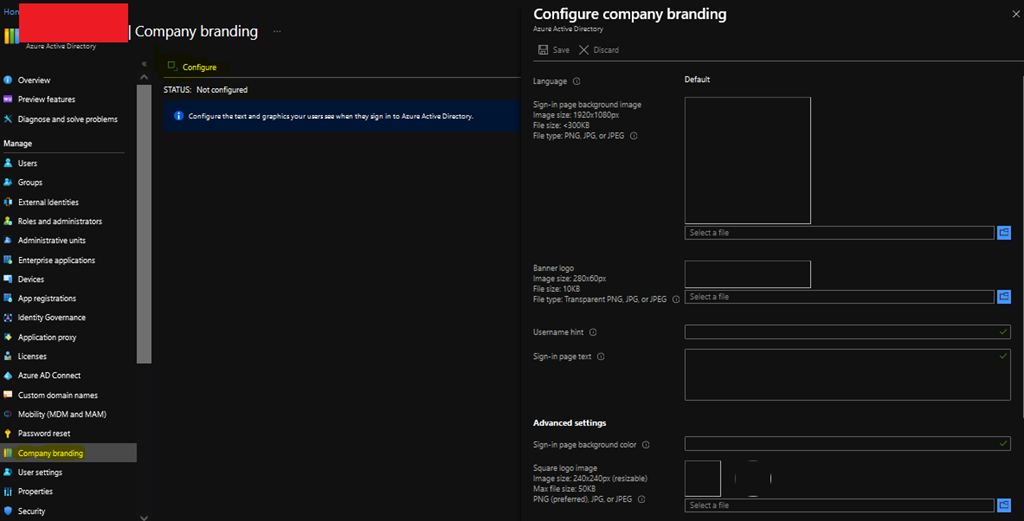
Next Navigate to Azure Active Directory -> Company branding and select to Configure icon to Configure / Edit Company branding

1

Now click on Configure or Edit the branding configuration and type in the information.

Note: The language is automatically set as your default language based on the Azure subscription setup and it can’t be changed. However, you can configure additional languages by select the New Language option.

2

Finally click Save at the top of the screen and the company’s branding page is saved in Azure Active Directory.

3

Add your custom branding to pages by modifying the end of the URL with the text, ?whr=yourdomainname. This specific modification works on different types of pages, including the Multi-Factor Authentication (MFA) setup page, the Self-service Password Reset (SSPR) setup page, and the sign in page.

Whether an application supports customized URLs for branding or not depends on the specific application, and should be checked before attempting to add a custom branding to a page.

Examples:

Original URL: https://aka.ms/MFASetup
Custom URL: https://account.activedirectory.windowsazure.com/proofup.aspx?whr=contoso.com

Original URL: https://aka.ms/SSPR
Custom URL: https://passwordreset.microsoftonline.com/?whr=contoso.com

After you’ve created the Custom branding, if you want to test it, access the page by https://login.microsoftonline.com/<domain name> and you will see your new custom screen.

This time it was a quick post guys, see you soon, thanks!

Joao Costa

Cisco CUCM – CDR through SQL

Hey everybody,

Today’s post is going to be quick, but may give you some good tips Smile
Last week I got some requests from a Customer, and he needed to know which extensions were recently being used . In order to save licenses, he wanted to delete all phones/lines that weren’t being used.

CDRs on CUCM is a nightmare in my opinion. Mainly when you need to check lots of lines, for a long period.
That’s why I decide to pull this information out directly from SQL.

So here are some useful commands to get CDRs from SQL, and depending on your needs and knowledge, you can use Python or other language to built your own CDR Reporting Smile

First of all, to use the commands you need to ensure that the following steps are taken on your CUCM system:

  1. Activate the CDR Analysis and Reporting (CAR) service on the CUCM publisher node.
  2. Go to System > Service Parameters and set the Cisco Call Manager service “Call Diagnostics Enabled” parameter to true on every cluster node that has the Call Manager service activated.

Now, going to SQL, this is the structure of any SQL Command on CUCM:
admin: run sql select [field list] from [table] where [expression]

The table we are going to use is tbl_billing_data. This table stores all of the elements we need to accomplish the task at hand.

So this is going to be our syntax: run sql select + column + from tbl_billing_data + where + column + (like,in,between,etc).

PS: Please not this command is only acceptable on Publisher.

In my example, I want to get Date (TimeStamp) , Calling and Called Number of all calls from extensions which have “702709” in their numbers and happened this month.

The date must be sent in TimeStamp mode. I use THIS SITE to convert normal date to Timestamp, and vice versa. If you were pulling CDR data into Excel then you can use the following formula (in a new cell) to do the conversion:
=(((A1-(6*3600))/86400)+25569)

Right, so this is the command:

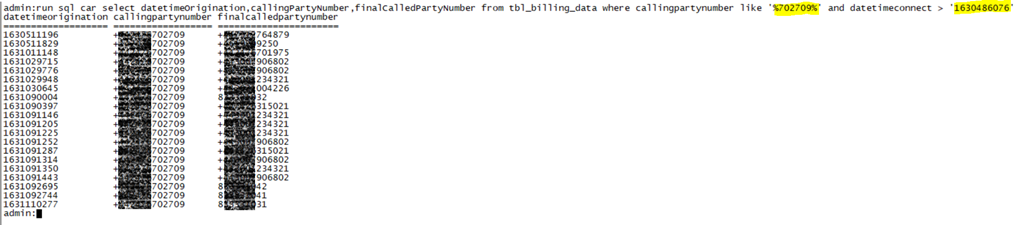
run sql car select datetimeOrigination,callingPartyNumber,finalCalledPartyNumber from tbl_billing_data where callingpartynumber like ‘%702709%’ and datetimeconnect > ‘1630486076’

And here is the result:

image
Well, now you can explore and play a bit more, depending on your needs. You can add more columns, like duration, destIpAddr, callingPartyNumber_uri, originalCalledPartyPattern,callingPartyNumberPartition,EU_SIP_SME_NOS….

That’s it guys. As I said, it was really quick Smile

Hope you’ve enjoyed!

Bruno

Azure – Setting up Conditional Access

Conditional Access Icon

Today we are going to talk about Azure Conditional Access. The idea behind Conditional Access is that you can manage and control your IT environment by setting up compliance rules for your users to access company resources, for example Exchange Online, Sharepoint, OneDrive etc.
Basically you will need to create a rule that says, for example, that all users who are outside your physical working environment (Does this still exist?) and who have devices provided by the company and Multi-factor authentication enabled will be able to access Sharepoint. You can choose if you only want to register this information (Report-Only) or if you really want to deny/grant access if the user does not comply with the rules you stipulated above.

conditional-access-overview-how-it-works

In the past, one of the resources used to perform this kind of control was ADFS through claim rules, but many companies thought twice before an implementation due to the complexity of the environment and for adding another point of failure to the environment, after all if ADFS were to fail at all the environment would be unavailable. One of the advantages of ADFS, depending on the need for control is the cost, after all, for Conditional Access to be enabled and it is necessary to have Azure P1 License, ADFS would be the costs of Virtual Machines, public certificate, public IP, NAT and Load Balancing (In an environment with redundancy).

Anyway, let’s leave theory aside and let’s see how to configure Conditional Access.

Go to the Azure Portal and in the search menu type Conditional Access and then click on the Conditional Access blade

1

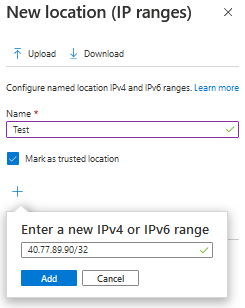
As a first step I suggest that you add the trusted locations (Named Locations), that is, known networks. Click on Named Locations and then select one of the options; 1- Countries Locations or 2 – IP Ranges Locations. I opted for option 2 and added the IP/IP Ranges of my trusted locations.

2

PS. The above IP was used as an example, not a valid IP.

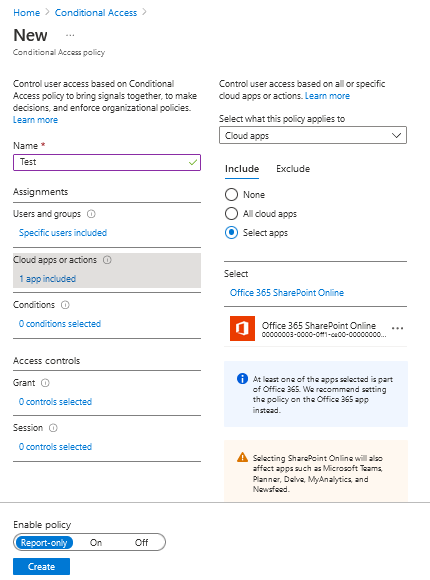
Now that you have trusted locations, let’s create a Conditional Access policy. Still on the Conditional Access blade, click Policies and then New Policy.

Name your policy and choose the user context that will be included or excluded from your policy. In my scenario, I just selected the Test IT user to be included in this policy.

3

Now in Cloud Apps or Actions you will need to choose which applications will be in the scope of your conditional rule, you can opt for all apps or just select the ones that contain sensitive data. In my example I used SharePoint Online only.

4

Now that you’ve defined the scope of users, applications and trusted locations, it’s time to configure the conditions that the user will need to “be in” to have access to the resource (Here it’s also possible to configure which conditions the user needs to “be in” to have access denied, works both ways).

5

In the above scenario; Device Platforms: All, Locations: Applies to all locations and excludes trusted locations, Client Apps: All, Device State: All.

Finally, in the Access control option, you will determine the action that will be taken according to the conditions that the user is trying to access the application (In this scenario SharePoint Online).

6

Click select and then create.

In my scenario, access to SharePoint will only be possible if the user has MFA enabled, is in an untrusted location and is using a device joined to the domain.

Ok, now I’m going to test access through a personal device to see if conditional Access will or will not allow Sharepoint access (The result should be access denied).

7

Here we go, access successfully denied \0/. I suggest you play with the tool to suit your needs. If you have any questions, leave in the comments, see you in the next post.

Cisco Troubleshooting – One Way Audio Issue

Hey everyone,

Today I’m going to talk about a common issue that I believe you’ve already faced in your infrastructure.
One way audio happens when you have a call between 2 phones (internal-internal or internal-external), and one of them cannot hear the other end.

The causes of one-way audio in IP Telephony can be varied, but the root of the problem usually involves IP routing issues.

Possible causes for the one-way audio issue:

* RTP traffic is being blocked or consumed by a Firewall or another security device.
* RTP traffic is being misrouted by a route recently added / learned, or a VRF or WAN.
* Signalling issues – Call agent is not passing the correct ports or codec, or the communication is tagged as ‘send only’ or ‘receive only’.
* RTP traffic is corrupted.
* One side is not transmitting.

A quick way to check if there’s been audio during a call is by checking its statistics.
There are 2 ways to do that. Using Jabber/Deskphones statistics, or accessing Phone’s web page and checking also the statistics.

During a call, in your Jabber, press Crtl + Shift + S to open the call statistics. A pop up window like that will appear:

image

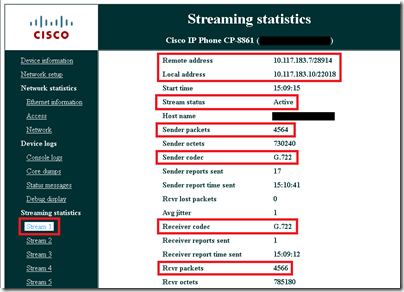
If you are not part of the call, you can check that through phone’s web page. Open it (using phone’s IP Address), and go to Stream 1 in the left menu. The whole statistic will come up in the middle. Check if the IP address and port match the information on both sides. Keep pressing the ‘stream 1’ link and you will notice that the TX and RX stats keep increasing.
Here you can check the ‘Local’ and ‘Remote’ IP addresses, then you see the port. If the information is the same on the other side, (‘Local’ on one side should correspond to the ‘Remote’ on the other), then signalling is good.
You can also check if the Coded used is the one you were expecting.  If not, change the codec preference list or the available BW on the region.
image

Now, let’s have a  look at some scenarios and solutions, and most common issues found in the field.

  • Ensure That IP Routing Is Enabled on the Cisco IOS Gateway and Routers

Some Cisco IOS gateways, such as the VG200, disable IP routing by default. This default setting leads to one-way voice problems.
Ensure that IP routing is enabled on your router. In order to enable IP routing, issue this global configuration command on your Cisco IOS gateway:
voice-ios-gwy(config)#ip routing

  • Check Basic IP Reachability

Always check basic IP reachability first. Because Real-Time Transport Protocol (RTP) streams are connectionless (transported over UDP), traffic may travel successfully in one direction but get lost in the opposite direction. This diagram shows a scenario in which this can happen:
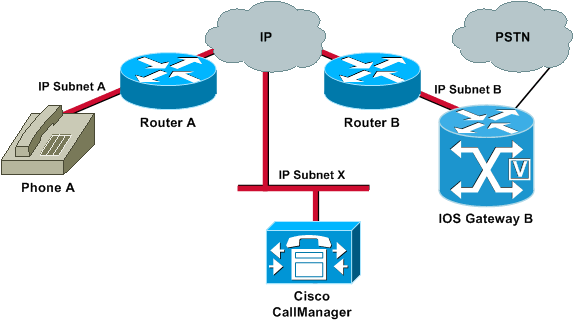
Subnets A and B can both reach Subnet X. Subnet X can reach Subnets A and B. This allows the establishment of TCP connections between the end stations (A and B) and the Cisco Call Manager. Therefore, signalling can reach both end stations without any problems, which allows the establishment of calls between A and B.

Once a call is established, an RTP stream that carries the audio must flow in both directions between the end stations. In some cases, Subnet B can reach Subnet A, but Subnet A cannot reach Subnet B. Therefore, the audio stream from A to B always gets lost.

This is a basic routing issue. Use IP routing troubleshooting methods in order to get to the stage at which you can successfully ping Phone A from Gateway B. Remember that ping is a bidirectional verification.

If transcoding is configured for an Intercluster trunk (ICT), ensure that a Media Termination Point (MTP) is configured in the Media Resource Group and Media Resource Group List associated with the trunk. If you specify an MTP when one is not needed, or fail to configure an MTP if it is needed, it has been known to cause one way voice issues for ICT configurations.

When the Cisco IOS gateway has multiple active IP interfaces, some of the H.323 signalling may be sourced from one IP address and other parts of it may reference a different source address. This can generate various kinds of problems. One such problem is one-way audio.

In order to get around this problem, you can bind the H.323 signalling to a specific source address. The source address can belong to a physical or virtual interface (loopback). Use the h323-gateway voip bind srcaddr ip-address command in interface configuration mode. Configure this command under the interface with the IP address to which the Cisco Call Manager points.

One-way voice can occur in Media Gateway Control Protocol (MGCP) gateways if the source interface for signalling and media packets is not specified. You can bind the MGCP media to the source interface if you issue the mgcp bind media source-interface interface-id command and then the mgcp bind control source-interface interface-id command. Reset the MGCP gateway in Cisco Call Manager after you issue the commands.

If the mgcp bind command is not enabled, the IP layer still provides the best local address.

The guidelines for the mgcp bind command are:

*   When there are active MGCP calls on the gateway, the mgcp bind command is rejected for both control and media.
*   If the bind interface is not up, the command is accepted but does not take effect until the interface comes up.
*   If the IP address is not assigned on the bind interface, the mgcp bind command is accepted but takes effect only after a valid IP address is assigned. During this time, if MGCP calls are up, the mgcp bind command is rejected.
*   When the bound interface goes down, either because of a manual shutdown on the interface or because of operational failure, the bind activity is disabled on that interface.
*   When bind is not configured on the Media Gateway Controller (MGC), the IP address that is used to source MGCP control and media is the best available IP address.

If you find that there are clock slips on the E1 or T1 interface from the show controller {e1 | t1} command, there might be some mismatch in the clocking configuration on the Voice Gateway.

Two useful commands to use in order to verify packet flow are the debug cch323 rtp command and the debug voip rtp command. The debug cch323 rtp command displays packets that are transmitted (X) and received (R) by the router. An uppercase character indicates successful transmission or reception. A lowercase character indicates a dropped packet.

voice-ios-gwy#debug cch323 rtp

RTP packet tracing is enabled
voice-ios-gwy#

!— This is an unanswered outgoing call. !— Notice that the voice path only cuts through in the forward direction and !— that packets are dropped. Indeed, received packets are traffic from the !— IP phone to the PSTN phone. These are dropped until the call is answered.

Mar 3 23:46:23.690: ****** cut through in FORWARD direction *****

XXXrXrXrXrXrXrXrXrXrXrXrXrXrXrXrXrXrXrXrXrXrXrXrXrXrXrXrXrXrXrXrXrXrXrXrXrXrXrXrXr
XrXrXrXrXrXrXrXrXrXrXrXrXrXrXrXrXrXrXrXrXrXrXrXrXrXrXrXrXrXrXrXrXrXrXrXrXrXrXrXrXr
XrXrXXrrrrrrrrrrrrrrrr
voice-ios-gwy#
voice-ios-gwy#

!— This is an example of an answered call:


voice-ios-gwy#
voice-ios-gwy#
*Mar 3 23:53:26.570: ****** cut through in FORWARD direction *****
XXXrXrXrXrXrXrXrXrXrXrXrXrXrXrXrXrXrXrXrXrXrXrXrXrXrXrXrXrXrXrXrXrXrXrXrXrXrXrXrXr
XrXrXrXrXrXrXrXrXrXrXrXrXrXrXrXrXrXrXrXrXrXrXrXrXrXrXrXrXrXrXrXrXrXrXrXrXrXrXrXrXr
XXrrrrrXrXrXrXrXrXrXrXrXrXrXrXrrXXrrXrXrXrXrXrXXXXXXXXXXXXXXXXrXXXXXXXXrXrXrXXrrXr
XrXrXrXrXrXrXrXrXXrrrrrrrrrrrrrrrrrrrrrrrrrrrrrr

!— At this point, the remote end picks up the phone.


*Mar 3 23:53:30.378: ****** cut through in BOTH direction *****
XRXRXRXRXRXRXRXRXXRRRRRRRRRRRRRRRRRRRRRRRRRRRRRRRRRRRRRRRRRRRRRRRRRRXRXRXRXRXRXRXR
XRXRXRXRXRXRXRXRXRXRXRXRXRXRXXRRRRRRRRRRRRRRRRRRRRRRRRRRRRRRRRRRRRRRRRRRXRXRXRXRXR
XXRRXRXRXXRRXRXRXRXRXXRXRXRXRXRXRRXRXXRXRXRXRXRXRXRXRXRXRXRXRXRXRXRXRXRXRXRXRXRXR
XRXRXRXRXRXRXRXRXRXRXRXRXRXRXRRRRRRRRRRRRRRRRRRRRXRXRXRXRXRXRXRXRXRXRXRXRXRXRXRXR
XRXRXRXRXRXRXRXRXRXRXRXRXRXRXRXXRRRRRRRRRRRRRRRRRRRRRRRRRRRRXRXRXRXRXRXRXRXRXRXR
XRXRXRXRXRXRXRXRXRXRXRXRXRXRXRXRRRRRRRRRRRRRRRRRRRRRRRRRRRRRRRRRRRRRRRRRRRRRRRRRRRRR
RRRRXRXRXRXRXRXRXRXRXRXRXRXRXRXRXRXRXRXRXRXRXRXRXRXRRXXRXRXRXRXRXRRXRXRXRXRXRXRXRXR
XRXRXRXRXRXRXRXRXRXRXRXRXRXRXRXRXRXRXXRRRRXRXRXRXRXRXRXRXRXRXRXRXRXRXRXRXRXRXR
XXRRRRRRRRRXRXRXRXRXRXRXRXRXRXRXRXRXRXRXRXRXRXRXRXRXRXRXRXRXRXRXRXRXRXRXRXRXRXRXRXR
XRXRXRXRXRXRXRXRXRXRXRXRXRXRXRXRXRXRXRXRXRXRXRXRXRXRXRXRXRXRXRXRXRXRXRXRXRXRXRXRXR
XRXRXRXRXRXRXRXRXRXRXRXRXXRRRXR

!— This is the end of the conversation.

Note: In Cisco IOS Software Release 12.2(11)T and later, the debug cch323 rtp command-line interface (CLI) command has been replaced by the debug voip rtp command.

voice-ios-gwy#debug voip rtp

——–cut through in BOTH direction——————-


*Mar 27 19:52:08.259: RTP(32886): fs rx d=10.48.79.181(20002),
pt=0, ts=4FFBF0, ssrc=8E5FC294
*Mar 27 19:52:08.275: RTP(247): fs tx d=10.48.79.181(20002),
pt=0, ts=5D00C8D9, ssrc=1F1E5093
*Mar 27 19:52:08.279: RTP(32887): fs rx d=10.48.79.181(20002),
pt=0, ts=4FFC90, ssrc=8E5FC294
*Mar 27 19:52:08.295: RTP(248): fs tx d=10.48.79.181(20002),
pt=0, ts=5D00C979, ssrc=1F1E5093
*Mar 27 19:52:08.299: RTP(32888): fs rx d=10.48.79.181(20002),
pt=0, ts=4FFD30, ssrc=8E5FC294
*Mar 27 19:52:08.315: RTP(249): fs tx d=10.48.79.181(20002),
pt=0, ts=5D00CA19, ssrc=1F1E5093
*Mar 27 19:52:08.319: RTP(32889): fs rx d=10.48.79.181(20002),
pt=0, ts=4FFDD0, ssrc=8E5FC294
*Mar 27 19:52:08.335: RTP(250): fs tx d=10.48.79.181(20002),
pt=0, ts=5D00CAB9, ssrc=1F1E5093
*Mar 27 19:52:08.339: RTP(32890): fs rx d=10.48.79.181(20002),
pt=0, ts=4FFE70, ssrc=8E5FC294
*Mar 27 19:52:08.355: RTP(251): fs tx d=10.48.79.181(20002),
pt=0, ts=5D00CB59, ssrc=1F1E5093
*Mar 27 19:52:08.359: RTP(32891): fs rx d=10.48.79.181(20002),
pt=0, ts=4FFF10, ssrc=8E5FC294
*Mar 27 19:52:08.375: RTP(252): fs tx d=10.48.79.181(20002),
pt=0, ts=5D00CBF9, ssrc=1F1E5093
*Mar 27 19:52:08.379: RTP(32892): fs rx d=10.48.79.181(20002),
pt=0, ts=4FFFB0, ssrc=8E5FC294
*Mar 27 19:52:08.395: RTP(253): fs tx d=10.48.79.181(20002),
pt=0, ts=5D00CC99, ssrc=1F1E5093
*Mar 27 19:52:08.399: RTP(32893): fs rx d=10.48.79.181(20002),
pt=0, ts=500050, ssrc=8E5FC294
*Mar 27 19:52:08.976: RTP(282): fs tx d=10.48.79.181(20002),
pt=0, ts=5D00DEB9, ssrc=1F1E5093
*Mar 27 19:52:08.980: RTP(32922): fs rx d=10.48.79.181(20002),
pt=0, ts=501270, ssrc=8E5FC294
*Mar 27 19:52:08.996: RTP(283): fs tx d=10.48.79.181(20002),
pt=0, ts=5D00DF59, ssrc=1F1E5093

*Mar 27 19:52:09.000: RTP(32923): fs rx d=10.48.79.181(20002),
pt=0, ts=501310, ssrc=8E5FC294
*Mar 27 19:52:09.016: RTP(284): fs tx d=10.48.79.181(20002),
pt=0, ts=5D00DFF9, ssrc=1F1E5093

This is all for today.

I hope you’ve enjoyed Smile

See ya!

Bruno

Creating Dynamic Groups on Azure AD

00

Hey guys,

In today’s post, I’ll talk about a simple but very efficient subject, Dynamic Groups. Dynamic Groups are groups based on rules and if users match to a rule they will be added automatically in a group (Groups for devices can also be created). In other words, Dynamic Groups solve that pain of any administrator to keep their groups and distribution lists up to date. For example in the environment where I work we create groups based on locations, departments and the famous group “All”. From the moment you create the groups and rules, the only work needed from then on will be: Create the users correctly, I mean, fill in all the fields correctly so that this new user fits the rule that belongs to him.

That said, let’s get start.

Go to the Azure portal and open the “Azure Active Directory” blade.

Then select Groups > New Group and you will see the following screen (For this post I will create a group for email purposes, but you can use as a Security group as well). Fill up all the fields and select Dynamic User on Membership Type.

1

The next step is to create the rule that would add users automatically based on the added criteria.

In this example rule, all users who have the field department filled with the words “Information Technology” will be added to the GetPractical group automatically.

2

If you want to validate the rule, click on the “Validate Rules” tab, manually add some users and then click on ”Validate”. The rule will tell you which of the users you have added fits the criteria entered in your rule.

4

3

As you can see from my example above, only one of the users fulfils the criteria entered in this rule.

Now click save and then click create.

Just a point of attention: If you like me have the need to create a group for all employees, I advise you to create a rule that initially doesn’t work and then turn off the welcome email function. Unfortunately there is no possibility to turn off this feature during group creation, so the only way I found at this time was to create a rule that doesn’t work or a rule that only includes you and then turn off the welcome notifications and also the mapping from the group in Outlook.

7

In the image above the example of the welcome email and the group mapped in Outlook.

10

For you to turn off these two features you need to connect to Exchange Online (Microsoft 365) and execute the commands used above.

Example below:

Set-UnifiedGroup -Identity “All@getpractical.co.uk” -UnifiedGroupWelcomeMessageEnable:$false
Set-UnifiedGroup -Identity “All@getpractical.co.uk” -HiddenFromExchangeClientsEnabled:$true

That’s all for today guys, see you soon.

Joao Costa