Recovering local administrator access in Azure VMs

Password

Hey guys!

Let’s assume that for any reason you have lost the local administrator password of a virtual machine in Azure or even don’t remember the initial user created during the deployment of your virtual machine, well, the idea of this post is to solve this your problem, which just seems silly  but not unusual.

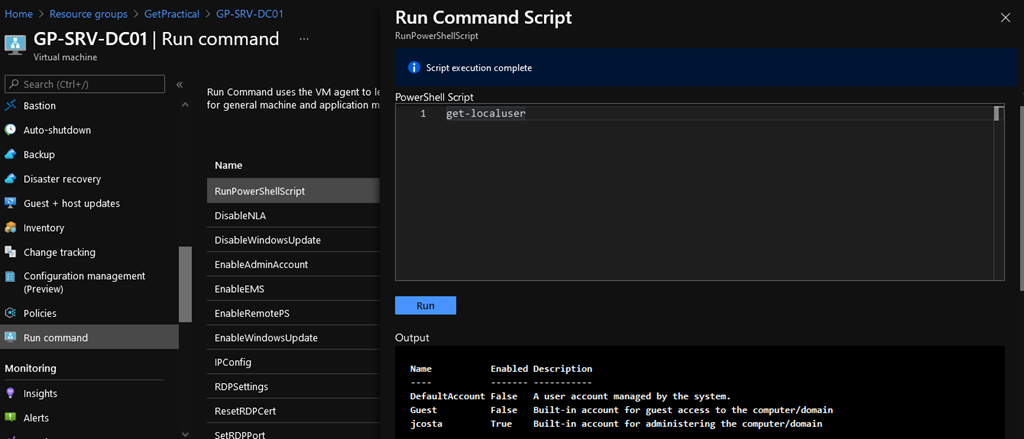
Starting with the user, in case you don’t remember, it’s a pretty simple task to find out: Go to Azure and make sure your VM is powered on, then select your VM and go to blade “Operations” and select “Run Command” and finally click on “RunPowerShellScript”. This will cause a dialog box to open and in this box you will type the following command in: “Get-LocalUser” and click “Run”.
04

The output should be presented as the image above, and at this point you will know which are the local users of that VM.

Ok, now that you know which user to use, just type in the password, correct? But let’s say you also don’t remember which password to use (Bad days happen to everyone lol). Well then, I will present two simple ways to reset this local user password.

The easiest and simplest option would be again with your VM selected, go to the blade “Help” and click on “Reset Password”. You will only need to enter the user  you want to reset the password and your new password.

(Ps: You will need to be logged into Azure with an user who gives you this right,  “RBAC” is a certification exam topic).

05

If all goes well, you will have the new password and use your local account without any problems.

But let’s assume that this lost password is the domain controller administrator password in Azure. In this case, you will not be able to reset this password as I just showed you above.

Therefore, we will be using the Extensions function in Azure. Through this extension we will run a script to reset the admin password.

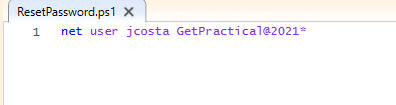
The script is very simple and has only one line and has been uploaded to Azure previously.
script

The script must have the command above: net user LOCALUSER PASSWORD

07

After creating the script, saving as ResetPassword.ps1 and uploading it to a storage account on azure, select your VM again and in the blade Settings click on Extensions > Add > CustomScriptExtension > Next > RESETPASSWORD.PS1 > Review + Create > Create.

09

The Azure extension function will run the script on the VM and your password will be reset as configured in the script.

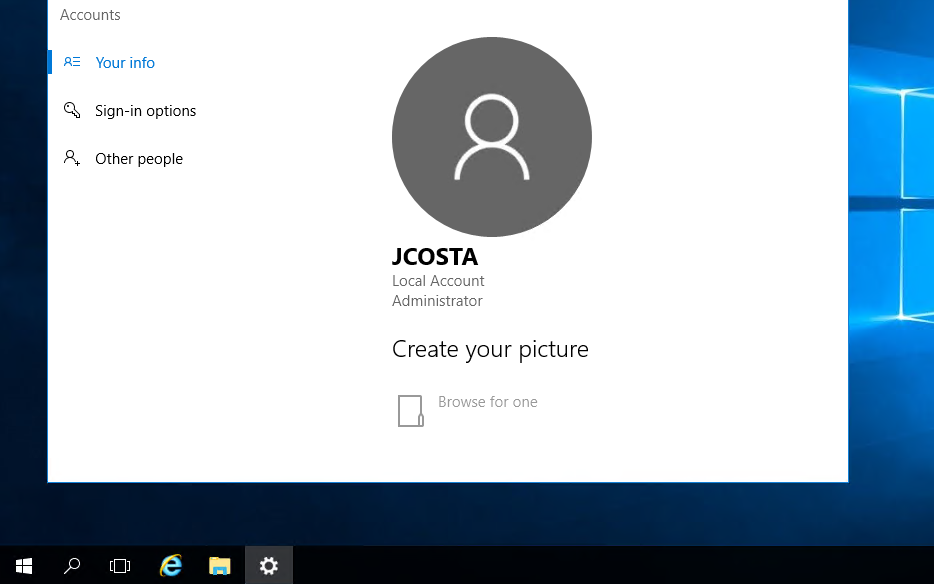
Voila! You will now be able to access your domain controller as you wish. This script can also be used to reset any account’s password.

Obviously the reset options are not limited to what I presented here in this post, especially when it comes to PowerShell commands.
10

That’s it for today guys, see you next time!

Joao Costa

Study guide for Azure Administrator

Hey guys! Today I come here to share with you my journey to achieve Azure Administrator certification. To get the title of Azure Administrator, you need to pass the Az-104 exam.

azure-administrator-associate-600x600

My badge validation link

What is expected from an Azure Administrator?

Azure Administrator implements, manages and monitors identity, governance, storage, compute and virtual networks in a cloud environment. Azure Administrator will provision, scale, monitor and adjust resources as appropriate. Candidates must have at least six months of hands-on experience in Azure administration. Candidates should have a strong understanding of Azure core services, workloads, security, and Azure governance.

Candidates for this exam should have experience using PowerShell, Command Line Interface, Azure Portal, and ARM templates.

The exam content:

Manage Azure identities and governance (15-20%)
Implement and manage storage (15-20%)
Deploy and manage Azure compute resources (20-25%)
Configure and manage virtual networking (25-30%)
Monitor and back up Azure resources (10-15%)

What was asked for on my exam?

Many questions based on RBAC (Role-Based Access Control), basically asked what permissions would be needed to perform certain tasks in Azure. I also remember seeing a lot of questions related to locations, ie whether you can interact between resources located in different Azure’s regions. Questions about minimum computing requirements (Virtual Machines), questions about Azure Monitor, Azure Advisor and general questions related to networking.

Some links from previous posts covering the exam content.

RBAChttps://getpractical.co.uk/2021/03/08/understand-azure-role-based-access-control-rbac/

Azure Advisorhttps://getpractical.co.uk/2021/05/03/azures-advisor/

Azure Storagehttps://getpractical.co.uk/2021/06/14/creating-a-storage-on-azure/

Az-Copyhttps://getpractical.co.uk/2021/05/17/how-to-download-and-install-the-azcopy-tool/

My study method:

  1. I always read the outline of the skills measured in each exam.
  2. If there’s anything I’m not familiar with, I’ll read the documentation available in Microsoft Docs (always free and up-to-date).
  3. If I don’t understand what the documents are saying, I use my tenant for proper validations.
  4. I always dedicate 20 to 40 hours (per exam) to perform the laboratories (On Azure you can have a free tenant for 30 days to do your validations).
  5. When it comes to new technology, I start by watching the training available in Microsoft Learn, Pluralsight and/or Udemy.

Azure Free tenant: https://azure.microsoft.com/en-gb/free/

Microsoft Learning: https://docs.microsoft.com/en-us/learn/

Exam skills outline Az-104: https://docs.microsoft.com/en-us/learn/certifications/exams/az-104

I would soon renew my Microsoft 365 certifications, after all I have a large part of my background in Microsoft 365 migrations and I will no doubt share my journey here.

Take as much time as you need to prepare and first of all, don’t be afraid to fail. I’ve failed exams before and this is part of any IT professional’s journey, whether you’re a beginner or not.

If you have any questions, let me know in the comments that I will try to help you improve. In 2022 I will try the Azure Solution Architect exam, which will be my next goal with Azure (Until Microsft updates everything again lol =/).

See you soon guys and good luck studying.

Joao Costa

Cisco CUCM – MRA (Mobile and Remote Access) – Overview

Hey guys,

Today I’m going to talk about a very useful solution, part of the Cisco Collaboration Edge Architecture: MRA.
This post is going to be the first part, to cover the concepts, requirements and compatibilities.

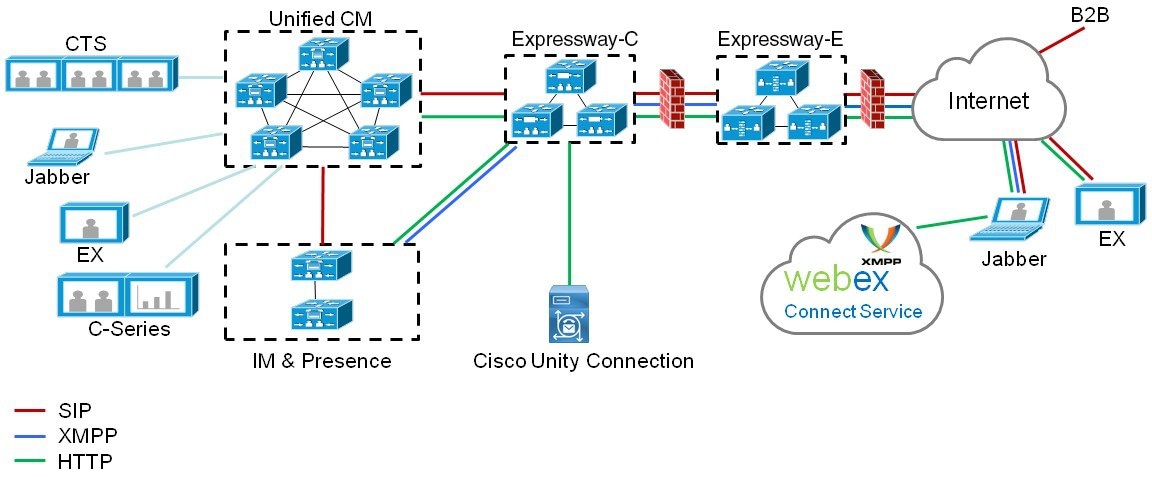
Basically, MRA (Cisco Unified Communications Mobile and Remote Access) allows endpoints such as Cisco Jabber to have their registration, call control, provisioning, messaging and presence services provided by CUCM when the endpoint is outside the enterprise network. The Expressway provides secure firewall traversal and line-side support for Unified CM registrations.

This solution supports a hybrid on-premises and cloud-based service model. It provides a secure connection for Jabber application traffic and other devices with the required capabilities to communicate without having to connect to a VPN. It is a device and operating system agnostic solution for Cisco Jabber clients on Windows, Mac, iOS and Android platforms.

MRA allows Jabber clients that are outside the enterprise to do the following:

  • Use Instant Messaging and Presence services
  • Make voice and video calls
  • Search the corporate directory
  • Share content
  • Launch a web conference
  • Access visual voicemail

Components

MRA requires Expressway (Expressway-C and Expressway-E) and Unified CM, with MRA-compatible soft clients and/or fixed endpoints. The solution can optionally include the IM and Presence Service and Unity Connection.

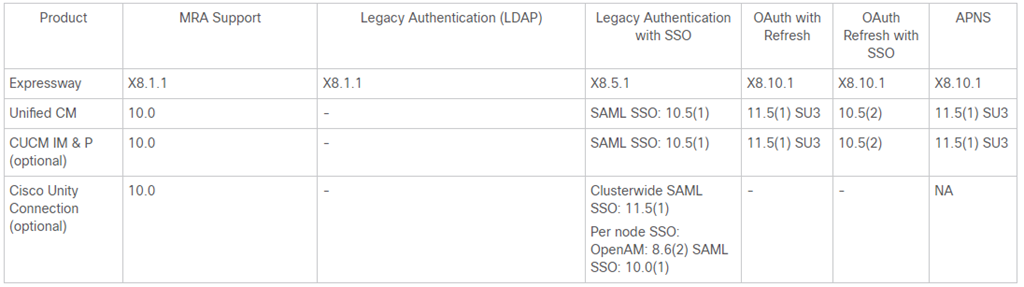
Product Versions

image

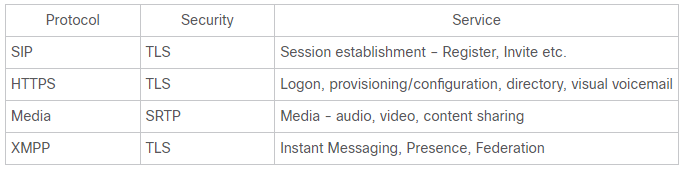
Protocols

image

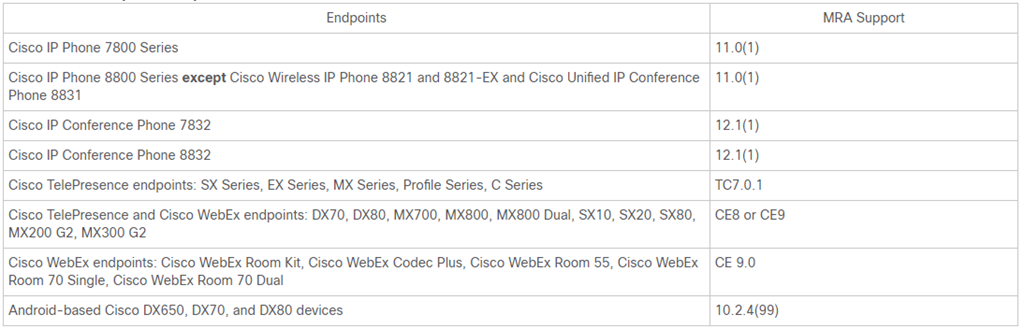
Compatible Endpoints

image

If you are deploying any of these devices to register with Cisco Unified Communications Manager through MRA, be aware of the following points. For DX endpoints, these considerations only apply to Android-based devices and do not apply to DX70 or DX80 devices running CE software:

  • Trust list: You cannot modify the root CA trust list on Cisco IP Phone 7800 Series and Cisco IP Phone 8800 Series devices. Make sure that the Expressway-E’s server certificate is signed by one of the CAs that the devices trust, and that the CA is trusted by the Expressway-C and the Expressway-E.

  • Off-hook dialling: The way KPML dialling works between these devices and Unified CM means that you need Cisco Unified Communications Manager 10.5(2)SU2 or later to be able to do off-hook dialling via MRA. You can work around this dependency by using on-hook dialling.

Cisco CUCM Requirements

CUCM dial plan will not be impacted by devices registering via Expressway. Remote and mobile devices still register directly to Unified CM and their dial plan will be the same as when it is registered locally.

Unified CM nodes and Expressway peers can be located in different domains. For example, your Unified CM nodes may be in the enterprise.com domain and your Expressway system may be in the edge.com domain.

In this case, Unified CM nodes must use IP addresses or FQDNs for the Server host name / IP address to ensure that Expressway can route traffic to the relevant Unified CM nodes.

Unified CM servers and IM and Presence Service servers must share the same domain.

  • Certificates

Two certificates on CUCM are significant for Mobile and Remote Access: CallManager certificate and Tomcat certificate.
PS:
If you do use self-signed certificates, the two certificates must have different common names. The Expressway does not allow two self-signed certificates with the same CN. So if the CallManager and tomcat self-signed certificates have the same CN in the Expressway’s trusted CA list, the Expressway can only trust one of them. This means that either secure HTTP or secure SIP, between Expressway-C and Cisco Unified Communications Manager, will fail.

The Expressway certificate signing request (CSR) tool prompts for and incorporates the relevant Subject Alternative Name (SAN) entries as appropriate for the Unified Communications features that are supported on that Expressway.

The Expressway-C server certificate must include the following elements in its list of subject alternate names: Unified CM phone security profile names and
IM and Presence chat node aliases (federated group chat)

The Expressway-E server certificate needs to include the following elements in its list of subject alternative names (SAN): Unified CM registrations domains, XMPP federation domains and IM and Presence chat node aliases (federated group chat)

That’s it for today guys….just an overview.
In the next posts, I’m going to go a bit deeper in the configuration.

Hope you’ve enjoyed!

See ya!

Bruno

Azure: Creating a Windows 11 VM

virtual-machine

Hi Guys,

In today’s article I will be brief, but I want to demonstrate a subject that is well up to date: How to create a vm with Windows 11 through  Cloud Shell in Azure portal.

Let’s go straight to practice: Log into the Azure portal and hit the Cloud Shell icon located on the right side of the search bar.

01

If you have not yet used the Cloud Shell, on the first access a Resource Group will be created for the Cloud Shell to use it. In the left corner it is also possible to choose between PowerShell or Bash commands (In case you are familiar with Linux), for this example I will use PowerShell command.

Okay, the next step will be to create a resource group for this virtual machine.

02

Now run the following commands to create your virtual machine

az vm create –resource-group GetPractical –name VMWindows11 –image windows-11-Preview –public-ip-sku Standard –admin-username azureuser –admin-password “GetPractical@Windows11

03

All other parameters like disk, cpu, vnet and etc will be created automatically. If you need to customize, you will also need to customize the command or create via GUI portal.

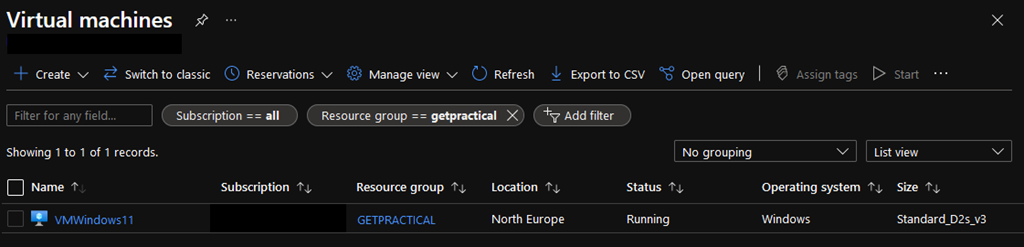
This process should take a few minutes, but once it is finished you will be able to see in the portal that the VM was created successfully.

It’s important to say that at the time I deployed this vm, Windows 11 was still in preview. If at the time of this post the preview version is no longer available, access the following Microsoft docs :

https://docs.microsoft.com/en-us/azure/virtual-machines/windows/cli-ps-findimage

05

Finally, run the mstsc /v <Public IP Address> command to access your virtual machine with Windows 11 and the result should be as follows:

04

And that folks, if you have any doubts, leave them in the comments.

Joao Costa

Cisco CUCM – Reports from SQL (show risdb)

Hey guys,

In my last post, I gave you some tips on how pull CDRs out from CUCM using SQL commands (Cisco CUCM – CDR through SQL). Today, I’m going to show other useful reports you can get using SQL commands.

As we are getting all the information from a CLI command, you will need to export the data to an excel file  to create something nice to be presented….or even use Python, PHP, to create something automatic for you.

Today I’m going to focus on one command, but with different variables and outputs: show risdb
This command displays RIS database table information.

Parameters

list : displays the tables that are supported in the Realtime Information Service (RIS) database.
query : displays the contents of the RIS tables

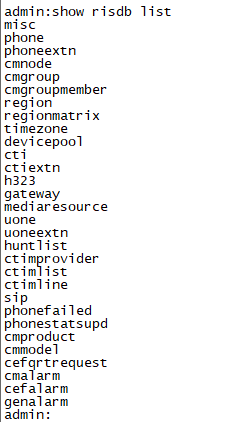
So, if you enter the command show risdb list, you will see a list of options in the table that you can explore.

image

The most common, and used, is the Phone.
To access this table, you must use this command: show risdb query phone.

image

This command is so powerful and useful!!! Here we see everything related to your phones: DeviceName, Descr, Ipaddr, Ipv6addr, Ipv4Attr, Ipv6Attr, MACaddr, RegStatus, PhoneProtocol, DeviceModel, HTTPsupport, #regAttempts, prodId, username, seq#, RegStatusChg TimeStamp, IpAddrType, LoadId, ActiveLoadId, InactiveLoadId, ReqLoadId, DnldServer, DnldStatus, DnldFailReason, LastActTimeStamp, Perfmon Object.

In other words, you can have a list of devices in your Cluster, check each phone is currently Registered or Unregistered, and its information such as IP, Protocol, Model……an excellent Report Smile

But, if you want to explore it a bit more, there are other interesting queries!
For example, if you want to have a report about your SIP Trunks, you can use this command: show risdb query sip.

Here you have information about your SIP Trunk, such as name, IPs, descriptions, Status, Peer Status.

This is the Trunk on CUCM:

image

image

The Status column (in red) corresponds to the “Service Status” field visible near the top of CCMAdmin’s SIP Trunk page.

0 – No service (The Trunk peer is reachable via TCP, but SIP Options ping is failing)
1 – Full service (All Trunk peers are up and SIP Options ping is successful)
2 – Partial service (A subset of Trunk peers are unreachable)
3 – Unknown (The Trunk peer is unreachable via TCP, or SIP Options ping is not enabled)

image

The PeerStatus column (in blue) corresponds to the “Status” field for each peer on the SIP Trunk page (near the bottom).

0 – Down
1 – Up

Now it’s up to you to choose a query from RSIDB list and start to explore it. You will find interesting options there, like CTIs, Gateways…..

Hope you’ve enjoyed it Smile

See ya!

Bruno