Manage multiple Azure Contexts using PowerShell

PowerShell for Azure Databricks — Data Thirst

In my day-to-day work I have to deal with several customers and Azure Subscriptions, and for this reason it sometimes becomes exhausting to jump from one Azure Context to another, even when I want to switch to my personal Azure tenant to run some tests.

Today’s article will be short, but simple and useful. After all, I believe it can help in the organization and agility of those who need to manage several subscriptions like me.

Okay, let’s get straight to the point.

Log in with your Azure account;

image

As you can see in the image above, once I authenticated an Azure context comes up as the default context.

Important -What is an Azure Context? Microsoft says “Azure contexts are PowerShell objects representing your active subscription to run commands against, and the authentication information needed to connect to an Azure cloud.”

Okay, we already noticed that when I authenticate with the user above, an Azure context is already loaded and so the next command will show which Azure contexts this same user has access to.

image

So let’s suppose I want to change which default subscription I want loaded once I authenticate to PowerShell.

image

Once you’ve changed the default context, you can check along the way: “C:\Users\Username\.Azure\AzureRmContext.json”

image

You can also rename all other subscriptions to a simpler name, and then you can select them more simply.

Rename-AzContext -SourceName ‘Visual Studio Professional (xxxxxxxx-xxxx-xxxxxx-xxxx-xxxxxxxxxx) xxx.xxx@xxx’ -TargetName ‘GP_Subscription’

And then when it is selected, you can use the new name placed

Select-AzContext ‘GP_Subscription’

Here we go, now you can choose your default context and also how to rename your context. You can also save these contexts like this when I did a few steps back and then when needed just import the context directly.

Import-AzContext “C:\Users\Username\.azure\CHANGENAME-context.json”

That’s all for today folks, see you soon.

Joao Costa

Azure – Creating a basic environment using PowerShell

AzEnvironment_01

Hi folks,

In this article we will deploy a complete environment via PowerShell (Based on the latest series of articles). The intention with this series of articles was to assist you in the creation of each resource and then in an automated way, help in the delivery of projects or start projects with PowerShell.

Azure-Script

What’s in this script:

Resource Group;
Storage Account;
File Share;
Containers for Logs;
Network Creation;
Virtual Machine Creation;
Creation Network card;
Creation of the Network Security Group;

#Script:

$RGNAME= “RG_GETPRACTICAL”
$LOCATION= “WESTEUROPE”
New-AzResourceGroup -Name $RGNAME -Location $LOCATION -Tag @{Department=”IT”}

#Storage Account creation

$RGNAME= “RG_GETPRACTICAL”
$LOCATION= “WESTEUROPE”
$STRGACCNAME= “strggetpractical02”
$TypeSTRG= “Standard_LRS”
New-AzStorageAccount -ResourceGroupName $RGNAME -Name $STRGACCNAME -Type $TypeSTRG -Location $LOCATION

#Creating a Container for Logs via Powershell

$STORAGEACCOUNT = Get-AzStorageAccount -ResourceGroupName $RGNAME -Name $STRGACCNAME
$CONTAINERNAME = “logs”
$CTX = $storageAccount.Context

New-AzStorageContainer -Name $containerName -Context $ctx -Permission blob

#Creating a FileShare

$STORAGEACCOUNT = Get-AzStorageAccount -ResourceGroupName “RG_GETPRACTICAL” -Name $STRGACCNAME
$storageKey = (Get-AzStorageAccountKey -ResourceGroupName $storageAccount.ResourceGroupName -Name $storageAccount.StorageAccountName | select -first 1).Value
$storageContext = New-AzStorageContext -StorageAccountName $storageAccount.StorageAccountName -StorageAccountKey $storageKey
New-AzStorageShare -Name “getpracticalshare” -Context $storageContext

#Creating a Virtual Network

$RGName= “RG_GETPRACTICAL”
$LOCATION= “WESTEUROPE”
$NameVnet=”VNet-GETPRACTICAL”
New-AzVirtualNetwork -Name $NameVnet -ResourceGroupName $RGName -Location $location -AddressPrefix 172.16.1.0/24
$VirtualNetwork = Get-AzVirtualNetwork -Name $NameVnet -ResourceGroupName $rgName
Add-AzVirtualNetworkSubnetConfig -Name BackEnd -VirtualNetwork $VirtualNetwork -AddressPrefix 172.16.1.0/26
Add-AzVirtualNetworkSubnetConfig -Name FrontEnd -VirtualNetwork $VirtualNetwork -AddressPrefix 172.16.1.64/26
Add-AzVirtualNetworkSubnetConfig -Name DMZ -VirtualNetwork $VirtualNetwork -AddressPrefix 172.16.1.128/28
Add-AzVirtualNetworkSubnetConfig -Name GatewaySubnet -VirtualNetwork $VirtualNetwork -AddressPrefix 172.16.1.144/28
Set-AzVirtualNetwork -VirtualNetwork $VirtualNetwork

#Creating the Virtual Machine

# Set values for existing resource group and storage account names.

$RGNAME= “RG_GETPRACTICAL”
$LOCATION= “WESTEUROPE”
$NSGName=”NSG-VM-01″

#Get VM credentials

#$CRED=Get-Credential -Message “Enter the local administrator account name and password.”

$VMLocalAdminUser = “jcosta
$VMLocalAdminSecurePassword = ConvertTo-SecureString “GPractical@2022” -AsPlainText -Force
$CRED=New-Object System.Management.Automation.PSCredential ($VMLocalAdminUser, $VMLocalAdminSecurePassword);

#Set the existing virtual subnet and network index.

$VNETNAME=”VNet-GETPRACTICAL”
$subnetIndex=0
$VNET=Get-AzVirtualNetwork -Name $VNETName -ResourceGroupName $RGName

#Creating a NIC with Pulic IP.

$NIC1=”NIC1-GP-VM-01″
$PIP=New-AzPublicIpAddress -Name $NIC1 -ResourceGroupName $RGName -Location $LOCATION -AllocationMethod Dynamic
$NIC=New-AzNetworkInterface -Name $NIC1 -ResourceGroupName $RGName -Location $LOCATION -SubnetId $vnet.Subnets[$subnetIndex].Id -PublicIpAddressId $PIP.Id

# Creating a NIC without Pulic IP

$NIC2=”NIC2-GP-VM-01″
$VNET=Get-AzVirtualNetworkSubnetConfig -Name Backend -VirtualNetwork $VNET
$NIC=New-AzNetworkInterface -Name $NIC2 -ResourceGroupName $RGName -Location $LOCATION -SubnetId $VNET.Id
$PIP.Id

#Setting NSG Rules

$RULES=New-AzNetworkSecurityRuleConfig -Name ‘Allow-RDP’ -Direction Inbound -Priority 1000 -Access Allow -SourceAddressPrefix ‘*’ -SourcePortRange ‘*’ -DestinationAddressPrefix ‘*’ -DestinationPortRange 3389 -Protocol Tcp
$NSG=New-AzNetworkSecurityGroup -Name $NSGName -ResourceGroupName $RGName -Location $LOCATION -SecurityRules $RULES

# VM Name and Size

$VMName=”GP-VM-01″

$VMSize=”Standard_DS2_v2″
$VM=New-AzVMConfig -VMName $VMName -VMSize $VMSize

#Specify the image and local administrator account and then add the NIC.

$PUBName=”MicrosoftWindowsServer”
$OFFERName=”WindowsServer”
$SKUName=”2019-Datacenter”
$VM=Set-AzVMOperatingSystem -VM $VM -Windows -ComputerName $VMName -Credential $CRED -ProvisionVMAgent -EnableAutoUpdate
$VM=Set-AzVMSourceImage -VM $VM -PublisherName $PUBName -Offer $OFFERName -Skus $SKUName -Version “latest”
$VM=Add-AzVMNetworkInterface -VM $VM -Id $NIC.Id

#Specify the OS disk name and create the VM

$DISKName=”OSDisk”
$STORAGEACCOUNT=Get-AzStorageAccount -ResourceGroupName $RGNAME -Name $STRGACCNAME
$OSDiskUri=$STORAGEACCOUNT.PrimaryEndpoints.Blob.ToString() + “vhds/” + $VMName + $DISKName + “.vhd”
$VM=Set-AzVMOSDisk -VM $VM -Name $DISKName -VhdUri $OSDiskUri -CreateOption fromImage
New-AzVM -ResourceGroupName $RGName -Location $LOCATION -VM $VM

#EndoftheScript

That’s all for today folks, see you soon.

Joao Paulo Costa

Creating Network Security Group using PowerShell

NSG_01

Hi folks!

Today let’s create the network security group that has a very important role within Microsoft Azure. It works at layer 4, where we can communicate ports and IPs between internal or external networks through a VPN.

Now let’s assign the following variables:

$NSGName=”NSG-VM-01″
$RGName= “RG_GETPRACTICAL”
$LOCATION= “UKSOUTH”

NSG_02

Next, we will create a variable with the name of the port and which rule will be used. In this case, I am creating an “NSG” for RDP access.

$RULES = New-AzNetworkSecurityRuleConfig -Name ‘Default-Allow-RDP’ -Direction Inbound -Priority 1000 -Access Allow -SourceAddressPrefix ‘*’  -SourcePortRange ‘*’ -DestinationAddressPrefix ‘*’ -DestinationPortRange 3389 -Protocol TCP

NSG_03

Now let’s create the NSG, using the following command.

$NSG = New-AzNetworkSecurityGroup -Name $NSGName -ResourceGroupName $RGName -Location $LOCATION -SecurityRules $RULES

NSG_04

Your NSG was successfully created.

NSG_05

Thanks guys and until the next post, where I will demonstrate how to create a virtual machine using all these commands at once.

Joao Paulo Costa

Creating Network Interface using PowerShell

NIC_01

Hey folks,

Continuing our series of articles on how to create resources in Azure using PowerShell, let’s talk about creating the network interface using PowerShell, creating the network interface and assigning it to a VM and associating it to a VNET is easier via shell command.

Now let’s assign some variables to create the network interface.

$RGName= “RG_GETPRACTICAL”
$NIC1=”Nic-GP-VM-01″
$LOCATION= “UKSouth”
$VNETNAME=”VNet-GETPRACTICAL”
$subnetIndex=0

NIC_02

This “SubnetIndex” variable is very important in the creation process, as it will identify each of your VNETs within your environment. In the case of this article I have a single VNET so I am considering the value “0”, but if you need to pull this value, just run a “Get-AzVirtualNetwork” with the add-ons such as resource group and VNET name.

Now let’s validate if the network exists within the environment.

$VNET=Get-AzVirtualNetwork -Name $VNETName -ResourceGroupName $RGName

NIC_03

Next we will create a public IP for the network interface.

$PIP=New-AzPublicIpAddress -Name $NIC1 -ResourceGroupName $RGName -Location $LOCATION -AllocationMethod Dynamic

NIC_04

Finally, we will create the network interface associating the public IP and the VNET that exists within our environment.

$NIC=New-AzNetworkInterface -Name $NIC1 -ResourceGroupName $RGName -Location $LOCATION -SubnetId $vnet.Subnets[$subnetIndex].Id -PublicIpAddressId $PIP.Id

NIC_05

Your network interface has now been successfully created.

NIC_06

Thanks guys and until the next post!

Joao Paulo Costa

Creating Virtual Network using PowerShell

Vnet_01

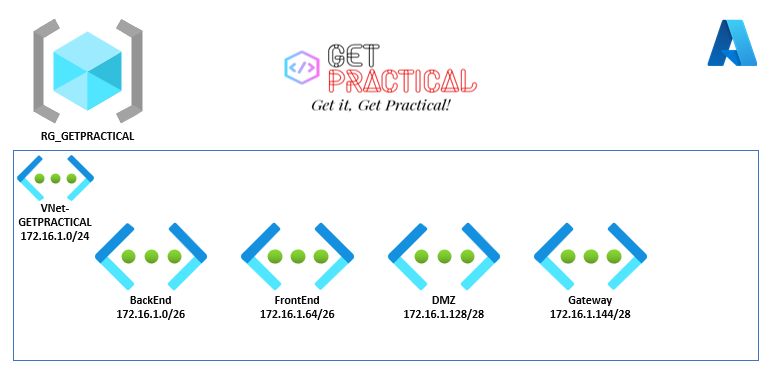
Continuing from the last article, today we are going to create a virtual network to allocate Azure resources and leave it in a secure pattern. In this scope, I’m setting up the network with the segmented subnets:

  • BackEnd: 172.16.1.0/26
  • FrontEnd: 172.16.1.64/26
  • DMZ: 172.16.1.128/28
  • Gateway: 172.16.1.144/28

Before starting to create the Azure network structure, let’s understand how a network in Azure works.

In Azure, when we create a network, we first choose the “Address Space” that would be an IP block that we would use inside our virtual network and within this block we will consider that each “Subnet” will be a piece of this block, according to the drawing below.

Vnet_02

After logging into the “Cloud Shell” select PowerShell, let’s assign some variables to create the network.

$RGName= “RG_GETPRACTICAL”
$LOCATION= “UKSOUTH”
$NameVnet=”VNet-GETPRACTICAL

These variables are for choosing the resource group where we will provision, the location and the name of your virtual network.

Vnet_03

Now let’s assign the network settings pointing the “Address Block”, in this case the Address Space 172.16.1.0/24 with 256 hots.

New-AzVirtualNetwork -Name $NameVnet -ResourceGroupName $RGName -Location $location -AddressPrefix 172.16.1.0/24

Vnet_04

See that it has been provisioned but does not contain subnets. now let’s assign some variables. This variable is to validate if the network exists within the environment.

$VirtualNetwork = Get-AzVirtualNetwork -Name $NameVnet -ResourceGroupName $rgName

Vnet_05

After validating the existing network, let’s add the subnets as shown in the examples below.

Add-AzVirtualNetworkSubnetConfig -Name BackEnd -VirtualNetwork $VirtualNetwork -AddressPrefix 172.16.1.0/26

Vnet_06

Next, let’s add the rest of the network scope.

Add-AzVirtualNetworkSubnetConfig -Name FrontEnd -VirtualNetwork $VirtualNetwork -AddressPrefix 172.16.1.64/26
Add-AzVirtualNetworkSubnetConfig -Name DMZ -VirtualNetwork $VirtualNetwork -AddressPrefix 172.16.1.128/28
Add-AzVirtualNetworkSubnetConfig -Name GatewaySubnet -VirtualNetwork $VirtualNetwork -AddressPrefix 172.16.1.144/28

Vnet_07

Now let’s run the “Set” command to add the set of subnets that were assigned above.

Set-AzVirtualNetwork -VirtualNetwork $VirtualNetwork

Vnet_08

Once your virtual network has been successfully created with its segmented subnets, let’s go to the portal to validate it.

Vnet_09

That’s all for today folks, until the next post.

Joao Costa