Manage multiple Azure Contexts using PowerShell

PowerShell for Azure Databricks — Data Thirst

In my day-to-day work I have to deal with several customers and Azure Subscriptions, and for this reason it sometimes becomes exhausting to jump from one Azure Context to another, even when I want to switch to my personal Azure tenant to run some tests.

Today’s article will be short, but simple and useful. After all, I believe it can help in the organization and agility of those who need to manage several subscriptions like me.

Okay, let’s get straight to the point.

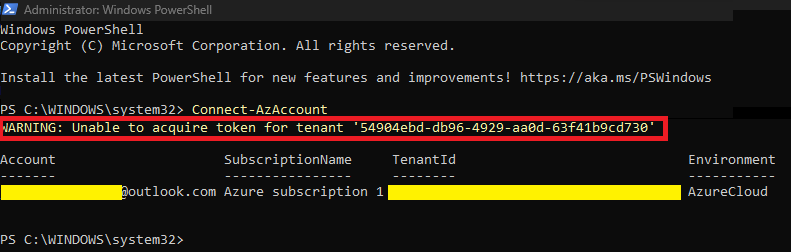
Log in with your Azure account;

image

As you can see in the image above, once I authenticated an Azure context comes up as the default context.

Important -What is an Azure Context? Microsoft says “Azure contexts are PowerShell objects representing your active subscription to run commands against, and the authentication information needed to connect to an Azure cloud.”

Okay, we already noticed that when I authenticate with the user above, an Azure context is already loaded and so the next command will show which Azure contexts this same user has access to.

image

So let’s suppose I want to change which default subscription I want loaded once I authenticate to PowerShell.

image

Once you’ve changed the default context, you can check along the way: “C:\Users\Username\.Azure\AzureRmContext.json”

image

You can also rename all other subscriptions to a simpler name, and then you can select them more simply.

Rename-AzContext -SourceName ‘Visual Studio Professional (xxxxxxxx-xxxx-xxxxxx-xxxx-xxxxxxxxxx) xxx.xxx@xxx’ -TargetName ‘GP_Subscription’

And then when it is selected, you can use the new name placed

Select-AzContext ‘GP_Subscription’

Here we go, now you can choose your default context and also how to rename your context. You can also save these contexts like this when I did a few steps back and then when needed just import the context directly.

Import-AzContext “C:\Users\Username\.azure\CHANGENAME-context.json”

That’s all for today folks, see you soon.

Joao Costa

Azure – Creating a basic environment using PowerShell

AzEnvironment_01

Hi folks,

In this article we will deploy a complete environment via PowerShell (Based on the latest series of articles). The intention with this series of articles was to assist you in the creation of each resource and then in an automated way, help in the delivery of projects or start projects with PowerShell.

Azure-Script

What’s in this script:

Resource Group;
Storage Account;
File Share;
Containers for Logs;
Network Creation;
Virtual Machine Creation;
Creation Network card;
Creation of the Network Security Group;

#Script:

$RGNAME= “RG_GETPRACTICAL”
$LOCATION= “WESTEUROPE”
New-AzResourceGroup -Name $RGNAME -Location $LOCATION -Tag @{Department=”IT”}

#Storage Account creation

$RGNAME= “RG_GETPRACTICAL”
$LOCATION= “WESTEUROPE”
$STRGACCNAME= “strggetpractical02”
$TypeSTRG= “Standard_LRS”
New-AzStorageAccount -ResourceGroupName $RGNAME -Name $STRGACCNAME -Type $TypeSTRG -Location $LOCATION

#Creating a Container for Logs via Powershell

$STORAGEACCOUNT = Get-AzStorageAccount -ResourceGroupName $RGNAME -Name $STRGACCNAME
$CONTAINERNAME = “logs”
$CTX = $storageAccount.Context

New-AzStorageContainer -Name $containerName -Context $ctx -Permission blob

#Creating a FileShare

$STORAGEACCOUNT = Get-AzStorageAccount -ResourceGroupName “RG_GETPRACTICAL” -Name $STRGACCNAME
$storageKey = (Get-AzStorageAccountKey -ResourceGroupName $storageAccount.ResourceGroupName -Name $storageAccount.StorageAccountName | select -first 1).Value
$storageContext = New-AzStorageContext -StorageAccountName $storageAccount.StorageAccountName -StorageAccountKey $storageKey
New-AzStorageShare -Name “getpracticalshare” -Context $storageContext

#Creating a Virtual Network

$RGName= “RG_GETPRACTICAL”
$LOCATION= “WESTEUROPE”
$NameVnet=”VNet-GETPRACTICAL”
New-AzVirtualNetwork -Name $NameVnet -ResourceGroupName $RGName -Location $location -AddressPrefix 172.16.1.0/24
$VirtualNetwork = Get-AzVirtualNetwork -Name $NameVnet -ResourceGroupName $rgName
Add-AzVirtualNetworkSubnetConfig -Name BackEnd -VirtualNetwork $VirtualNetwork -AddressPrefix 172.16.1.0/26
Add-AzVirtualNetworkSubnetConfig -Name FrontEnd -VirtualNetwork $VirtualNetwork -AddressPrefix 172.16.1.64/26
Add-AzVirtualNetworkSubnetConfig -Name DMZ -VirtualNetwork $VirtualNetwork -AddressPrefix 172.16.1.128/28
Add-AzVirtualNetworkSubnetConfig -Name GatewaySubnet -VirtualNetwork $VirtualNetwork -AddressPrefix 172.16.1.144/28
Set-AzVirtualNetwork -VirtualNetwork $VirtualNetwork

#Creating the Virtual Machine

# Set values for existing resource group and storage account names.

$RGNAME= “RG_GETPRACTICAL”
$LOCATION= “WESTEUROPE”
$NSGName=”NSG-VM-01″

#Get VM credentials

#$CRED=Get-Credential -Message “Enter the local administrator account name and password.”

$VMLocalAdminUser = “jcosta
$VMLocalAdminSecurePassword = ConvertTo-SecureString “GPractical@2022” -AsPlainText -Force
$CRED=New-Object System.Management.Automation.PSCredential ($VMLocalAdminUser, $VMLocalAdminSecurePassword);

#Set the existing virtual subnet and network index.

$VNETNAME=”VNet-GETPRACTICAL”
$subnetIndex=0
$VNET=Get-AzVirtualNetwork -Name $VNETName -ResourceGroupName $RGName

#Creating a NIC with Pulic IP.

$NIC1=”NIC1-GP-VM-01″
$PIP=New-AzPublicIpAddress -Name $NIC1 -ResourceGroupName $RGName -Location $LOCATION -AllocationMethod Dynamic
$NIC=New-AzNetworkInterface -Name $NIC1 -ResourceGroupName $RGName -Location $LOCATION -SubnetId $vnet.Subnets[$subnetIndex].Id -PublicIpAddressId $PIP.Id

# Creating a NIC without Pulic IP

$NIC2=”NIC2-GP-VM-01″
$VNET=Get-AzVirtualNetworkSubnetConfig -Name Backend -VirtualNetwork $VNET
$NIC=New-AzNetworkInterface -Name $NIC2 -ResourceGroupName $RGName -Location $LOCATION -SubnetId $VNET.Id
$PIP.Id

#Setting NSG Rules

$RULES=New-AzNetworkSecurityRuleConfig -Name ‘Allow-RDP’ -Direction Inbound -Priority 1000 -Access Allow -SourceAddressPrefix ‘*’ -SourcePortRange ‘*’ -DestinationAddressPrefix ‘*’ -DestinationPortRange 3389 -Protocol Tcp
$NSG=New-AzNetworkSecurityGroup -Name $NSGName -ResourceGroupName $RGName -Location $LOCATION -SecurityRules $RULES

# VM Name and Size

$VMName=”GP-VM-01″

$VMSize=”Standard_DS2_v2″
$VM=New-AzVMConfig -VMName $VMName -VMSize $VMSize

#Specify the image and local administrator account and then add the NIC.

$PUBName=”MicrosoftWindowsServer”
$OFFERName=”WindowsServer”
$SKUName=”2019-Datacenter”
$VM=Set-AzVMOperatingSystem -VM $VM -Windows -ComputerName $VMName -Credential $CRED -ProvisionVMAgent -EnableAutoUpdate
$VM=Set-AzVMSourceImage -VM $VM -PublisherName $PUBName -Offer $OFFERName -Skus $SKUName -Version “latest”
$VM=Add-AzVMNetworkInterface -VM $VM -Id $NIC.Id

#Specify the OS disk name and create the VM

$DISKName=”OSDisk”
$STORAGEACCOUNT=Get-AzStorageAccount -ResourceGroupName $RGNAME -Name $STRGACCNAME
$OSDiskUri=$STORAGEACCOUNT.PrimaryEndpoints.Blob.ToString() + “vhds/” + $VMName + $DISKName + “.vhd”
$VM=Set-AzVMOSDisk -VM $VM -Name $DISKName -VhdUri $OSDiskUri -CreateOption fromImage
New-AzVM -ResourceGroupName $RGName -Location $LOCATION -VM $VM

#EndoftheScript

That’s all for today folks, see you soon.

Joao Paulo Costa

Creating a Storage Account using PowerShell

cloud-file

Hey everyone,

Today we are going to create a Storage Account for any kind of use and inside this storage account we are going to create a blob for logs and a file share.

In the last post we created a resource group, where we will provision resources during this and the next posts.

Open the Azure Cloud Shell, then choose your subscription, if the cloud shell is already open, we will add the following variables, with the information:

$RGNAME= “RG_GETPRACTICAL”
$LOCATION= “UKSOUTH”
$STRGACCNAME= “strggetpractical01”
$TypeSTRG= “Standard_LRS”

STRG_01

Then we will execute the command “New-AZStorageAccount” to create the storage from the variables assigned above.

New-AzStorageAccount -ResourceGroupName $RGNAME -Name $STRGACCNAME -Type $TypeSTRG -Location $LOCATION

STRG_02

The storage was successfully created.

With the storage created, we are going to create a container to allocate the “Logs” of our environment, for that we are going to assign some variables as well.

$STORAGEACCOUNT = Get-AzStorageAccount -ResourceGroupName $RGNAME -Name $STRGACCNAME
$CONTAINERNAME = “logs”
$CTX = $storageAccount.Context

STRG_03

After assigning the variables, let’s run the following command “New-AzStorageContainer” to create the container.

New-AzStorageContainer -Name $containerName -Context $ctx -Permission blob

STRG_04

Your container was successfully created.

Last but not least let’s create a “File Share” with the following variables.

$STORAGEACCOUNT = Get-AzStorageAccount -ResourceGroupName “RG_GETPRACTICAL” -Name “strggetpractical01”

$storageKey = (Get-AzStorageAccountKey -ResourceGroupName $storageAccount.ResourceGroupName -Name $storageAccount.StorageAccountName | select -first 1).Value

$storageContext = New-AzStorageContext -StorageAccountName $storageAccount.StorageAccountName -StorageAccountKey $storageKey

STRG_05

New-AzureStorageShare -Name “getpracticalshare” -Context $storageContext

STRG_06

The File Share was created successfully, now let’s check the container and the file share that were created.

Container for Logs:

STRG_07

File Share for files:

STRG_08

That’s all for today guys, until the next post!

Joao Costa

Creating Resource Group using Powershell

Hey guys, how are you?

The idea is to learn how to create the resources and finally create an environment with all the resources together.

To start the configuration we have two ways, use the “Azure Cloud Shell” or install the “AZ Module” of powershell.

AZ Module Installation: Powershell Configuration

Access to Azure Cloud Shell: //shell.azure.com/

For this articles I will use the Azure Cloud Shell.

Let’s start by accessing Cloud Shell, then type in your subscription credentials.

RG01

Now let’s create two variables, one indicating the name for the resource group and another indicating the region where we will create the resources.
We will work with variables to facilitate the creation of command lines, in this way we can create complex scripts based on variables.
Let’s create two variables, one with the name of the resource group and the other with the region where we will create the resource group.

$RGNAME= “RG_GETPRACTICAL”
$LOCATION= “UKSOUTH”

RG02

After creating the variable, let’s create the command line.

New-AzResourceGroup -Name $RGNAME -Location $LOCATION

RG03

As you can see, we are executing the command to create a new resource group with the name given in the variable and with the location we put, in my case I am creating it in “UK South“.

RG04

Now you can create the group directly with the “Tag” or make an update on the created group.

To create or update the resource group and assign “Tags“, we will give a name and a value to this tag, according to the command below.

New-AzResourceGroup -Name $RGNAME -Location $LOCATION -Tag @{Department=”IT”}

In the image below, only the update was executed, it asks to confirm if you are going to do the update or not.

RG05

Your resource group is now created and tagged.

Thanks guys and until the next post!

Recovering local administrator access in Azure VMs

Password

Hey guys!

Let’s assume that for any reason you have lost the local administrator password of a virtual machine in Azure or even don’t remember the initial user created during the deployment of your virtual machine, well, the idea of this post is to solve this your problem, which just seems silly  but not unusual.

Starting with the user, in case you don’t remember, it’s a pretty simple task to find out: Go to Azure and make sure your VM is powered on, then select your VM and go to blade “Operations” and select “Run Command” and finally click on “RunPowerShellScript”. This will cause a dialog box to open and in this box you will type the following command in: “Get-LocalUser” and click “Run”.

04

The output should be presented as the image above, and at this point you will know which are the local users of that VM.

Ok, now that you know which user to use, just type in the password, correct? But let’s say you also don’t remember which password to use (Bad days happen to everyone lol). Well then, I will present two simple ways to reset this local user password.

The easiest and simplest option would be again with your VM selected, go to the blade “Help” and click on “Reset Password”. You will only need to enter the user  you want to reset the password and your new password.

(Ps: You will need to be logged into Azure with an user who gives you this right,  “RBAC” is a certification exam topic).

05

If all goes well, you will have the new password and use your local account without any problems.

But let’s assume that this lost password is the domain controller administrator password in Azure. In this case, you will not be able to reset this password as I just showed you above.

Therefore, we will be using the Extensions function in Azure. Through this extension we will run a script to reset the admin password.

The script is very simple and has only one line and has been uploaded to Azure previously.

script

The script must have the command above: net user LOCALUSER PASSWORD

07

After creating the script, saving as ResetPassword.ps1 and uploading it to a storage account on azure, select your VM again and in the blade Settings click on Extensions > Add > CustomScriptExtension > Next > RESETPASSWORD.PS1 > Review + Create > Create.

09

The Azure extension function will run the script on the VM and your password will be reset as configured in the script.

Voila! You will now be able to access your domain controller as you wish. This script can also be used to reset any account’s password.

Obviously the reset options are not limited to what I presented here in this post, especially when it comes to PowerShell commands.

10

That’s it for today guys, see you next time!

Joao Costa