
When you work in the cloud, keeping things organised is very important. Azure Policy is a simple tool that helps enforce rules on your resources. In this post, I’ll explain what Azure Policy is and show you a basic example of using it to require a tag on all your resources.
What is Azure Policy?
Azure Policy lets you set rules for your cloud resources. For example, you might want every resource to have a tag called Cost Centre so you know which department it belongs to. If someone tries to create a resource without that tag, the policy can stop it from being created.
This tool is very useful because it helps everyone on your team follow the same guidelines and keeps your cloud resources well organised.
A Simple Example: Requiring a "Cost Centre" Tag
In this example, we’ll create a custom policy that requires every resource to have a Cost Centre tag. If the tag is missing, the resource won’t be allowed.
Overview of the Steps
-
Create the policy rule file.
-
Create the policy parameters file.
-
Create the policy definition in Azure using the Azure CLI.
-
Assign the policy to a scope.
-
Check if your policy is working.
Step 1: Create the Policy Rule File
First, create a JSON file that defines the policy rule. This file contains only the rule logic (i.e. what to check and what to do if the condition isn’t met).
Save the file as require-costcentre-rule.json with the following content:
{
"if": {
"field": "[concat(‘tags[‘, parameters(‘tagName’), ‘]’)]",
"equals": ""
},
"then": {
"effect": "deny"
}
}
Where to store the file:
Save this file on your local machine or in your Cloud Shell environment. If you’re using Cloud Shell, you can use the built-in file editor or the upload feature to place the file in your home directory. Make sure you know its location (for example, /home/yourusername/require-costcentre-rule.json).
Step 2: Create the Policy Parameters File
Next, create another JSON file for the policy parameters. This file defines any variables used by your policy rule. Save the file as require-costcentre-parameters.json with the following content:
{
"tagName": {
"type": "String",
"defaultValue": "Cost Centre",
"metadata": {
"description": "The name of the tag. Default is ‘Cost Centre’."
}
}
}
Where to store the file:
Again, save this file on your local machine or in Cloud Shell and note its location.
Step 3: Create the Policy Definition Using Azure CLI
With your two JSON files saved, open Azure CLI (or Cloud Shell) and run the following command. This command uses both files to create the policy definition:
az policy definition create \
–name "require-costcentre-tag" \
–display-name "Require Cost Centre Tag on Resources" \
–description "Ensure every resource has a ‘Cost Centre’ tag." \
–rules "require-costcentre-rule.json" \
–params "require-costcentre-parameters.json" \
–mode All
This command tells Azure to create a new policy definition using the rule logic from the first file and the parameters from the second file.

Step 4: Assign the Policy
Once the policy definition is created, you need to assign it to a scope. A scope can be a subscription or a resource group. For example, to assign the policy to a specific resource group, run:
az policy assignment create \
–name "assign-require-costcentre-tag" \
–display-name "Assign: Require Cost Centre Tag on Resources" \
–policy "require-costcentre-tag" \
–scope "/subscriptions/<your-subscription-id>/resourceGroups/<your-resource-group>"
Replace <your-subscription-id> and <your-resource-group> with your actual subscription ID and resource group name.

Step 5: Check If Your Policy Is Working
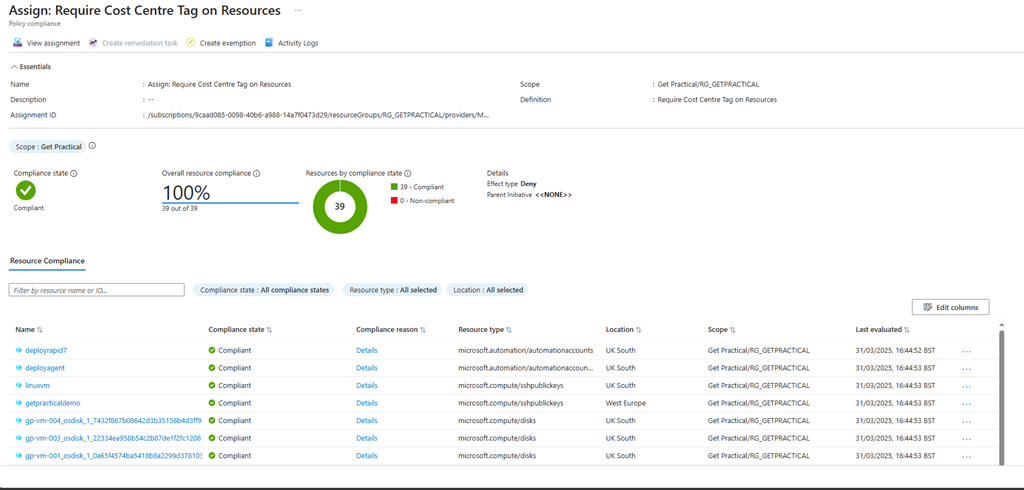
After assigning the policy, Azure will begin checking your resources to ensure they have the Cost Centre tag. To verify this:
-
Open the Azure Policy section in the Azure Portal.
-
Go to the Compliance page to see which resources are not following the rule.
-
Update any non-compliant resources by adding the Cost Centre tag.
In Conclusion
Azure Policy is a great way to keep your cloud resources in order. With this simple example, you now know how to create a rule that requires every resource to have a Cost Centre tag. This makes it easier to manage your resources and track costs effectively.
I hope you found this guide helpful. If you have any questions or need further examples, feel free to reach out. Happy managing!


 Get Practical