

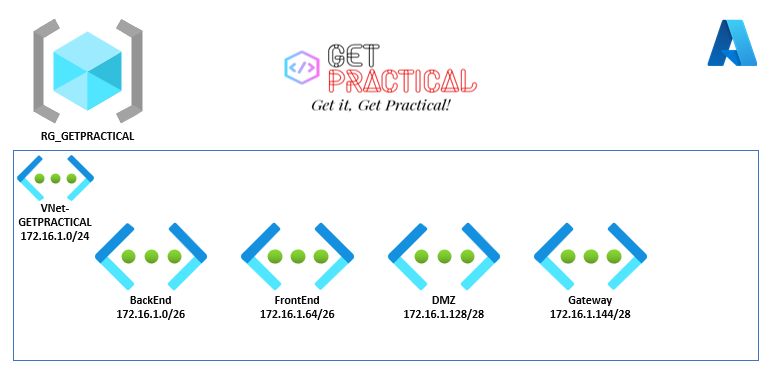
Continuing from the last article, today we are going to create a virtual network to allocate Azure resources and leave it in a secure pattern. In this scope, I’m setting up the network with the segmented subnets:
- BackEnd: 172.16.1.0/26
- FrontEnd: 172.16.1.64/26
- DMZ: 172.16.1.128/28
- Gateway: 172.16.1.144/28
Before starting to create the Azure network structure, let’s understand how a network in Azure works.
In Azure, when we create a network, we first choose the “Address Space” that would be an IP block that we would use inside our virtual network and within this block we will consider that each “Subnet” will be a piece of this block, according to the drawing below.
After logging into the “Cloud Shell” select PowerShell, let’s assign some variables to create the network.
$RGName= “RG_GETPRACTICAL”
$LOCATION= “UKSOUTH”
$NameVnet=”VNet-GETPRACTICAL
These variables are for choosing the resource group where we will provision, the location and the name of your virtual network.

Now let’s assign the network settings pointing the “Address Block”, in this case the Address Space 172.16.1.0/24 with 256 hots.
New-AzVirtualNetwork -Name $NameVnet -ResourceGroupName $RGName -Location $location -AddressPrefix 172.16.1.0/24

See that it has been provisioned but does not contain subnets. now let’s assign some variables. This variable is to validate if the network exists within the environment.
$VirtualNetwork = Get-AzVirtualNetwork -Name $NameVnet -ResourceGroupName $rgName

After validating the existing network, let’s add the subnets as shown in the examples below.
Add-AzVirtualNetworkSubnetConfig -Name BackEnd -VirtualNetwork $VirtualNetwork -AddressPrefix 172.16.1.0/26

Next, let’s add the rest of the network scope.
Add-AzVirtualNetworkSubnetConfig -Name FrontEnd -VirtualNetwork $VirtualNetwork -AddressPrefix 172.16.1.64/26
Add-AzVirtualNetworkSubnetConfig -Name DMZ -VirtualNetwork $VirtualNetwork -AddressPrefix 172.16.1.128/28
Add-AzVirtualNetworkSubnetConfig -Name GatewaySubnet -VirtualNetwork $VirtualNetwork -AddressPrefix 172.16.1.144/28

Now let’s run the “Set” command to add the set of subnets that were assigned above.
Set-AzVirtualNetwork -VirtualNetwork $VirtualNetwork

Once your virtual network has been successfully created with its segmented subnets, let’s go to the portal to validate it.

That’s all for today folks, until the next post.
Joao Costa

 Get Practical