Cisco UCCX – Sending email using Script

Hi people!
In today’s post, I will show you how to configure your UCCX Script to send emails.

This can be easily a complement of my last Post (Cisco UCCX – Recording Prompt Script). In this post, I showed you how to create a script where you can record your own audio prompts and upload them to UCCX. Now, with this post, you can add some steps to send the recorded audio via email to improve a little bit your achievement.

Well, let’s go to the configuration!

Configure Email on UCCX Server
Go to your UCCX,  Subsystem Menu, then Email.
You have to add the SMTP and an email account which will be the source.

image

Variables
You can have as many variables as you want to easy your life. But there is one you must create.
Create a Contact Type variable, give a name,  “EmailContact” in my example, and give a null value.

image

Steps to be used in the Script

  • Create eMail
    Here you generate the subject line and body of the e-mail message.
  • Subject: Variable or expression that you want to use for the subject line of the message.
    Body: Variable or expression that you want to use for the body of the e-mail message
    eMail Contact: Variable that identifies the email. The variable “EmailContact”  we’ve created above.

    image

  • Attach To eMail
    Use the Attach To eMail step to attach a document to an e-mail.
    Before you use an Attach To eMail step, you must use a Create eMail step to create the e-mail message.

    I’m showing you now how to attach that audio prompt we’ve just recorded, as an example.
    In that case, the variable Result contains the recorded audio, and I’m attaching it to the email using this Step.

    image

  • Send eMail
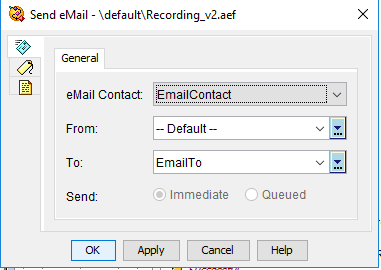
    Use the Send eMail step to send an e-mail message you have created with the Create eMail step.
    When a script reaches the Send eMail step, it immediately sends the e-mail message to the e-mail server, and keeps the client waiting until the message is accepted by the e-mail server. If the server is unavailable because of server or network problems, the client must wait until the transaction times out.

image

So, your code must be like that.

image

It’s a really short code, but the idea is to have that attached to your main script, as a feature, to help you to handle queues, or other things, like sending recorded audios..

Hope you’ve enjoyed!
See ya!

Bruno

Cisco UCCX – Recording Prompt Script

Hey Guys,

Today I’m going to show you the step-by-step to create a Script on UCCX, where you can record your own Audio Prompt. The audio is automatically saved in a Folder on UCCX.

It’s not an advanced Script, but it’s very useful.
Audio will be saved with the User’s ID, plus the date/time. I found this way easy to be found in the Folder, for instance: 1234567_07_19 – 10018am.wav.

Let’s see the steps to create the Script:

  • Defining Date/Time
    We are going to get the current Date and Time, and then, split it into 4 variables: second, minutes, hour, month and day. Then, add then in a variable sSlotTime, which will be part of the name of the Audio.
    These steps Switch are add the “0” in a number. For example, from “1” to “01”, so we keep all with 2 digits. We do the same for day, month, hour, minutes and second (always from 0 to 9).
    For the period, the result will give us 1 or 0. If it’s 1, I set the period to pm. If it’s 0, I set the period to am.


imageimage

imageimage

  • Getting User ID
    Now we will ask the user to enter their ID’s. The only reason here is to name the audio according to the ID. If you want, you can ask the user to enter ID and PIN as an authentication.
    You are saving the ID in a variable called ID.
    Then, we are setting the variable sFileType with ID + “_”.

imageimage

image

  • Recording
    Time now to Record the audio. To do that, there is a step called Recording, where you indicate which variable you will save the result, audio, maximum duration, etc..
    So we are saving it in a variable called Result.

image
imageimageimage

  • Manipulating the Result
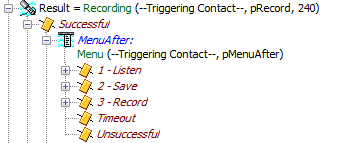
    After recording the audio(with success), I’m giving 3 options to the user, through a Menu:

image
Press 1 to Listen the recorded audio – The audio saved in the variable Result will be played.
Press 2 to Save – We will give a full name to the audio. Variable sFileName will receive the Folder + sFileType + sSlotTime + “.wav”
Press 3 to Record it again – Go back to the Recording Step

image

  • Authentication
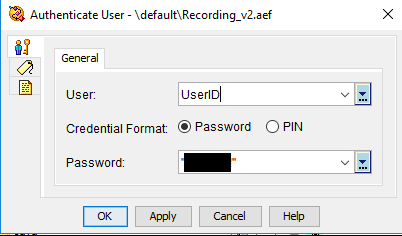
    To be able to save the audio to UCCX, we need authenticate, with an admin credential.
    So firstly, we need to Get the User, then you have to authenticate it.

imageimageimage
image

  • Saving the audio
    After authenticating, we have to save the file in the audio repository.
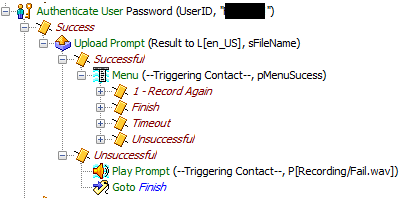
    We use the step Upload Prompt to send the audio to the Server. If the Upload is done successfully, user will listen to a Menu, asking to press 1 to Record another audio, or any digit to finish.image
    The file name is that variable sFileName we’ve prepared, and the Document is the audio saved in the variable Result.

    image

Basically, this is the code!

YOU CAN NOW DOWNLOAD THE SCRIPT HERE!!
I hope you enjoyed!

See ya!

Bruno

imageimageimage