Streamlining Role Management in Azure AD with PowerShell and Microsoft Graph

image

In today’s rapidly evolving IT ecosystem, effective role management is key. This is especially true for large organisations where managing roles for individual users can quickly become overwhelming. For businesses that leverage Microsoft Azure, there are robust tools at hand that can dramatically simplify and automate these intricate tasks. Among these tools, PowerShell in conjunction with Microsoft Graph stands out for its administrative efficiency.

In this blog post, we’re going to guide you through the process of crafting a PowerShell script that utilises Microsoft Graph to identify a specific Azure AD group and remove all roles assigned directly to all group members. Let’s get started!

Preparations

Before we dive in, there are a few prerequisites to note. Firstly, ensure that you have the Microsoft Graph PowerShell SDK installed. If not, use the Install-Module -Name Microsoft.Graph command in your PowerShell to add it.

Next, establish a connection to Microsoft Graph by using the Connect-MgGraph cmdlet.

Finally, remember to tread carefully when modifying user permissions. Scripts that implement bulk changes can be particularly powerful, but also potentially disruptive if not properly managed. It’s always wise to run tests with a small number of users before applying changes across an entire group.

Continue reading “Streamlining Role Management in Azure AD with PowerShell and Microsoft Graph”

Configuring Azure Administrative Units

Hey guys,

I’m back and today I’m going to talk about Azure Administrative Units. The idea to talk about this came from a recent request from one of the customers of the company I currently work for.

The request was that due to the fact that the customer has several sites, in different countries, the IT department needed to have an administrator in each of these locations, but this administrator would still need to manage only the users from that specific location.

Well, to start, I need to say that to make use of Administrative Units, you need to have at least the Azure AD Premium P1 license. That said, let’s get down to business.

Open Azure and go to Azure Active Directory

AU_01

You will find the Administrative Units option in the Manage blade on the left side.

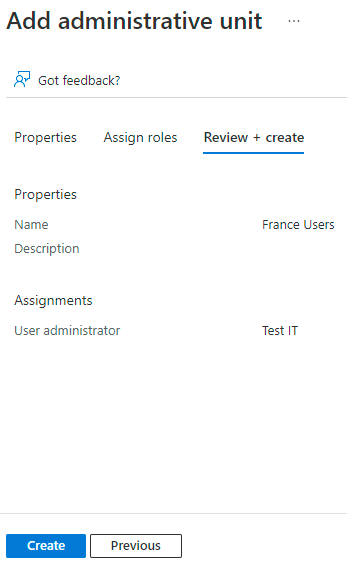
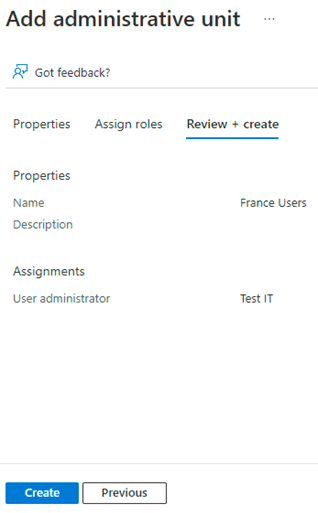
Click on Administrative Units and then hit Add. The next step will now be to give a name to the Administrative Unit, select which Role the administrator will have and  finally select the user who will be the administrator itself.
AU_02

Well, in this scenario I configured as follows:

  • Name: France Users
  • Role: User Administrator
  • Administrative Unit Administrator: IT Test

To recap, the user “IT Test” will have the role “User Administrator” in the Administrative Unit called “France Users”

OK? Now it’s simple, we just need to put the users that would be managed by the Administrative Unit Administrator manually or through a Dynamic Rule in the Administrative Unit.

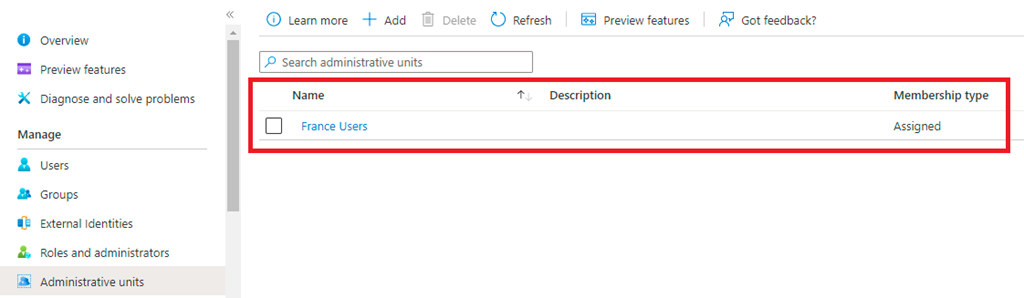
Returning to the portal, click on Administrative Units and you should see the Administrative Unit that was created according to the previous steps.

AU_03

As you can see, by default when you create an Administrative Unit the “Membership Type” option is set to assigned, that is, you need to add users manually.

But we know that this is a flawed process and sooner or later you will miss an user and we know where this can go, so automating this process is the best solution, and that’s where the Dynamic Rule comes in.

Ok, go back to the portal and click on the Administrative Unit you created earlier and you should see something similar to the image below.

AU_04

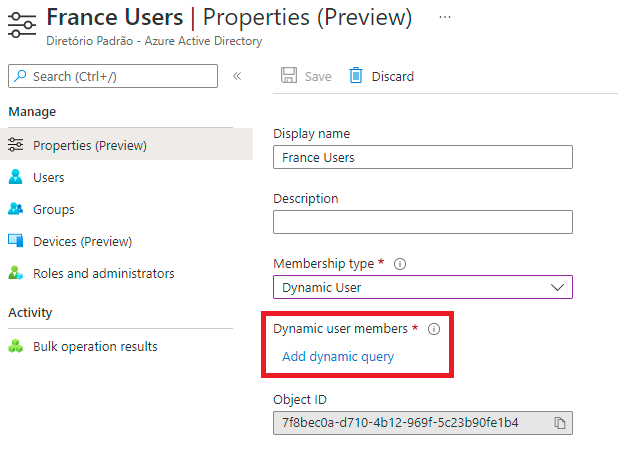
Now click on Properties (Preview) and then change the Membership Type option to Dynamic User and then suggest an option called “Add Dynamic Query”

AU_05

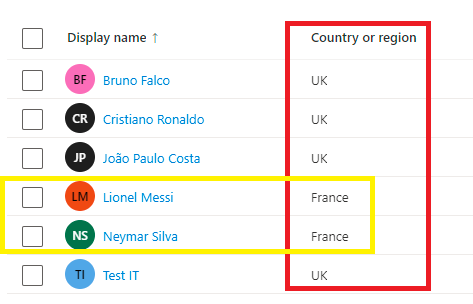
Click on “Add Dynamic Query” and configure the rule that best suits your scenario. In my scenario I will base myself on the user’s Country being “France”.

AU_06

Hit save twice and the Dynamic Query has been created. That is, every user that is created or changed in Azure AD and in its country of location is France, it will be automatically added to this Administrative Unit.

AU_08

Ok, within a few minutes you will see that the users blade inside your Administrative Unit will start to be populated by all those users that apply the created rule.

AU_07

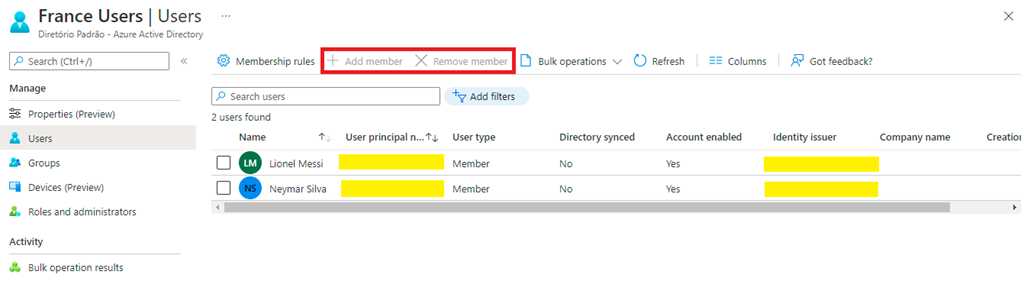
There it’s, my users from France have been added to the Administrative Unit and as you can see the options to add and remove member are greyed out.

Now you might be wondering, how do I test this? Simple, your administrator needs to log either into admin.microsoft.com or mystaff.microsoft.com.
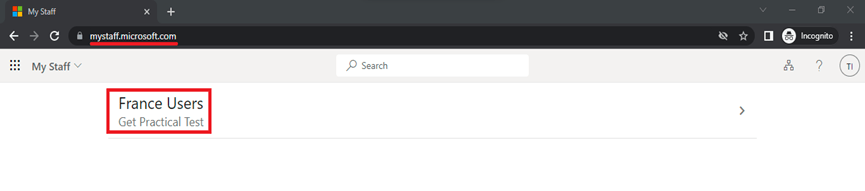
AU_09

After the logon, ask your Administrative Unit administrator to select the wanted Administrative Unit and he will be able to see all the users he manages.
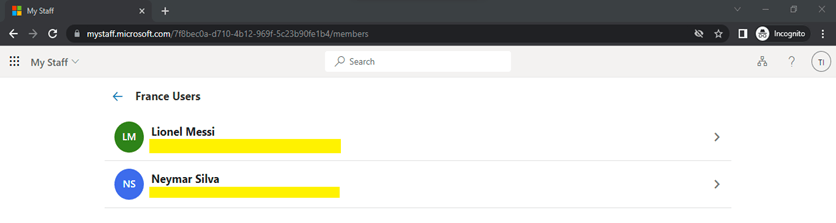
AU_10

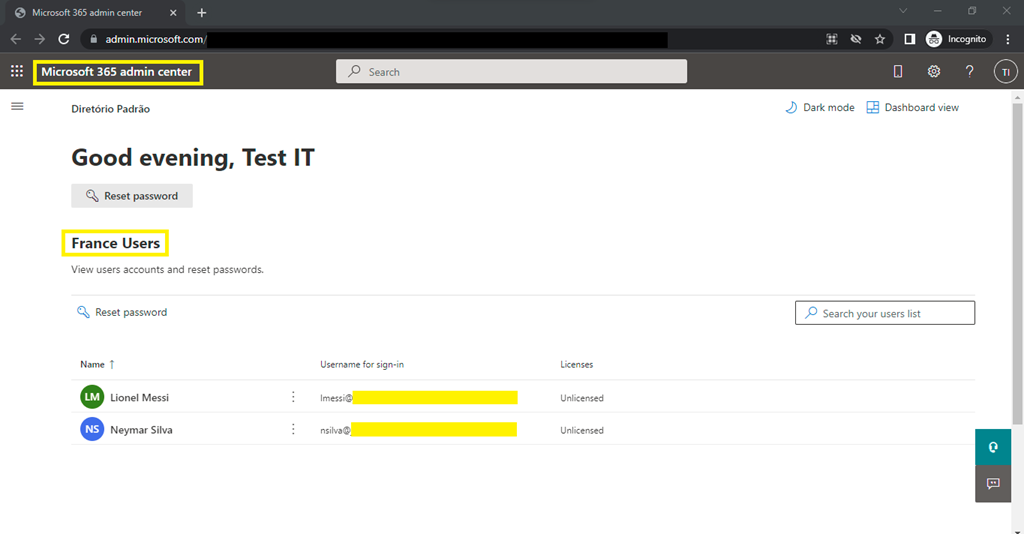
Or if he logs on the Microsoft 365 admin portal, he will be able to see the below:
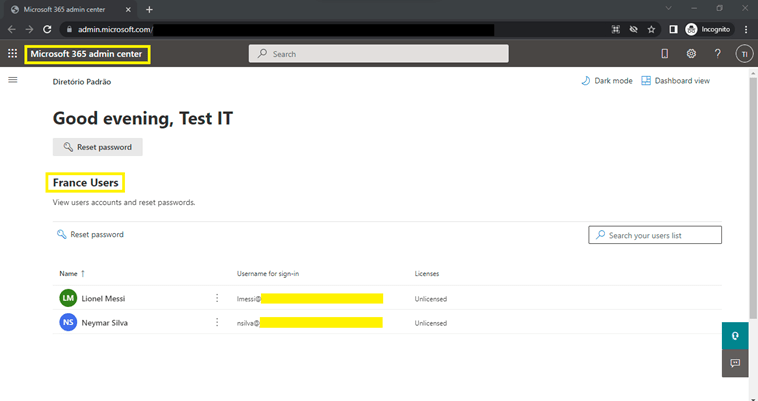
AU_11

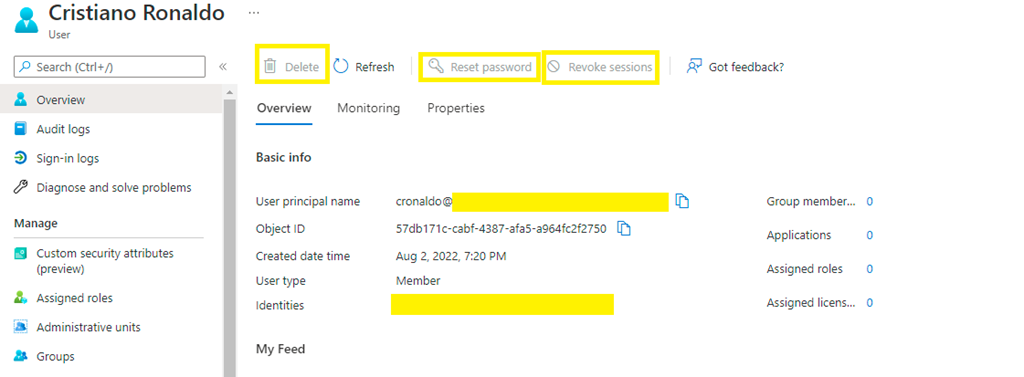
Okay, but you may be wondering (again), what if your administrator still decides to access Azure AD? In this case he will still be able to see all users and groups, but he will only be able to manage the users of the Administrative Unit he has rights. All other users will show the greyed out properties.

AU_12

That’s it folks, a simple and easy solution in case of remote location administrators or small departments and so on. You can explore several scenarios with this setup, enjoy.

See you soon.

Joao Costa

Study guide for Azure Administrator

Hey guys! Today I come here to share with you my journey to achieve Azure Administrator certification. To get the title of Azure Administrator, you need to pass the Az-104 exam.

azure-administrator-associate-600x600

My badge validation link

What is expected from an Azure Administrator?

Azure Administrator implements, manages and monitors identity, governance, storage, compute and virtual networks in a cloud environment. Azure Administrator will provision, scale, monitor and adjust resources as appropriate. Candidates must have at least six months of hands-on experience in Azure administration. Candidates should have a strong understanding of Azure core services, workloads, security, and Azure governance.

Candidates for this exam should have experience using PowerShell, Command Line Interface, Azure Portal, and ARM templates.

The exam content:

Manage Azure identities and governance (15-20%)
Implement and manage storage (15-20%)
Deploy and manage Azure compute resources (20-25%)
Configure and manage virtual networking (25-30%)
Monitor and back up Azure resources (10-15%)

What was asked for on my exam?

Many questions based on RBAC (Role-Based Access Control), basically asked what permissions would be needed to perform certain tasks in Azure. I also remember seeing a lot of questions related to locations, ie whether you can interact between resources located in different Azure’s regions. Questions about minimum computing requirements (Virtual Machines), questions about Azure Monitor, Azure Advisor and general questions related to networking.

Some links from previous posts covering the exam content.

RBAChttps://getpractical.co.uk/2021/03/08/understand-azure-role-based-access-control-rbac/

Azure Advisorhttps://getpractical.co.uk/2021/05/03/azures-advisor/

Azure Storagehttps://getpractical.co.uk/2021/06/14/creating-a-storage-on-azure/

Az-Copyhttps://getpractical.co.uk/2021/05/17/how-to-download-and-install-the-azcopy-tool/

My study method:

  1. I always read the outline of the skills measured in each exam.
  2. If there’s anything I’m not familiar with, I’ll read the documentation available in Microsoft Docs (always free and up-to-date).
  3. If I don’t understand what the documents are saying, I use my tenant for proper validations.
  4. I always dedicate 20 to 40 hours (per exam) to perform the laboratories (On Azure you can have a free tenant for 30 days to do your validations).
  5. When it comes to new technology, I start by watching the training available in Microsoft Learn, Pluralsight and/or Udemy.

Azure Free tenant: https://azure.microsoft.com/en-gb/free/

Microsoft Learning: https://docs.microsoft.com/en-us/learn/

Exam skills outline Az-104: https://docs.microsoft.com/en-us/learn/certifications/exams/az-104

I would soon renew my Microsoft 365 certifications, after all I have a large part of my background in Microsoft 365 migrations and I will no doubt share my journey here.

Take as much time as you need to prepare and first of all, don’t be afraid to fail. I’ve failed exams before and this is part of any IT professional’s journey, whether you’re a beginner or not.

If you have any questions, let me know in the comments that I will try to help you improve. In 2022 I will try the Azure Solution Architect exam, which will be my next goal with Azure (Until Microsft updates everything again lol =/).

See you soon guys and good luck studying.

Joao Costa