Azure Files – Part 2 – Creating a SMB Share

smb-icon

Hello everyone! As promised in the first post about Azure File, today I will demonstrate how to create an Azure Files SMB share. However, first it is necessary to say that when we implement SMB shares with Azure, there are 2 basic scenarios. The first would be server to server and/or applications, in which case you can use standard admin account and access key. If you wanted to use your Active Directory domain identity with Azure Files, you will need to extend your domain to Azure (You can do this in 2 ways), that is, basically add the domain service in the Microsoft cloud, only in this one scenario you can integrate your storage account with identities, your users can each use their own domain account to use their file access privileges.

That said, let’s get down to the minimum requirements for using Azure Files on Windows machines (MacOS and Linux are also supported, but they’re not in the scope of this post).

image

Let’s get started!

Initially, to create an Azure Files you need to create a new Storage Account, because if you try to search Azure Files when creating a new resource, you will notice that nothing will be found.
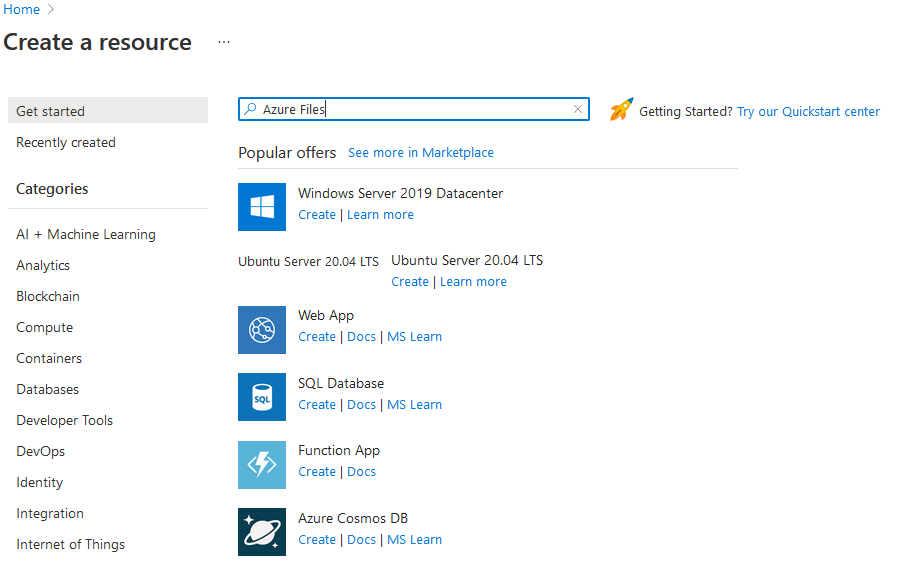
image

Of course you can use an existing Storage Account, but for this post I will create a new storage account.

The important steps here is to create a resource group and the storage account itself, everything else you can customize according to your need or leave everything as default (If your don’t know how to create a Storage Account go to this post).

image

Hit ‘Review + Create’ and within 2 or 3 minutes you will have everything you need to create your Azure Files, Then click go to the resource. Once you have your new storage account open, hit the ‘File Share’ blade in the vertical menu on the left side.

image

 Just for observation, at the top of the screen above it says that the Active Directory is not configured, i.e. in this scenario I could not use the identity service without first enabling the domain service in Azure.

Continuing with our configuration, hit ‘+ File Share’, type the name, put the amount of GiB needed then select the access tier needed. For this post I selected the cheapest for demonstration purposes, but you must select it according to your need (You can access here the Microsoft link explaining about each tier and pricing).

image

Now that the share has been created, navigate to the one we just created and you can see that there aren’t many options here. The main option is the ‘Connect’ option.

Hit the ‘Connect’ option and you will see that Azure will provide a script for Windows, Linux and MacOS.

Basically you will need to choose which operating system you will have the driver mapped, the driver letter (For Windows OS only) and which authentication method will be used.

image

To finish the only thing to do is run this PowerShell script on the machine where you want to have the driver mapped, with the only requirement being port 445 open for communication with Azure. In this script provided by azure, it already contains the account and password to access the resource, and at the time of execution of the script there is no need to elevate your PowerShell session.

image

The result I hope after executing the script will be the driver mapped as in the example below.

image

It is also possible to add the mapping manually, you just need to follow the following steps.

1 – On the machine you want to map the drive, open Windows Explorer and hit ‘This PC’, then right click on the white space and select Add network location, after that hit ‘Next’ twice and you will end up to a windows that you need to specify the address for the location you want to add.

2-Go back to Azure Files on Azure portal and hit ‘Properties’.

3- Copy URL without the HTTPS and paste on your Windows Explorer screen, but don’t forget to add the ‘\\’ and also change all others for back slash ‘\’.  The result should be this:
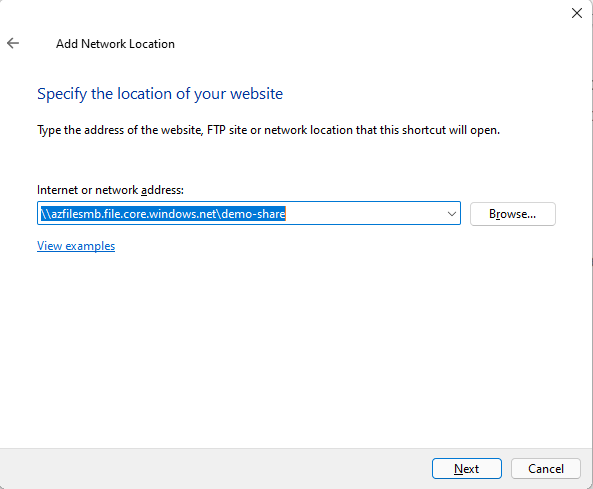
image

4- Hit ‘Next’ and give a name for your network location, and hit ‘Next’ again.

5- Finally, it should ask for the user name and password to access the network location, so to grab that you need to go to Azure Portal again and grab it from your Azure Files Storage Account.
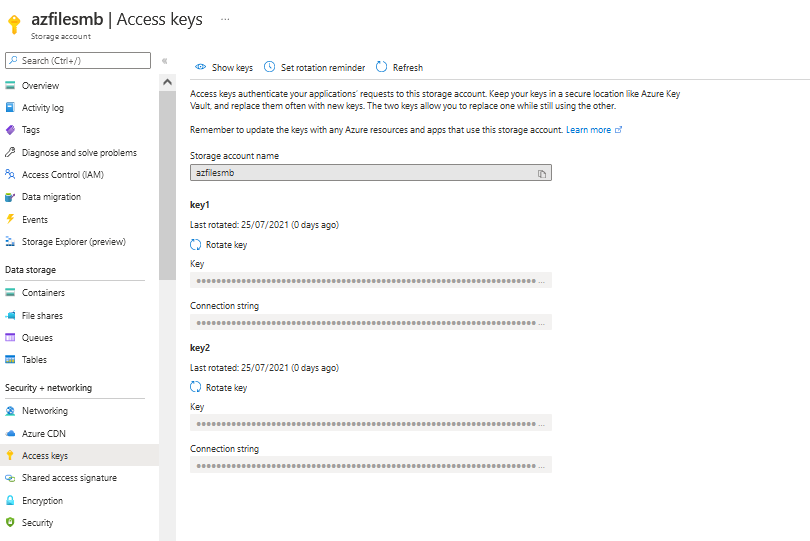
image

The credentials accessing format will be:

User: localhost\StorageAccountName

Password: StorageAccountAccessKey

Now you will be able to put your files these will be automatically synced to the cloud or your on-premises environment (Depending on where you create the file).

image

I would also like to demonstrate the features of Azure Files snapshot and how the backup works, but this post is already too big, for this reason I will reserve these subjects for the next ones. If you have any questions, leave in the comments, see you soon!

Joao Costa

Cisco UCCX – Recording Prompt Script

Hey Guys,

Today I’m going to show you the step-by-step to create a Script on UCCX, where you can record your own Audio Prompt. The audio is automatically saved in a Folder on UCCX.

It’s not an advanced Script, but it’s very useful.
Audio will be saved with the User’s ID, plus the date/time. I found this way easy to be found in the Folder, for instance: 1234567_07_19 – 10018am.wav.

Let’s see the steps to create the Script:

  • Defining Date/Time
    We are going to get the current Date and Time, and then, split it into 4 variables: second, minutes, hour, month and day. Then, add then in a variable sSlotTime, which will be part of the name of the Audio.
    These steps Switch are add the “0” in a number. For example, from “1” to “01”, so we keep all with 2 digits. We do the same for day, month, hour, minutes and second (always from 0 to 9).
    For the period, the result will give us 1 or 0. If it’s 1, I set the period to pm. If it’s 0, I set the period to am.


imageimage

imageimage

  • Getting User ID
    Now we will ask the user to enter their ID’s. The only reason here is to name the audio according to the ID. If you want, you can ask the user to enter ID and PIN as an authentication.
    You are saving the ID in a variable called ID.
    Then, we are setting the variable sFileType with ID + “_”.

imageimage

image

  • Recording
    Time now to Record the audio. To do that, there is a step called Recording, where you indicate which variable you will save the result, audio, maximum duration, etc..
    So we are saving it in a variable called Result.

image
imageimageimage

  • Manipulating the Result
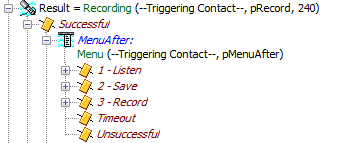
    After recording the audio(with success), I’m giving 3 options to the user, through a Menu:

image
Press 1 to Listen the recorded audio – The audio saved in the variable Result will be played.
Press 2 to Save – We will give a full name to the audio. Variable sFileName will receive the Folder + sFileType + sSlotTime + “.wav”
Press 3 to Record it again – Go back to the Recording Step

image

  • Authentication
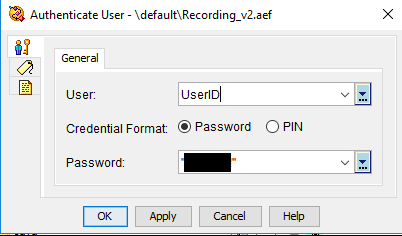
    To be able to save the audio to UCCX, we need authenticate, with an admin credential.
    So firstly, we need to Get the User, then you have to authenticate it.

imageimageimage
image

  • Saving the audio
    After authenticating, we have to save the file in the audio repository.
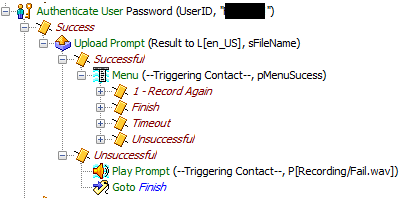
    We use the step Upload Prompt to send the audio to the Server. If the Upload is done successfully, user will listen to a Menu, asking to press 1 to Record another audio, or any digit to finish.image
    The file name is that variable sFileName we’ve prepared, and the Document is the audio saved in the variable Result.

    image

Basically, this is the code!

YOU CAN NOW DOWNLOAD THE SCRIPT HERE!!
I hope you enjoyed!

See ya!

Bruno

imageimageimage

Cisco CUCM – Controlling Phones Remotely

Hey guys,

Today I’m going to talk about a very useful feature which gives us power to control remotely a Deskphone, and even make calls from it.

image

First things first, you will need to install an extension to your Browser, to be able to control the phones.

If you are using Google Chrome, download the extension HERE.
If you are using Mozilla Firefox, download the extension HERE.

CUCM Configuration

With the Browser extension installed, let’s check now what do we need to do on CUCM.
It’s pretty easy!

  • Phone Web Access
    Make sure the deskphone is enabled for Web Access. Go to the Device’s Page, scroll down till you see the Web Access option. It must be Enable.

    image

  • NEW End User
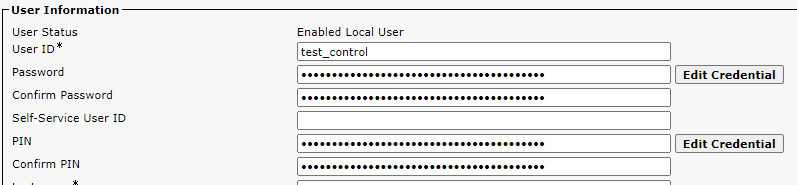
    We could use any End User for that. But, as I’m centralize all requests in one user, I decided to create a new one only for that.
    Each phone you want to control, you have to associate to that End User.
    So, create a new user, associate as many phones as you want to Control, and add a Rule you have in your CUCM which gives them ability to control the phones.

imageimage

  • Remote Control
    After installing the Browser extension, and configuring the Phone and End User, now it’s time to test the Remote Control.
    Go to CUCM, find the Phone you want to access and get the IP Address (Phone must be registered)
    PS: If you are controlling a phone which is MRA registered, you will need to be able to route to its real IP Address

image

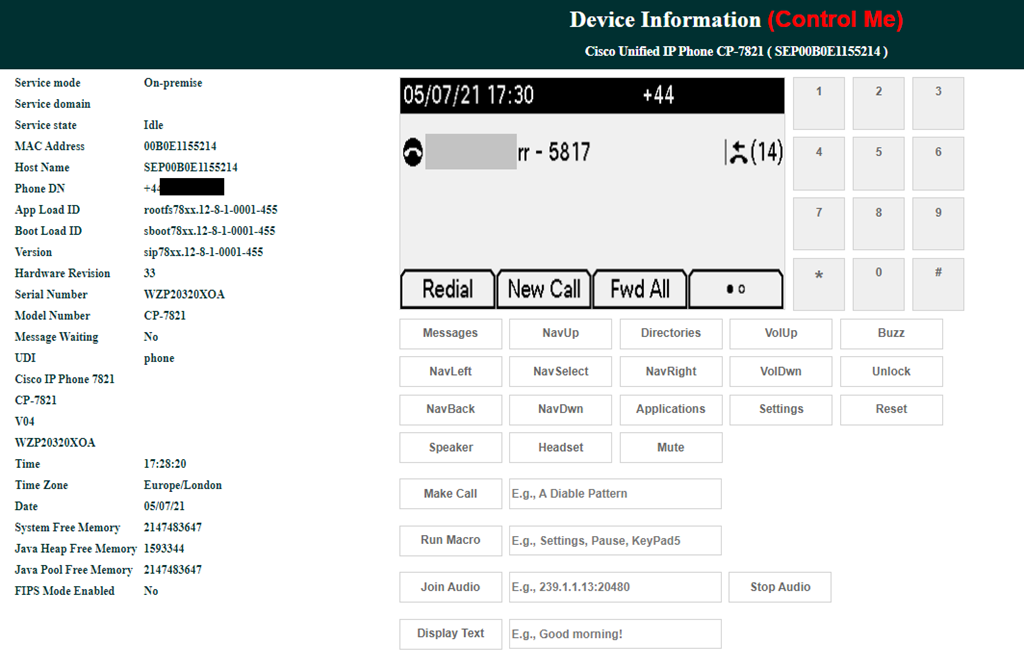
As soon as you click on the IP Address, to access the Phone’s information, you will notice now something different. The option Control Me will be displayed.

image

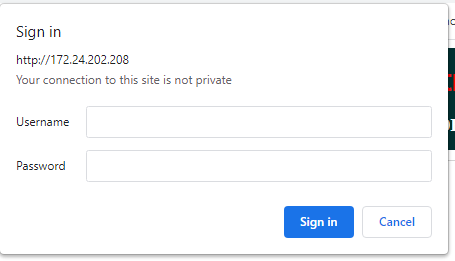
Then, you will be asked to enter the Username and Password, from the End User we created above.

image

And now you have the Phone’s screen being displayed, with all available commands next to it.
From there, you can access the Settings, change configuration, and even Make calls…

image

Hope you enjoyed this quick, but useful and interesting Tip! Smile

See ya!!

Bruno

Az-Predictor – How to install and use it

In the day-to-day work in IT, we often need to deal with manipulation of massive resources, and often this task ends up becoming difficult, especially if you are not very familiar with PowerShell cmdlets, after all the PowerShell has approximately 4000 cmdlets. Well, thinking about it, the Microsoft team created this incredible tool that is undoubtedly here to stay, Az-Predictor.

What is Az-Predictor?

Az-Predictor, an intelligent command completion module for Azure PowerShell. Az-Predictor helps our Azure developers/administrators find the cmdlet they are looking for efficiently, identify the required parameters quickly, and experience fewer errors

Of course it is possible to use the auto-complete feature already built into the PowerShell (by pressing the TAB), so that the command is automatically completed by the PowerShell, but Az-Predictor is a few steps beyond that, as the tool will not only complete the cmdlet , but also suggest all the parameters that need to be configured, ie Az-Predictor will basically do all the work based on prediction using all the documentation pages already available and the user leverage in PowerShell.

The idea behind this amazing tool is to assist in the correct syntax of commands and parameters based on AI prediction suggesting all commands to be used, including letting you use historical cmdlets, ie cmdlets already used previously.

Getting started with preview 3 (Keep in mind that at the time of this post we are talking about a preview version, so by the time you read this post there may already be a new update or a different way to install the product.)

  • If you have installed the first preview:
  • Close all your PowerShell sessions
  • Remove the Az.Tools.Predictor module

Install PowerShell 7.2-preview 3 – Go to: https://github.com/PowerShell/PowerShell/releases/tag/v7.2.0-preview.3

Select the binary that corresponds to your platform in the assets list.

Launch PowerShell 7.2-preview 3 and Install PSReadline 2.2 beta 2 with the following:

Install-Module -Name PSReadLine -RequiredVersion 2.2.0-beta2 -AllowPrerelease

More details about PSReadline: https://www.powershellgallery.com/packages/PSReadLine/2.2.0-beta2

Install Az.Tools.Predictor preview 3

Install-module -name Az.Tools.Predictor -RequiredVersion 0.3.0

More details about Az.Tools.Predictor: https://www.powershellgallery.com/packages/Az.Tools.Predictor/0.3.0

Enable Az Predictor

Enable-AzPredictor –AllSession (This command will enable Az-Predictor in all further sessions of the current user.)

Enable the list view mode (Optional) – Believe me, you want to enable this!

Set-PSReadLineOption -PredictionViewStyle ListView

If you want to load Az-Predictor every time you start PowerShell (and trust me you want that ), you can add the last three commands to your PowerShell profile.

image

OK, now that we know how to make this amazing tool work, let’s have some fun.

Start by typing known commands and see how Az-Predictor starts trying to predict what you want to achieve based on your history and documentation already available. It’s pretty cool!

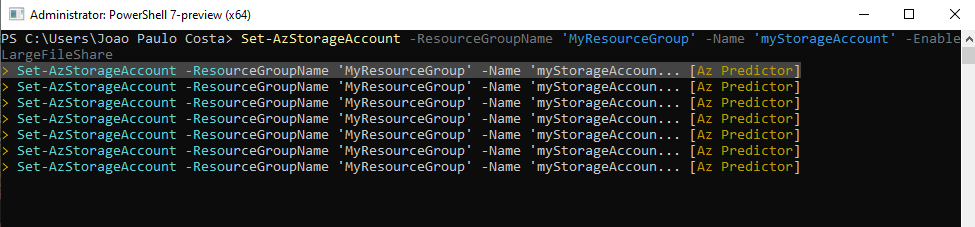
See the example below, I just typed “set” and see how many possibilities Az-Predictor “suggested”, cool isn’t it?

image

If you use the up and down arrow keys on the keyboard you can choose the command you want to use as if you have a drop down menu,

If you use the up and down arrow keys or you can choose the cmdlet you want to use as if you have a drop down menu, also if you use the right arrow your cmdlet will be completed by Az-Predictor based on the cmdlet that you “selected”, and finally, if you want/need to change parameters of the cmdlets presented, press Alt+A and you start to select each changeable parameter of the command.

See in the command below what happens if I press Alt+A

image

You can explore at will and try many other possibilities. I hope you enjoyed it, see you soon!

Joao Costa

Cisco Unity Connection Provisioning Interface (CUPI) API

Hey people,

Coming back to the DEV topics, today I’m going to give you a quick overview of Unity API.
It’s very simple, but it will give different perspectives of what you can automate on Unity.

CUPI is a provisioning API for Cisco Unity Connection that has been designed to be stable and simple to use. It is based on leading industry standards for web-based API development, and provides access to the most commonly provisioned data on Connection systems (users, contacts, distribution lists, and call handlers).

By using CUPI, you can securely do the following:

  • Create, read, update, and delete users and user configurations
  • Reset passwords
  • Create, read, and update distribution lists
  • Create, read, update, and delete call handlers
  • Create, read, update, and delete contacts

Getting the Schema Details

All the schema details for all supported object types can be obtained by going to the REST schema page using the URL:
                                                          http://{server name}/vmrest/schema

In the case of users the schema shows what will come back when fetching the full user data using a URL like this:
                                                   http://{server name}/vmrest/users/{object_id}

Authentication

CUPI uses the same authentication and authorization scheme that the administration console uses. This means that the objects an administrator has access to when authenticated are determined by the roles to which the administrator is assigned.

Basic Operations

Searching For an user:
This request gives us all details about an specific user, searching it by the alias.

To search for a user account, do the following GET request:
GET http://<connection-server>/vmrest/users?query=(alias%20startswith%20ab)

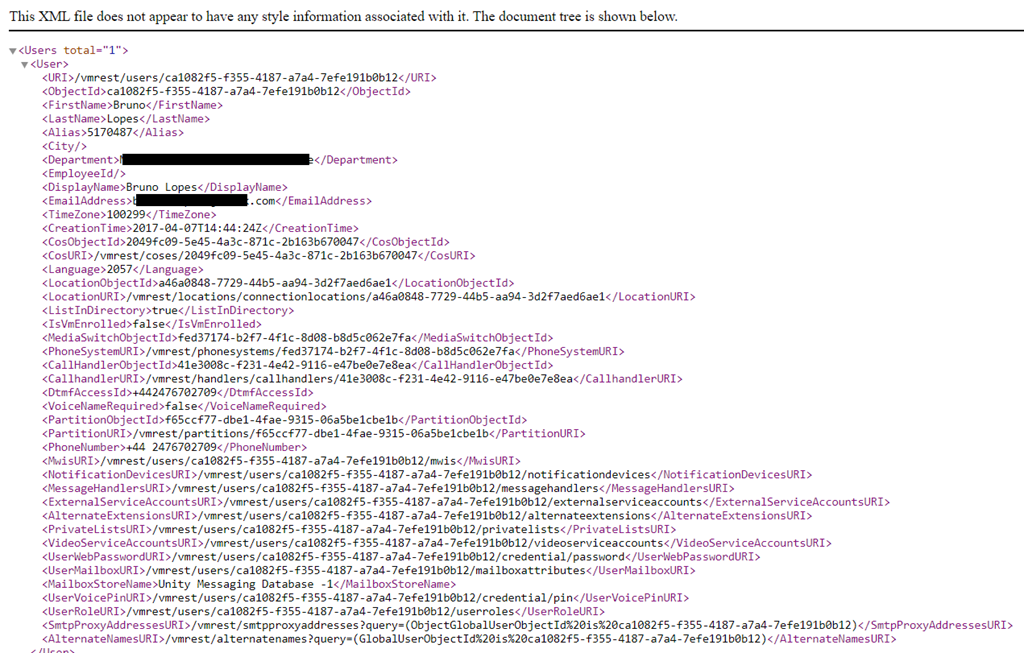
You can have your results in XLM or JSON. It’s up to you. The only difference will be on how you manipulate that, to achieve your goal.
In XML, you will see this:

imageimage

If you want to change, or create something new, you need to send a PUT or a POST request.
And, depending on your request, you have to search the user via user-objectID, instead of Alias. In this case, you have to send a request to get information from an user, save its ObjectID, and then use it in another request. See some samples below:

Listing User PIN Settings
Shows information about user’s PIN:  

                           GET https://<Connection-server>/vmrest/users/<user-objectid>/credential/pin

The following is the response from the above *GET* request and the actual response will depend upon the information given by you:

image

Changing PIN
In this case, we are going to use PUT, and we also have to send the new PIN in the Body:                    

PUT https://<Connection-server>/vmrest/users/<user-objectid>/credential/pin
<Credential>
      <Credentials>ciscfo1234</Credentials>
</Credential>

This must be your response, indicating a success: Response Code: 204

Creating a User

To create a user account, do the following POST request:

POST http://<connection-server>/vmrest/users?templateAlias=voicemailusertemplate
<?xml version=”1.0″ encoding=”UTF-8″ standalone=”yes”?>
<User>
    <Alias>jdoe</Alias>
    <DtmfAccessId>7890</DtmfAccessId>
</User>

The following is the result of the above POST request: 201 Created

Modifying a User

To modify a user account, do the following PUT request:

PUT http://<connection-server>/vmrest/users/{objectid}

<?xml version=”1.0″ encoding=”UTF-8″ standalone=”yes”?>
<User>
<DisplayName>johnd</DisplayName>
</User>

The following is the result of the above PUT request: 204 Accepted

Deleting a User

To delete a user account, do the following DELETE request:

                                           DELETE http://<connection-server>/vmrest/users/{objectid}

The following is the result of the above DELETE request: 200 OK

These were only some samples of what you can do using CUPI. Of course, there are dozes, or hundreds of types of request.
Any specific request you want to do and don’t know how, let me know in the comments.

I hope you enjoy this post! Smile

See ya!

Bruno