Creating a storage on Azure

SA_logo

Today I’m going to show you how to create a storage in the Microsoft Azure portal. So straight to the point, let’s get start: First log on your Azure Portal, next go to the “Search Bar” and type “Storage Accounts“, after that select Storage Accounts and finally click “Create“.

image

Now let’s add the necessary information for each Storage, remembering which organization will have Storages according to your needs. I will detail each configuration (Required ones):

Basics tab

  • Subscription – Select the subscription for the new storage account.
  • Resource group – Create a new resource group for this storage account, or select an existing one. For more information, see Resource groups.
  • Storage account name – Choose a unique name for your storage account. Storage account names must be between 3 and 24 characters in length and may contain numbers and lowercase letters only.
  • Region – Select the appropriate region for your storage account. Not all regions are supported for all types of storage accounts or redundancy configurations.
  • Performance – Select Standard performance for general-purpose v2 storage accounts (default). This type of account is recommended by Microsoft for most scenarios. Select Premium for scenarios requiring low latency. After selecting Premium, select the type of premium storage account to create. The following types of premium storage accounts are available:
  • Redundancy – Select your desired redundancy configuration. Not all redundancy options are available for all types of storage accounts in all regions. If you select a geo-redundant configuration (GRS or GZRS), your data is replicated to a data center in a different region. For read access to data in the secondary region, select Make read access to data available in the event of regional unavailability.
  • Advanced tab

    Networking tab
    • Connectivity method – By default, incoming network traffic is routed to the public endpoint for your storage account. You can specify that traffic must be routed to the public endpoint through an Azure virtual network. You can also configure private endpoints for your storage account. For more information, see Use private endpoints for Azure Storage.
    • Routing preference – The network routing preference specifies how network traffic is routed to the public endpoint of your storage account from clients over the internet. By default, a new storage account uses Microsoft network routing. You can also choose to route network traffic through the POP closest to the storage account, which may lower networking costs. For more information, see Network routing preference for Azure Storage.

    Then click Create.

    image

    After creation check it in your Storage accounts and by clicking on settings you can see all the parameters used in the Storage settings.

    image

    Thanks guys and see you on the next post!

    How to authenticate AzCopy on Azure

    AzCopy should now be downloaded to your computer (If you don’t know how to do this, go back to the last post here). But before you can perform any tasks, it is necessary to authenticate to your Azure subscription to access Azure Storage first.

    There are two ways to authenticate AzCopy to your Azure storage accounts – Azure Active Directory or by a Shared Access Signature (SAS) token. In this article, we’ll focus on using Azure AD.

    The most common method to authenticate AzCopy is via Azure AD. When using Azure AD, you have several options. Some of these options are:

    • Interactive Login – User is prompted to log in using the browser.
    • Service Principal + password – For non-interactive login. Recommended for automation and scripting.
    • Service Principal + certificate – For non-interactive login. Recommended for automation and scripting.

    In this article, you will learn how to authenticate via interactive login. To do so, first, open a command prompt or PowerShell and run the below command. The –tenant-id parameter is optional but recommended, especially if your login account is associated with more than one Azure tenant.

    image

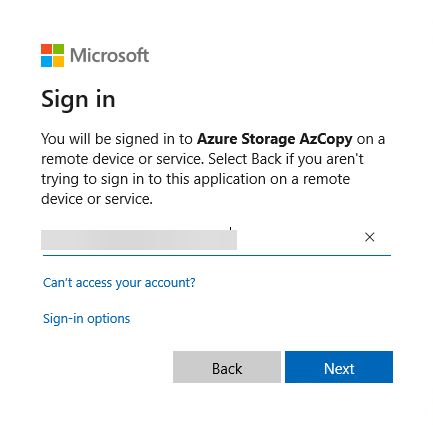
    Once executed, you will be asked to open a browser and navigate to https://microsoft.com/devicelogin and enter the displayed code. You can see what that will look like below.

    05Enter the code from AzCopy into the browser

    Once you’ve entered the code into the browser, click Next and proceed to sign in to your account.

    03

    When sign-in is done, you should see the status shown in the browser and in the terminal similar to what’s shown in the screenshot below.

    04

    Now that you have all this knowledge, you should now be ready to put AzCopy in action! See you soon folks!

    How to Download and Install the AZCopy Tool

    Azure-Command-line-Tool-for-Data-Transfer

    This article was motivated by the doubt of one of our readers who asked us to explain more about AzCopy, as he had the need to copy files to the Azure Storage and was having issues (I already helped him to solve the issue, doing this through the AzCopy).

    AzCopy is a command-line utility that you can use to copy blobs or files to or from a storage account. It’s a great command-line utility that can automate and streamline the process but requires some setup.

    In this article, you’re going to learn how to prepare your system to use AzCopy. This includes downloading and Install the AzCopy, I will divide this post in two, starting explaining just about the download and installation of AzCopy. In the next article, I’ll focus on how to authenticate AzCopy on Azure Storage and how to copy files.

    The latest and supported version of AzCopy as of this writing is AzCopy v10. AzCopy is available for Windows, Linux, and macOS. In this article, only the Windows AzCopy utility is covered.

    Downloading AzCopy: The Manual Way

    There are a couple different to download AzCopy. Let’s first do it the manual way. You might use this method if you don’t intend to install AzCopy on many computers at once.

    Navigate to this download link–  and it should initiate a download of the zip file. Once downloaded, extract the zip file to the C:\AzCopy or a folder of your choice.

    Lastly, add the installation directory to the system path. Refer to the article here if you need to know how to do that. Adding the folder path to the Windows PATH allows you to call the azcopy executable whenever you are in any working directory at the command line.

    Downloading AzCopy via PowerShell Script

    If you intend to install AzCopy on many machines or simply need to provide instructions for someone else to install it, you can use PowerShell also. Using a PowerShell script simplifies the process down to a single script.

    Create a new PowerShell script and copy/paste the below contents into it. You can get an idea of which each section of the script is doing by inspecting the in-line comments.

    By default, the below script will place AzCopy in the C:\AzCopy folder. If you’d like to change that, when running the script, use the InstallPath parameter or simply change the default path in the script itself.

    Function Install-AzCopy {
    [CmdletBinding()]
    param(
    [Parameter()]
    [string]$InstallPath = ‘C:\AzCopy’
    )

        # Cleanup Destination
    if (Test-Path $InstallPath) {
    Get-ChildItem $InstallPath | Remove-Item -Confirm:$false -Force
    }

        # Zip Destination
    $zip = “$InstallPath\AzCopy.Zip”

        # Create the installation folder (eg. C:\AzCopy)
    $null = New-Item -Type Directory -Path $InstallPath -Force

        # Download AzCopy zip for Windows
    Start-BitsTransfer -Source “
    https://aka.ms/downloadazcopy-v10-windows” -Destination $zip

        # Expand the Zip file
    Expand-Archive $zip $InstallPath -Force

        # Move to $InstallPath
    Get-ChildItem “$($InstallPath)\*\*” | Move-Item -Destination “$($InstallPath)\” -Force

        #Cleanup – delete ZIP and old folder
    Remove-Item $zip -Force -Confirm:$false
    Get-ChildItem “$($InstallPath)\*” -Directory | ForEach-Object { Remove-Item $_.FullName -Recurse -Force -Confirm:$false }

        # Add InstallPath to the System Path if it does not exist
    if ($env:PATH -notcontains $InstallPath) {
    $path = ($env:PATH -split “;”)
    if (!($path -contains $InstallPath)) {
    $path += $InstallPath
    $env:PATH = ($path -join “;”)
    $env:PATH = $env:PATH -replace ‘;;’,’;’
    }
    [Environment]::SetEnvironmentVariable(“Path”, ($env:path), [System.EnvironmentVariableTarget]::Machine)
    }
    }

    Once the script has run, you can then confirm that AzCopy was downloaded successfully. While still in the PowerShell console, listing the files in the install path by running Get-ChildItem -Path $InstallPath replacing whatever folder you used.

    If everything went well, you should see the azcopy.exe utility and a license text file.

    You can also confirm that the installation path is added to the system path variable by running $env:Path -split ";" and noticing that the install folder shows up at the bottom of the list.

    In the example below, C:\AzCopy is listed which means that the location was added successfully.

    image

    That and everything for today guys, in the next post I will talk about how to authenticate in Azure Storage and how to effectively copy files using AzCopy.

    Azure’s Advisor

    index

    Do you know “Azure Advisor”? Do you know how useful it can be for your Azure environment?

    What is Advisor?

    Advisor is a personalized cloud consultant that helps you follow best practices to optimize your Azure deployments. It analyzes your resource configuration and usage telemetry and then recommends solutions that can help you improve the cost effectiveness, performance, Reliability (formerly called High availability), and security of your Azure resources.

    With Advisor, you can:

    • Get proactive, actionable, and personalized best practices recommendations.
    • Improve the performance, security, and reliability of your resources, as you identify opportunities to reduce your overall Azure spend.
    • Get recommendations with proposed actions inline.

    You can access Advisor through the Azure portal. Sign in to the portal, locate Advisor in the navigation menu, or search for it in the All services menu.

    image

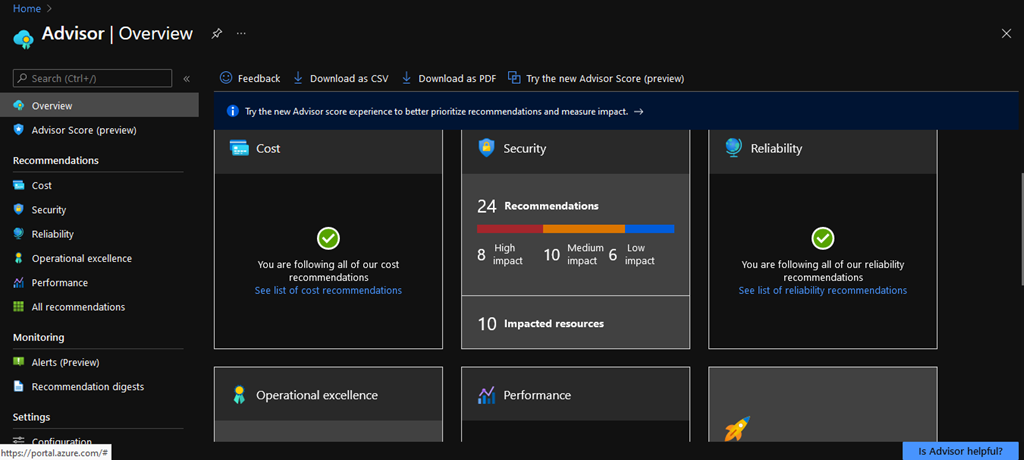
    The Advisor dashboard displays personalized recommendations for all your subscriptions. You can apply filters to display recommendations for specific subscriptions and resource types. The recommendations are divided into five categories:

    • Reliability (formerly called High Availability): To ensure and improve the continuity of your business-critical applications.

    • Security: To detect threats and vulnerabilities that might lead to security breaches.

    • Performance: To improve the speed of your applications.

    • Cost: To optimize and reduce your overall Azure spending.

    • Operational Excellence: To help you achieve process and workflow efficiency, resource manageability and deployment best practices.

    image

    Now let’s check out the Recommendations for my tenant. Click on “Recommendation” section to check the environment.

    Here you can select which subscription to run the Advisor, then choose what type of recommendation you would like to view (That is, in isolation), or click on “All recommendations” on the left side of the above screen.

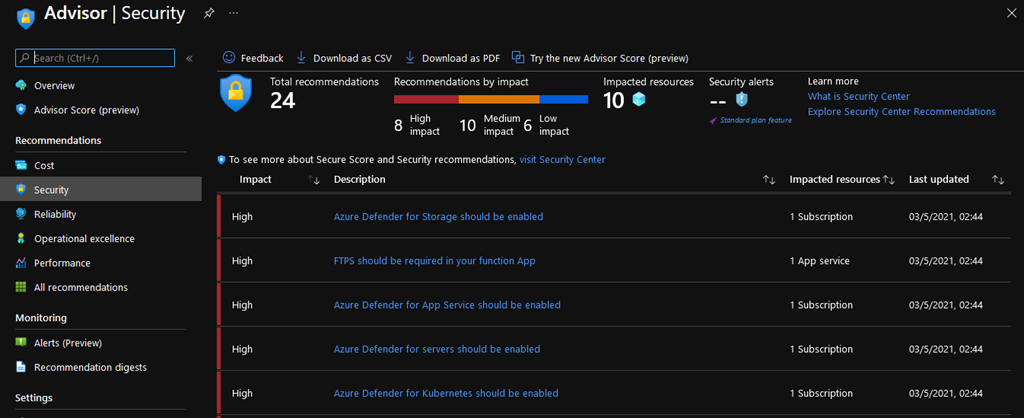
    In my test environment he identified 24 issues in total, 8 x “High impact”, 10 x “Medium impact” and 6 x “Low impact” for security.

    As the Advisor warned that the issues are critical, we can click on “Security” and check the description of the vulnerability and if applicable, apply the solution recommended by the Advisor itself.

    image

    Now you can click on the vulnerability pointed out and check which resources are impacted and the solution suggested by the Advisor and apply it if it is appropriate for your environment.

    image

    image

    In the examples above, you can see that the Advisor provides a description of the vulnerability and what steps are taken to resolve the issue.
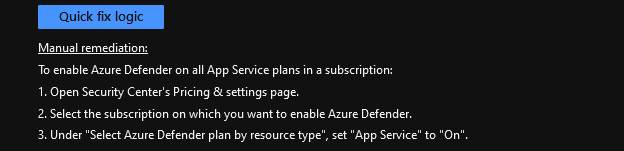
    It is interesting that if you click on the option “Quick Fix Logic” the Advisor will provide you with a json script to solve the issue

    That and everything for today guys, see you soon!

    Azure’s Auto-Shutdown

    auto-shutdown

    Hi folks,

    Today we’ll talk about how to set up Azure Auto-Shutdown through the Azure portal.

    This feature allows the machine to be programmed to shut down every day at the same time if you turn it on at some point throughout the day. Also, through the Auto-Shutdown you can configure a “Webhook” to notify the VM shutdown.


    But what does “Webhook“ mean?

    WebHook is a concept called “Web callback” or “HTTP Push API”, it is an application to provide other applications with information in real-time. The webhook provides data for other applications, meaning that you get data right away. Unlike typical APIs where you need to search for data very often in order to get it in real-time.

    How to Configure Auto-Shutdown

    To configure go to your virtual machine, in the Operations bar click on “Auto-Shutdown”.

    image

    Now we are going to add the time that the VM will be turned off, the Time Zone of your region and if you have any Webhook or email click on “yes” to add it then click on “Save“.

    image

    All done! My virtual machine is set up to shut down through Auto-Shutdown.

    image

    That’s all for now guys, see you then!