Study guide for Azure Administrator

Hey guys! Today I come here to share with you my journey to achieve Azure Administrator certification. To get the title of Azure Administrator, you need to pass the Az-104 exam.

azure-administrator-associate-600x600

My badge validation link

What is expected from an Azure Administrator?

Azure Administrator implements, manages and monitors identity, governance, storage, compute and virtual networks in a cloud environment. Azure Administrator will provision, scale, monitor and adjust resources as appropriate. Candidates must have at least six months of hands-on experience in Azure administration. Candidates should have a strong understanding of Azure core services, workloads, security, and Azure governance.

Candidates for this exam should have experience using PowerShell, Command Line Interface, Azure Portal, and ARM templates.

The exam content:

Manage Azure identities and governance (15-20%)
Implement and manage storage (15-20%)
Deploy and manage Azure compute resources (20-25%)
Configure and manage virtual networking (25-30%)
Monitor and back up Azure resources (10-15%)

What was asked for on my exam?

Many questions based on RBAC (Role-Based Access Control), basically asked what permissions would be needed to perform certain tasks in Azure. I also remember seeing a lot of questions related to locations, ie whether you can interact between resources located in different Azure’s regions. Questions about minimum computing requirements (Virtual Machines), questions about Azure Monitor, Azure Advisor and general questions related to networking.

Some links from previous posts covering the exam content.

RBAChttps://getpractical.co.uk/2021/03/08/understand-azure-role-based-access-control-rbac/

Azure Advisorhttps://getpractical.co.uk/2021/05/03/azures-advisor/

Azure Storagehttps://getpractical.co.uk/2021/06/14/creating-a-storage-on-azure/

Az-Copyhttps://getpractical.co.uk/2021/05/17/how-to-download-and-install-the-azcopy-tool/

My study method:

  1. I always read the outline of the skills measured in each exam.
  2. If there’s anything I’m not familiar with, I’ll read the documentation available in Microsoft Docs (always free and up-to-date).
  3. If I don’t understand what the documents are saying, I use my tenant for proper validations.
  4. I always dedicate 20 to 40 hours (per exam) to perform the laboratories (On Azure you can have a free tenant for 30 days to do your validations).
  5. When it comes to new technology, I start by watching the training available in Microsoft Learn, Pluralsight and/or Udemy.

Azure Free tenant: https://azure.microsoft.com/en-gb/free/

Microsoft Learning: https://docs.microsoft.com/en-us/learn/

Exam skills outline Az-104: https://docs.microsoft.com/en-us/learn/certifications/exams/az-104

I would soon renew my Microsoft 365 certifications, after all I have a large part of my background in Microsoft 365 migrations and I will no doubt share my journey here.

Take as much time as you need to prepare and first of all, don’t be afraid to fail. I’ve failed exams before and this is part of any IT professional’s journey, whether you’re a beginner or not.

If you have any questions, let me know in the comments that I will try to help you improve. In 2022 I will try the Azure Solution Architect exam, which will be my next goal with Azure (Until Microsft updates everything again lol =/).

See you soon guys and good luck studying.

Joao Costa

Azure: Creating a Windows 11 VM

virtual-machine

Hi Guys,

In today’s article I will be brief, but I want to demonstrate a subject that is well up to date: How to create a vm with Windows 11 through  Cloud Shell in Azure portal.

Let’s go straight to practice: Log into the Azure portal and hit the Cloud Shell icon located on the right side of the search bar.

01

If you have not yet used the Cloud Shell, on the first access a Resource Group will be created for the Cloud Shell to use it. In the left corner it is also possible to choose between PowerShell or Bash commands (In case you are familiar with Linux), for this example I will use PowerShell command.

Okay, the next step will be to create a resource group for this virtual machine.

02

Now run the following commands to create your virtual machine

az vm create –resource-group GetPractical –name VMWindows11 –image windows-11-Preview –public-ip-sku Standard –admin-username azureuser –admin-password “GetPractical@Windows11

03

All other parameters like disk, cpu, vnet and etc will be created automatically. If you need to customize, you will also need to customize the command or create via GUI portal.

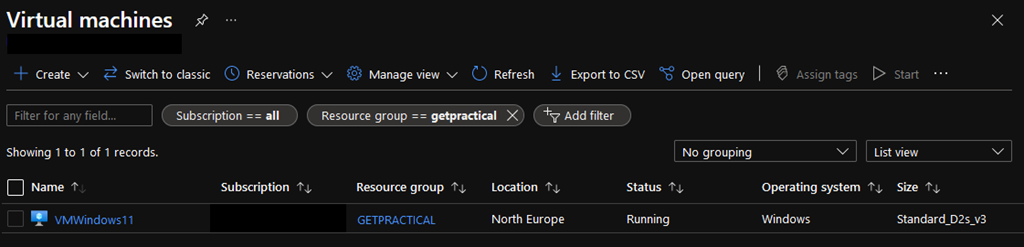
This process should take a few minutes, but once it is finished you will be able to see in the portal that the VM was created successfully.

It’s important to say that at the time I deployed this vm, Windows 11 was still in preview. If at the time of this post the preview version is no longer available, access the following Microsoft docs :

https://docs.microsoft.com/en-us/azure/virtual-machines/windows/cli-ps-findimage

05

Finally, run the mstsc /v <Public IP Address> command to access your virtual machine with Windows 11 and the result should be as follows:

04

And that folks, if you have any doubts, leave them in the comments.

Joao Costa

Setting up Azure AD Company Branding

BrandingLogo

In this blog, I’ll show you how to configure Azure AD company branding options. You can see your organization’s logo and custom color schemes, user hints to provide a familiar and friendly look and feel in your Azure Active Directory. The only prerequisite needed for this configuration is Azure P1 licenses

NOTE:
Before obtaining your images to customize your Azure AD login branding, keep in mind the graphic formats and maximum image and file sizes.

Also keep in mind every time you make a change and test it out, your branding will get cached on one of the many global Azure AD Authentication endpoints. As stated in the documentation changes can take up to an hour to be reflected. Be patient (or keep reloading many times until you hit a new endpoint that will get the new config).
It can take up to an hour for any changes you made to the sign-in page branding to appear.

OK let’s get start.

Go to portal.azure.com and open the Active Directory blade or go directly to the AAD (Azure Active Directory) by clicking the following link: (https://aad.portal.azure.com)

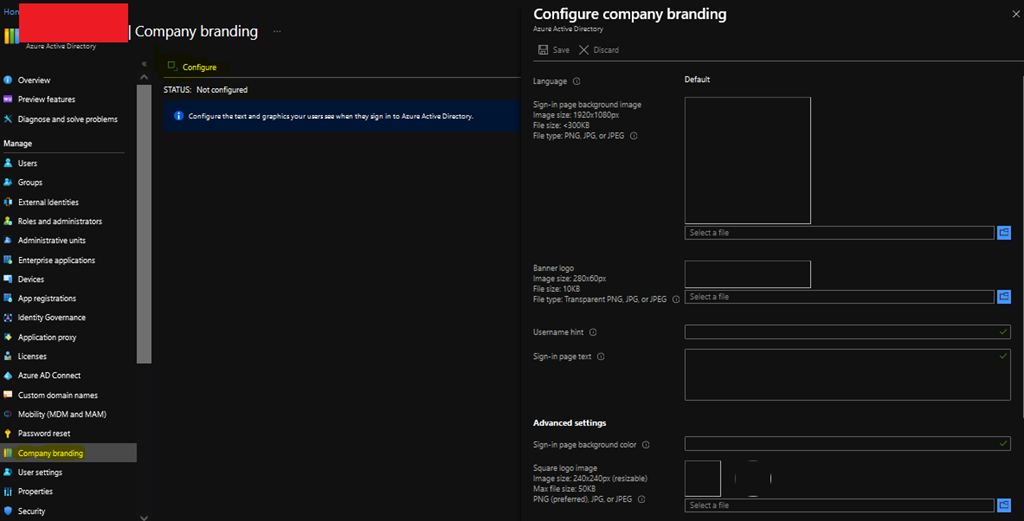
Next Navigate to Azure Active Directory -> Company branding and select to Configure icon to Configure / Edit Company branding

1

Now click on Configure or Edit the branding configuration and type in the information.

Note: The language is automatically set as your default language based on the Azure subscription setup and it can’t be changed. However, you can configure additional languages by select the New Language option.

2

Finally click Save at the top of the screen and the company’s branding page is saved in Azure Active Directory.

3

Add your custom branding to pages by modifying the end of the URL with the text, ?whr=yourdomainname. This specific modification works on different types of pages, including the Multi-Factor Authentication (MFA) setup page, the Self-service Password Reset (SSPR) setup page, and the sign in page.

Whether an application supports customized URLs for branding or not depends on the specific application, and should be checked before attempting to add a custom branding to a page.

Examples:

Original URL: https://aka.ms/MFASetup
Custom URL: https://account.activedirectory.windowsazure.com/proofup.aspx?whr=contoso.com

Original URL: https://aka.ms/SSPR
Custom URL: https://passwordreset.microsoftonline.com/?whr=contoso.com

After you’ve created the Custom branding, if you want to test it, access the page by https://login.microsoftonline.com/<domain name> and you will see your new custom screen.

This time it was a quick post guys, see you soon, thanks!

Joao Costa

Azure – Setting up Conditional Access

Conditional Access Icon

Today we are going to talk about Azure Conditional Access. The idea behind Conditional Access is that you can manage and control your IT environment by setting up compliance rules for your users to access company resources, for example Exchange Online, Sharepoint, OneDrive etc.
Basically you will need to create a rule that says, for example, that all users who are outside your physical working environment (Does this still exist?) and who have devices provided by the company and Multi-factor authentication enabled will be able to access Sharepoint. You can choose if you only want to register this information (Report-Only) or if you really want to deny/grant access if the user does not comply with the rules you stipulated above.

conditional-access-overview-how-it-works

In the past, one of the resources used to perform this kind of control was ADFS through claim rules, but many companies thought twice before an implementation due to the complexity of the environment and for adding another point of failure to the environment, after all if ADFS were to fail at all the environment would be unavailable. One of the advantages of ADFS, depending on the need for control is the cost, after all, for Conditional Access to be enabled and it is necessary to have Azure P1 License, ADFS would be the costs of Virtual Machines, public certificate, public IP, NAT and Load Balancing (In an environment with redundancy).

Anyway, let’s leave theory aside and let’s see how to configure Conditional Access.

Go to the Azure Portal and in the search menu type Conditional Access and then click on the Conditional Access blade

1

As a first step I suggest that you add the trusted locations (Named Locations), that is, known networks. Click on Named Locations and then select one of the options; 1- Countries Locations or 2 – IP Ranges Locations. I opted for option 2 and added the IP/IP Ranges of my trusted locations.

2

PS. The above IP was used as an example, not a valid IP.

Now that you have trusted locations, let’s create a Conditional Access policy. Still on the Conditional Access blade, click Policies and then New Policy.

Name your policy and choose the user context that will be included or excluded from your policy. In my scenario, I just selected the Test IT user to be included in this policy.

3

Now in Cloud Apps or Actions you will need to choose which applications will be in the scope of your conditional rule, you can opt for all apps or just select the ones that contain sensitive data. In my example I used SharePoint Online only.

4

Now that you’ve defined the scope of users, applications and trusted locations, it’s time to configure the conditions that the user will need to “be in” to have access to the resource (Here it’s also possible to configure which conditions the user needs to “be in” to have access denied, works both ways).

5

In the above scenario; Device Platforms: All, Locations: Applies to all locations and excludes trusted locations, Client Apps: All, Device State: All.

Finally, in the Access control option, you will determine the action that will be taken according to the conditions that the user is trying to access the application (In this scenario SharePoint Online).

6

Click select and then create.

In my scenario, access to SharePoint will only be possible if the user has MFA enabled, is in an untrusted location and is using a device joined to the domain.

Ok, now I’m going to test access through a personal device to see if conditional Access will or will not allow Sharepoint access (The result should be access denied).

7

Here we go, access successfully denied \0/. I suggest you play with the tool to suit your needs. If you have any questions, leave in the comments, see you in the next post.

Creating Dynamic Groups on Azure AD

00

Hey guys,

In today’s post, I’ll talk about a simple but very efficient subject, Dynamic Groups. Dynamic Groups are groups based on rules and if users match to a rule they will be added automatically in a group (Groups for devices can also be created). In other words, Dynamic Groups solve that pain of any administrator to keep their groups and distribution lists up to date. For example in the environment where I work we create groups based on locations, departments and the famous group “All”. From the moment you create the groups and rules, the only work needed from then on will be: Create the users correctly, I mean, fill in all the fields correctly so that this new user fits the rule that belongs to him.

That said, let’s get start.

Go to the Azure portal and open the “Azure Active Directory” blade.

Then select Groups > New Group and you will see the following screen (For this post I will create a group for email purposes, but you can use as a Security group as well). Fill up all the fields and select Dynamic User on Membership Type.

1

The next step is to create the rule that would add users automatically based on the added criteria.

In this example rule, all users who have the field department filled with the words “Information Technology” will be added to the GetPractical group automatically.

2

If you want to validate the rule, click on the “Validate Rules” tab, manually add some users and then click on ”Validate”. The rule will tell you which of the users you have added fits the criteria entered in your rule.

4

3

As you can see from my example above, only one of the users fulfils the criteria entered in this rule.

Now click save and then click create.

Just a point of attention: If you like me have the need to create a group for all employees, I advise you to create a rule that initially doesn’t work and then turn off the welcome email function. Unfortunately there is no possibility to turn off this feature during group creation, so the only way I found at this time was to create a rule that doesn’t work or a rule that only includes you and then turn off the welcome notifications and also the mapping from the group in Outlook.

7

In the image above the example of the welcome email and the group mapped in Outlook.

10

For you to turn off these two features you need to connect to Exchange Online (Microsoft 365) and execute the commands used above.

Example below:

Set-UnifiedGroup -Identity “All@getpractical.co.uk” -UnifiedGroupWelcomeMessageEnable:$false
Set-UnifiedGroup -Identity “All@getpractical.co.uk” -HiddenFromExchangeClientsEnabled:$true

That’s all for today guys, see you soon.

Joao Costa