Expressway – Exporting Banned addresses using PowerShell

Hey guys,

In this post I will show you one situation I came across this week.
Due some attacks we’ve been suffering, we decided to get all blocked IPs on Expressway and block them also in the local Firewall, as a workaround while we investigate it better.

The thing is, how can we export the list of Banned IP addresses on Expressway?
As I didn’t find anything, I decided to do on my way, automating it.

Continue reading “Expressway – Exporting Banned addresses using PowerShell”

Cisco CUCM – Reports from SQL (show risdb)

Hey guys,

In my last post, I gave you some tips on how pull CDRs out from CUCM using SQL commands (Cisco CUCM – CDR through SQL). Today, I’m going to show other useful reports you can get using SQL commands.

As we are getting all the information from a CLI command, you will need to export the data to an excel file  to create something nice to be presented….or even use Python, PHP, to create something automatic for you.

Today I’m going to focus on one command, but with different variables and outputs: show risdb
This command displays RIS database table information.

Parameters

list : displays the tables that are supported in the Realtime Information Service (RIS) database.
query : displays the contents of the RIS tables

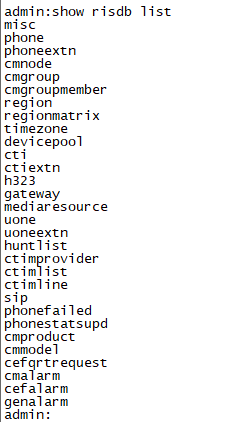
So, if you enter the command show risdb list, you will see a list of options in the table that you can explore.

image

The most common, and used, is the Phone.
To access this table, you must use this command: show risdb query phone.

image

This command is so powerful and useful!!! Here we see everything related to your phones: DeviceName, Descr, Ipaddr, Ipv6addr, Ipv4Attr, Ipv6Attr, MACaddr, RegStatus, PhoneProtocol, DeviceModel, HTTPsupport, #regAttempts, prodId, username, seq#, RegStatusChg TimeStamp, IpAddrType, LoadId, ActiveLoadId, InactiveLoadId, ReqLoadId, DnldServer, DnldStatus, DnldFailReason, LastActTimeStamp, Perfmon Object.

In other words, you can have a list of devices in your Cluster, check each phone is currently Registered or Unregistered, and its information such as IP, Protocol, Model……an excellent Report Smile

But, if you want to explore it a bit more, there are other interesting queries!
For example, if you want to have a report about your SIP Trunks, you can use this command: show risdb query sip.

Here you have information about your SIP Trunk, such as name, IPs, descriptions, Status, Peer Status.

This is the Trunk on CUCM:

image

image

The Status column (in red) corresponds to the “Service Status” field visible near the top of CCMAdmin’s SIP Trunk page.

0 – No service (The Trunk peer is reachable via TCP, but SIP Options ping is failing)
1 – Full service (All Trunk peers are up and SIP Options ping is successful)
2 – Partial service (A subset of Trunk peers are unreachable)
3 – Unknown (The Trunk peer is unreachable via TCP, or SIP Options ping is not enabled)

image

The PeerStatus column (in blue) corresponds to the “Status” field for each peer on the SIP Trunk page (near the bottom).

0 – Down
1 – Up

Now it’s up to you to choose a query from RSIDB list and start to explore it. You will find interesting options there, like CTIs, Gateways…..

Hope you’ve enjoyed it Smile

See ya!

Bruno

Cisco CUCM – CDR through SQL

Hey everybody,

Today’s post is going to be quick, but may give you some good tips Smile
Last week I got some requests from a Customer, and he needed to know which extensions were recently being used . In order to save licenses, he wanted to delete all phones/lines that weren’t being used.

CDRs on CUCM is a nightmare in my opinion. Mainly when you need to check lots of lines, for a long period.
That’s why I decide to pull this information out directly from SQL.

So here are some useful commands to get CDRs from SQL, and depending on your needs and knowledge, you can use Python or other language to built your own CDR Reporting Smile

First of all, to use the commands you need to ensure that the following steps are taken on your CUCM system:

  1. Activate the CDR Analysis and Reporting (CAR) service on the CUCM publisher node.
  2. Go to System > Service Parameters and set the Cisco Call Manager service “Call Diagnostics Enabled” parameter to true on every cluster node that has the Call Manager service activated.

Now, going to SQL, this is the structure of any SQL Command on CUCM:
admin: run sql select [field list] from [table] where [expression]

The table we are going to use is tbl_billing_data. This table stores all of the elements we need to accomplish the task at hand.

So this is going to be our syntax: run sql select + column + from tbl_billing_data + where + column + (like,in,between,etc).

PS: Please not this command is only acceptable on Publisher.

In my example, I want to get Date (TimeStamp) , Calling and Called Number of all calls from extensions which have “702709” in their numbers and happened this month.

The date must be sent in TimeStamp mode. I use THIS SITE to convert normal date to Timestamp, and vice versa. If you were pulling CDR data into Excel then you can use the following formula (in a new cell) to do the conversion:
=(((A1-(6*3600))/86400)+25569)

Right, so this is the command:

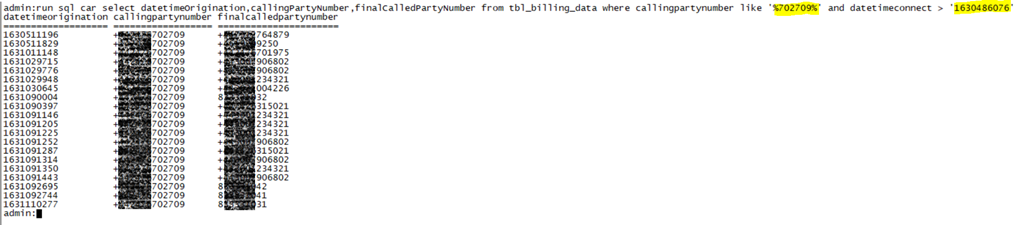
run sql car select datetimeOrigination,callingPartyNumber,finalCalledPartyNumber from tbl_billing_data where callingpartynumber like ‘%702709%’ and datetimeconnect > ‘1630486076’

And here is the result:

image
Well, now you can explore and play a bit more, depending on your needs. You can add more columns, like duration, destIpAddr, callingPartyNumber_uri, originalCalledPartyPattern,callingPartyNumberPartition,EU_SIP_SME_NOS….

That’s it guys. As I said, it was really quick Smile

Hope you’ve enjoyed!

Bruno

Cisco Unity Connection Provisioning Interface (CUPI) API

Hey people,

Coming back to the DEV topics, today I’m going to give you a quick overview of Unity API.
It’s very simple, but it will give different perspectives of what you can automate on Unity.

CUPI is a provisioning API for Cisco Unity Connection that has been designed to be stable and simple to use. It is based on leading industry standards for web-based API development, and provides access to the most commonly provisioned data on Connection systems (users, contacts, distribution lists, and call handlers).

By using CUPI, you can securely do the following:

  • Create, read, update, and delete users and user configurations
  • Reset passwords
  • Create, read, and update distribution lists
  • Create, read, update, and delete call handlers
  • Create, read, update, and delete contacts

Getting the Schema Details

All the schema details for all supported object types can be obtained by going to the REST schema page using the URL:
                                                          http://{server name}/vmrest/schema

In the case of users the schema shows what will come back when fetching the full user data using a URL like this:
                                                   http://{server name}/vmrest/users/{object_id}

Authentication

CUPI uses the same authentication and authorization scheme that the administration console uses. This means that the objects an administrator has access to when authenticated are determined by the roles to which the administrator is assigned.

Basic Operations

Searching For an user:
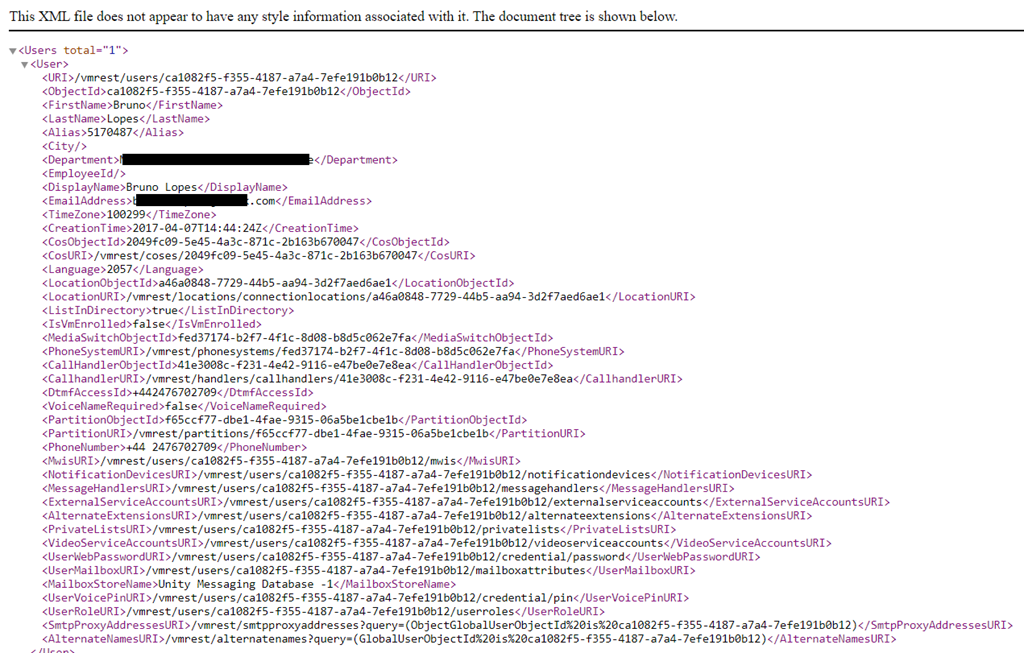
This request gives us all details about an specific user, searching it by the alias.

To search for a user account, do the following GET request:
GET http://<connection-server>/vmrest/users?query=(alias%20startswith%20ab)

You can have your results in XLM or JSON. It’s up to you. The only difference will be on how you manipulate that, to achieve your goal.
In XML, you will see this:

imageimage

If you want to change, or create something new, you need to send a PUT or a POST request.
And, depending on your request, you have to search the user via user-objectID, instead of Alias. In this case, you have to send a request to get information from an user, save its ObjectID, and then use it in another request. See some samples below:

Listing User PIN Settings
Shows information about user’s PIN:  

                           GET https://<Connection-server>/vmrest/users/<user-objectid>/credential/pin

The following is the response from the above *GET* request and the actual response will depend upon the information given by you:

image

Changing PIN
In this case, we are going to use PUT, and we also have to send the new PIN in the Body:                    

PUT https://<Connection-server>/vmrest/users/<user-objectid>/credential/pin
<Credential>
      <Credentials>ciscfo1234</Credentials>
</Credential>

This must be your response, indicating a success: Response Code: 204

Creating a User

To create a user account, do the following POST request:

POST http://<connection-server>/vmrest/users?templateAlias=voicemailusertemplate
<?xml version=”1.0″ encoding=”UTF-8″ standalone=”yes”?>
<User>
    <Alias>jdoe</Alias>
    <DtmfAccessId>7890</DtmfAccessId>
</User>

The following is the result of the above POST request: 201 Created

Modifying a User

To modify a user account, do the following PUT request:

PUT http://<connection-server>/vmrest/users/{objectid}

<?xml version=”1.0″ encoding=”UTF-8″ standalone=”yes”?>
<User>
<DisplayName>johnd</DisplayName>
</User>

The following is the result of the above PUT request: 204 Accepted

Deleting a User

To delete a user account, do the following DELETE request:

                                           DELETE http://<connection-server>/vmrest/users/{objectid}

The following is the result of the above DELETE request: 200 OK

These were only some samples of what you can do using CUPI. Of course, there are dozes, or hundreds of types of request.
Any specific request you want to do and don’t know how, let me know in the comments.

I hope you enjoy this post! Smile

See ya!

Bruno

Cisco CUCM – AXL API requests using Python

Hey guys,

Following my post about the overview of Cisco CUCM – SOAP (read it HERE), I’m going to show you now how to send some basic requests using Python.

To be able to do that, you will need to have:

  • Python installed (download it here)
  • AXLSQLToolkit
  • Python Libraries (Zeep, urllib3 , requests – installed via PIP)

After installing Python and its libraries, let’s go to the codes!

To run my codes, I use PyCharm….but you can use any other software of your preference.

Firstly, you have to declare your libraries:
*Code will be passed at the end of the article Smile

image

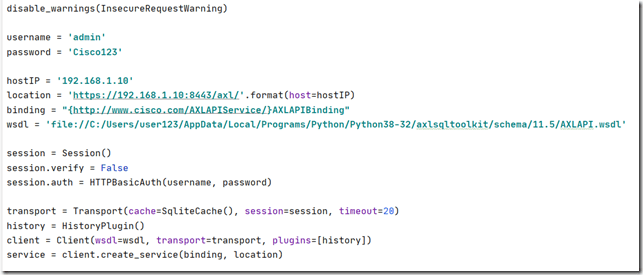
Now you have to enter your CUCM information, such as IP, username and password.
We are going to use ZEEP to create SOAP requests. In case of any fault, Zeep will show what SOAP envelope that was sent and the response from CUCM AXL.
If you’re not disabling SSL verification, host should be the FQDN of the server rather than IP.

image

To start with a simple request, I’ll show you how to list Phones.
Have in hands the  Cisco DevNet AXL Schema Reference. It will help you to understand each request, which argument you must send as a searchCriteria and which arguments you must expect as returnedTags.
Only declared arguments in the returnedTags will be displayed. The rest will be showed as none.

For example, I want to list a phone, based on the Device Name, and want to have the arguments namedescription, model and device pool being returned to me.
The code will look like this:

image

The result will like this:

{
     ‘return’: {
         ‘phone’: [
             {
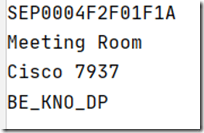
                 ‘name’: ‘SEP0004F2F01F1A’,
                 ‘description’: ‘Meeting Room’,
                 ‘product’
: None,
                 ‘model’: ‘Cisco 7937’,
                 ‘class’: None,
                 ‘protocol’: None,
                 ‘protocolSide’: None,
                 ‘callingSearchSpaceName’: None,
                 ‘devicePoolName’: {
                     ‘_value_1’: ‘BE_KNO_DP’,
                     ‘uuid’: ‘{960A36D4-C7ED-49B8-A53C-B188BE30635A}’
                 },
                 ‘commonDeviceConfigName’: None,
                 ‘commonPhoneConfigName’: None,
                 ‘networkLocation’: None,
                 ‘locationName’: None,
                 ‘mediaResourceListName’: None,
                 ‘networkHoldMohAudioSourceId’: None,
                 ‘userHoldMohAudioSourceId’: None,
                 ‘automatedAlternateRoutingCssName’: None,
                 ‘aarNeighborhoodName’: None,
                 ‘loadInformation’: None,
                 ‘traceFlag’: None,
                 ‘mlppIndicationStatus’: None,
                 ‘preemption’: None,
                 ‘useTrustedRelayPoint’: None,
                 ‘retryVideoCallAsAudio’: None,
                 ‘securityProfileName’: None,
                 ‘sipProfileName’: None,
                 ‘cgpnTransformationCssName’: None,
                 ‘useDevicePoolCgpnTransformCss’: None,
                 ‘geoLocationName’: None,
                 ‘geoLocationFilterName’: None,
                 ‘sendGeoLocation’: None,
                 ‘numberOfButtons’: None,
                 ‘phoneTemplateName’: None,
                 ‘primaryPhoneName’: None,
                 ‘ringSettingIdleBlfAudibleAlert’: None,
                 ‘ringSettingBusyBlfAudibleAlert’: None,
                 ‘userLocale’: None,
                 ‘networkLocale’: None,
                 ‘idleTimeout’: None,
                 ‘authenticationUrl’: None,
                 ‘directoryUrl’: None,
                 ‘idleUrl’: None,
                 ‘informationUrl’: None,
                 ‘messagesUrl’: None,
                 ‘proxyServerUrl’: None,
                 ‘servicesUrl’: None,
                 ‘softkeyTemplateName’: None,
                 ‘loginUserId’: None,
                 ‘defaultProfileName’: None,
                 ‘enableExtensionMobility’: None,
                 ‘currentProfileName’: None,
                 ‘loginTime’: None,
                 ‘loginDuration’: None,
                 ‘currentConfig’: None,
                 ‘singleButtonBarge’: None,
                 ‘joinAcrossLines’: None,
                 ‘builtInBridgeStatus’: None,
                 ‘callInfoPrivacyStatus’: None,
                 ‘hlogStatus’: None,
                 ‘ownerUserName’: None,
                 ‘ignorePresentationIndicators’: None,
                 ‘packetCaptureMode’: None,
                 ‘packetCaptureDuration’: None,
                 ‘subscribeCallingSearchSpaceName’: None,
                 ‘rerouteCallingSearchSpaceName’: None,
                 ‘allowCtiControlFlag’: None,
                 ‘presenceGroupName’: None,
                 ‘unattendedPort’: None,
                 ‘requireDtmfReception’: None,
                 ‘rfc2833Disabled’: None,
                 ‘certificateOperation’: None,
                 ‘authenticationMode’: None,
                 ‘keySize’: None,
                 ‘keyOrder’: None,
                 ‘ecKeySize’: None,
                 ‘authenticationString’: None,
                 ‘certificateStatus’: None,
                 ‘upgradeFinishTime’: None,
                 ‘deviceMobilityMode’: None,
                 ‘roamingDevicePoolName’: None,
                 ‘remoteDevice’: None,
                 ‘dndOption’: None,
                 ‘dndRingSetting’: None,
                 ‘dndStatus’: None,
                 ‘isActive’: None,
                 ‘isDualMode’: None,
                 ‘mobilityUserIdName’: None,
                 ‘phoneSuite’: None,
                 ‘phoneServiceDisplay’: None,
                 ‘isProtected’: None,
                 ‘mtpRequired’: None,
                 ‘mtpPreferedCodec’: None,
                 ‘dialRulesName’: None,
                 ‘sshUserId’: None,
                 ‘digestUser’: None,
                 ‘outboundCallRollover’: None,
                 ‘hotlineDevice’: None,
                 ‘secureInformationUrl’: None,
                 ‘secureDirectoryUrl’: None,
                 ‘secureMessageUrl’: None,
                 ‘secureServicesUrl’: None,
                 ‘secureAuthenticationUrl’: None,
                 ‘secureIdleUrl’: None,
                 ‘alwaysUsePrimeLine’: None,
                 ‘alwaysUsePrimeLineForVoiceMessage’: None,
                 ‘featureControlPolicy’: None,
                 ‘deviceTrustMode’: None,
                 ‘earlyOfferSupportForVoiceCall’: None,
                 ‘requireThirdPartyRegistration’: None,
                 ‘blockIncomingCallsWhenRoaming’: None,
                 ‘homeNetworkId’: None,
                 ‘AllowPresentationSharingUsingBfcp’: None,
                 ‘confidentialAccess’: None,
                 ‘requireOffPremiseLocation’: None,
                 ‘allowiXApplicableMedia’: None,
                 ‘enableCallRoutingToRdWhenNoneIsActive’: None,
                 ‘ctiid’: None,
                 ‘uuid’: ‘{81F827A6-3B58-F7F0-39BF-DBA51E81B606}’
             }
         ]
     },
     ‘sequence’: None
}

As I mentioned, if you don’t declare you want to have your argument being returned, it will be displayed as None.

Right. Now, you have to use your Python skills to take any action based on your output.
For example, if you want to isolate the returned tags to save them in a variable, you can use a For Loop to do something like that:

image
And the result will be this:

image

Now, you can use the Cisco DevNet AXL Schema Reference to explore all possibilities you have.

You can, for example, add new phones, new lines…

Adding Lines

According to the Schema, you don’t have Search Criteria or Returned Tags in the addLine request.
So, the code you be like this:

image

This is the line we’ve just added:

image

As I always say…now, sky is the limit!
You can do whatever you want by following the Schema….like add/delete/list Phones, lines, Device Pool, Device Profile, etc, etc, etc…

Hope you liked it Smile

See you!

Whole Code

from zeep import Client
from zeep.cache import SqliteCache
from zeep.transports import Transport
from zeep.exceptions import Fault
from zeep.plugins import HistoryPlugin
from requests import Session
from requests.auth import HTTPBasicAuth
from urllib3 import disable_warnings
from urllib3.exceptions import InsecureRequestWarning
from lxml import etree

disable_warnings(InsecureRequestWarning)

username = ‘admin’
password = ‘Cisco123’

hostIP = ‘192.168.1.10’
location = ‘https://192.168.1.10:8443/axl/’.format(host=hostIP)
binding = “{http://www.cisco.com/AXLAPIService/}AXLAPIBinding”
wsdl = ‘file://C:/Users/user123/AppData/Local/Programs/Python/Python38-32/axlsqltoolkit/schema/11.5/AXLAPI.wsdl’

session = Session()
session.verify = False
session.auth = HTTPBasicAuth(username, password)

transport = Transport(cache=SqliteCache(), session=session, timeout=20)
history = HistoryPlugin()
client = Client(wsdl=wsdl, transport=transport, plugins=[history])
service = client.create_service(binding, location)

def show_history():
     for hist in [history.last_sent, history.last_received]:
         print(etree.tostring(hist[“envelope”], encoding=”unicode”, pretty_print=True))

try:
     resp = service.listPhone(searchCriteria={‘name’: ‘SEP0004F2F01F1A’},
                              returnedTags={‘name’: ”, ‘description’: ”,
                                            ‘model’: ”, ‘devicePoolName’: ”})
     print(resp)
except Fault:
     show_history()

phone_list = resp[‘return’].phone
for phone in phone_list:
     print(phone[‘name’])
     print(phone[‘description’])
     print(phone[‘model’])
     print(phone[‘devicePoolName’]._value_1)

try:
     resp = service.addLine(line={‘pattern’: ‘707080’, ‘usage’: ‘Device’,
                                  ‘description’: ‘Test’, ‘routePartitionName’: ‘ONCLUSTER’})
     print(resp)
except Fault:
     show_history()