How to Download and Install the AZCopy Tool

Azure-Command-line-Tool-for-Data-Transfer

This article was motivated by the doubt of one of our readers who asked us to explain more about AzCopy, as he had the need to copy files to the Azure Storage and was having issues (I already helped him to solve the issue, doing this through the AzCopy).

AzCopy is a command-line utility that you can use to copy blobs or files to or from a storage account. It’s a great command-line utility that can automate and streamline the process but requires some setup.

In this article, you’re going to learn how to prepare your system to use AzCopy. This includes downloading and Install the AzCopy, I will divide this post in two, starting explaining just about the download and installation of AzCopy. In the next article, I’ll focus on how to authenticate AzCopy on Azure Storage and how to copy files.

The latest and supported version of AzCopy as of this writing is AzCopy v10. AzCopy is available for Windows, Linux, and macOS. In this article, only the Windows AzCopy utility is covered.

Downloading AzCopy: The Manual Way

There are a couple different to download AzCopy. Let’s first do it the manual way. You might use this method if you don’t intend to install AzCopy on many computers at once.

Navigate to this download link–  and it should initiate a download of the zip file. Once downloaded, extract the zip file to the C:\AzCopy or a folder of your choice.

Lastly, add the installation directory to the system path. Refer to the article here if you need to know how to do that. Adding the folder path to the Windows PATH allows you to call the azcopy executable whenever you are in any working directory at the command line.

Downloading AzCopy via PowerShell Script

If you intend to install AzCopy on many machines or simply need to provide instructions for someone else to install it, you can use PowerShell also. Using a PowerShell script simplifies the process down to a single script.

Create a new PowerShell script and copy/paste the below contents into it. You can get an idea of which each section of the script is doing by inspecting the in-line comments.

By default, the below script will place AzCopy in the C:\AzCopy folder. If you’d like to change that, when running the script, use the InstallPath parameter or simply change the default path in the script itself.

Function Install-AzCopy {
[CmdletBinding()]
param(
[Parameter()]
[string]$InstallPath = ‘C:\AzCopy’
)

    # Cleanup Destination
if (Test-Path $InstallPath) {
Get-ChildItem $InstallPath | Remove-Item -Confirm:$false -Force
}

    # Zip Destination
$zip = “$InstallPath\AzCopy.Zip”

    # Create the installation folder (eg. C:\AzCopy)
$null = New-Item -Type Directory -Path $InstallPath -Force

    # Download AzCopy zip for Windows
Start-BitsTransfer -Source “
https://aka.ms/downloadazcopy-v10-windows” -Destination $zip

    # Expand the Zip file
Expand-Archive $zip $InstallPath -Force

    # Move to $InstallPath
Get-ChildItem “$($InstallPath)\*\*” | Move-Item -Destination “$($InstallPath)\” -Force

    #Cleanup – delete ZIP and old folder
Remove-Item $zip -Force -Confirm:$false
Get-ChildItem “$($InstallPath)\*” -Directory | ForEach-Object { Remove-Item $_.FullName -Recurse -Force -Confirm:$false }

    # Add InstallPath to the System Path if it does not exist
if ($env:PATH -notcontains $InstallPath) {
$path = ($env:PATH -split “;”)
if (!($path -contains $InstallPath)) {
$path += $InstallPath
$env:PATH = ($path -join “;”)
$env:PATH = $env:PATH -replace ‘;;’,’;’
}
[Environment]::SetEnvironmentVariable(“Path”, ($env:path), [System.EnvironmentVariableTarget]::Machine)
}
}

Once the script has run, you can then confirm that AzCopy was downloaded successfully. While still in the PowerShell console, listing the files in the install path by running Get-ChildItem -Path $InstallPath replacing whatever folder you used.

If everything went well, you should see the azcopy.exe utility and a license text file.

You can also confirm that the installation path is added to the system path variable by running $env:Path -split ";" and noticing that the install folder shows up at the bottom of the list.

In the example below, C:\AzCopy is listed which means that the location was added successfully.

image

That and everything for today guys, in the next post I will talk about how to authenticate in Azure Storage and how to effectively copy files using AzCopy.

Azure’s Advisor

index

Do you know “Azure Advisor”? Do you know how useful it can be for your Azure environment?

What is Advisor?

Advisor is a personalized cloud consultant that helps you follow best practices to optimize your Azure deployments. It analyzes your resource configuration and usage telemetry and then recommends solutions that can help you improve the cost effectiveness, performance, Reliability (formerly called High availability), and security of your Azure resources.

With Advisor, you can:

  • Get proactive, actionable, and personalized best practices recommendations.
  • Improve the performance, security, and reliability of your resources, as you identify opportunities to reduce your overall Azure spend.
  • Get recommendations with proposed actions inline.

You can access Advisor through the Azure portal. Sign in to the portal, locate Advisor in the navigation menu, or search for it in the All services menu.

image

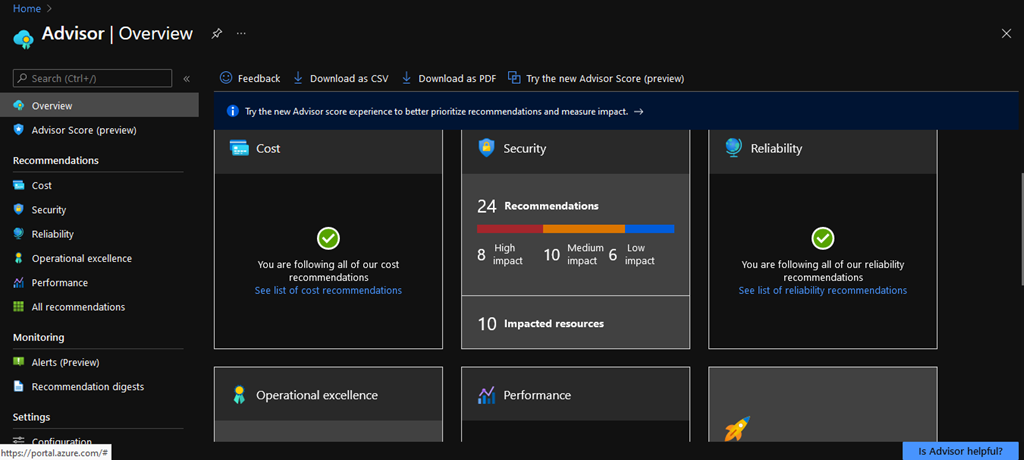
The Advisor dashboard displays personalized recommendations for all your subscriptions. You can apply filters to display recommendations for specific subscriptions and resource types. The recommendations are divided into five categories:

  • Reliability (formerly called High Availability): To ensure and improve the continuity of your business-critical applications.

  • Security: To detect threats and vulnerabilities that might lead to security breaches.

  • Performance: To improve the speed of your applications.

  • Cost: To optimize and reduce your overall Azure spending.

  • Operational Excellence: To help you achieve process and workflow efficiency, resource manageability and deployment best practices.

image

Now let’s check out the Recommendations for my tenant. Click on “Recommendation” section to check the environment.

Here you can select which subscription to run the Advisor, then choose what type of recommendation you would like to view (That is, in isolation), or click on “All recommendations” on the left side of the above screen.

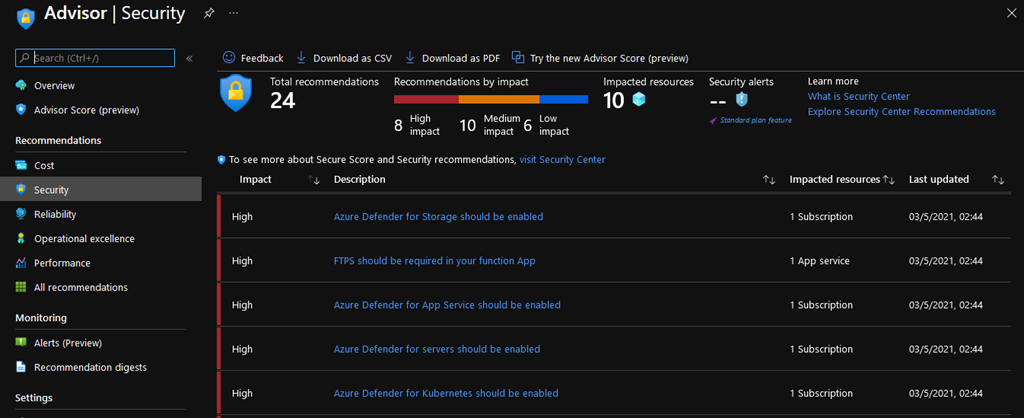
In my test environment he identified 24 issues in total, 8 x “High impact”, 10 x “Medium impact” and 6 x “Low impact” for security.

As the Advisor warned that the issues are critical, we can click on “Security” and check the description of the vulnerability and if applicable, apply the solution recommended by the Advisor itself.

image

Now you can click on the vulnerability pointed out and check which resources are impacted and the solution suggested by the Advisor and apply it if it is appropriate for your environment.

image

image

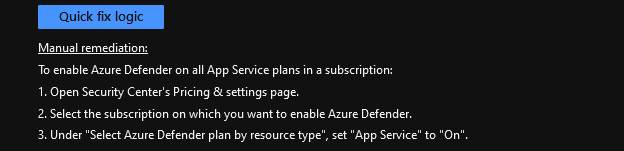
In the examples above, you can see that the Advisor provides a description of the vulnerability and what steps are taken to resolve the issue.
It is interesting that if you click on the option “Quick Fix Logic” the Advisor will provide you with a json script to solve the issue

That and everything for today guys, see you soon!

Azure’s Auto-Shutdown

auto-shutdown

Hi folks,

Today we’ll talk about how to set up Azure Auto-Shutdown through the Azure portal.

This feature allows the machine to be programmed to shut down every day at the same time if you turn it on at some point throughout the day. Also, through the Auto-Shutdown you can configure a “Webhook” to notify the VM shutdown.


But what does “Webhook“ mean?

WebHook is a concept called “Web callback” or “HTTP Push API”, it is an application to provide other applications with information in real-time. The webhook provides data for other applications, meaning that you get data right away. Unlike typical APIs where you need to search for data very often in order to get it in real-time.

How to Configure Auto-Shutdown

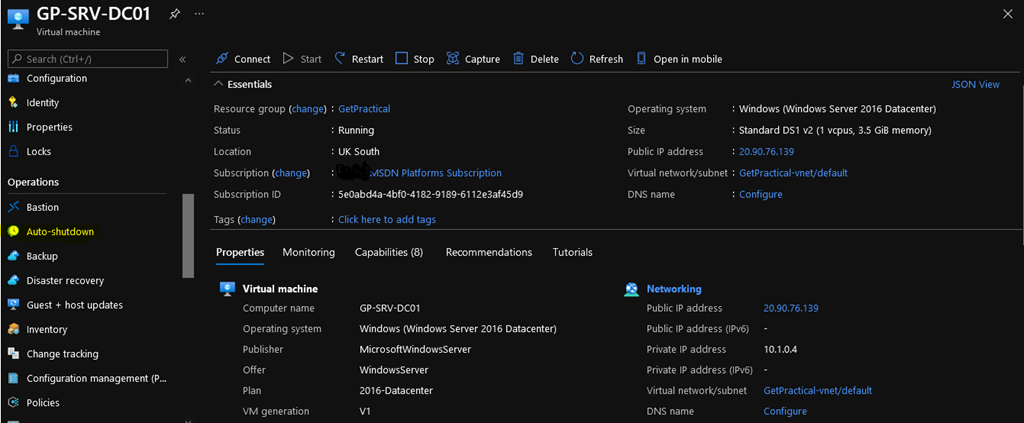
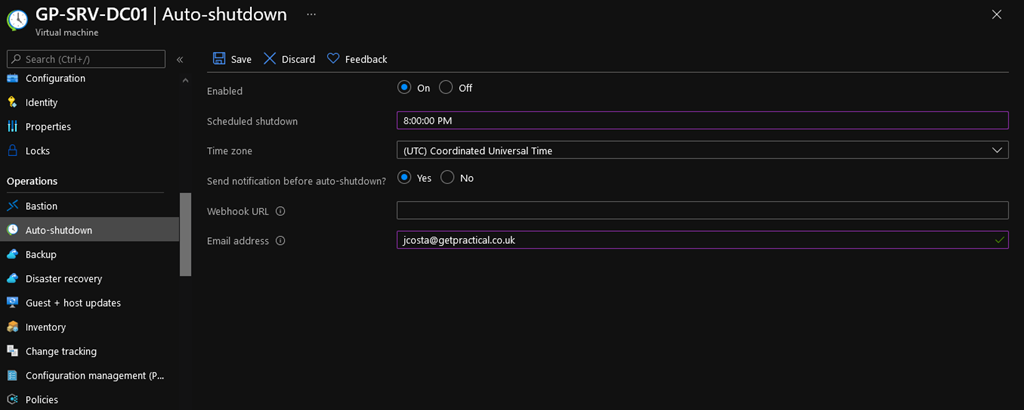
To configure go to your virtual machine, in the Operations bar click on “Auto-Shutdown”.

image

Now we are going to add the time that the VM will be turned off, the Time Zone of your region and if you have any Webhook or email click on “yes” to add it then click on “Save“.

image

All done! My virtual machine is set up to shut down through Auto-Shutdown.

image

That’s all for now guys, see you then!

PowerShell Execution Policies

So you decide to use PowerShell for the first time, and when you run a PowerShell script, you get a security warning or maybe you see some error messages and then the PowerShell window disappears. Here are some simple tips for your first PowerShell experience to be a success.

Make sure you are using the latest version of PowerShell:

https://docs.microsoft.com/en-us/powershell/scripting/install/installing-powershell-core-on-windows?view=powershell-7.1

About Execution Policies

https://docs.microsoft.com/en-us/powershell/module/microsoft.powershell.core/about/about_execution_policies?view=powershell-7.1

Open your PowerShell console

Always open it in elevated mode (If possible), with the title “Administrator: Windows PowerShell”. Then you try to execute a command, script or even import a module as in my example below.

image

This issue occurs because PowerShell starts with the execution of scripts disabled, obviously this happens for security reasons, after all, your environment can be seriously affected by a malicious script.

In the screen below, you can see that I ran the Get-ExecutionPolicy command and the response was Restricted

image

There are 5 scopes of Execution Policy, and it depends on your need, but it is important that you know how to manipulate each scope and why.

  1. MachinePolicy: Set by a Group Policy for all users of the computer.
  2. UserPolicy: Set by a Group Policy for the current user of the computer.
  3. Process: The Process scope only affects the current PowerShell session. The execution policy is saved in the environment variable $env:PSExecutionPolicyPreference, rather than the registry. When the PowerShell session is closed, the variable and value are deleted.
  4. CurrentUser: The execution policy affects only the current user. It’s stored in the HKEY_CURRENT_USER registry subkey.
  5. LocalMachine: The execution policy affects all users on the current computer. It’s stored in the HKEY_LOCAL_MACHINE registry subkey.

It is also important to know how to manipulate policies and which is the most suitable for your needs. I will list the policies that you can configure to use in your environment

  • AllSigned
  • Scripts can run.
  • Requires that all scripts and configuration files be signed by a trusted publisher, including scripts that you write on the local computer.
  • Prompts you before running scripts from publishers that you haven’t yet classified as trusted or untrusted.
  • Risks running signed, but malicious, scripts.
  • Bypass
  • Nothing is blocked and there are no warnings or prompts.
  • This execution policy is designed for configurations in which a PowerShell script is built in to a larger application or for configurations in which PowerShell is the foundation for a program that has its own security model.
  • Default
  • Sets the default execution policy.
  • Restricted for Windows clients.
  • RemoteSigned for Windows servers.
  • RemoteSigned
  • The default execution policy for Windows server computers.
  • Scripts can run.
  • Requires a digital signature from a trusted publisher on scripts and configuration files that are downloaded from the internet which includes email and instant messaging programs.
  • Doesn’t require digital signatures on scripts that are written on the local computer and not downloaded from the internet.
  • Runs scripts that are downloaded from the internet and not signed, if the scripts are unblocked, such as by using the Unblock-File cmdlet.
  • Risks running unsigned scripts from sources other than the internet and signed scripts that could be malicious.
  • Restricted
  • The default execution policy for Windows client computers.
  • Permits individual commands, but does not allow scripts.
  • Prevents running of all script files, including formatting and configuration files (.ps1xml), module script files (.psm1), and PowerShell profiles (.ps1).
  • Undefined
  • There is no execution policy set in the current scope.
  • If the execution policy in all scopes is Undefined, the effective execution policy is Restricted for Windows clients and RemoteSigned for Windows Server.
  • Unrestricted
  • The default execution policy for non-Windows computers and cannot be changed.
  • Unsigned scripts can run. There is a risk of running malicious scripts.
  • Warns the user before running scripts and configuration files that are not from the Local intranet zone.

And finally, right after changing the execution policy in my example below to Unrestricted, it was possible to import the Azure module into the PowerShell.

image

Example 1: Set-ExecutionPolicy Unrestricted -force

Example 2: Set-ExecutionPolicy RemoteSigned -force

Note: The Parameter –Force is used only to prevent warnings from appearing, and then it is not necessary to make confirmations.

I do not recommend leaving the policy set to Unrestricted, this was just for example. You must adapt to your need and if it is necessary to apply the Unrestricted policy do not forget to change when you finish your task. At the beginning of the article, I also left a link to Microsoft Docs where you can learn more about the subject, I will stop here and see you later!

How to connect to Azure from PowerShell

Today I will talk about how to use PowerShell. I know that there is already integrated access to the browser directly through the Azure portal, but the idea of this post is to show how to access it as in the old days and mainly to help those who do not know where to start.

Well, let’s get started! If you have not yet installed the PowerShell module, I will demonstrate here how to do this, basically, you will need to open PowerShell as Administrator (Right-click and select “Run as administrator”), then execute the following command (Copy and Paste it):

If you want the module to be available only to the user performing the procedure on this workstation, choose command 1, if not, you want the module to be available to all users of this workstation, choose command 2.

1 – Install for Current User

if ($PSVersionTable.PSEdition -eq 'Desktop' -and (Get-Module -Name AzureRM -ListAvailable)) {
Write-Warning -Message ('Az module not installed. Having both the AzureRM and ' +
'Az modules installed at the same time is not supported.')
} else {
Install-Module -Name Az -AllowClobber -Scope CurrentUser
}

2 – Install for All Users
if ($PSVersionTable.PSEdition -eq 'Desktop' -and (Get-Module -Name AzureRM -ListAvailable)) {
    Write-Warning -Message ('Az module not installed. Having both the AzureRM and ' +
      'Az modules installed at the same time is not supported.')
} else {
    Install-Module -Name Az -AllowClobber -Scope AllUsers
}

If you try to understand the commands, you will see that only the parameter –Scope is changed. My learning tip here is, always try to understand the command that is being executed, this will help you to become familiar with Cmdlets (CmdLets is the name given to the commands used in PowerShell).

image

If you want to understand more about the subject, here are some links that will help you learn.

  • Introducing the Azure Az PowerShell module

From now on I am assuming you have already installed the Az Module and using PowerShell. Here is the simple command for your reference. The below command will connect to your Azure Account and it will connect to the default subscription.

Import-Moduloe –Name Az

Connect-AzAccount

AzAccountConnected

And if you have different subscriptions you have to set the default subscription with the below command.

Set-AzContext ‘YOUR_SUBSCRIPTION_NAME’

To Discover or list all the Az Module

Get-Module Az.* -ListAvailable | Select-Object Name -Unique

To discover the available cmdlets within a module we can use the Get-Command cmdlet. In this example, we browse all cmdlets within the Az.Account module:

Get-Command -Module Az.Accounts

You can use the Get-Help command to get help with any specific command

Get-Help Get-AzVM

image

If want to see a few examples against this command you can use this.

Get-Help Get-AzVM –Examples

image

That and everything for today. If you have any questions, leave them in the comments or contact us, it will be a pleasure to answer them Smile.