Setting up Azure AD Company Branding

BrandingLogo

In this blog, I’ll show you how to configure Azure AD company branding options. You can see your organization’s logo and custom color schemes, user hints to provide a familiar and friendly look and feel in your Azure Active Directory. The only prerequisite needed for this configuration is Azure P1 licenses

NOTE:
Before obtaining your images to customize your Azure AD login branding, keep in mind the graphic formats and maximum image and file sizes.

Also keep in mind every time you make a change and test it out, your branding will get cached on one of the many global Azure AD Authentication endpoints. As stated in the documentation changes can take up to an hour to be reflected. Be patient (or keep reloading many times until you hit a new endpoint that will get the new config).
It can take up to an hour for any changes you made to the sign-in page branding to appear.

OK let’s get start.

Go to portal.azure.com and open the Active Directory blade or go directly to the AAD (Azure Active Directory) by clicking the following link: (https://aad.portal.azure.com)

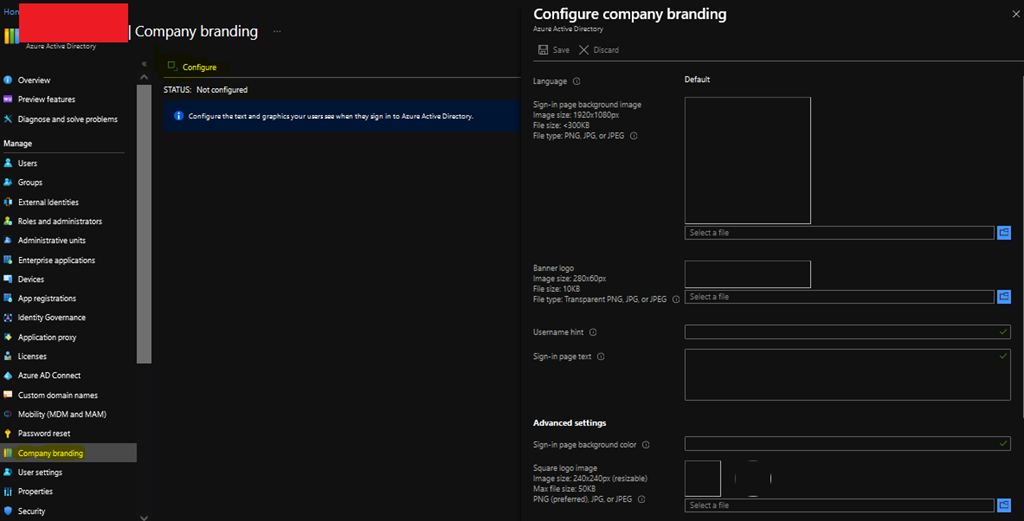
Next Navigate to Azure Active Directory -> Company branding and select to Configure icon to Configure / Edit Company branding

1

Now click on Configure or Edit the branding configuration and type in the information.

Note: The language is automatically set as your default language based on the Azure subscription setup and it can’t be changed. However, you can configure additional languages by select the New Language option.

2

Finally click Save at the top of the screen and the company’s branding page is saved in Azure Active Directory.

3

Add your custom branding to pages by modifying the end of the URL with the text, ?whr=yourdomainname. This specific modification works on different types of pages, including the Multi-Factor Authentication (MFA) setup page, the Self-service Password Reset (SSPR) setup page, and the sign in page.

Whether an application supports customized URLs for branding or not depends on the specific application, and should be checked before attempting to add a custom branding to a page.

Examples:

Original URL: https://aka.ms/MFASetup
Custom URL: https://account.activedirectory.windowsazure.com/proofup.aspx?whr=contoso.com

Original URL: https://aka.ms/SSPR
Custom URL: https://passwordreset.microsoftonline.com/?whr=contoso.com

After you’ve created the Custom branding, if you want to test it, access the page by https://login.microsoftonline.com/<domain name> and you will see your new custom screen.

This time it was a quick post guys, see you soon, thanks!

Joao Costa

Azure – Setting up Conditional Access

Conditional Access Icon

Today we are going to talk about Azure Conditional Access. The idea behind Conditional Access is that you can manage and control your IT environment by setting up compliance rules for your users to access company resources, for example Exchange Online, Sharepoint, OneDrive etc.
Basically you will need to create a rule that says, for example, that all users who are outside your physical working environment (Does this still exist?) and who have devices provided by the company and Multi-factor authentication enabled will be able to access Sharepoint. You can choose if you only want to register this information (Report-Only) or if you really want to deny/grant access if the user does not comply with the rules you stipulated above.

conditional-access-overview-how-it-works

In the past, one of the resources used to perform this kind of control was ADFS through claim rules, but many companies thought twice before an implementation due to the complexity of the environment and for adding another point of failure to the environment, after all if ADFS were to fail at all the environment would be unavailable. One of the advantages of ADFS, depending on the need for control is the cost, after all, for Conditional Access to be enabled and it is necessary to have Azure P1 License, ADFS would be the costs of Virtual Machines, public certificate, public IP, NAT and Load Balancing (In an environment with redundancy).

Anyway, let’s leave theory aside and let’s see how to configure Conditional Access.

Go to the Azure Portal and in the search menu type Conditional Access and then click on the Conditional Access blade

1

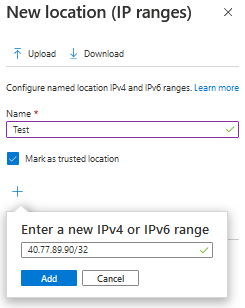
As a first step I suggest that you add the trusted locations (Named Locations), that is, known networks. Click on Named Locations and then select one of the options; 1- Countries Locations or 2 – IP Ranges Locations. I opted for option 2 and added the IP/IP Ranges of my trusted locations.

2

PS. The above IP was used as an example, not a valid IP.

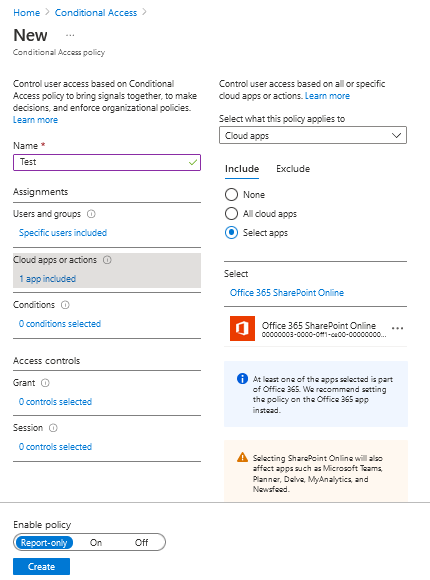
Now that you have trusted locations, let’s create a Conditional Access policy. Still on the Conditional Access blade, click Policies and then New Policy.

Name your policy and choose the user context that will be included or excluded from your policy. In my scenario, I just selected the Test IT user to be included in this policy.

3

Now in Cloud Apps or Actions you will need to choose which applications will be in the scope of your conditional rule, you can opt for all apps or just select the ones that contain sensitive data. In my example I used SharePoint Online only.

4

Now that you’ve defined the scope of users, applications and trusted locations, it’s time to configure the conditions that the user will need to “be in” to have access to the resource (Here it’s also possible to configure which conditions the user needs to “be in” to have access denied, works both ways).

5

In the above scenario; Device Platforms: All, Locations: Applies to all locations and excludes trusted locations, Client Apps: All, Device State: All.

Finally, in the Access control option, you will determine the action that will be taken according to the conditions that the user is trying to access the application (In this scenario SharePoint Online).

6

Click select and then create.

In my scenario, access to SharePoint will only be possible if the user has MFA enabled, is in an untrusted location and is using a device joined to the domain.

Ok, now I’m going to test access through a personal device to see if conditional Access will or will not allow Sharepoint access (The result should be access denied).

7

Here we go, access successfully denied \0/. I suggest you play with the tool to suit your needs. If you have any questions, leave in the comments, see you in the next post.

Creating Dynamic Groups on Azure AD

00

Hey guys,

In today’s post, I’ll talk about a simple but very efficient subject, Dynamic Groups. Dynamic Groups are groups based on rules and if users match to a rule they will be added automatically in a group (Groups for devices can also be created). In other words, Dynamic Groups solve that pain of any administrator to keep their groups and distribution lists up to date. For example in the environment where I work we create groups based on locations, departments and the famous group “All”. From the moment you create the groups and rules, the only work needed from then on will be: Create the users correctly, I mean, fill in all the fields correctly so that this new user fits the rule that belongs to him.

That said, let’s get start.

Go to the Azure portal and open the “Azure Active Directory” blade.

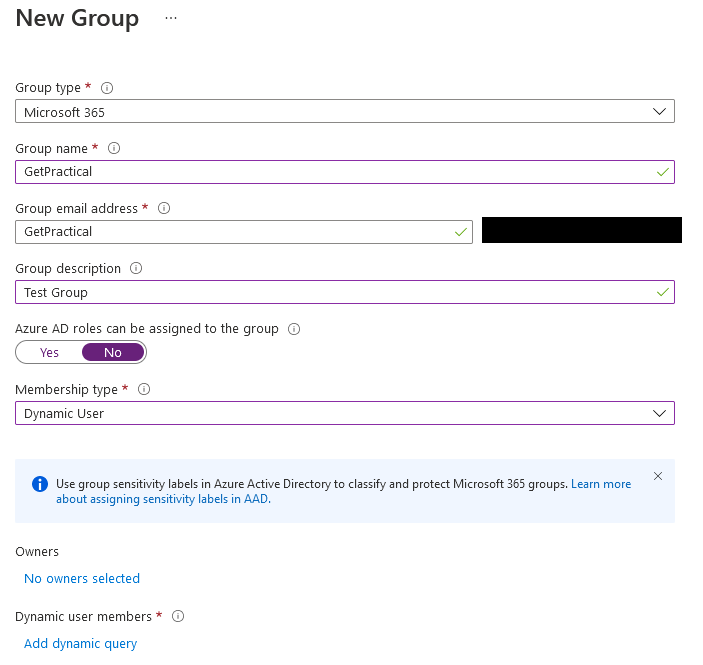
Then select Groups > New Group and you will see the following screen (For this post I will create a group for email purposes, but you can use as a Security group as well). Fill up all the fields and select Dynamic User on Membership Type.

1

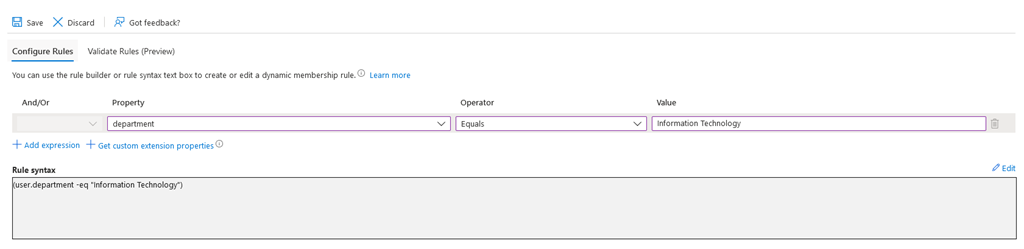
The next step is to create the rule that would add users automatically based on the added criteria.

In this example rule, all users who have the field department filled with the words “Information Technology” will be added to the GetPractical group automatically.

2

If you want to validate the rule, click on the “Validate Rules” tab, manually add some users and then click on ”Validate”. The rule will tell you which of the users you have added fits the criteria entered in your rule.

4

3

As you can see from my example above, only one of the users fulfils the criteria entered in this rule.

Now click save and then click create.

Just a point of attention: If you like me have the need to create a group for all employees, I advise you to create a rule that initially doesn’t work and then turn off the welcome email function. Unfortunately there is no possibility to turn off this feature during group creation, so the only way I found at this time was to create a rule that doesn’t work or a rule that only includes you and then turn off the welcome notifications and also the mapping from the group in Outlook.

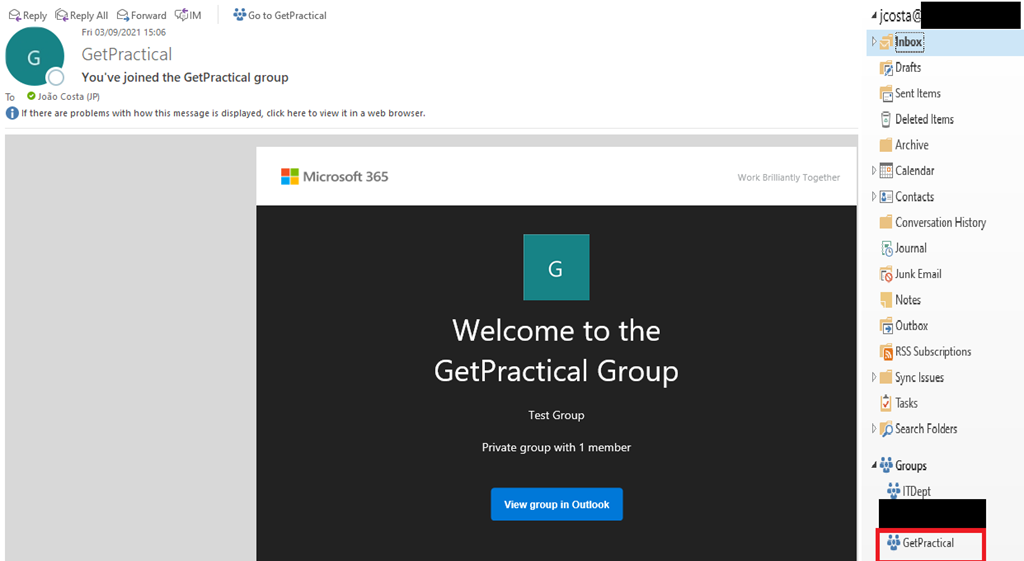
7

In the image above the example of the welcome email and the group mapped in Outlook.

10

For you to turn off these two features you need to connect to Exchange Online (Microsoft 365) and execute the commands used above.

Example below:

Set-UnifiedGroup -Identity “All@getpractical.co.uk” -UnifiedGroupWelcomeMessageEnable:$false
Set-UnifiedGroup -Identity “All@getpractical.co.uk” -HiddenFromExchangeClientsEnabled:$true

That’s all for today guys, see you soon.

Joao Costa

Azure Files – Part 4 – Back Up for Azure Files

12

Hi guys! In today’s post of the Azure Files series (You can find out more about the series here), I will end the series talking about how to configure your environment to be backed up and have security in case of any data hijacking attempt through, for example, ransomwares.

Okay, let’s go straight to the configuration steps.

Create a Recovery Services vault

Sign in to your subscription in the Azure portal and search for Backup center in the Azure portal, and navigate to the Backup Center dashboard.

1

Select +Vault from the Overview tab and select Recovery Services vault and click Continue.

3

The Recovery Services vault dialog box opens. Provide values for the Name, Subscription, Resource group, and Location. Then hit Review and create.

Name: Enter a friendly name to identify the vault. The name must be unique to the Azure subscription. Specify a name that has at least 2 but not more than 50 characters. The name must start with a letter and consist only of letters, numbers, and hyphens.

Subscription: Choose the subscription to use. If you’re a member of only one subscription, you’ll see that name. If you’re not sure which subscription to use, use the default (suggested) subscription. There are multiple choices only if your work or school account is associated with more than one Azure subscription.

Resource group: Use an existing resource group or create a new one. To see the list of available resource groups in your subscription, select Use existing, and then select a resource from the drop-down list. To create a new resource group, select Create new and enter the name. For more information about resource groups, see Azure Resource Manager overview.

Location: Select the geographic region for the vault. To create a vault to protect any data source, the vault must be in the same region as the data source.

4

It can take a while to create the Recovery Services vault. Monitor the status notifications in the Notifications area at the upper-right corner of the portal. After your vault is created, it’s visible in the list of Recovery Services vaults. If you don’t see your vault, select Refresh.

Configure backup from the Recovery Services vault

The following steps explain how you can configure backup for multiple file shares from the Recovery Services vault pane. In the Azure portal, open the Recovery Services vault you want to use for configuring backup for the file share.

5

Next in the Recovery Services vault pane, select the +Backup from the menu on the top.

6

In the Backup Goal pane, set Where is your workload running? to Azure by selecting the Azure option from the drop-down list.

In What do you want to back up?, select Azure File Share from the drop-down list.

7

Select Backup to register the Azure file share extension in the vault.

After you select Backup, the Backup pane opens. To select the storage account hosting the file share that you want to protect, select the Select link text below the Storage Account textbox.

8

The Select Storage Account Pane opens on the right, listing a set of discovered supported storage accounts. They’re either associated with this vault or present in the same region as the vault, but not yet associated to any Recovery Services vault. From the list of discovered storage accounts, select an account, and select OK.

The next step is to select the file shares you want to back up. Select the Add button in the FileShares to Backup section.

The Select File Shares context pane opens on the right. Azure searches the storage account for file shares that can be backed up. If you recently added your file shares and don’t see them in the list, allow some time for the file shares to appear

From the Select File Shares list, select one or more of the file shares you want to back up. Select OK.

To choose a backup policy for your file share, you have three options:

  • Choose the default policy.
    This option allows you to enable daily backup that will be retained for 30 days. If you don’t have an existing backup policy in the vault, the backup pane opens with the default policy settings. If you want to choose the default settings, you can directly select Enable backup.

Prevent attacks

11

The update link opens the Security Settings pane, which provides a summary of the features and lets you enable them.

From the drop-down list Have you configured Azure AD Multi-Factor Authentication?, select a value to confirm if you’ve enabled Azure AD Multi-Factor Authentication. If it’s enabled, you’re asked to authenticate from another device (for example, a mobile phone) while signing in to the Azure portal.

10

When you perform critical operations in Backup, you have to enter a security PIN, available on the Azure portal. Enabling Azure AD Multi-Factor Authentication adds a layer of security. Only authorized users with valid Azure credentials, and authenticated from a second device, can access the Azure portal.

Checks have been added to make sure only valid users can perform various operations. These include adding an extra layer of authentication, and maintaining a minimum retention range for recovery purposes.

Authentication to perform critical operations

As part of adding an extra layer of authentication for critical operations, you’re prompted to enter a security PIN when you perform Stop Protection with Delete data and Change Passphrase operations.

That’s all for now! I hope it was useful guys, until the next post, thank you!

Joao Costa

Azure Files – Part 3 – AD SMB Authentication for Azure Files

AzFiles1

Hey guys! In the first two posts about Azure Files, I initially explained what Azure Files is (Click here to read) and also explained what would be the simplest way of configuring it, using the storage account’s access key (Read this post here).

When on-premises AD authentication is enabled for Azure Files, your AD domain-joined machines, regardless of whether they are in Azure or on-premises, will be able to use Azure Files using their existing AD credentials.

Prerequisites

  • Before you enable AD DS authentication for Azure file shares, make sure you have completed the following prerequisites:
  • Select or create your AD DS environment and sync it to Azure AD with Azure AD Connect.
  • You can enable the feature on a new or existing on-premises AD DS environment. Identities used for access must be synced to Azure AD. The Azure AD tenant and the file share that you are accessing must be associated with the same subscription.
  • Domain-join an on-premises machine or an Azure VM to on-premises AD DS. For information about how to domain-join, refer to Join a Computer to a Domain.
  • If your machine is not domain joined to an AD DS, you may still be able to leverage AD credentials for authentication if your machine has line of sight of the AD domain controller.
  • Select or create an Azure storage account. For optimal performance, we recommend that you deploy the storage account in the same region as the client from which you plan to access the share. Then, mount the Azure file share with your storage account key. Mounting with the storage account key verifies connectivity.
  • Make sure that the storage account containing your file shares is not already configured for Azure AD DS Authentication. If Azure Files Azure AD DS authentication is enabled on the storage account, it needs to be disabled before changing to use on-premises AD DS. This implies that existing ACLs configured in Azure AD DS environment will need to be reconfigured for proper permission enforcement.
  • Make any relevant networking configuration prior to enabling and configuring AD DS authentication to your Azure file shares. See Azure Files networking considerations for more information.
  • If you don’t have .Net Framework 4.7.2 installed, install it now. It is required for the module to import successfully.
  • Download and unzip the AzFilesHybrid module (GA module: v0.2.0+). Note that AES 256 kerberos encryption is supported on v0.2.2 or above. If you have enabled the feature with a AzFilesHybrid version below v0.2.2 and want to update to support AES 256 Kerberos encryption, please refer to this article.
  • Install and execute the module in a device that is domain joined to on-premises AD DS with AD DS credentials that have permissions to create a service logon account or a computer account in the target AD.
  • Run the script using an on-premises AD DS credential that is synced to your Azure AD. The on-premises AD DS credential must have either Owner or Contributor Azure role on the storage account.

Source: https://docs.microsoft.com/en-us/azure/storage/files/storage-files-identity-auth-active-directory-enable and https://docs.microsoft.com/en-us/azure/storage/files/storage-files-identity-ad-ds-enable.

Ok, Let’s get started.

The process of enabling your  Active Directory authentication for Azure FIles is to join the storage account that you used to create the file share to your Active Directory. When you enable AD authentication for the storage account, it applies to all new and existing Azure file shares.

Step-by-step

First you will need to download this script, basically it is a module you will need to add to your powershell that will be used to enable “hybrid” Active Directory. To be honest, it will be a very simple task, basically you will need to follow the steps described in the text file that is inside the zip file.

$Url = ‘https://github.com/Azure-Samples/azure-files-samples/releases/download/v0.2.3/AzFilesHybrid.zip&#8217;

Invoke-WebRequest -Uri $Url -OutFile “C:\AzFilesHybrid.zip”

Expand-Archive -Path “C:\AzFilesHybrid.zip”

Next you will need to change the script execution policy in your PowerShell environment. To do this run the following command > Set-ExecutionPolicy –ExecutionPolicy  Unrestricted –Scope CurrentUser

image

Also if you don’t have the PowerShell module for Azure you will need to install it, do this using the command Install-Module Az –AllowClobber

Now, you need to connect your Azure and select the correct subscription, do this using the command shown below.

image

In my example above I have only one subscription associated with this user, however if you have more than one you can use the Get command shown in the screenshot to select the correct one.

Finally, register the target storage account in Azure with your Active Directory environment by specifying the domain name, the domain account type (You can choose between computer account or Service Logon Account), and the target OU name where the service/computer account will be created:

join-AzStorageAccountForAuth -ResourceGroupName “<resource-group-name>” -Name “<storage-account-name>” -Domain “yourLocalADDomain.co.uk” -DomainAccountType ServiceLogonAccount -OrganizationalUnitDistinguishedName “ou-name-attribute-value”

After the above command you can also confirm on AD if the account has been created, and also run the following commands that is going to show you the storage account Kerberos key, the directory service of the selected service account and the directory domain information (If the storage account has enabled AD authentication for file shares).

$storageacccount = Get-AzStorageAccount -ResourceGroupName “<resource-group-name>” -Name “<storage-account-name>”
$storageacccount | Get-AzStorageAccountKey -ListKerbKey | Format-Table Keyname
$storageacccount.AzureFilesIdentityBasedAuth.DirectoryServiceOptions

Also update the password for the service account before the maximum password age is expired and then update the AD account password for the Azure storage account by running the following PowerShell command:

Update-AzStorageAccountADObjectPassword -RotateToKerbKey kerb2 -ResourceGroupName “<resource-group-name>” -StorageAccountName “<storage-account-name>”

Also if you prefer, you can set the password to never expire in AD.

The expected end result should be like the screenshots below.

PS1

image

Now the last step should be to grant access permission to the appropriate users and groups, an identity (User, Group or service account) must have the necessary permission at the share level. To allow access, Microsoft provides three built-in roles to grant share-level permission for users.

Storage File Data SMB Share Reader – Allows for read access to files and directories in Azure file shares. This role is analogous to a file share ACL of read on Windows File servers. Learn more.

Storage File Data SMB Share Contributor – Allows for read, write, and delete access on files and directories in Azure file shares. Learn more.

Storage File Data SMB Share Elevated Contributor – Allows for read, write, delete, and modify ACLs on files and directories in Azure file shares. This role is analogous to a file share ACL of change on Windows file servers. Learn more.

You can use the Azure portal, PowerShell or Azure CLI to assign the built-in roles to the Azure AD identity of a user for grating share-level permissions.

To assign an Azure role to an Azure AD identity, using the Azure portal, follow these steps:

  1. In the Azure portal, go to your file share, or create a file share.
  2. Select Access Control (IAM).
  3. Select Add a role assignment
  4. In the Add role assignment blade, select the appropriate built-in role from the Role list.
    1. Storage File Data SMB Share Reader
    2. Storage File Data SMB Share Contributor
    3. Storage File Data SMB Share Elevated Contributor
  5. Leave Assign access to at the default setting: Azure AD user, group, or service principal. Select the target Azure AD identity by name or email address. The selected Azure AD identity must be a hybrid identity and cannot be a cloud only identity. This means that the same identity is also represented in AD DS.
  6. Select Save to complete the role assignment operation.

image

Now just test the access, if you did everything as mentioned here the result will be as follows:

image

image

That’s all for today guys, I’ll talk to you soon!

Joao Costa