Creating Network Interface using PowerShell

NIC_01

Hey folks,

Continuing our series of articles on how to create resources in Azure using PowerShell, let’s talk about creating the network interface using PowerShell, creating the network interface and assigning it to a VM and associating it to a VNET is easier via shell command.

Now let’s assign some variables to create the network interface.

$RGName= “RG_GETPRACTICAL”
$NIC1=”Nic-GP-VM-01″
$LOCATION= “UKSouth”
$VNETNAME=”VNet-GETPRACTICAL”
$subnetIndex=0

NIC_02

This “SubnetIndex” variable is very important in the creation process, as it will identify each of your VNETs within your environment. In the case of this article I have a single VNET so I am considering the value “0”, but if you need to pull this value, just run a “Get-AzVirtualNetwork” with the add-ons such as resource group and VNET name.

Now let’s validate if the network exists within the environment.

$VNET=Get-AzVirtualNetwork -Name $VNETName -ResourceGroupName $RGName

NIC_03

Next we will create a public IP for the network interface.

$PIP=New-AzPublicIpAddress -Name $NIC1 -ResourceGroupName $RGName -Location $LOCATION -AllocationMethod Dynamic

NIC_04

Finally, we will create the network interface associating the public IP and the VNET that exists within our environment.

$NIC=New-AzNetworkInterface -Name $NIC1 -ResourceGroupName $RGName -Location $LOCATION -SubnetId $vnet.Subnets[$subnetIndex].Id -PublicIpAddressId $PIP.Id

NIC_05

Your network interface has now been successfully created.

NIC_06

Thanks guys and until the next post!

Joao Paulo Costa

Creating Virtual Network using PowerShell

Vnet_01

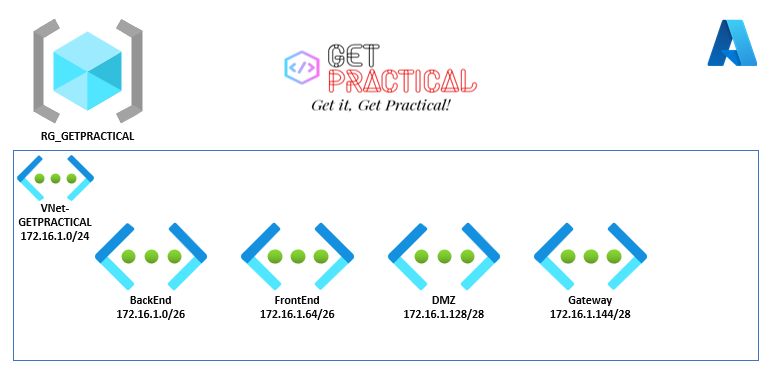
Continuing from the last article, today we are going to create a virtual network to allocate Azure resources and leave it in a secure pattern. In this scope, I’m setting up the network with the segmented subnets:

  • BackEnd: 172.16.1.0/26
  • FrontEnd: 172.16.1.64/26
  • DMZ: 172.16.1.128/28
  • Gateway: 172.16.1.144/28

Before starting to create the Azure network structure, let’s understand how a network in Azure works.

In Azure, when we create a network, we first choose the “Address Space” that would be an IP block that we would use inside our virtual network and within this block we will consider that each “Subnet” will be a piece of this block, according to the drawing below.

Vnet_02

After logging into the “Cloud Shell” select PowerShell, let’s assign some variables to create the network.

$RGName= “RG_GETPRACTICAL”
$LOCATION= “UKSOUTH”
$NameVnet=”VNet-GETPRACTICAL

These variables are for choosing the resource group where we will provision, the location and the name of your virtual network.

Vnet_03

Now let’s assign the network settings pointing the “Address Block”, in this case the Address Space 172.16.1.0/24 with 256 hots.

New-AzVirtualNetwork -Name $NameVnet -ResourceGroupName $RGName -Location $location -AddressPrefix 172.16.1.0/24

Vnet_04

See that it has been provisioned but does not contain subnets. now let’s assign some variables. This variable is to validate if the network exists within the environment.

$VirtualNetwork = Get-AzVirtualNetwork -Name $NameVnet -ResourceGroupName $rgName

Vnet_05

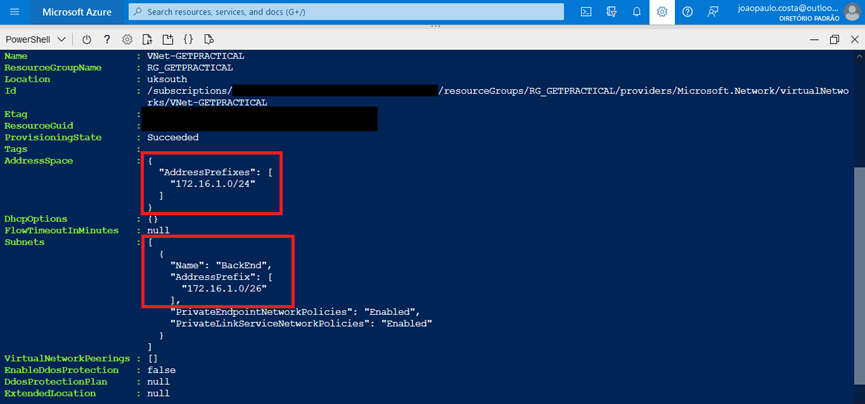
After validating the existing network, let’s add the subnets as shown in the examples below.

Add-AzVirtualNetworkSubnetConfig -Name BackEnd -VirtualNetwork $VirtualNetwork -AddressPrefix 172.16.1.0/26
Vnet_06

Next, let’s add the rest of the network scope.

Add-AzVirtualNetworkSubnetConfig -Name FrontEnd -VirtualNetwork $VirtualNetwork -AddressPrefix 172.16.1.64/26
Add-AzVirtualNetworkSubnetConfig -Name DMZ -VirtualNetwork $VirtualNetwork -AddressPrefix 172.16.1.128/28
Add-AzVirtualNetworkSubnetConfig -Name GatewaySubnet -VirtualNetwork $VirtualNetwork -AddressPrefix 172.16.1.144/28

Vnet_07

Now let’s run the “Set” command to add the set of subnets that were assigned above.

Set-AzVirtualNetwork -VirtualNetwork $VirtualNetwork

Vnet_08

Once your virtual network has been successfully created with its segmented subnets, let’s go to the portal to validate it.

Vnet_09

That’s all for today folks, until the next post.

Joao Costa

Creating a Storage Account using PowerShell

cloud-file

Hey everyone,

Today we are going to create a Storage Account for any kind of use and inside this storage account we are going to create a blob for logs and a file share.

In the last post we created a resource group, where we will provision resources during this and the next posts.

Open the Azure Cloud Shell, then choose your subscription, if the cloud shell is already open, we will add the following variables, with the information:

$RGNAME= “RG_GETPRACTICAL”
$LOCATION= “UKSOUTH”
$STRGACCNAME= “strggetpractical01”
$TypeSTRG= “Standard_LRS”

STRG_01

Then we will execute the command “New-AZStorageAccount” to create the storage from the variables assigned above.

New-AzStorageAccount -ResourceGroupName $RGNAME -Name $STRGACCNAME -Type $TypeSTRG -Location $LOCATION

STRG_02

The storage was successfully created.

With the storage created, we are going to create a container to allocate the “Logs” of our environment, for that we are going to assign some variables as well.

$STORAGEACCOUNT = Get-AzStorageAccount -ResourceGroupName $RGNAME -Name $STRGACCNAME
$CONTAINERNAME = “logs”
$CTX = $storageAccount.Context

STRG_03

After assigning the variables, let’s run the following command “New-AzStorageContainer” to create the container.

New-AzStorageContainer -Name $containerName -Context $ctx -Permission blob

STRG_04

Your container was successfully created.

Last but not least let’s create a “File Share” with the following variables.

$STORAGEACCOUNT = Get-AzStorageAccount -ResourceGroupName “RG_GETPRACTICAL” -Name “strggetpractical01”

$storageKey = (Get-AzStorageAccountKey -ResourceGroupName $storageAccount.ResourceGroupName -Name $storageAccount.StorageAccountName | select -first 1).Value

$storageContext = New-AzStorageContext -StorageAccountName $storageAccount.StorageAccountName -StorageAccountKey $storageKey

STRG_05

New-AzureStorageShare -Name “getpracticalshare” -Context $storageContext

STRG_06

The File Share was created successfully, now let’s check the container and the file share that were created.

Container for Logs:

STRG_07

File Share for files:

STRG_08

That’s all for today guys, until the next post!

Joao Costa

Creating Resource Group using Powershell

Hey guys, how are you?

The idea is to learn how to create the resources and finally create an environment with all the resources together.

To start the configuration we have two ways, use the “Azure Cloud Shell” or install the “AZ Module” of powershell.

AZ Module Installation: Powershell Configuration

Access to Azure Cloud Shell: //shell.azure.com/

For this articles I will use the Azure Cloud Shell.

Let’s start by accessing Cloud Shell, then type in your subscription credentials.

RG01

Now let’s create two variables, one indicating the name for the resource group and another indicating the region where we will create the resources.
We will work with variables to facilitate the creation of command lines, in this way we can create complex scripts based on variables.
Let’s create two variables, one with the name of the resource group and the other with the region where we will create the resource group.

$RGNAME= “RG_GETPRACTICAL”
$LOCATION= “UKSOUTH”

RG02

After creating the variable, let’s create the command line.

New-AzResourceGroup -Name $RGNAME -Location $LOCATION

RG03

As you can see, we are executing the command to create a new resource group with the name given in the variable and with the location we put, in my case I am creating it in “UK South“.

RG04

Now you can create the group directly with the “Tag” or make an update on the created group.

To create or update the resource group and assign “Tags“, we will give a name and a value to this tag, according to the command below.

New-AzResourceGroup -Name $RGNAME -Location $LOCATION -Tag @{Department=”IT”}

In the image below, only the update was executed, it asks to confirm if you are going to do the update or not.

RG05

Your resource group is now created and tagged.

Thanks guys and until the next post!

Goodbye 2021 and Welcome 2022! #ThankYou

thankyou

Hey guys!

Today I just come here to thank you and share with you our goals achieved with the blog in this first year. We (Bruno and I) started this blog in February 2021, more precisely on 11/02/2021. Our idea was to share our knowledge and experience, help other people, learn and evolve as professionals. Honestly, we are very happy with our results and even more with our knowledge evolution, throughout the year we received several feedbacks and we were really happy with the idea of having helped some people and maybe many others around the world. Of course we need to say that it is daring to create a blog in a language that is not our native language, and this was and is a great challenge for us, but we believe that the message has been delivered and we hope that in 2022 we can make everything even better , always aiming to evolve.

Blog Statistics

As a bloggers focusing on Microsoft cloud computing and Cisco collaboration, it is always fun and challenging. The traffic to our blog grew significantly as it’s first year. In almost 1 year, this blog hits over 15 thousand views with 40 blog posts.

Views01

This blog was viewed as follows:

Monthly Average Views: 1.437

Most Visited Month: September

Most Visited day: September 13th

Most popular Blog Post: Cisco Finesse – Disconnection Problems

Most Popular day: Tuesday (21% of views)

Most Popular hour: 3:00 pm (7% of views)

Blog Followers: 21 (A huge Thank you!)

views02

Comparing the first post with only 2 views (Bruno and I lol), with the most viewed post so far with 2,111 views.

Views

Where did the readers come from? TOP 10 Referrers

Referrers

Where did the readers come from? TOP 10 Countries

Views03

As I said before, a hell of a year of growth and evolution for this humble blog.

We can’t wait for 2022, which will come with interesting personal and professional challenges.

And in closing, I would like to wish everyone a happy new year, thanks to all readers and followers. May you all have a healthy, successful and outstanding New Year!


Thanks you for reading, see you in 2022!

You are welcome to share your thoughts and suggestions in the comment section below

Got it? Get Practical!