
 João Paulo Costa

Azure recently announced the general availability of Private Subnet, a new feature that allows you to disable the implicit outbound Internet connectivity for virtual machines in a subnet. In this blog post, we’ll cover:
-
What Azure Private Subnets are and why they matter
-
Key benefits of disabling default outbound access
-
Step-by-step instructions to configure a private subnet via the Azure Portal
-
Verifying that default outbound has been disabled
What Is an Azure Private Subnet?
Traditionally, when you create a subnet in an Azure Virtual Network (VNet) without any explicit outbound connectivity (such as a NAT gateway, Public IP, or Load Balancer), Azure automatically provides a default outbound access IP for those VMs. While this is convenient, it introduces an implicit egress path—VMs can communicate with public endpoints without you having explicitly configured any egress resources.
A Private Subnet in Azure is simply a subnet where this default outbound access is turned off. Consequently:
-
Any VM deployed within that subnet cannot reach the Internet by default.
-
You must explicitly configure an alternative egress mechanism if VMs need outbound connectivity (e.g., NAT Gateway, Standard Load Balancer, Firewall, or a Public IP assigned directly to the NIC).
By removing the implicit outbound IP, Azure Private Subnets enforce a “zero trust” approach: no VM can communicate externally until you grant it an explicit, auditable path.
Why Disable Default Outbound Access?
-
Secure by Default
Default outbound IPs are not customer-owned and can change unpredictably. By disabling implicit egress, you ensure VMs only send traffic externally when you explicitly allow it, reducing your attack surface. -
Prevent Data Exfiltration
In regulated or highly sensitive environments (for example, PCI-DSS or HIPAA workloads), any unsolicited outbound route can pose compliance or security risks. Private Subnets eliminate unexpected data exfiltration channels. -
Encourage Explicit Egress Configuration
When default outbound is disabled, you must provision a known, managed egress mechanism (like a NAT Gateway), which can be tightly monitored for logging, analytics, and cost control. This “explicit-over-implicit” model aligns with best practices for cloud network security.
How to Create a Private Subnet in the Azure Portal
Below is a step-by-step walkthrough for configuring a Private Subnet in an existing Virtual Network using the Azure Portal.
Prerequisites
-
An Azure subscription in which you have Contributor (or higher) access to create or modify Virtual Network and subnet resources.
-
If you plan to allow any outbound Internet connectivity, you should have a NAT Gateway, Standard Load Balancer, or Public IP resource already created (optional if you intend to block all outbound traffic).
1. Navigate to Your Virtual Network
-
Sign in to the Azure Portal.
-
In the search bar at the top, type “Virtual networks” and select that option.
-
Locate the Virtual Network (VNet) where you want to add or modify a subnet, then click its name to open the VNet’s Overview page.
2. Access the Subnets Blade
-
In the left-hand menu of the Virtual Network resource, click “Subnets” under the Settings section.
-
You will see a list of existing subnets. To create a new private subnet, click “+ Subnet”. To convert an existing subnet, click on its name to edit it.
3. Enable the Private Subnet Feature
-
Subnet details: In the Name box, enter a descriptive name, for example, private-subnet-01.
-
Address range (CIDR block): Specify the IP range you want this subnet to use, e.g., 10.0.2.0/24.
-
Private Subnet checkbox: Under the Settings section of the same pane, locate the Private subnet option. Check the box labeled Enable private subnet (disable default outbound access).
-
(Optional) Network security group: If you already have an NSG (Network Security Group) that you want to associate, select it here; otherwise you can create it later.
-
(Optional) Route table: If you want to enforce custom routes (for example, sending egress via a firewall), select or create a route table.
-
Once you’ve confirmed Private Subnet is checked, click Save (for existing subnet) or Create (for a new subnet) at the bottom of the page.
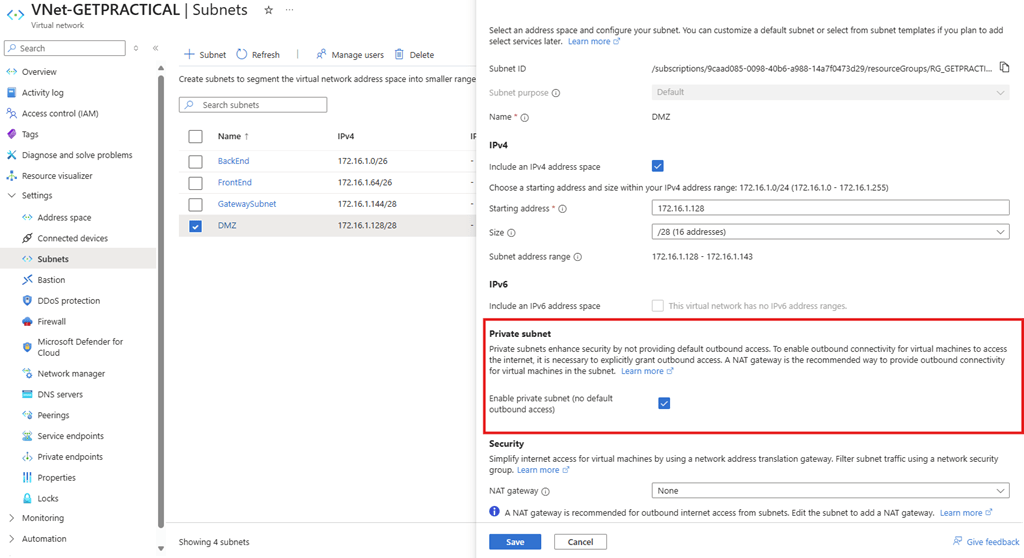
Note: When you enable the Private Subnet feature, Azure sets the default outbound access to false for that subnet. VMs placed in this subnet will no longer receive a default outbound IP address, thus blocking any implicit Internet egress.
4. Provisioning a VM into the Private Subnet
-
After the subnet is created (or updated to be private), go to Virtual Machines in the Portal.
-
Click + Create, then choose Azure virtual machine.
-
Under the Basics tab, fill out the usual details (Subscription, Resource group, VM name, Region, Image, Size, etc.).
-
Switch to the Networking tab.
-
Virtual network: Select the same VNet where you created the private subnet.
-
Subnet: Select the newly created private subnet (e.g., private-subnet-01).
-
Public IP: Choose None (unless you explicitly want a public IP for inbound connectivity).
-
NIC network security group: Either select an existing NSG or create a new one. If you want to block all outbound traffic, ensure the NSG’s outbound rules deny traffic to Internet (0.0.0.0/0).
-
-
Finish any remaining configuration (Disks, Management, Advanced, Tags) and click Review + create, then Create.
Verifying That Default Outbound Access Is Disabled
Once your VM is up and running in the private subnet, you should verify that it truly cannot reach the Internet via the default outbound IP.
-
SSH/RDP into the VM (using a private jump host or Azure Bastion, since there is no public IP).
-
From within the VM, attempt a simple ping or curl to a public endpoint (e.g., microsoft.com).
-
You should see the request time out or fail, confirming that there is no implicit egress.
-
-
In the Azure Portal, navigate back to the Subnet blade for your private subnet and select Effective routes.
-
You should no longer see a route with next hop type “Internet” for 0.0.0.0/0 (at least not one that allows traffic).
-
If you need the VM to communicate with the public Internet (for example, to download updates or reach external APIs), you must explicitly create and associate a NAT Gateway, Standard Load Balancer with outbound rules, or assign a Public IP address.
Adding Explicit Outbound (Optional)
If your workload requires occasional or continuous outbound Internet access, follow one of these approaches:
-
NAT Gateway
-
Create a NAT Gateway resource in the same region and subscription.
-
Associate the NAT Gateway with your private subnet. This provides a stable, customer-owned outbound IP address for all VMs in that subnet.
-
-
Standard Load Balancer (Outbound Rules)
-
Create a Standard Load Balancer with an outbound rule that maps VM SNAT to a set of public IP addresses.
-
Associate the Load Balancer’s backend pool with the NIC(s) of your VMs.
-
-
Public IP Assigned to NIC
-
Edit the network interface of your VM and attach a Public IP.
-
This effectively overrides the private subnet’s block and grants that specific VM Internet access.
-
Conclusion
The new Private Subnet feature in Azure lets you explicitly enforce a “no implicit Internet” policy on any subnet, greatly reducing unexpected egress, preventing data leaks, and aligning with zero-trust network security models.
As of May 28, 2025, the Private Subnet feature is Generally Available across all regions. Any newly created subnets where you check the “Private subnet” box will have default outbound access disabled automatically. Existing subnets can be updated at any time if you decide to adopt this stricter security posture.
If you have more questions or run into issues while setting up Private Subnets, feel free to drop a comment below, and I’ll be happy to help!
