

Nested virtualization in Azure is a powerful feature that enables running a Hyper-V hypervisor within an Azure virtual machine (VM). This capability is invaluable for developers, machine learning engineers, and data scientists who require flexible and scalable environments for testing, development, or containerized applications. This post provides a step-by-step guide to setting up nested virtualization, ensuring you can leverage its full potential.
Prerequisites and Supported VM Sizes
Before diving into the setup, ensure you choose an Azure VM that supports nested virtualization. Compatible VM sizes include:
- Dv3, Dsv3
- Dv4, Dsv4
- Ddv4, Ddsv4
- Ev3, Esv3
- Ev4, Esv4
- F2s_v2 to F72s_v2
- FX4 to FX48
- M series
For most use cases, the Dv3 and Ev3 series are excellent choices. Make sure the VM size meets the system requirements for your intended workloads, such as Docker Desktop.
Step 1: Deploying an Azure VM
- Create the VM:
- Log in to the Azure Portal.
- Select a Windows Server image and choose a compatible VM size.
- Configure Networking:
- Set up the required inbound and outbound port rules.
- Deploy:
- Review your configuration and deploy the VM.
Step 2: Enabling Nested Virtualization
After deploying the VM, you need to enable nested virtualization:
- Connect to the VM:
- Use Remote Desktop Protocol (RDP) to access your Azure VM.
- Install Hyper-V:
- Open PowerShell as an administrator and run:
Install-WindowsFeature -Name Hyper-V –IncludeManagementTools
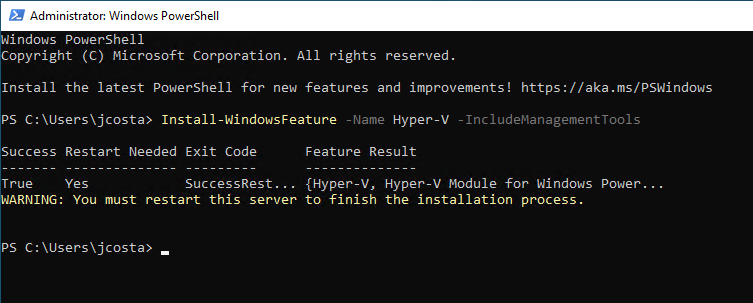
o Restart the VM to apply changes:
Restart-Computer
Step 3: Set up Network settings for Nested Virtualization
To ensure nested VMs have proper network connectivity:
- Create a Virtual Switch and set up a NAT :
- Run These PowerShell Command:
Set-ExecutionPolicy bypass -forceInvoke-WebRequest ‘https://aka.ms/azlabs/scripts/hyperV-powershell’ -OutFile SetupForNestedVirtualization.ps1
.\SetupForNestedVirtualization.ps1
Set-ExecutionPolicy default –force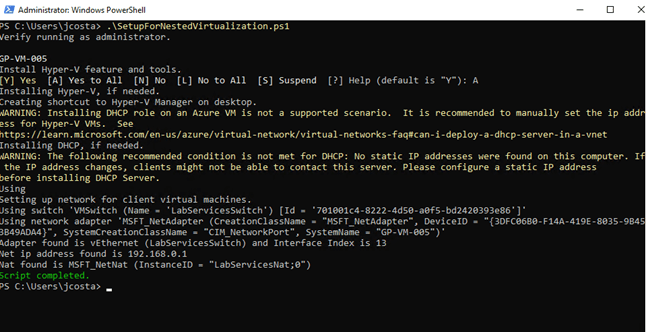

Step 4: Installing Docker Desktop (Optional)
If you plan to run Docker within your nested VMs:
- Download and Install Docker Desktop:
- Get the installer from the Docker website.
- During installation, ensure "Enable Hyper-V Windows Features" is selected.
- Verify Installation:
- Open PowerShell and run:
docker –version
o This confirms a successful Docker setup.

Troubleshooting Tips
- Unsupported VM Sizes:
Verify that your chosen VM size supports nested virtualization. For example, some AMD-based VMs may not be compatible.
- Performance Considerations:
Nested virtualization introduces some overhead. Ensure your VM has enough resources to handle the additional load.
- Networking Issues:
Double-check NAT and virtual switch configurations if nested VMs lack internet connectivity.
With this guide, you can confidently configure nested virtualization in Azure. This setup opens up new opportunities for testing, development, and efficient container management. Whether you’re running Docker, deploying virtual labs, or experimenting with hypervisors, Azure has you covered!


 Get Practical