

Introduction
As businesses adopt multi-cloud strategies to leverage the unique strengths of various cloud providers, managing these environments can become complex. Microsoft’s Azure Arc Multicloud Connector provides a streamlined solution to integrate and manage resources across different cloud platforms, specifically focusing on AWS. This blog post will explore the capabilities of the Azure Arc Multicloud Connector and guide you through a step-by-step lab to connect AWS resources to Azure.
Key Features of the Multicloud Connector
1. Unified Inventory: The Multicloud Connector automatically collects metadata from external cloud resources, providing a comprehensive view within the Azure portal. This helps in maintaining a consistent inventory across cloud environments.
2. Arc Onboarding: It facilitates the onboarding of AWS EC2 instances to Azure Arc, allowing advanced management features like policy enforcement, monitoring, and configuration management.
3. Consistent Governance: Apply Azure policies and role-based access controls (RBAC) to resources in external clouds, ensuring uniform security and compliance standards across all environments.
4. Enhanced Management: Utilize Azure Arc capabilities for onboarded resources, including vulnerability scanning and deployment automation.
Implementation Steps
Prerequisites
– An Azure subscription with Contributor access.
– An AWS account with AmazonEC2FullAccess permissions.
– Azure Arc and required resource providers registered (Microsoft.HybridCompute, Microsoft.HybridConnectivity, Microsoft.AwsConnector).

Step 1: Create a Multicloud Connector in Azure
1. Sign in to the Azure portal.
2. Navigate to Azure Arc > Multicloud connectors.
3. Click Create and fill in the basic details such as subscription, resource group, and connector name.
4. Select the AWS account type (single or organization) and provide the AWS account ID.
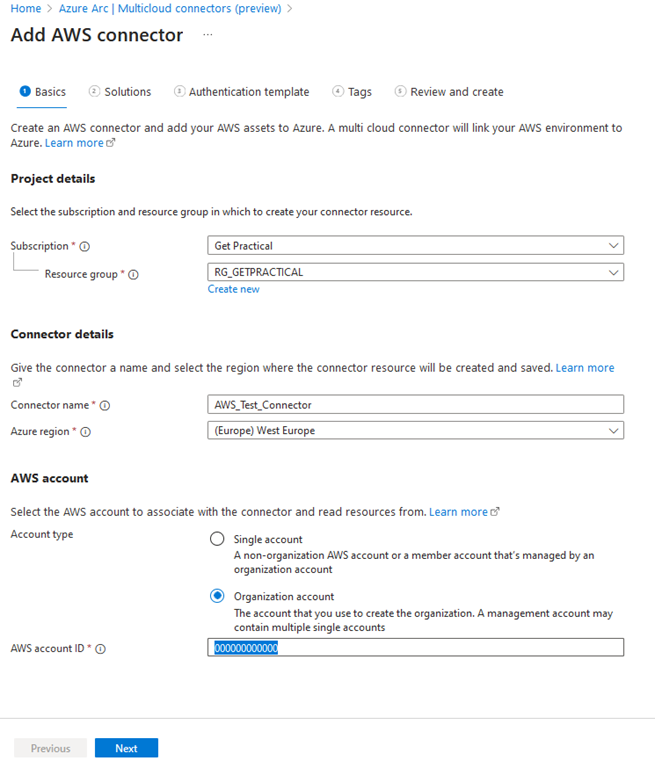
Step 2: Configure Solutions
1. On the Solutions page, choose the solutions to enable:
– Inventory: To collect and view AWS resources.
– Arc onboarding: To onboard AWS EC2 instances to Azure Arc.
2. Configure periodic sync settings and select the AWS regions to scan.
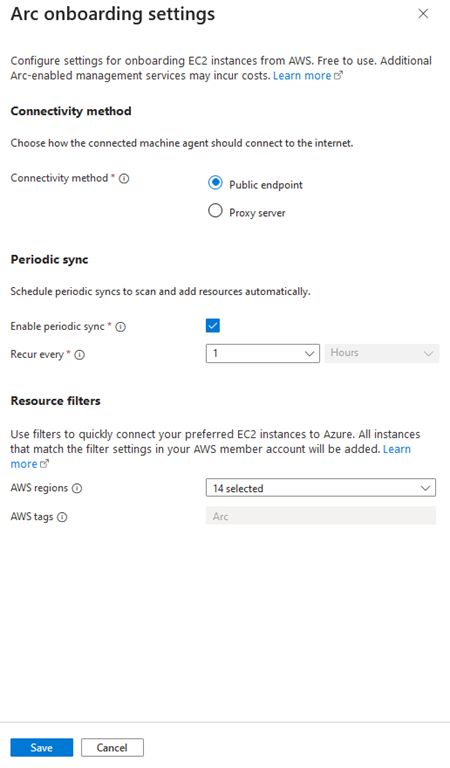
Step 3: Generate and Deploy CloudFormation Template
1. On the Authentication template page, download the generated CloudFormation template.
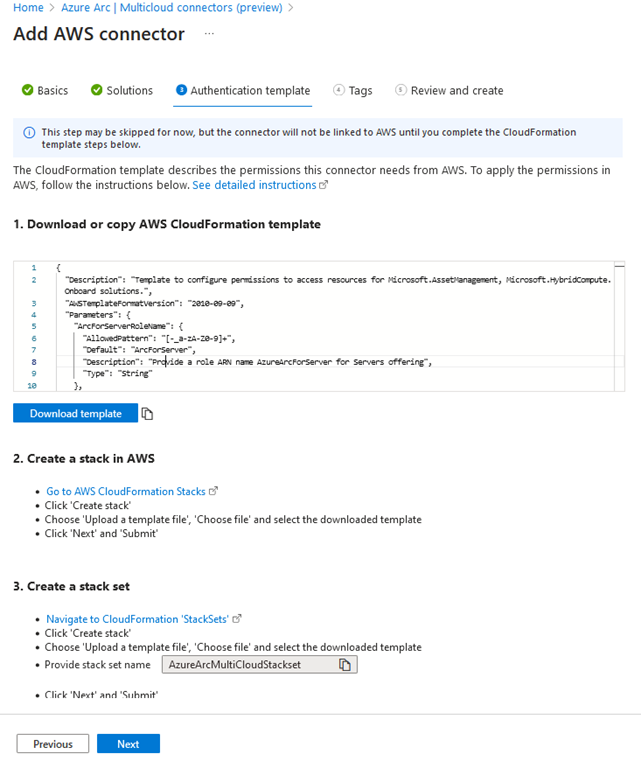
2. Log in to the AWS Management Console and navigate to the CloudFormation service.
3. Create a new stack using the downloaded template. This template establishes the necessary roles and permissions for the Multicloud Connector.
4. For organization accounts, also create a StackSet and deploy it across the required AWS regions.

Step 4: Finalize Configuration in Azure
1. Complete the setup in the Azure portal by reviewing and creating the connector.
2. Once the connector is created, it will start scanning the specified AWS regions and onboarding resources based on your configurations.

Step 5: Verify and Manage Resources
1. In the Azure portal, navigate to the resource group created by the Multicloud Connector.
2. Verify that AWS resources (e.g., EC2 instances) appear in the Azure portal.
3. Use Azure tools like Azure Monitor and Azure Policy to manage these resources centrally.
Conclusion
The Azure Arc Multicloud Connector simplifies the complexities of managing multi-cloud environments by providing a unified platform for inventory, governance, and management. By following the steps outlined in this lab, you can seamlessly integrate AWS resources into Azure, leveraging Azure’s robust management capabilities to maintain a consistent and secure multi-cloud infrastructure.
For more detailed guidance, refer to the official Azure documentation on the Multicloud Connector.


 Get Practical