
AzCopy should now be downloaded to your computer (If you don’t know how to do this, go back to the last post here). But before you can perform any tasks, it is necessary to authenticate to your Azure subscription to access Azure Storage first.
There are two ways to authenticate AzCopy to your Azure storage accounts – Azure Active Directory or by a Shared Access Signature (SAS) token. In this article, we’ll focus on using Azure AD.
The most common method to authenticate AzCopy is via Azure AD. When using Azure AD, you have several options. Some of these options are:
- Interactive Login – User is prompted to log in using the browser.
- Service Principal + password – For non-interactive login. Recommended for automation and scripting.
- Service Principal + certificate – For non-interactive login. Recommended for automation and scripting.
In this article, you will learn how to authenticate via interactive login. To do so, first, open a command prompt or PowerShell and run the below command. The –tenant-id parameter is optional but recommended, especially if your login account is associated with more than one Azure tenant.

Once executed, you will be asked to open a browser and navigate to https://microsoft.com/devicelogin and enter the displayed code. You can see what that will look like below.
 Enter the code from AzCopy into the browser
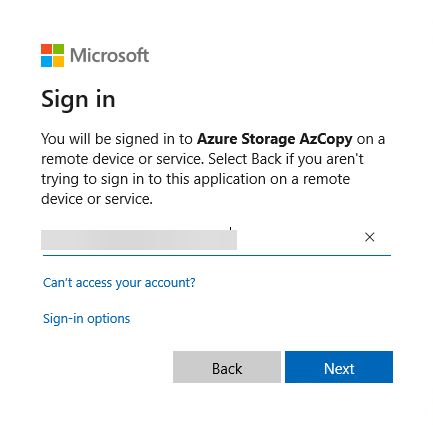
Once you’ve entered the code into the browser, click Next and proceed to sign in to your account.
When sign-in is done, you should see the status shown in the browser and in the terminal similar to what’s shown in the screenshot below.

Now that you have all this knowledge, you should now be ready to put AzCopy in action! See you soon folks!


 Get Practical