
Hey guys,
I’m back and today I’m going to talk about Azure Administrative Units. The idea to talk about this came from a recent request from one of the customers of the company I currently work for.
The request was that due to the fact that the customer has several sites, in different countries, the IT department needed to have an administrator in each of these locations, but this administrator would still need to manage only the users from that specific location.
Well, to start, I need to say that to make use of Administrative Units, you need to have at least the Azure AD Premium P1 license. That said, let’s get down to business.
Open Azure and go to Azure Active Directory

You will find the Administrative Units option in the Manage blade on the left side.
Click on Administrative Units and then hit Add. The next step will now be to give a name to the Administrative Unit, select which Role the administrator will have and finally select the user who will be the administrator itself.
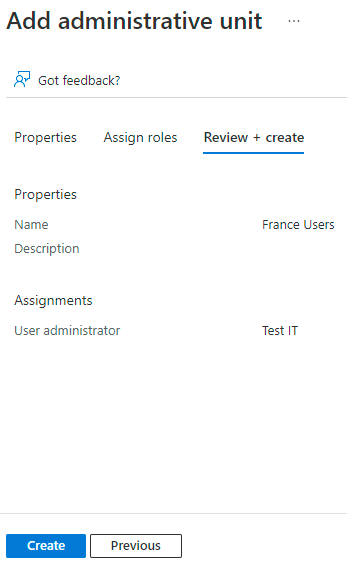
Well, in this scenario I configured as follows:
- Name: France Users
- Role: User Administrator
- Administrative Unit Administrator: IT Test
To recap, the user “IT Test” will have the role “User Administrator” in the Administrative Unit called “France Users”
OK? Now it’s simple, we just need to put the users that would be managed by the Administrative Unit Administrator manually or through a Dynamic Rule in the Administrative Unit.
Returning to the portal, click on Administrative Units and you should see the Administrative Unit that was created according to the previous steps.
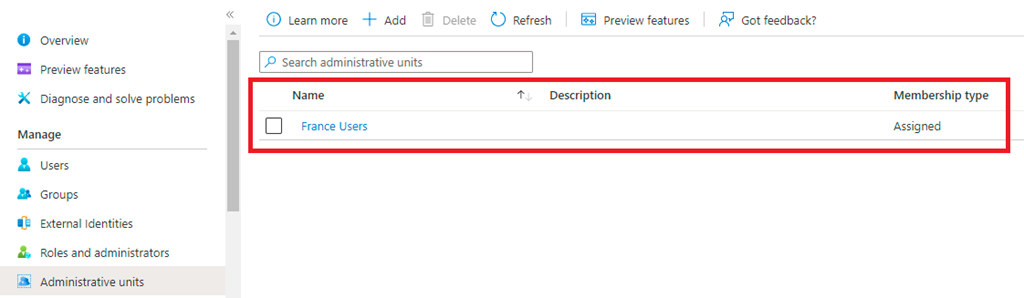
As you can see, by default when you create an Administrative Unit the “Membership Type” option is set to assigned, that is, you need to add users manually.
But we know that this is a flawed process and sooner or later you will miss an user and we know where this can go, so automating this process is the best solution, and that’s where the Dynamic Rule comes in.
Ok, go back to the portal and click on the Administrative Unit you created earlier and you should see something similar to the image below.

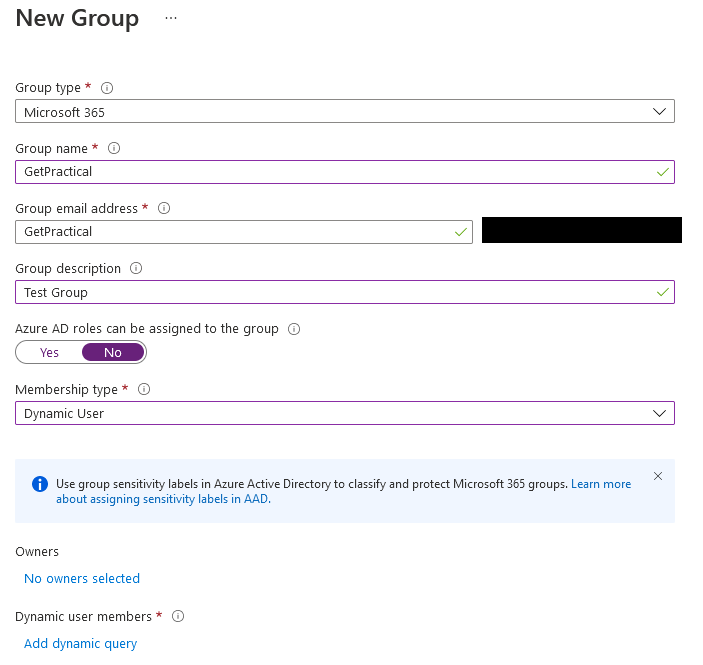
Now click on Properties (Preview) and then change the Membership Type option to Dynamic User and then suggest an option called “Add Dynamic Query”
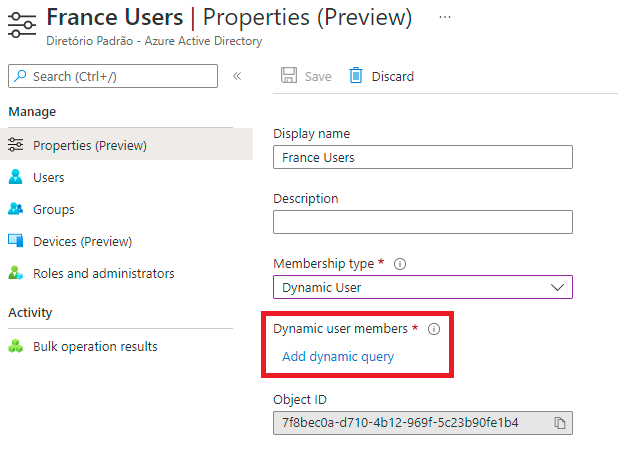
Click on “Add Dynamic Query” and configure the rule that best suits your scenario. In my scenario I will base myself on the user’s Country being “France”.

Hit save twice and the Dynamic Query has been created. That is, every user that is created or changed in Azure AD and in its country of location is France, it will be automatically added to this Administrative Unit.
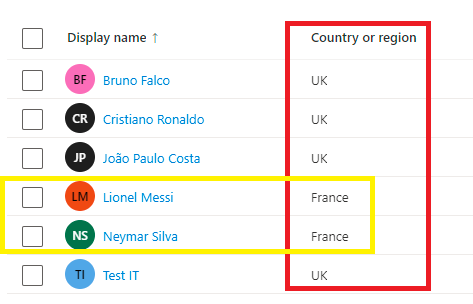
Ok, within a few minutes you will see that the users blade inside your Administrative Unit will start to be populated by all those users that apply the created rule.
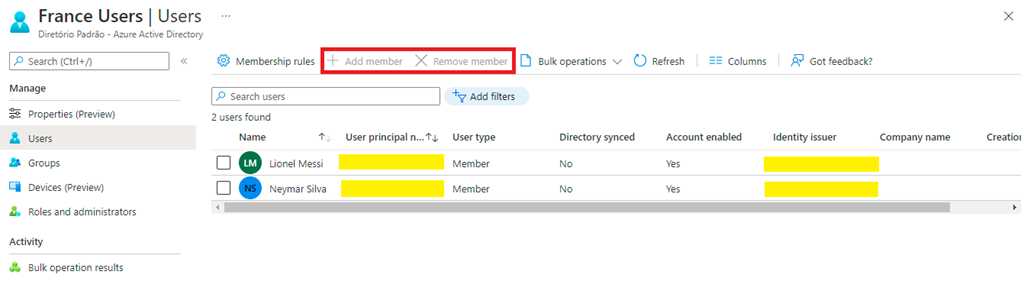
There it’s, my users from France have been added to the Administrative Unit and as you can see the options to add and remove member are greyed out.
Now you might be wondering, how do I test this? Simple, your administrator needs to log either into admin.microsoft.com or mystaff.microsoft.com.

After the logon, ask your Administrative Unit administrator to select the wanted Administrative Unit and he will be able to see all the users he manages.

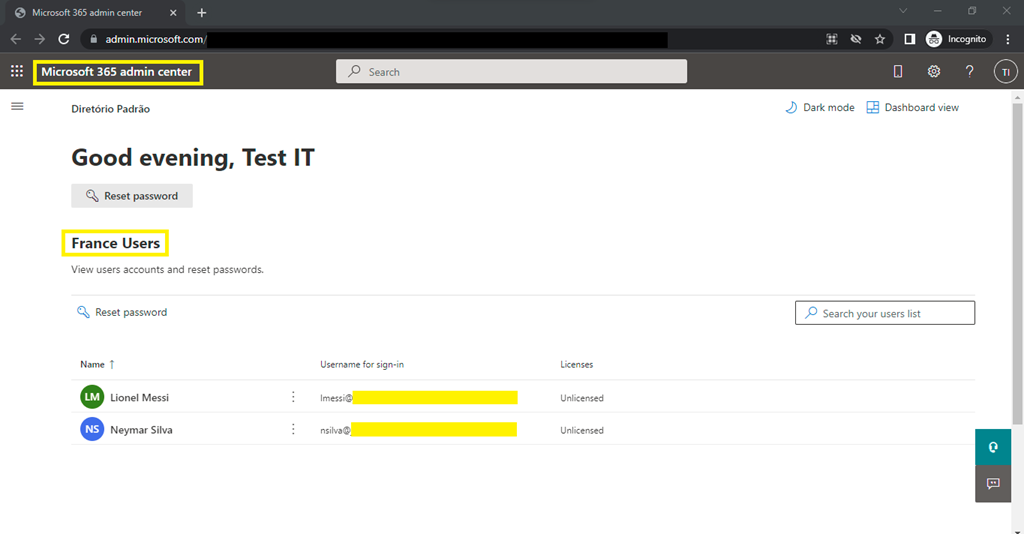
Or if he logs on the Microsoft 365 admin portal, he will be able to see the below:
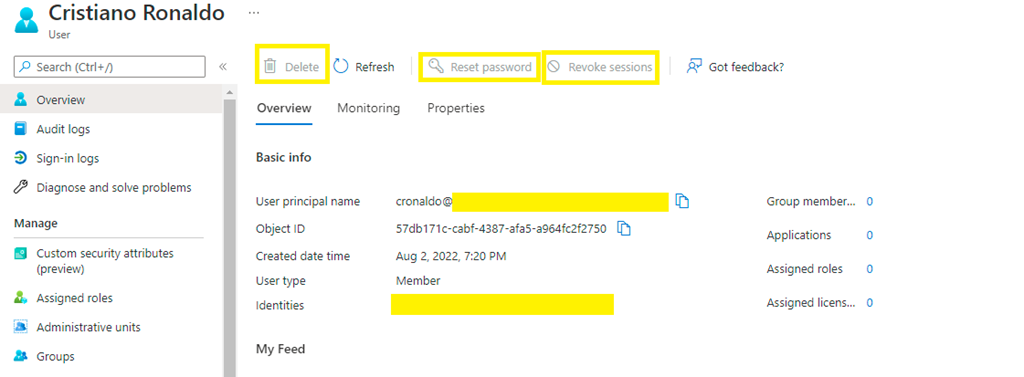
Okay, but you may be wondering (again), what if your administrator still decides to access Azure AD? In this case he will still be able to see all users and groups, but he will only be able to manage the users of the Administrative Unit he has rights. All other users will show the greyed out properties.
That’s it folks, a simple and easy solution in case of remote location administrators or small departments and so on. You can explore several scenarios with this setup, enjoy.
See you soon.
Joao Costa





 Get Practical