
Deploying the Rapid7 agent across diverse environments, such as Azure and AWS servers managed through Azure Arc (Windows and Linux), can be streamlined using Azure Automation. This blog post will guide you through the step-by-step process to automate this deployment.
Step 1: Set Up an Azure Automation Account
- Navigate to the Azure Portal:
- Open the Azure portal and search for "Automation Accounts" in the search bar.
- Click on "Add" to create a new Automation Account.
- Fill in the necessary details like Name, Resource Group, and Location.
- Click on "Create".
Step 2: Configure Hybrid Runbook Worker
To run scripts on servers outside Azure, you need a Hybrid Runbook Worker.
- Add a Hybrid Worker Group:
- In the Automation Account, go to "Hybrid Worker Groups" under the "Process Automation" section.
- Click "Add a hybrid worker group" and follow the instructions.
- Download and install the Hybrid Runbook Worker on your Azure and AWS servers as per the instructions provided.
- Register these servers to the newly created Hybrid Worker Group.

Step 3: Store the Rapid7 Agent Installation Files
You need a place to store the Rapid7 agent installation files so that your script can access and copy them to the target servers. Using an Azure Storage Account is a good option.
- Create an Azure Storage Account:
- In the Azure portal, search for "Storage accounts" and create a new storage account.
- Configure the necessary details like Name, Resource Group, Location, and Performance.
- Navigate to your storage account and go to the "Containers" section.
- Create a new container (e.g., rapid7-installers) and set the access level to "Blob" (anonymous read access for blobs only).
- Upload the Rapid7 installation files (agentInstaller-x86_64.msi for Windows and agentInstaller-x86_64.sh for Linux) to this container.

Step 4: Prepare the Rapid7 Agent Installation Script
You need a script to download and install the Rapid7 agent from the storage account. Below are example scripts for both Windows and Linux.
PowerShell Script for Windows:
# Variables
$StorageAccountName = "gprapid7files"
$ContainerName = "rapid7-installers"
$BlobName = "agentInstaller-x86_64.msi"
$CustomToken = "<Custom Token>" # Replace with your actual token
$InstallerPath = "C:\Temp\agentInstaller-x86_64.msi"
# Download the installer
$DownloadUrl = "https://$StorageAccountName.blob.core.windows.net/$ContainerName/$BlobName"
Invoke-WebRequest -Uri $DownloadUrl -OutFile $InstallerPath
# Install the agent
Start-Process msiexec.exe -ArgumentList "/i $InstallerPath /l*v insight_agent_install_log.log /quiet CUSTOMTOKEN=$CustomToken" -Wait
Shell Script for Linux:
#!/bin/bash
# Variables
STORAGE_ACCOUNT_NAME="gprapid7files"
CONTAINER_NAME="rapid7-installers"
BLOB_NAME="agentInstaller-x86_64.sh"
CUSTOM_TOKEN="<Custom Token>" # Replace with your actual token
INSTALLER_PATH="/tmp/agentInstaller-x86_64.sh"
# Download the installer
DOWNLOAD_URL="https://$STORAGE_ACCOUNT_NAME.blob.core.windows.net/$CONTAINER_NAME/$BLOB_NAME"
wget -O $INSTALLER_PATH $DOWNLOAD_URL
# Make the installer executable
chmod +x $INSTALLER_PATH
# Install the agent
sudo $INSTALLER_PATH install_start –token $CUSTOM_TOKEN
Step 5: Create a Runbook in Azure Automation
- Create a New Runbook:
- In the Automation Account, go to "Runbooks".
- Click on "Create a runbook".
- Choose "PowerShell" for the Runbook type, provide a name, and click "Create".
- Add Your Script to the Runbook:
- Paste the prepared PowerShell script into the Runbook editor.
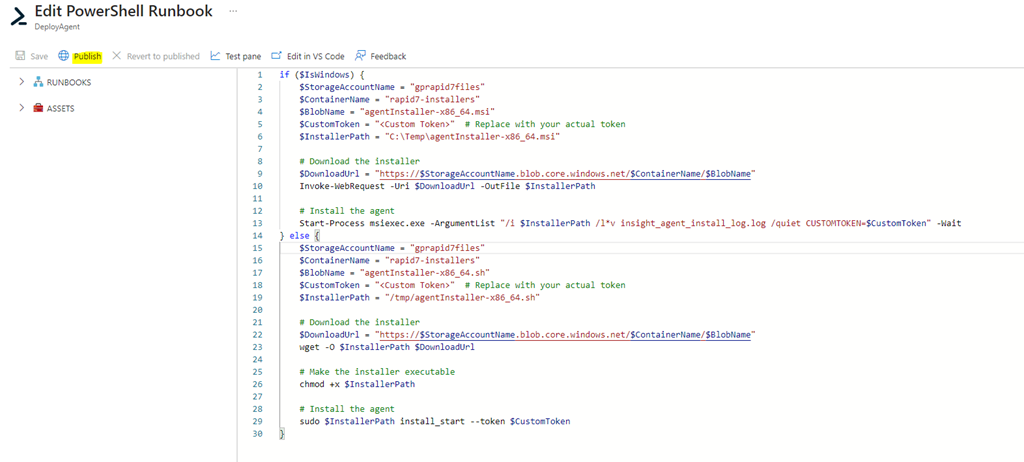
- The script can be adapted to handle both Windows and Linux environments:
if ($IsWindows) {
$StorageAccountName = "<YourStorageAccountName>"
$ContainerName = "rapid7-installers"
$BlobName = "agentInstaller-x86_64.msi"
$CustomToken = "<Custom Token>" # Replace with your actual token
$InstallerPath = "C:\Temp\agentInstaller-x86_64.msi"
# Download the installer
$DownloadUrl = "https://$StorageAccountName.blob.core.windows.net/$ContainerName/$BlobName"
Invoke-WebRequest -Uri $DownloadUrl -OutFile $InstallerPath
# Install the agent
Start-Process msiexec.exe -ArgumentList "/i $InstallerPath /l*v insight_agent_install_log.log /quiet CUSTOMTOKEN=$CustomToken" -Wait
} else {
$StorageAccountName = "<YourStorageAccountName>"
$ContainerName = "rapid7-installers"
$BlobName = "agentInstaller-x86_64.sh"
$CustomToken = "<Custom Token>" # Replace with your actual token
$InstallerPath = "/tmp/agentInstaller-x86_64.sh"
# Download the installer
$DownloadUrl = "https://$StorageAccountName.blob.core.windows.net/$ContainerName/$BlobName"
wget -O $InstallerPath $DownloadUrl
# Make the installer executable
chmod +x $InstallerPath
# Install the agent
sudo $InstallerPath install_start –token $CustomToken
}
- Save and Publish the Runbook:
- Click "Save" and then "Publish".
Step 6: Assign the Runbook to Hybrid Worker Groups
- Start the Runbook:
- Go to the Runbook, click "Start".
- Choose the Hybrid Worker Group that includes your Azure and AWS servers.
- Configure any parameters if necessary and start the Runbook.
Step 7: Monitor the Deployment
- Monitor the job status in the Azure portal to ensure the script executes correctly.
- Check that the Rapid7 agent installs successfully on all targeted servers.
Step 8: (Optional) Schedule the Runbook
- Add a Schedule:
- In the Runbook, go to "Schedules" and click "Add a schedule".
- Configure the schedule as per your requirements to run the Runbook at specific times or intervals.
Conclusion
By following these steps, you can automate the deployment of the Rapid7 agent across both Azure and AWS servers managed via Azure Arc. This method leverages Azure Automation and Hybrid Runbook Workers, ensuring a seamless and efficient deployment process. This setup not only saves time but also ensures consistent agent deployment across different environments.
Feel free to reach out if you have any questions or need further assistance with your setup!
Joao Paulo Costa


 Get Practical